Fluent OMS Web App
Topic
Author:
Fluent Commerce
Changed on:
19 Aug 2025
Overview
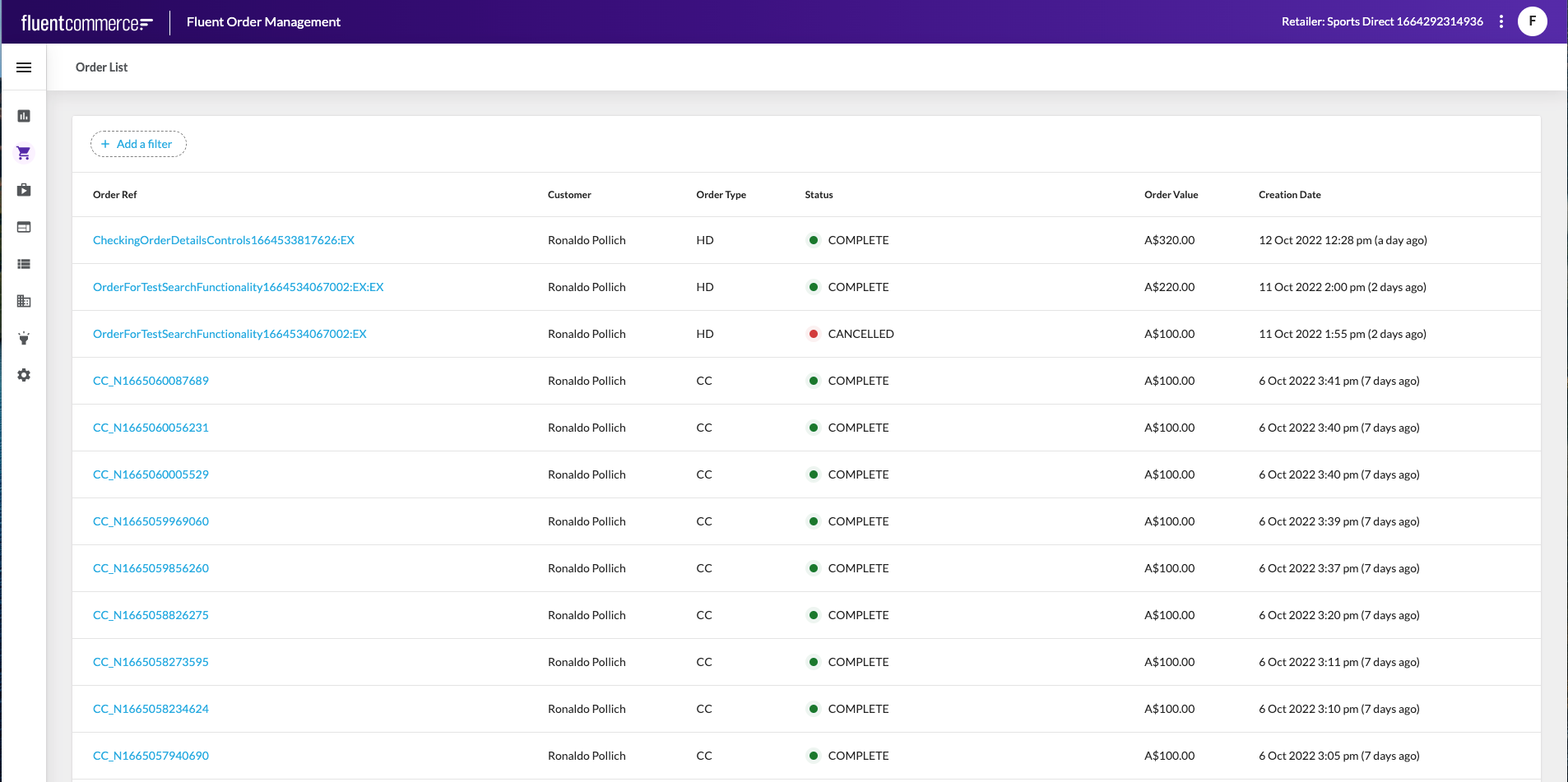
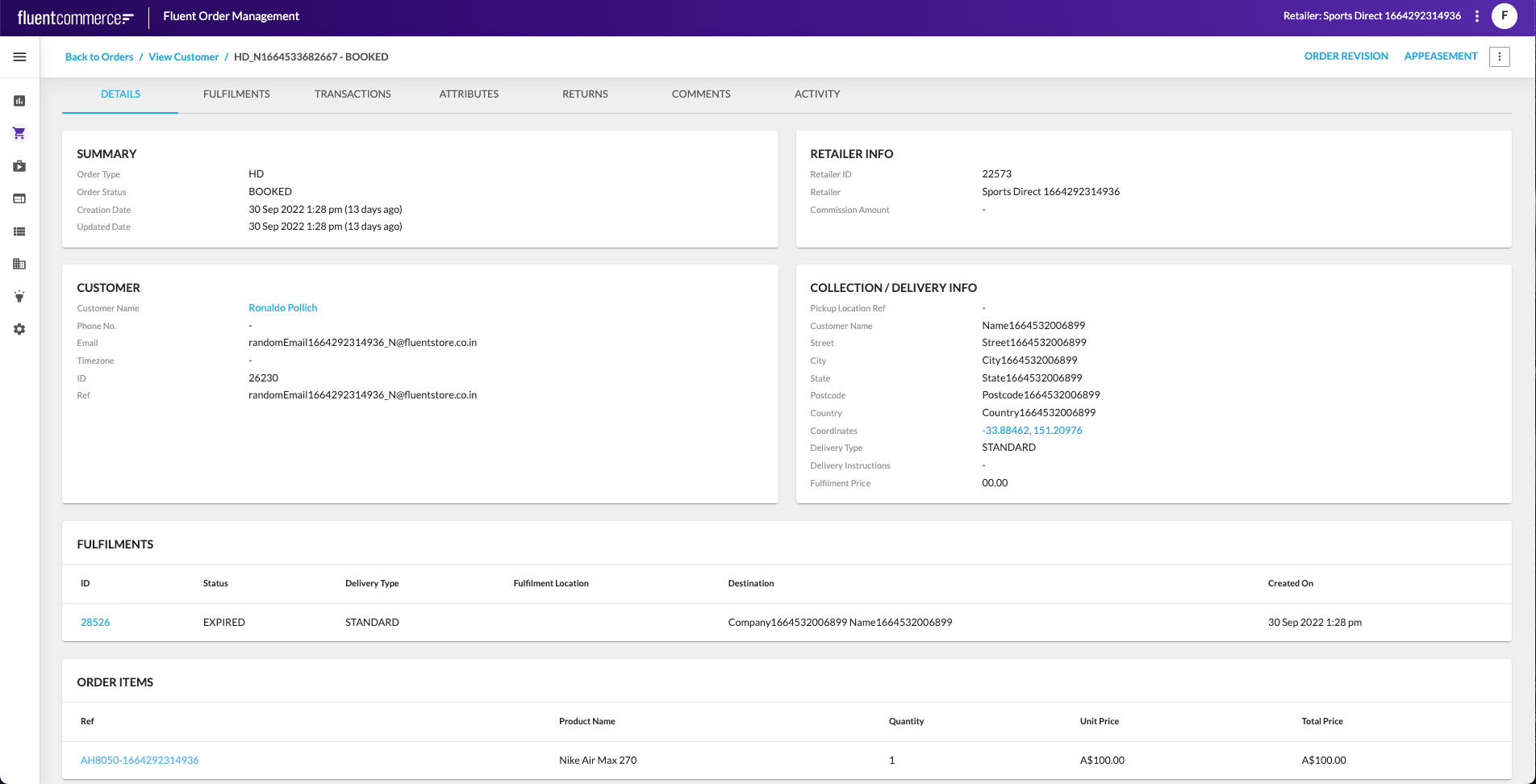
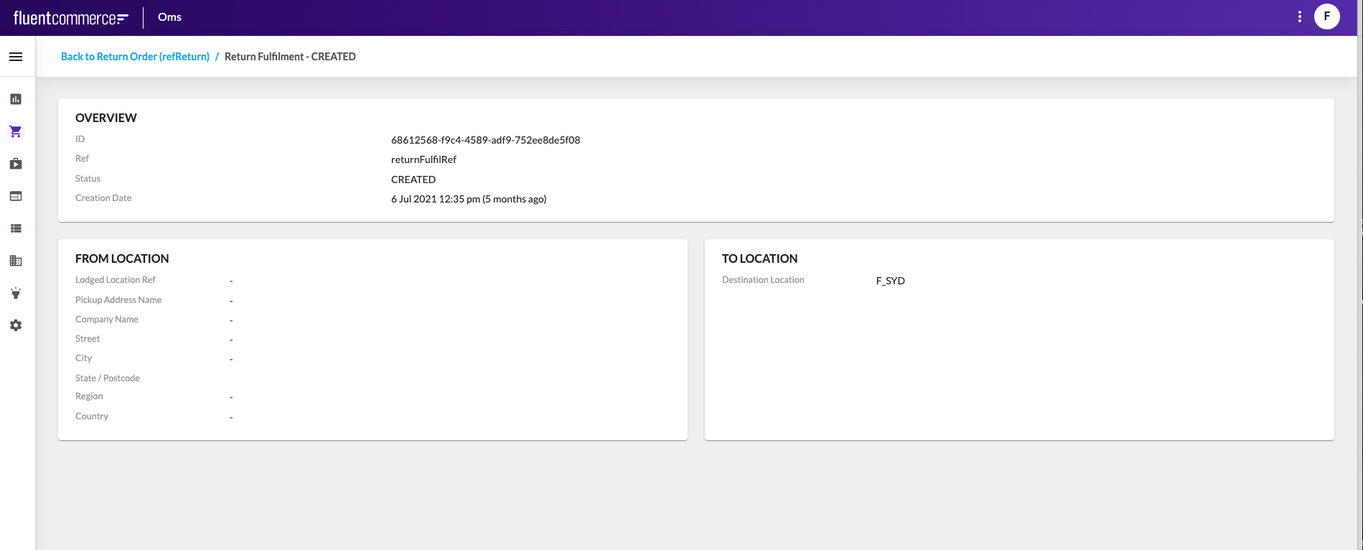
The Fluent OMS web app is a central application for managing core retail operations through a single, web-based interface. It delivers end-to-end capabilities across multiple user journeys, including order management, product availability, inventory control, and fulfilment.Dashboard Interface
Author:
Fluent Commerce
Changed on:
22 Oct 2025
Overview
The Fluent OMS Web App's dashboard interface serves as a central hub for monitoring and managing order activity and alerts.It provides real-time visibility into key operational metrics — such as orders received, escalations, returns, cancellations, and pending actions — enabling quick responses to exceptions.The dashboard is fully configurable to match business requirements. The numbers displayed represent the total records returned by these queries.
Key points
- The OMS Dashboard provides real-time visibility into orders and alerts, supporting exception management.
- Data is sourced from configurable GraphQL queries defined in the manifest.
- Tiles are grouped into two sections: Orders and Alerts, each showing counts for specific timeframes or statuses.
- Tile colors (Green, Orange, Red) change based on the Dashboard Threshold component configuration.
- The maximum count displayed per tile defaults to 50; higher values show as 50+.
- Clicking a tile applies a preconfigured search filter and navigates to the relevant list view.
- Counts are based on the timestamp of the last dashboard load or refresh.
Dashboard
The dashboard layout organizes key operational metrics into visually distinct tiles, grouped into Orders and Alerts for streamlined monitoring and navigation.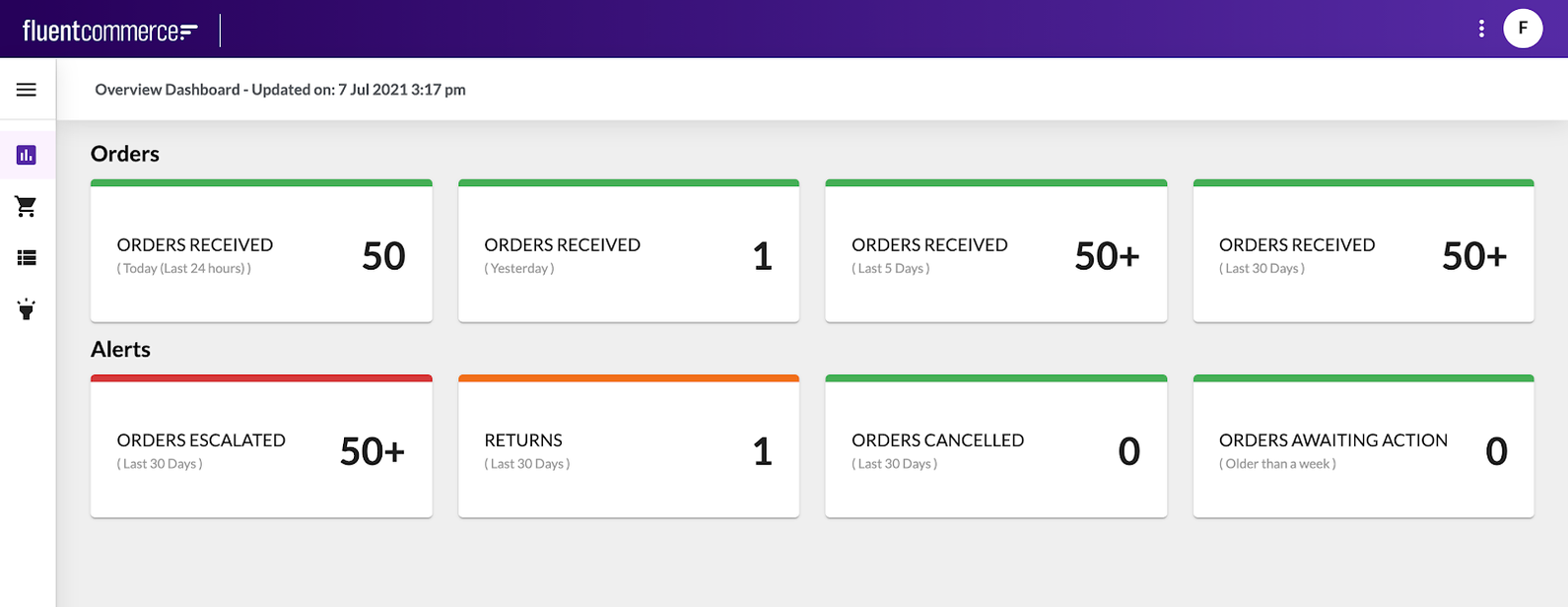
Orders Block
Displays the number of orders received during specific time frames:- Today (Last 24 Hours)
- Shows orders received from the current time back to the same time yesterday.
- Clicking opens the Order List filtered to this time period.
- Yesterday
- Shows orders received between 24 and 48 hours ago.
- Clicking opens the Order List for this time range.
- Last 5 Days
- Orders received in the past five days.
- Last 30 Days
- Orders received in the past month.
Alerts Block
Highlights operational issues and exceptions requiring attention:- Orders Escalated (Last 30 Days)
- Orders with at least one fulfilment in Escalated status.
- Color coding:
- Green: < 1
- Orange: 1–10
- Red: > 10
- Returns (Last 30 Days)
- Return orders created in the last month.
- Color coding:
- Green: < 1
- Orange: 1–100
- Red: > 100
- Orders Cancelled (Last 30 Days)
- Orders cancelled within the last month.
- Color coding:
- Green: < 5
- Orange: 5–100
- Red: > 100
- Orders Awaiting Action (Older than a Week)
- Orders in PICK_PACK status for more than seven days.
- Color coding:
- Green: < 5
- Orange: 5–100
- Red: > 100
Related content
Order Management Interface
Author:
Fluent Commerce
Changed on:
19 Aug 2025
Overview
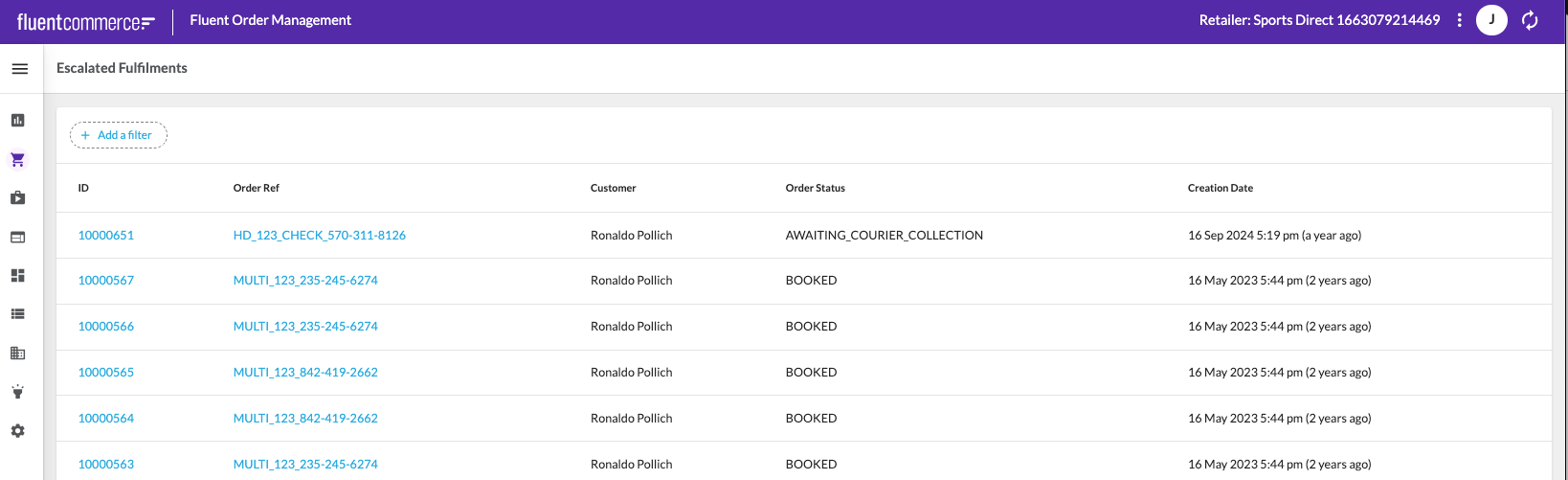
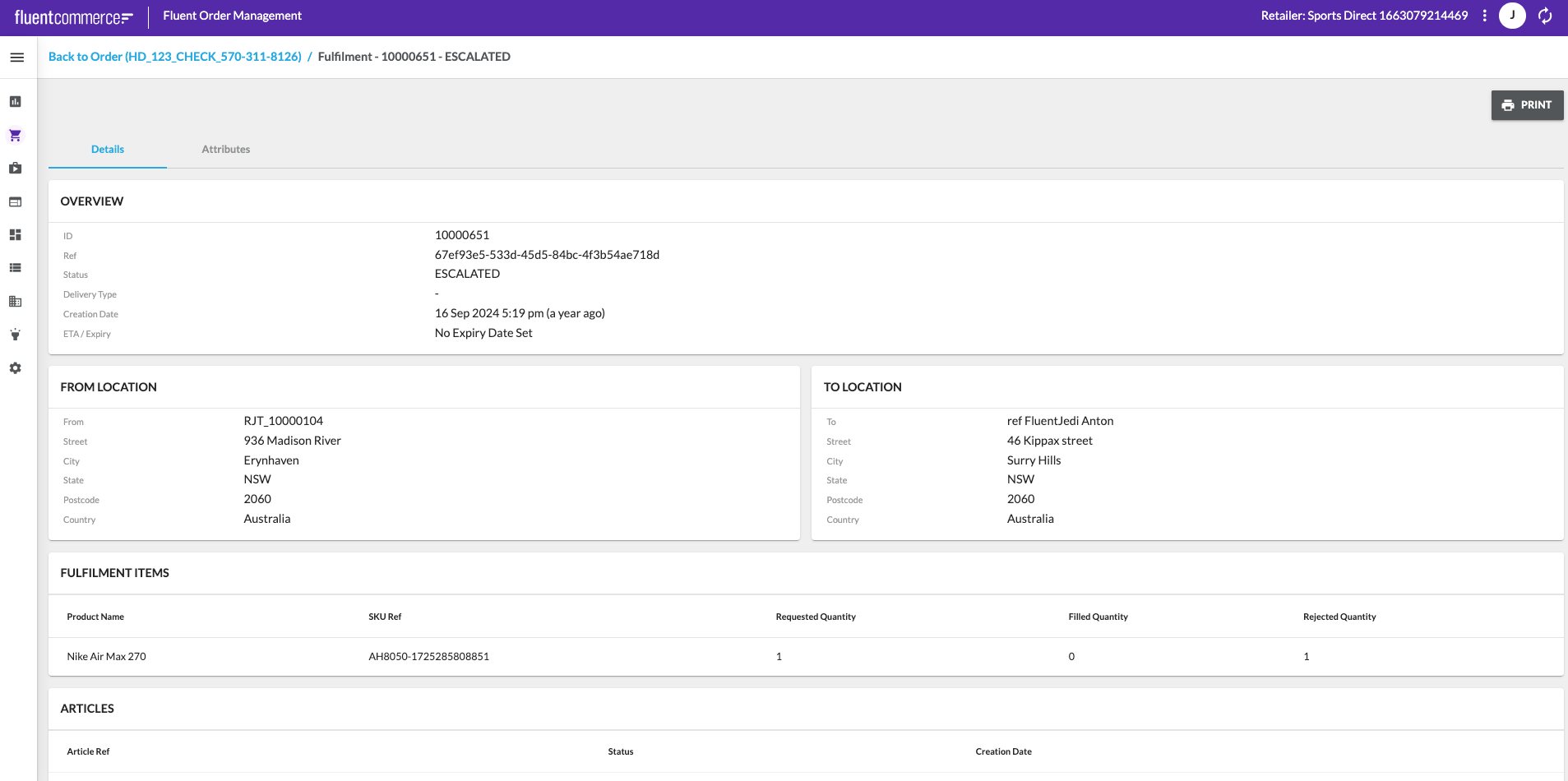
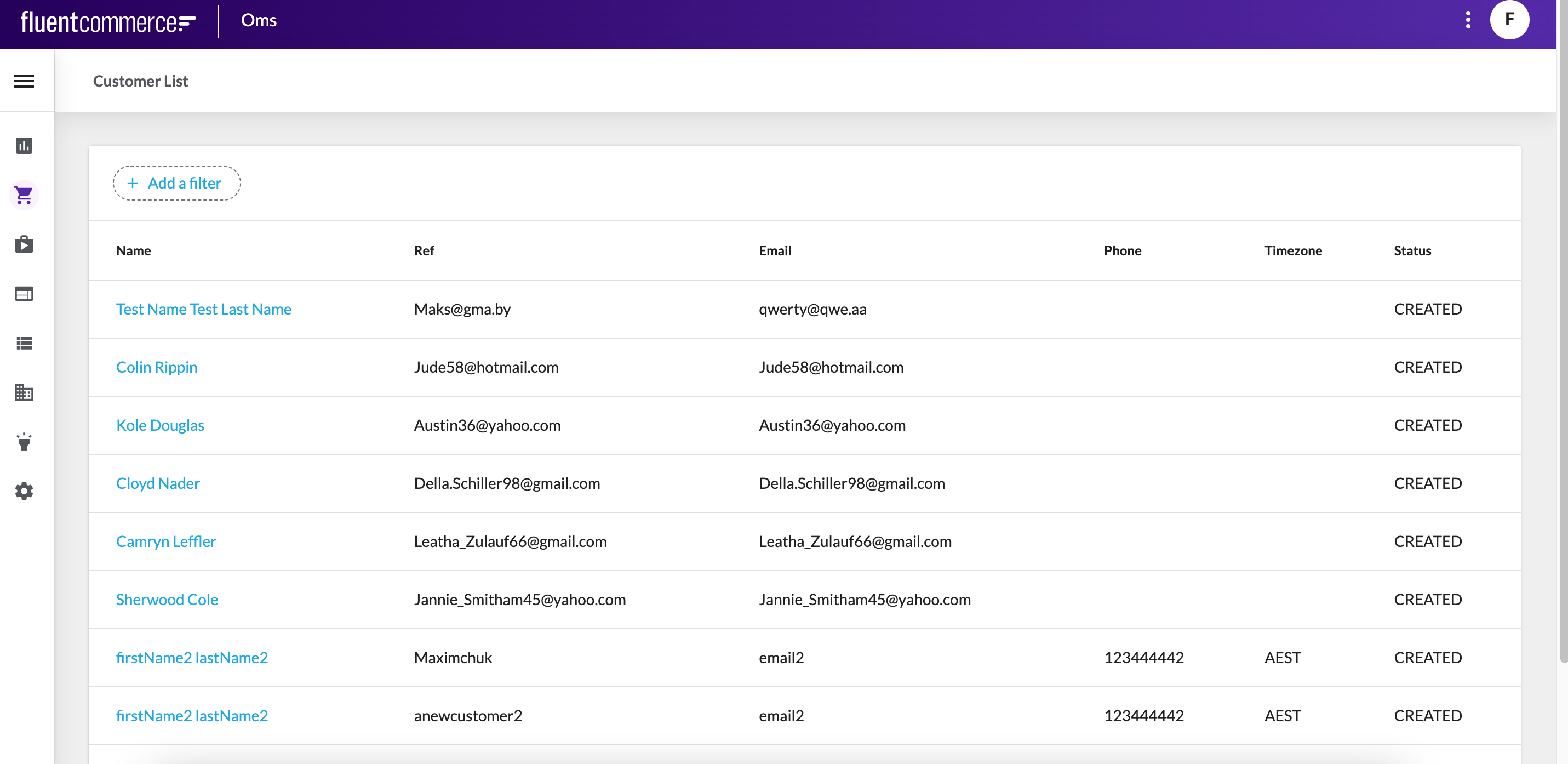
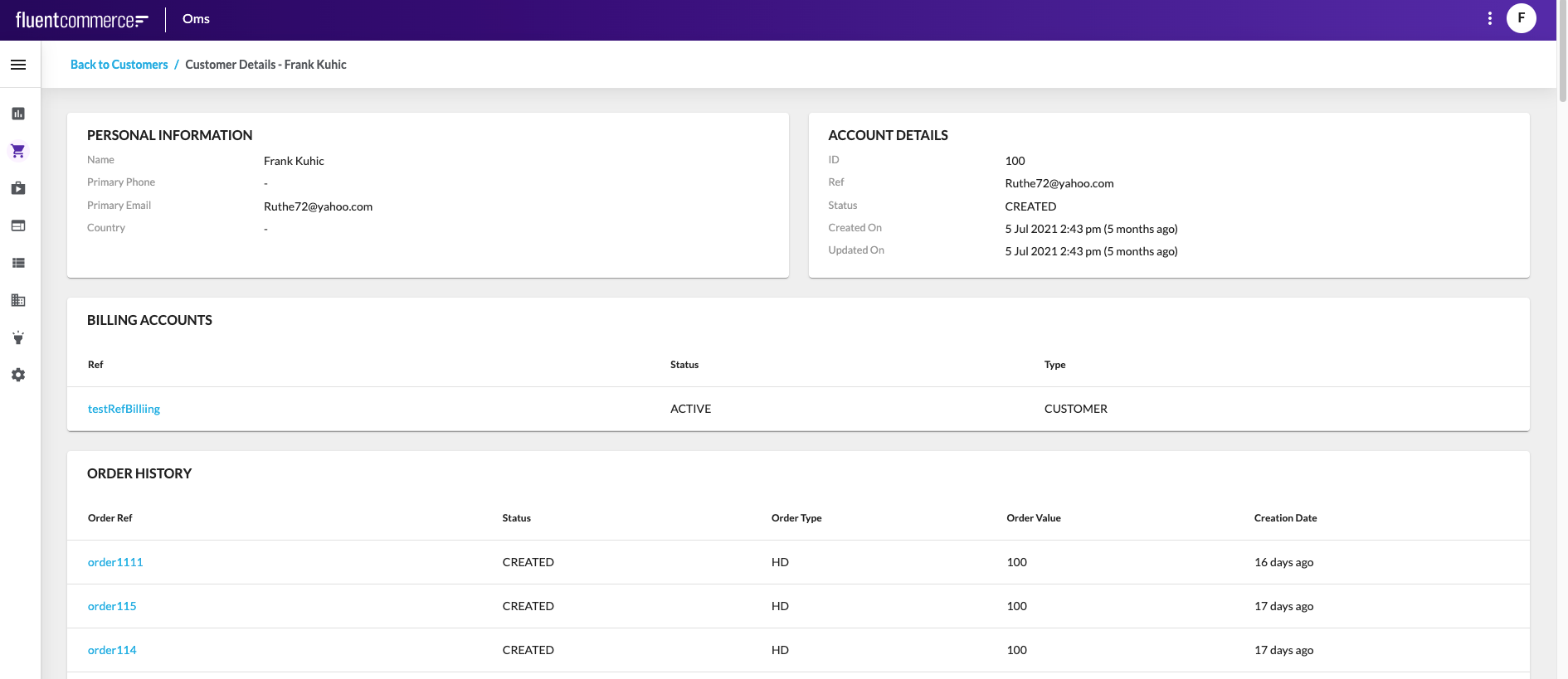
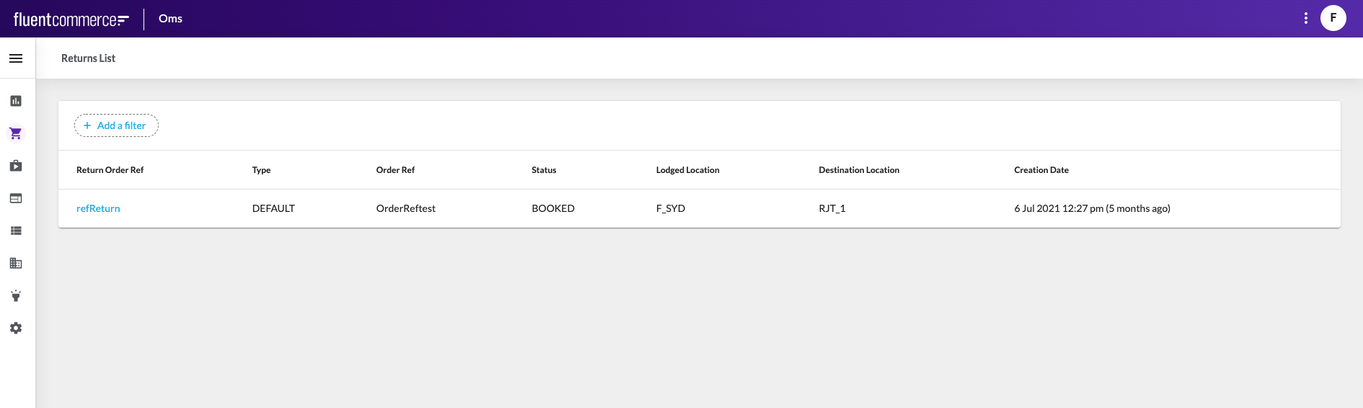
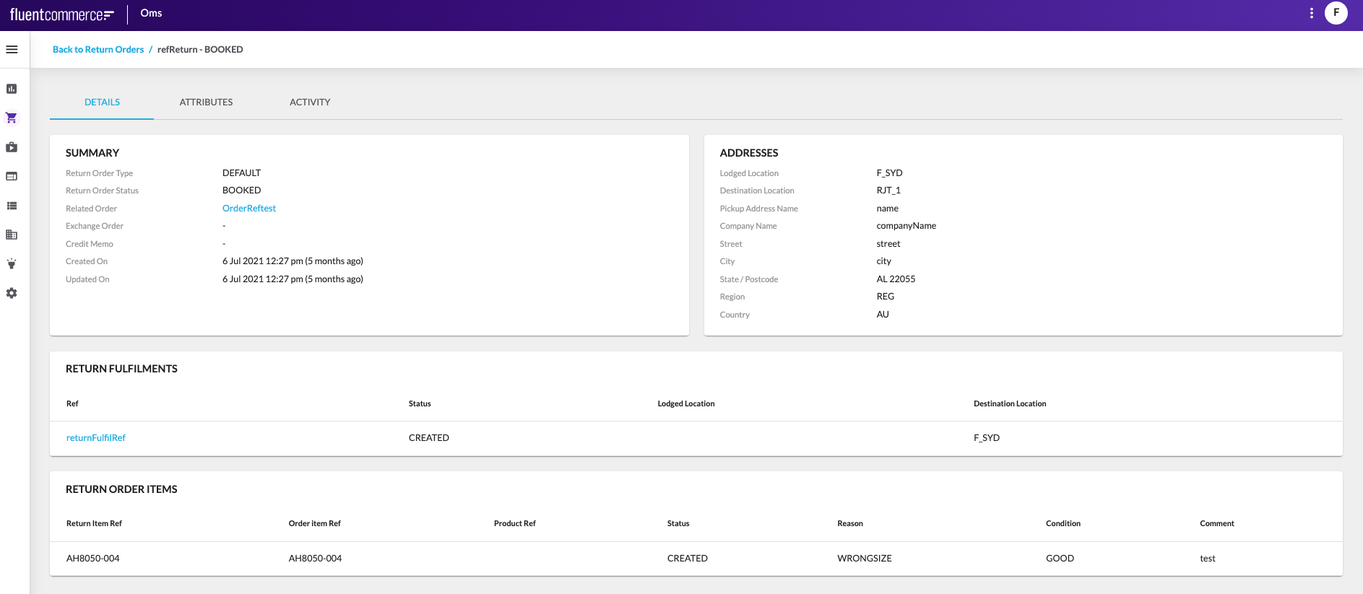
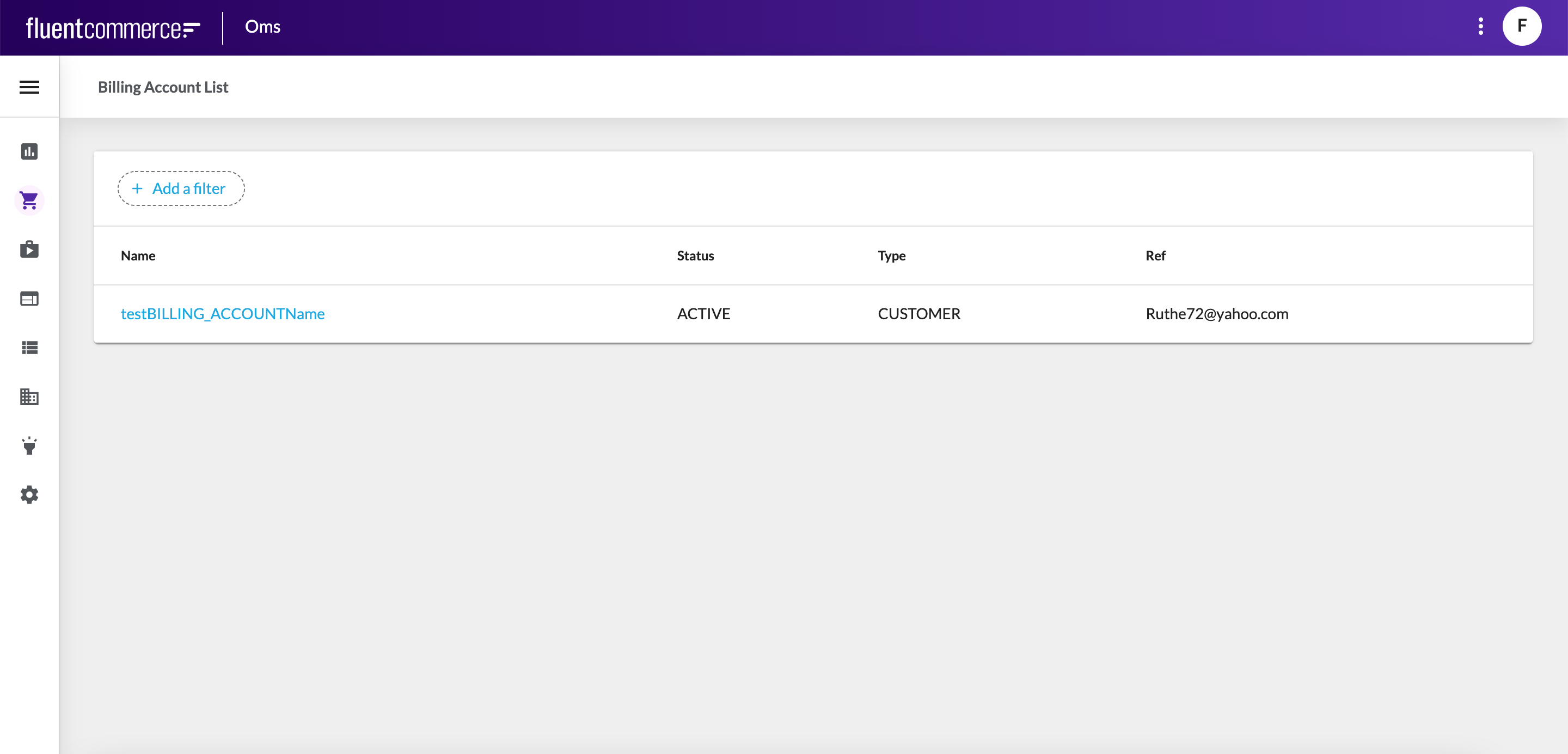
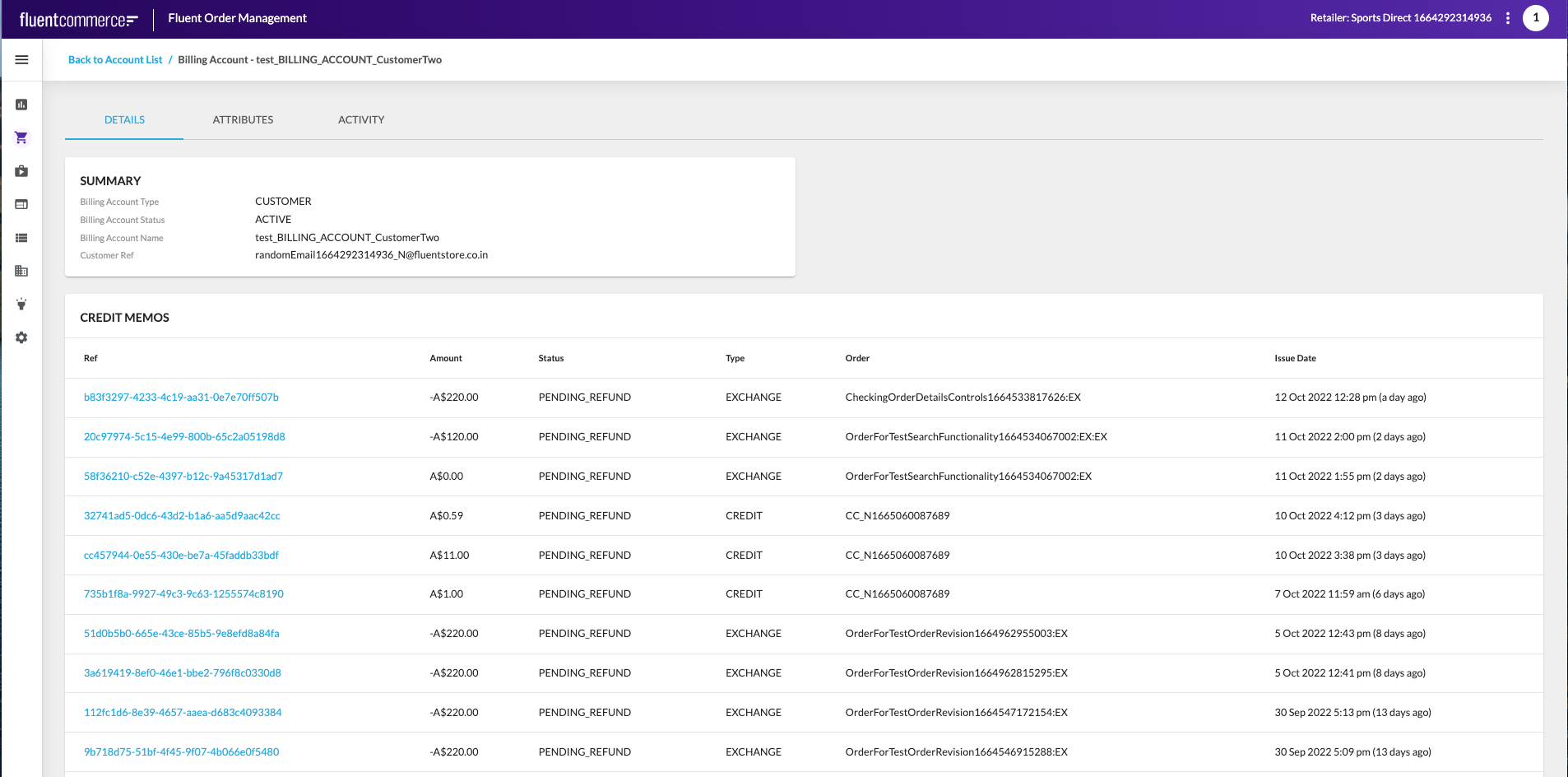
The Order Management interface is the central workspace for managing the order lifecycle. It brings together orders, customers, billing accounts, returns, and escalated fulfilments in one view. Orders provide access to details and fulfilments. Customers show records including accounts and order history. Billing Accounts manage financial operations such as invoices, memos, and payments. Returns track customer or system-initiated cases with refund details. Escalated Fulfilments highlight exceptions requiring action.Key points
- The Order Management interface brings together orders, customers, billing accounts, returns, and escalated fulfilments in one place.
- It enables visibility and control over the entire order lifecycle, from creation through fulfilment, return, or escalation.
Availability Interface
Author:
Fluent Commerce
Changed on:
18 Aug 2025
Overview
The Availability interface provides visibility into fulfilment options generated by the system when evaluating how an order can be completed. Availability ensures that orders are processed in line with business rules, inventory availability, and delivery or collection methods.The interface contains one submenu: Fulfilment Options. This section provides access to all generated fulfilment options and their related fulfilment plans.Key points
- The Availability interface contains one submenu: Fulfilment Options.
- Fulfilment Options represent possible ways to complete an order, while Fulfilment Plans define the strategy behind each option.
- Together, these views provide oversight of how orders are fulfilled according to rules and inventory.
Fulfilment Options
The Fulfilment Options page lists all available options created for proposed or confirmed orders. Options represent potential ways an order can be fulfilled, including order type, status, and associated configuration details. Selecting a fulfilment option opens the Fulfilment Option Details page. This view includes general details, addresses, linked fulfilment plans, products, and an activity log.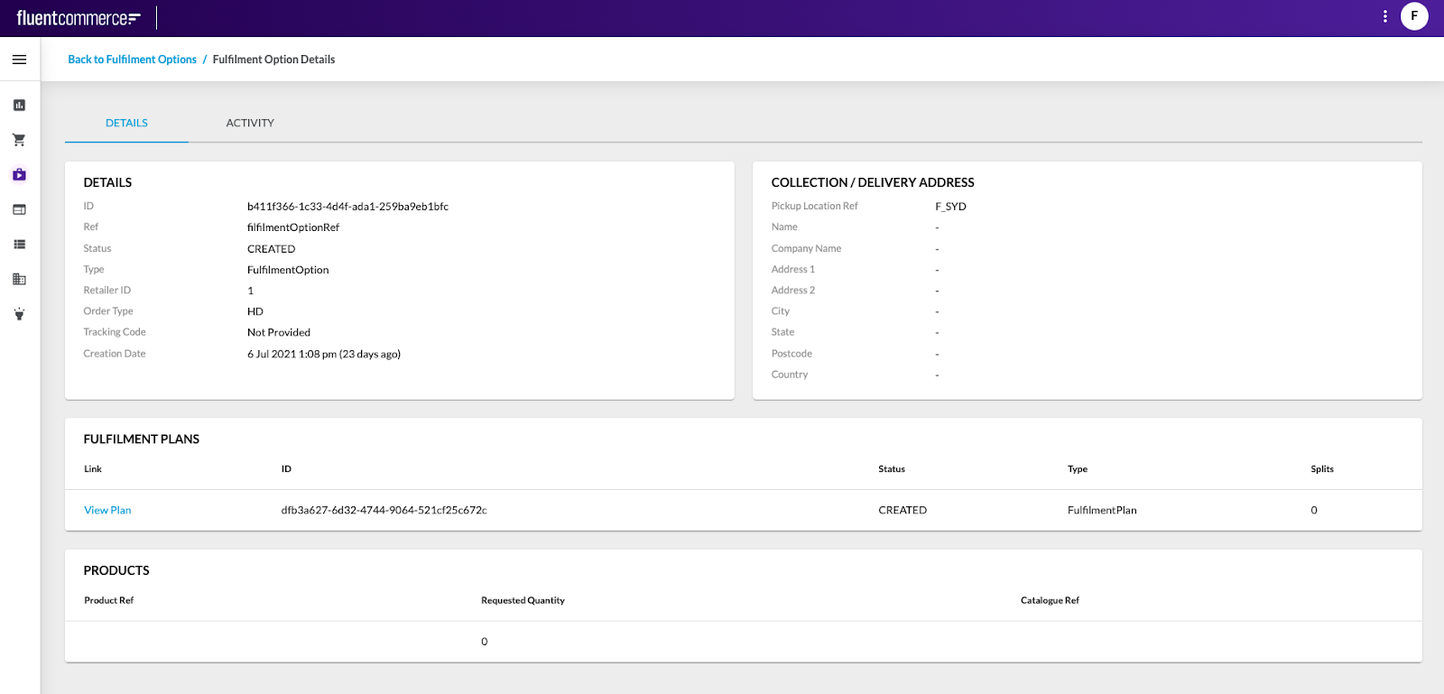
Fulfilment Plans
Each Fulfilment Option may include one or more Fulfilment Plans. A plan defines the strategy for completing the order, which may involve multiple fulfilments across different locations.The Fulfilment Plan Details view highlights identifiers, estimated timings (e.g., ETA), fulfilment methods, and the associated fulfilments required to complete the order.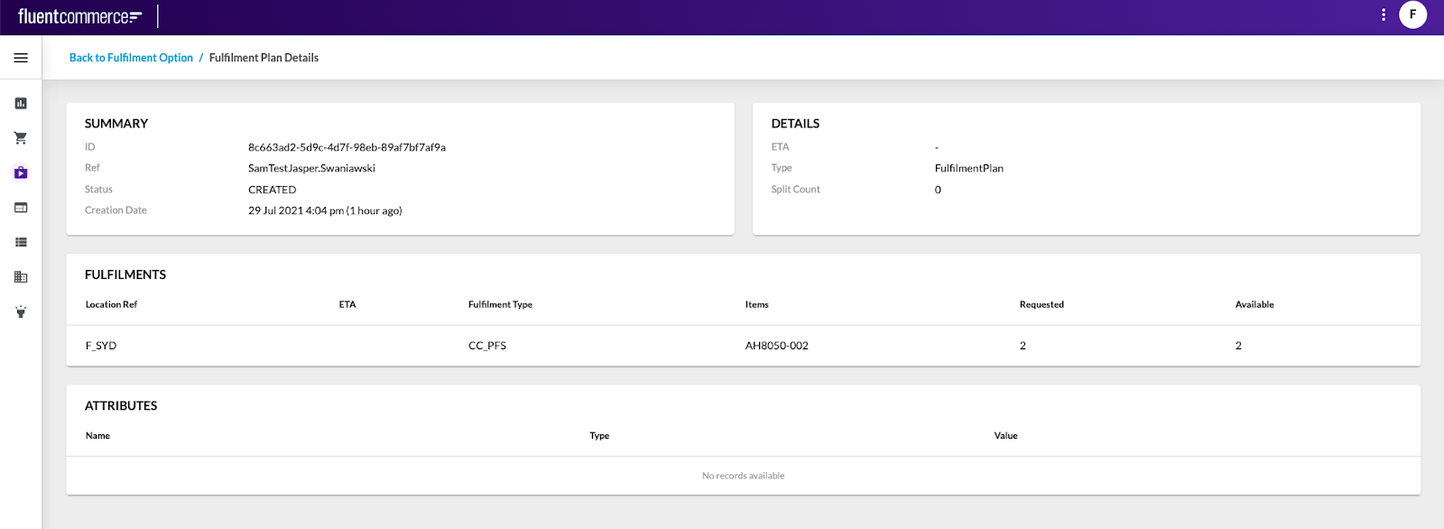
Related content
Products Interface
Author:
Fluent Commerce
Changed on:
30 July 2025
Overview
The Products interface is a collection of products and any attributes and details associated with each product in the category.The Products interface of the Fluent Web App provides comprehensive capabilities:- Product Catalog management
- Standard and Variant Product management
- Category management
- Categories
- Product Catalogues
Key points
- The Products interface is a centralized hub for managing a collection of products, encompassing all associated attributes and details, offering a holistic approach to product management.
- It focuses on Product Catalog management, Standard Product management, and Category management. It empowers users to efficiently organize and oversee their product-related information, providing a seamless and comprehensive solution.
- The interface offers specific configurations for managing Categories and Product Catalogs, ensuring a tailored and effective product categorization and cataloging approach.
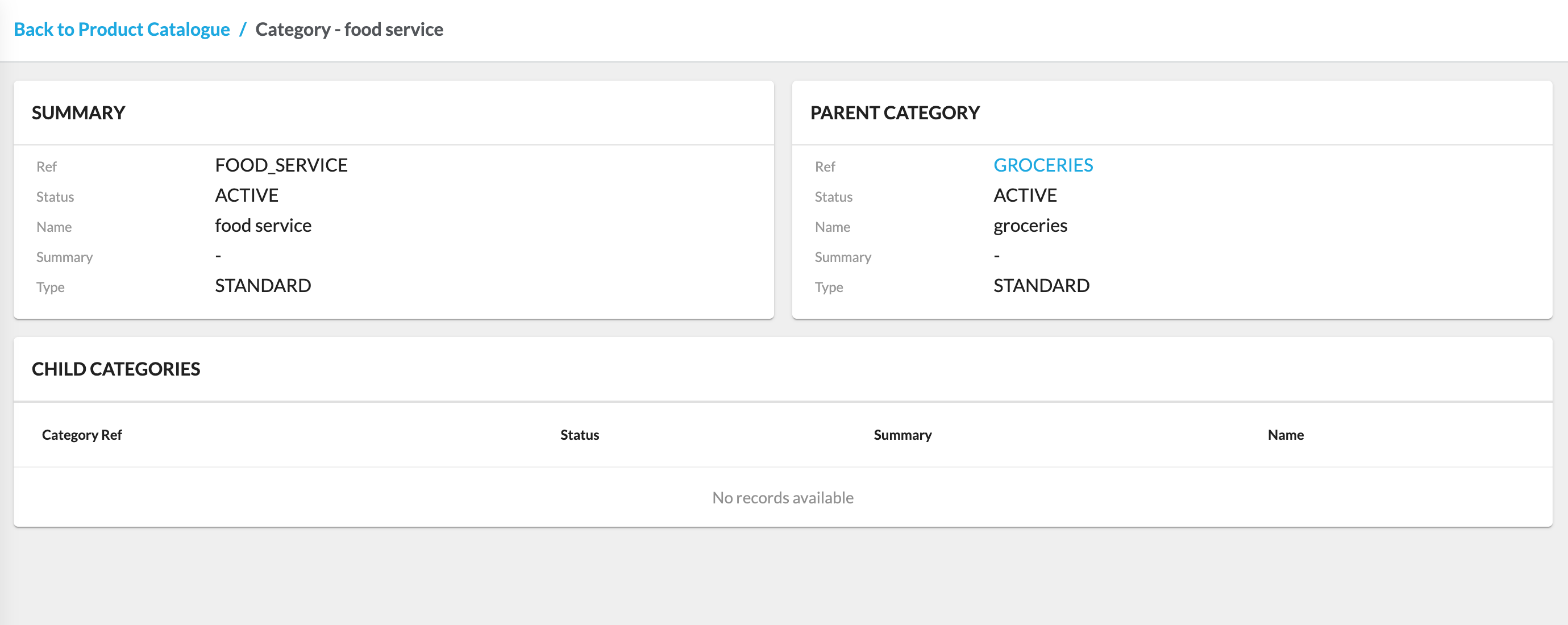
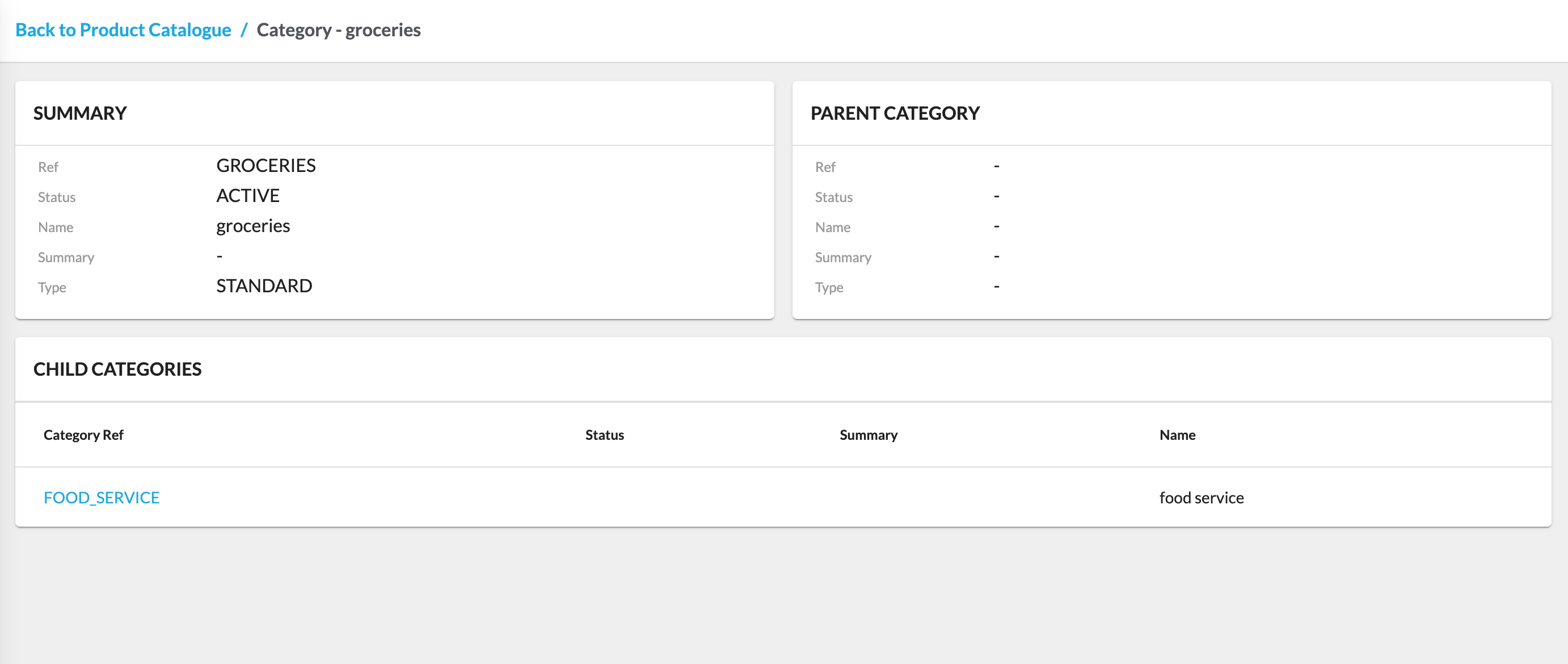
CategoriesProducts can be associated with categories and sub-categories.The Categories page displays the list of all available categories. Clicking 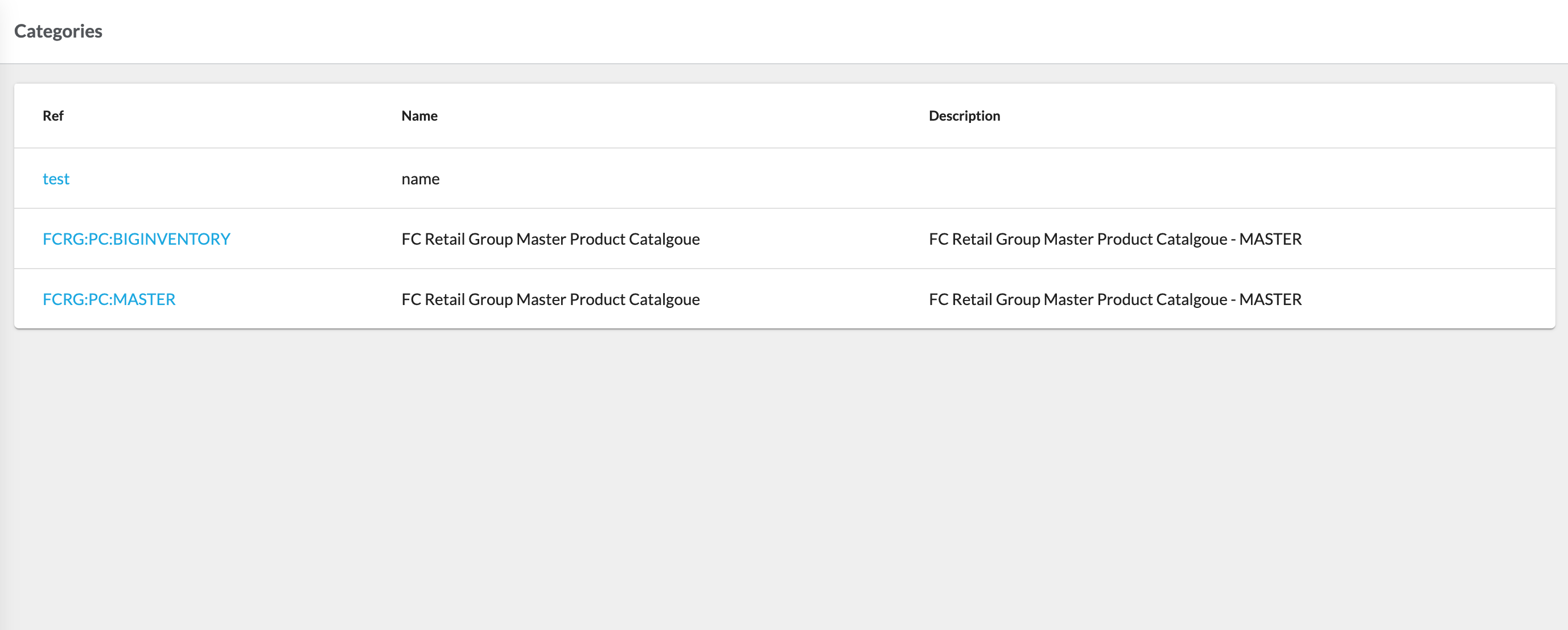
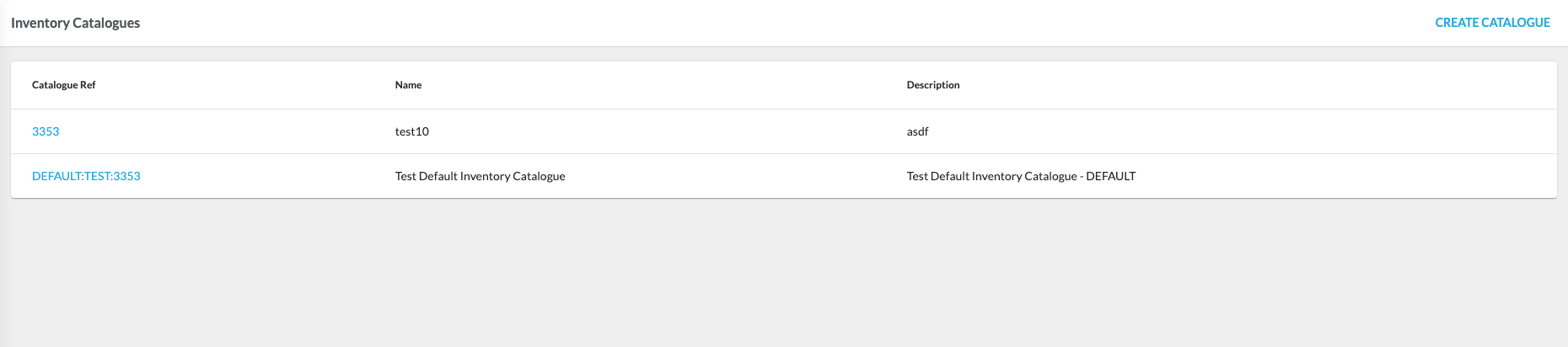
 Product CataloguesA Product Catalog stores all the Products a retailer wants to sell and contains information that helps identify each product (e.g., name, color, description, product code).A retailer can have one or more Product Catalogs containing all its products. Each product catalog type has a corresponding workflow, referred to as a 'Product catalogue workflow,' which orchestrates products in the catalog. The retailer can configure workflows to add their specific business logic.Product Catalog Entities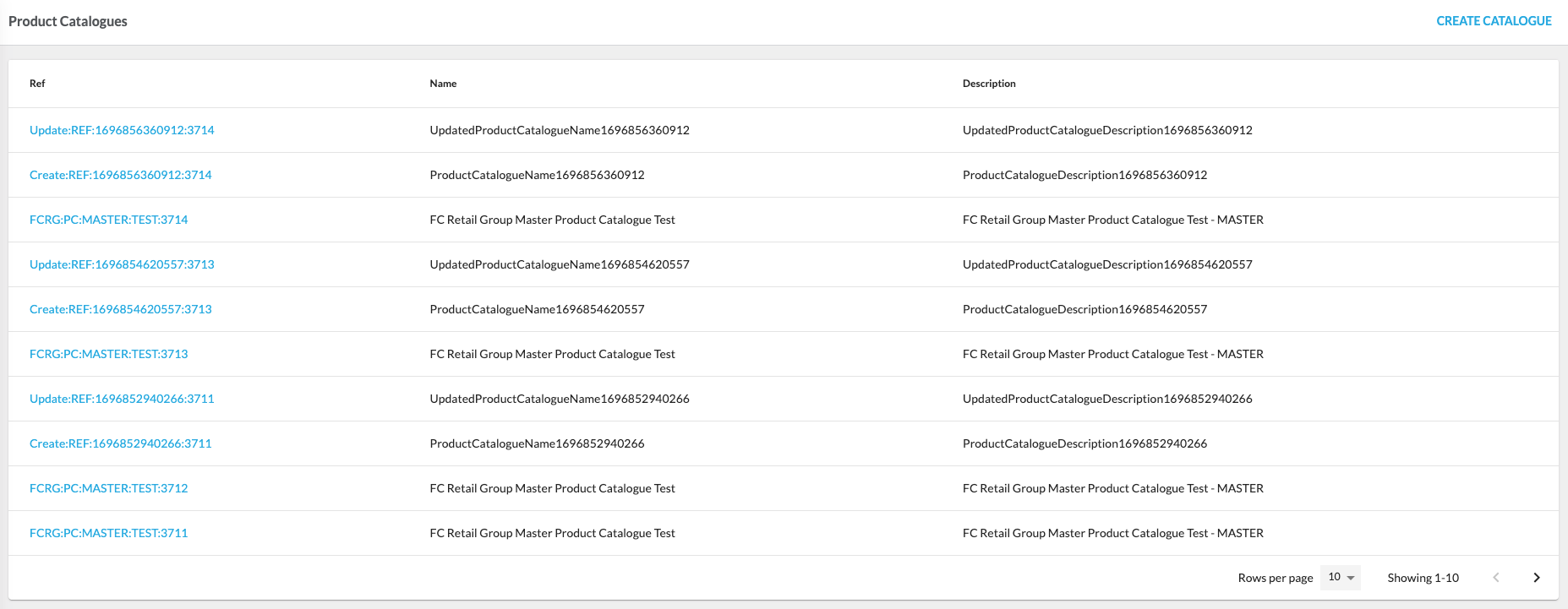
 FeaturesThe Products Section offers a set of features designed to help users efficiently manage products within the application.Manage Product CatalogsUsers can create and manage product catalogs within the Products Section to organize and maintain product information effectively.For step-by-step instructions on creating and editing product catalogs, refer to the guide:How to create and edit a Product Catalogue.
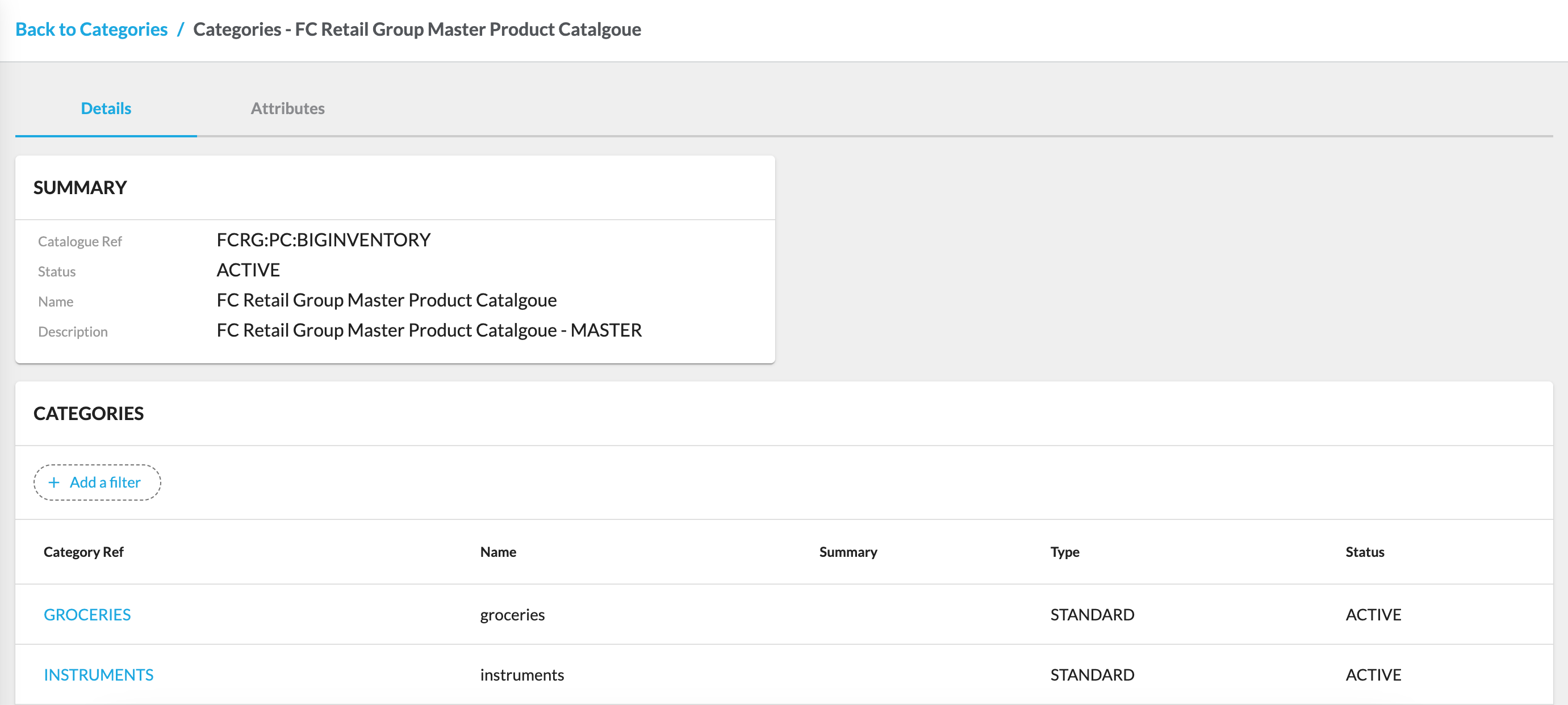
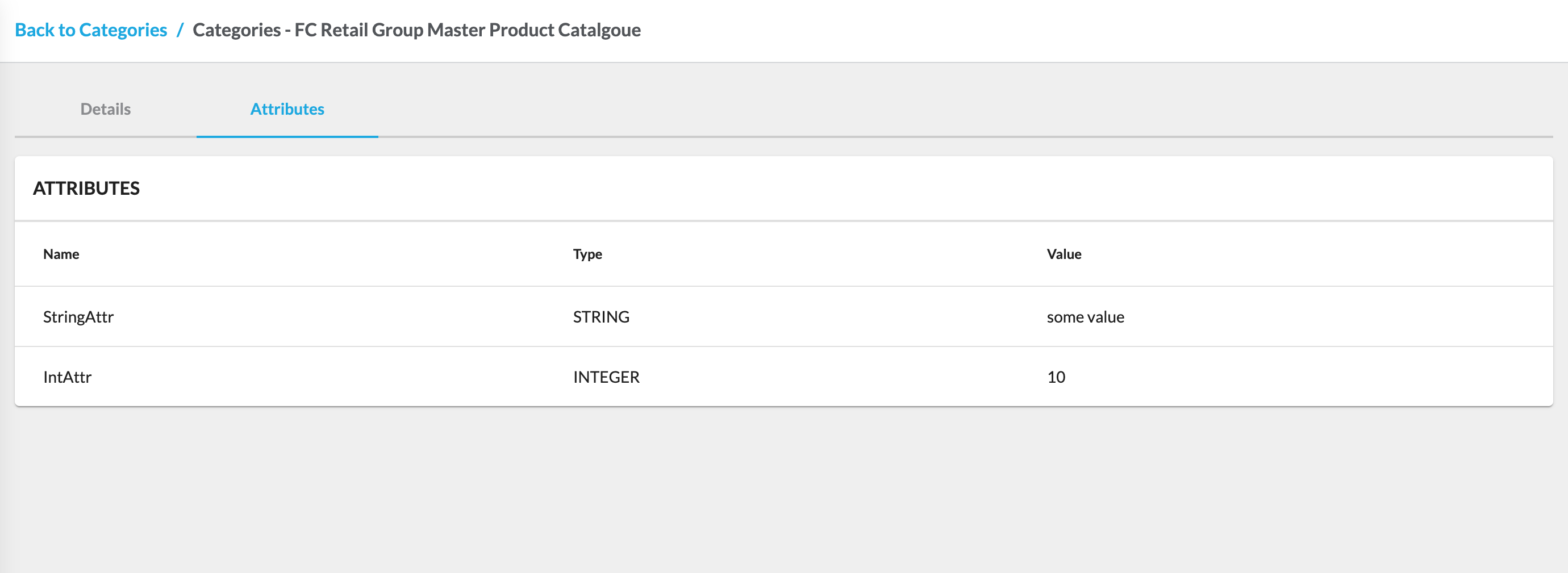
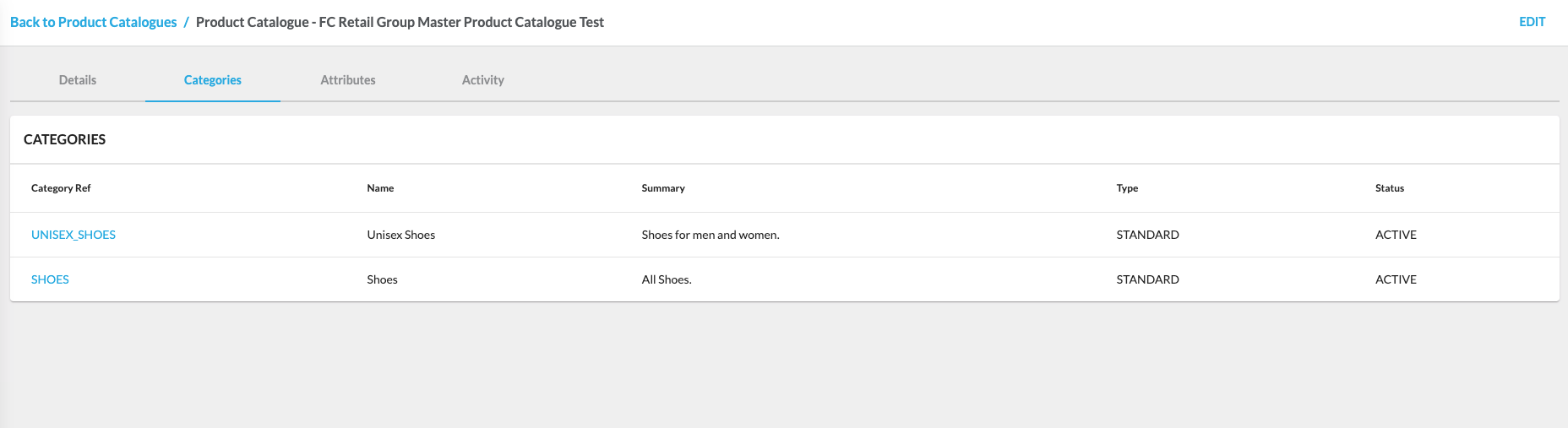
`Ref` opens the Product Catalogue Categories details page, which provides detailed information about the categories of a particular product catalogue. The detail view consists of the following tabs:- Details
- Attributes
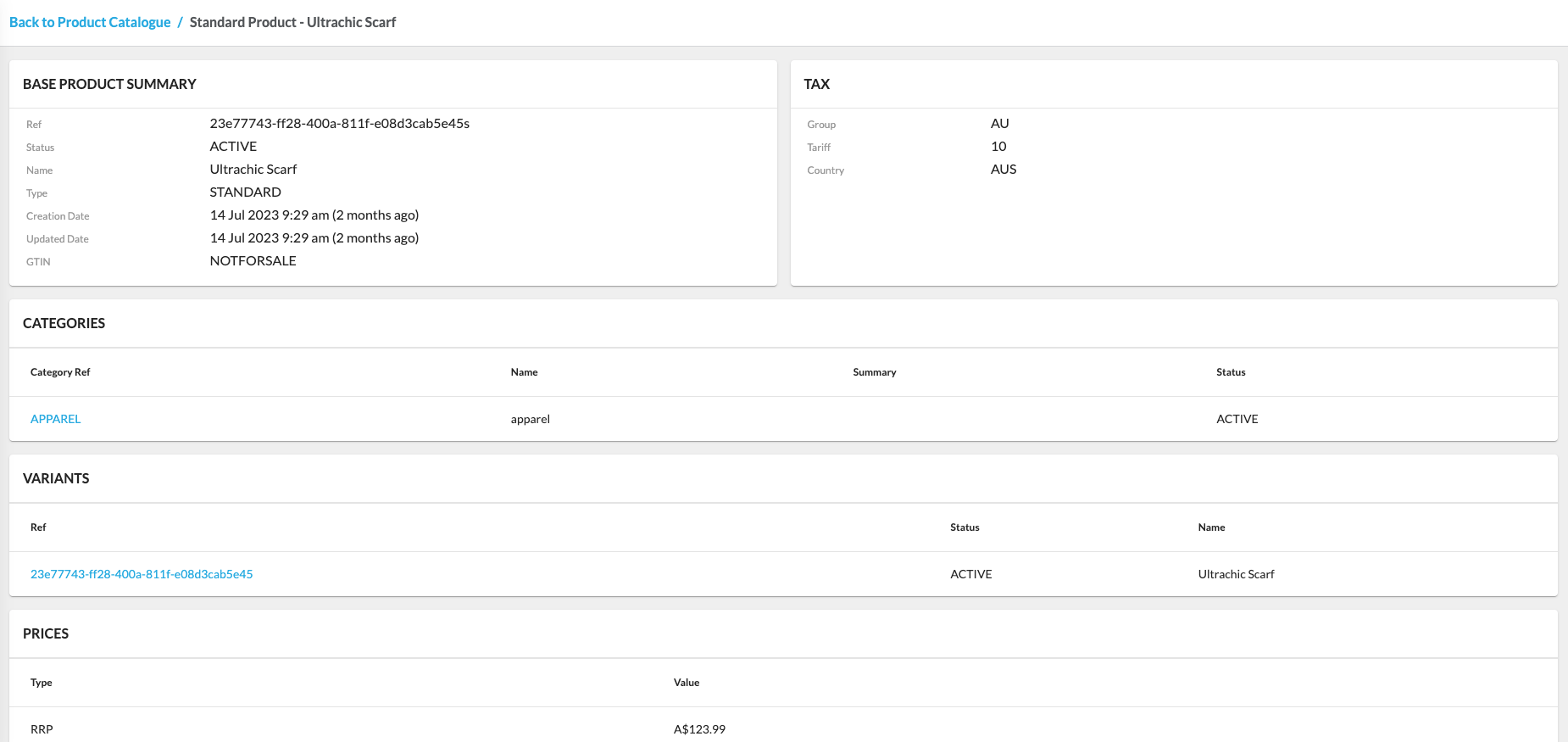
Product CataloguesA Product Catalog stores all the Products a retailer wants to sell and contains information that helps identify each product (e.g., name, color, description, product code).A retailer can have one or more Product Catalogs containing all its products. Each product catalog type has a corresponding workflow, referred to as a 'Product catalogue workflow,' which orchestrates products in the catalog. The retailer can configure workflows to add their specific business logic.Product Catalog Entities- Standard Product
- A standard product entity. It includes:
- a sellable, non-variant product
- a non-sellable base for a variant product
- a sellable or non-sellable component of a group product
- A standard product entity. It includes:
- Variant Product
- An entity that holds additional attributes for variation of a base product, such as size, color, volume, etc. The base product is non-sellable and stored as a Standard Product.
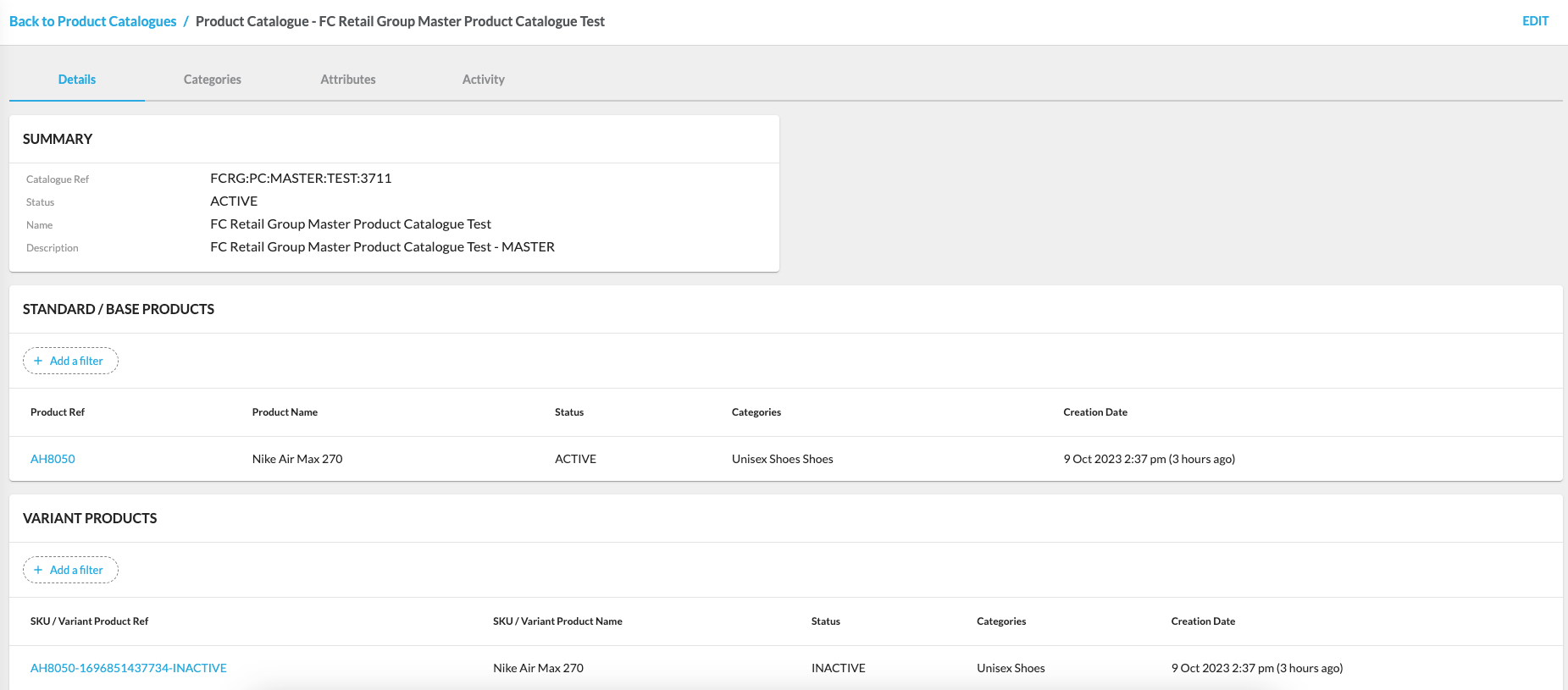
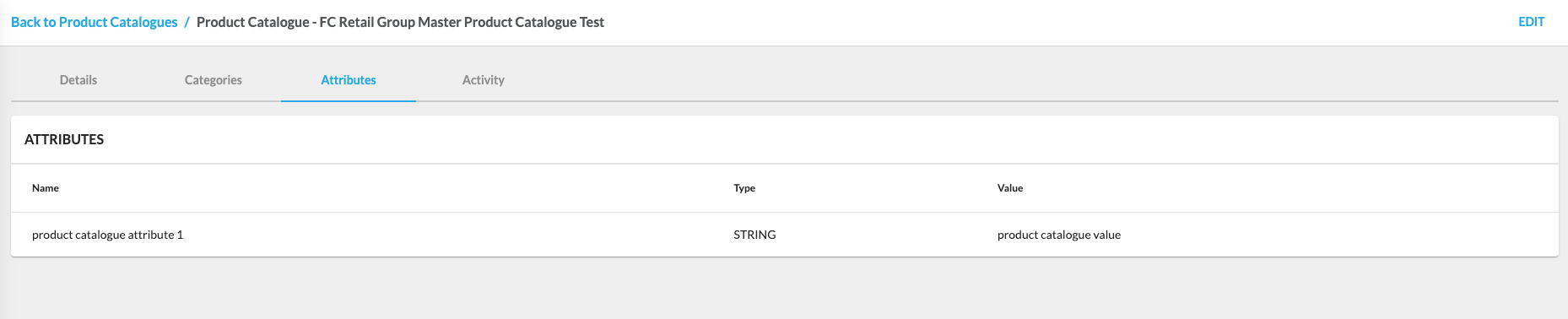
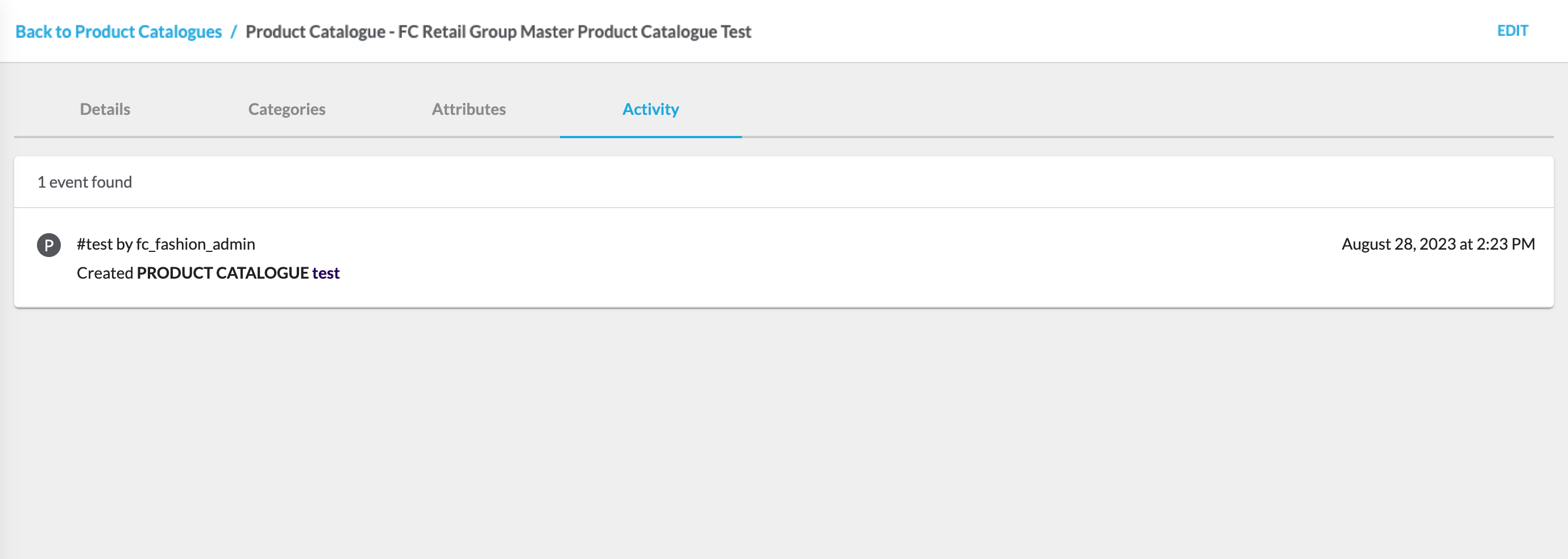
`Ref` opens the Product Catalogue details page, providing detailed information about the product catalogue.The detail view consists of the following tabs:- Details
- Categories
- Attributes
- Activity
FeaturesThe Products Section offers a set of features designed to help users efficiently manage products within the application.Manage Product CatalogsUsers can create and manage product catalogs within the Products Section to organize and maintain product information effectively.For step-by-step instructions on creating and editing product catalogs, refer to the guide:How to create and edit a Product Catalogue.Related content
Unified View of Inventory Interface
Author:
Yulia Andreyanova
Changed on:
29 Aug 2025
Overview
The Unified View of Inventory (UVOI) interface consolidates data from multiple locations and channels into a single, real-time interface. It provides centralized inventory search, advanced filtering, and customizable views. It enables you to monitor, analyze, and act on inventory data.Key points
- Centralized Inventory Management: The Unified View of Inventory (UVOI) consolidates data from multiple locations and channels into a single, real-time interface, simplifying inventory management and improving decision-making.
- Advanced Filtering Capabilities: UVOI offers flexible filters for refining search results, including catalog, stock status, on-hand quantities, and product or location-specific criteria.
- Comprehensive and Customizable Views: The Inventory Search page provides a detailed overview of inventory, with drill-down capabilities for stock levels, available-to-sell quantities, and update histories. Users can navigate to location-specific or product-specific views and customize filters and criteria to tailor the experience to their operational needs.
The Unified View of Inventory (UVOI) interface offers an intuitive interface tailored to your needs. It empowers you to access, analyze, and act on real-time inventory information without complexity.In this document, you will explore:
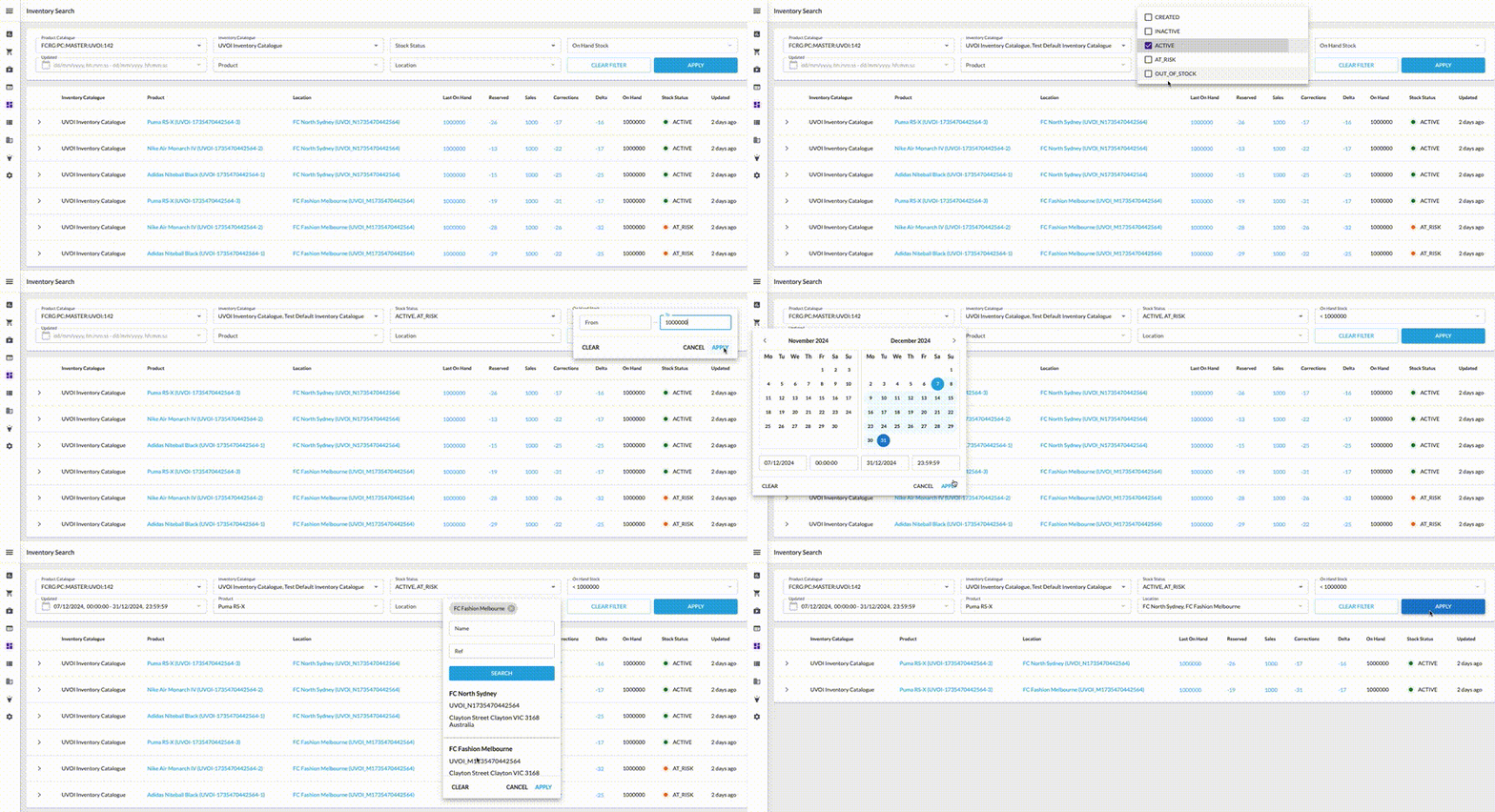 The Unified View of Inventory offers powerful and flexible filters to refine search results:
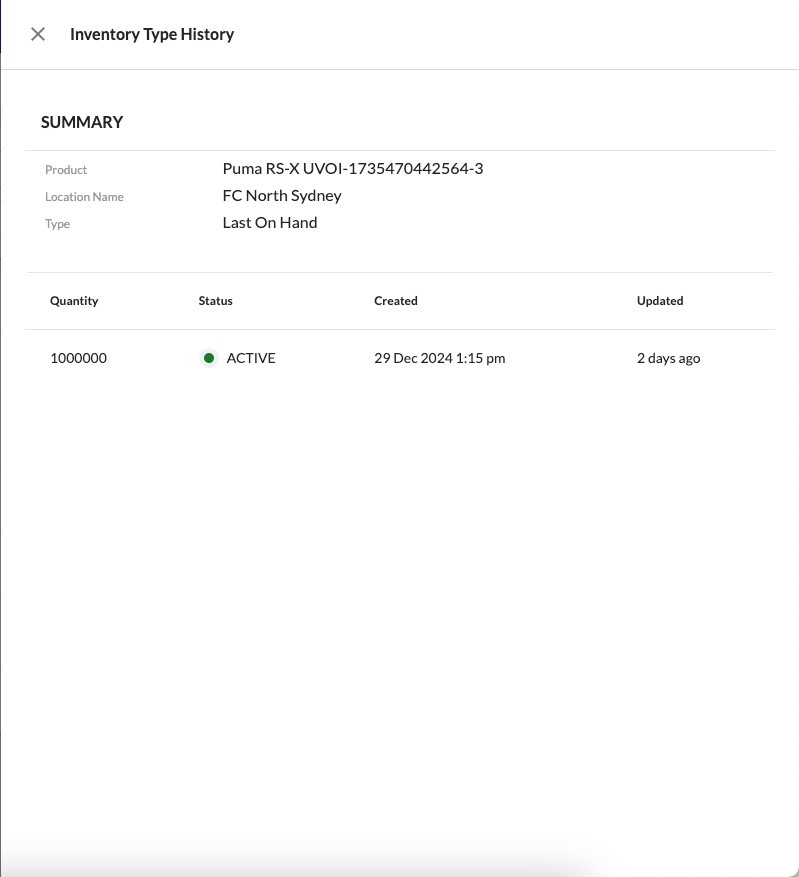
 Clicking any quantity cell opens a Type History Drawer, displaying the history of changes for that inventory quantity type.
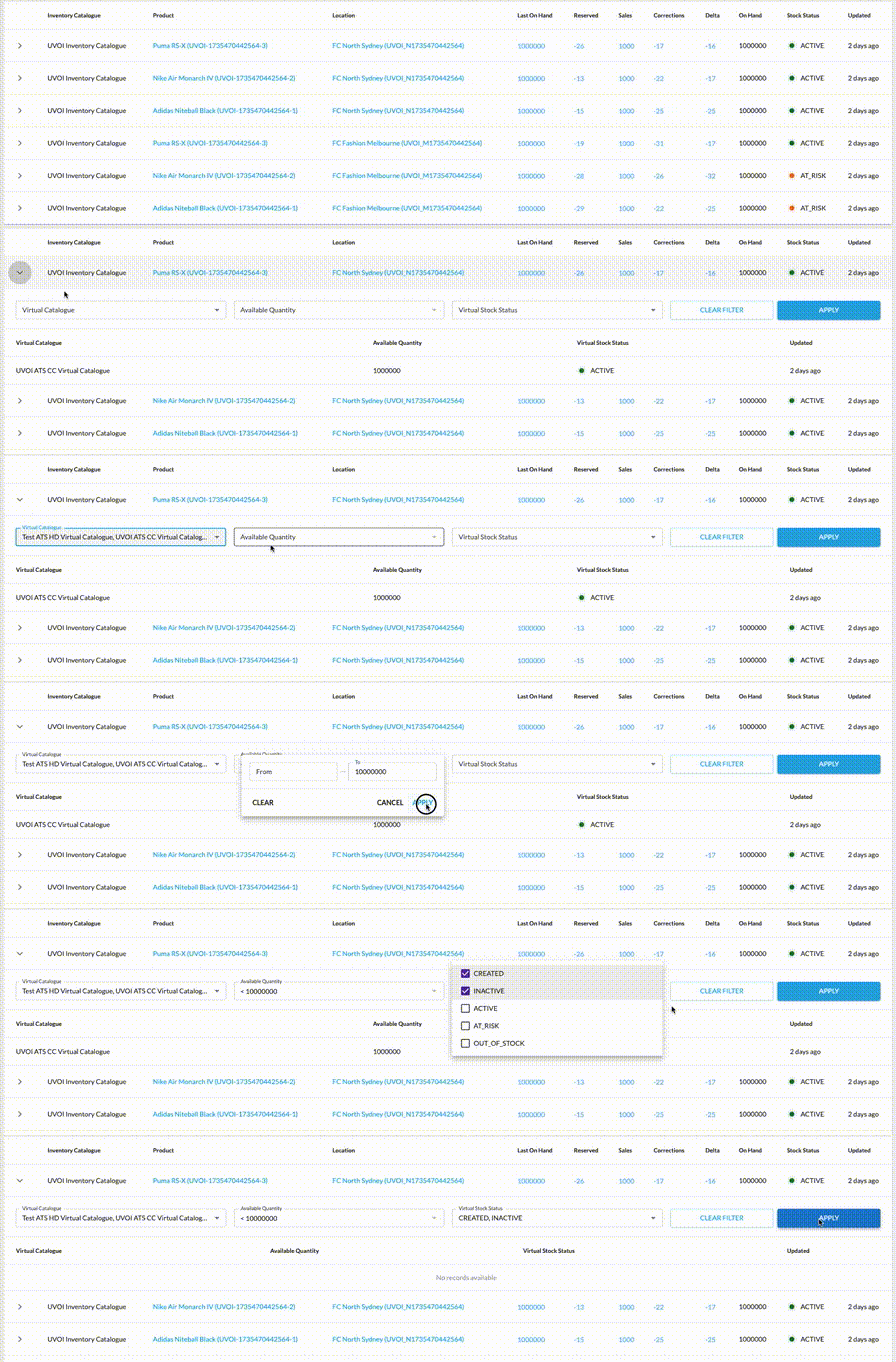
 Each inventory position contains an inner list of associated virtual positions, enabling a more granular view of inventory filtering by virtual catalog, available stock, and virtual stock statuses.
 From an inventory position, users can navigate to detailed inventory views:
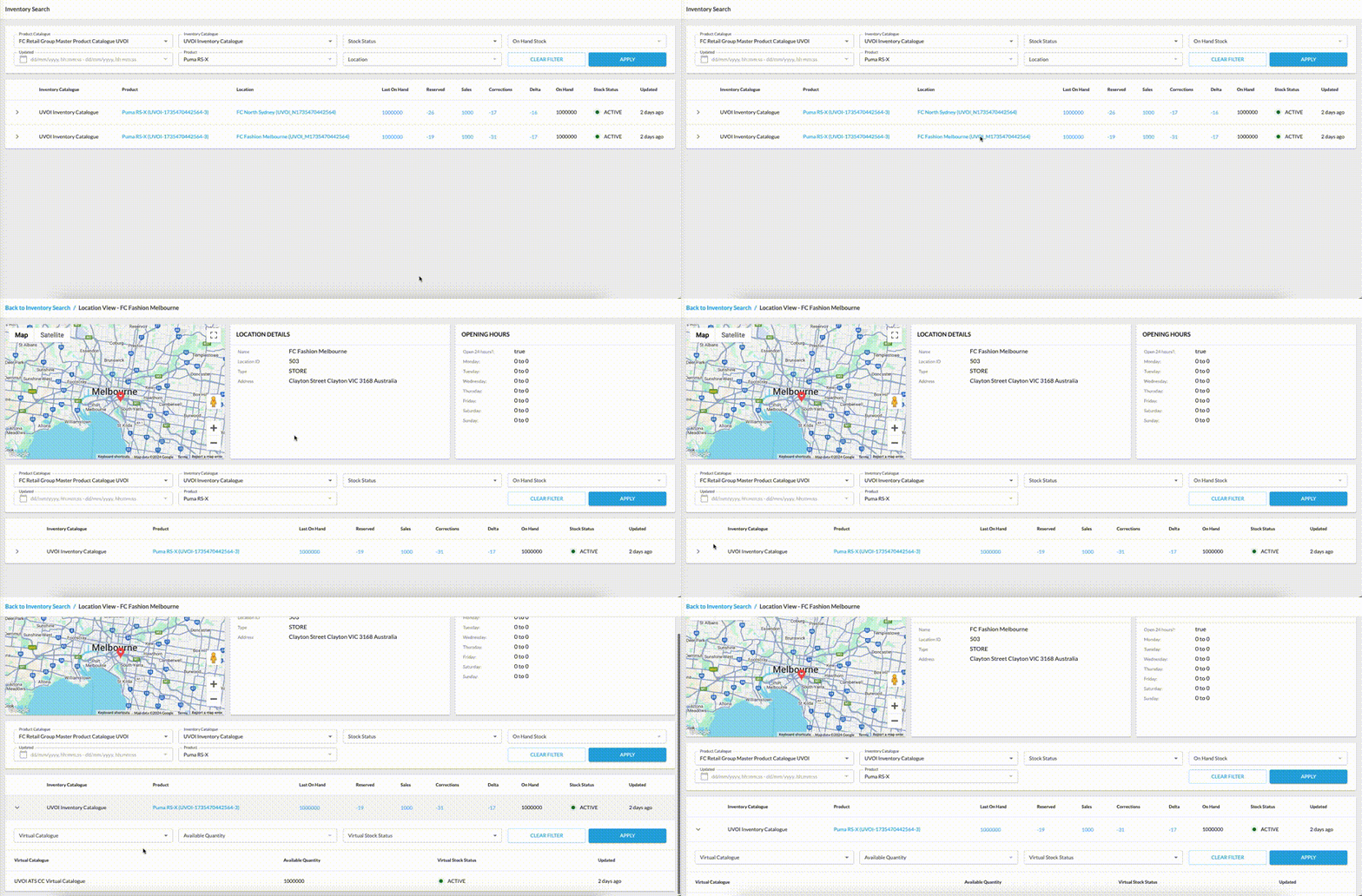 The Inventory View by Location page gives a clear and detailed look at a specific location’s inventory. Users can click on a location name from the Inventory Search page to access this view. The location reference will still show if someone doesn’t have the required permissions, but it won’t be clickable, keeping restricted information protected.This page provides the location’s address, working hours, and a full list of inventory positions. It also includes a filter panel—without the location filter—and a detailed inner list of virtual positions linked to each inventory entry. This ensures that all the key inventory details for that location are easy to find.Filters from the Inventory Search page carry over to this detailed view, making it easier to continue working with the same data. However, filters from the inner list do not apply. A breadcrumb link at the top allows users to return to the Inventory Search page, keeping any previously applied filters in place, even when switching between different details pages.
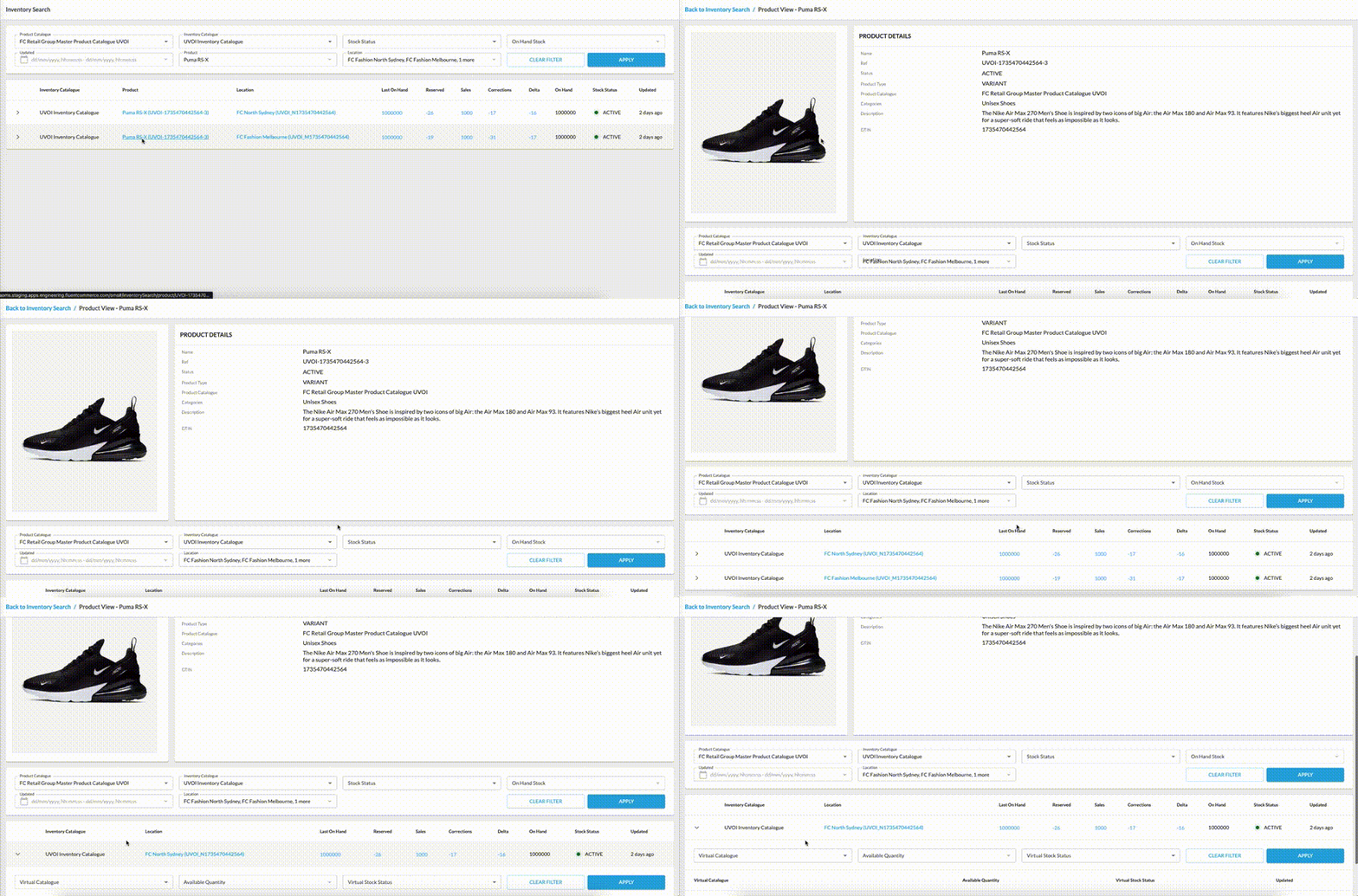 The Inventory by Product page provides a detailed view of inventory information for a specific product. Users can click on the product name from the Inventory Search page to access this page. If the selected product catalog is incorrect or doesn’t include the product, navigation to the product’s details will be restricted, and only the product reference will be displayed without a clickable link.On the UVOI by Product page, users can see key product details, such as its name, status, category, and description, along with an image of the product. The page also features a filter panel—excluding the product filter—and an updated list of inventory positions, complete with their associated virtual positions.Filters applied on the Inventory Search page remain active on this page, helping users maintain their focus on relevant data. Inner list filters, however, do not carry over. A breadcrumb navigation link allows users to return to the Inventory Search page with their original filters preserved, even when moving between multiple details pages.
- Inventory Search Page: A centralized view with filter panels to refine inventory and virtual positions.
- Advanced Filtering Capabilities: Filters for catalog, stock status, on-hand quantities, and more.
- Inventory View by Location: Detailed insights into inventory at specific locations. Including stock levels and virtual positions.
- Inventory View by Product: A comprehensive look at product-specific inventory across locations, with key product details and statuses.
Inventory Search Page
The UVOI comes with a new menu section that is available out of the box in the Fluent OMS and Fluent Big Inventory Web Apps. The Inventory Search page displays a filter panel and a list of inventory positions as search results. Each inventory position expands into a detailed list of associated virtual positions, accessible via a dropdown.The top filter panel refines inventory positions based on user-defined criteria, while the inner filter panel focuses on virtual positions. These two filter panels operate independently.Advanced Filtering Capabilities
The Unified View of Inventory offers powerful and flexible filters to refine search results:- Product Catalog Filter automatically applies the default product catalog upon visiting for the first time, as configured via the fc.oms.inventory.search.product.catalogue.default setting. The selected product catalog determines the product name displayed in the search results table. If the product associated with an inventory position belongs to a different product catalog, the product name will not appear. Instead, only the product reference will be shown.
- Inventory Catalog Filter controls the records displayed by linking to the inventory catalog defined via the fc.oms.inventory.search.inventory.catalogue.default setting. If no default inventory catalog is set, no records will appear.
- Stock Status Filter filters inventory positions by status as defined in the setting.
- OnHand Stock Filter allows filtering based on available on-hand stock. Users can set a range or filter inventory with values greater or smaller than a specific threshold.
- Updated Filter enables filtering by the last update timestamp of inventory positions.
- Product and Location Filters refine inventory positions by product or location. Clicking the filter opens an advanced form where users can search by name or reference. Matched records appear as selectable chips.
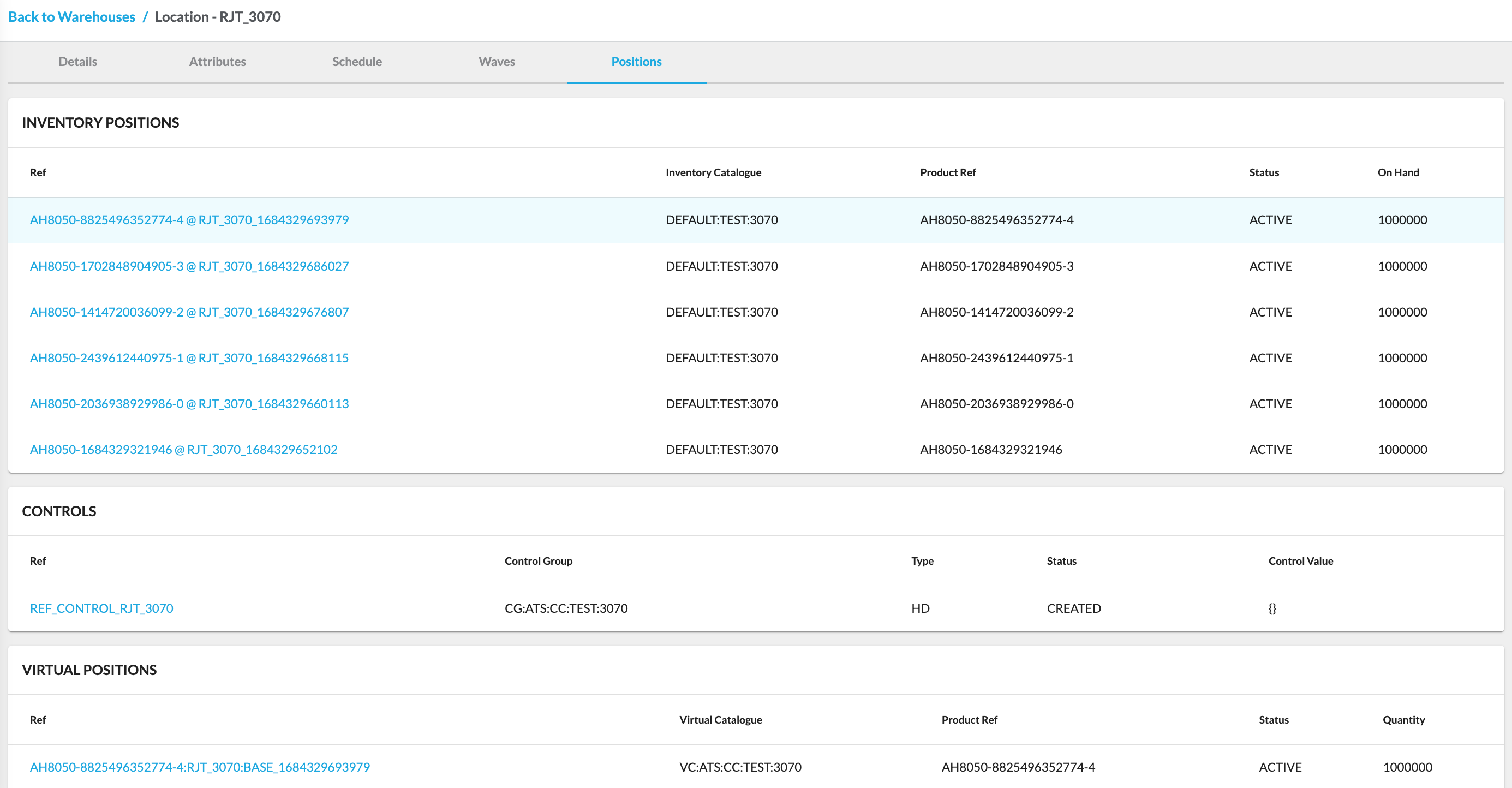
Inventory Position Details
The Inventory Search page presents a detailed overview of inventory positions, offering important information at a glance. Users can view the inventory catalog name, associated product, and location, along with calculated on-hand quantities and aggregations of inventory quantities. Additionally, it displays the stock status and timestamps for the most recent updates, ensuring complete visibility into inventory changes.Clicking any quantity cell opens a Type History Drawer, displaying the history of changes for that inventory quantity type.Each inventory position contains an inner list of associated virtual positions, enabling a more granular view of inventory filtering by virtual catalog, available stock, and virtual stock statuses.From an inventory position, users can navigate to detailed inventory views:- By Location: Focuses on inventory specific to a chosen location.
- By Product: Displays inventory details for a specific product, including stock levels across locations and virtual positions.
Inventory View by Location
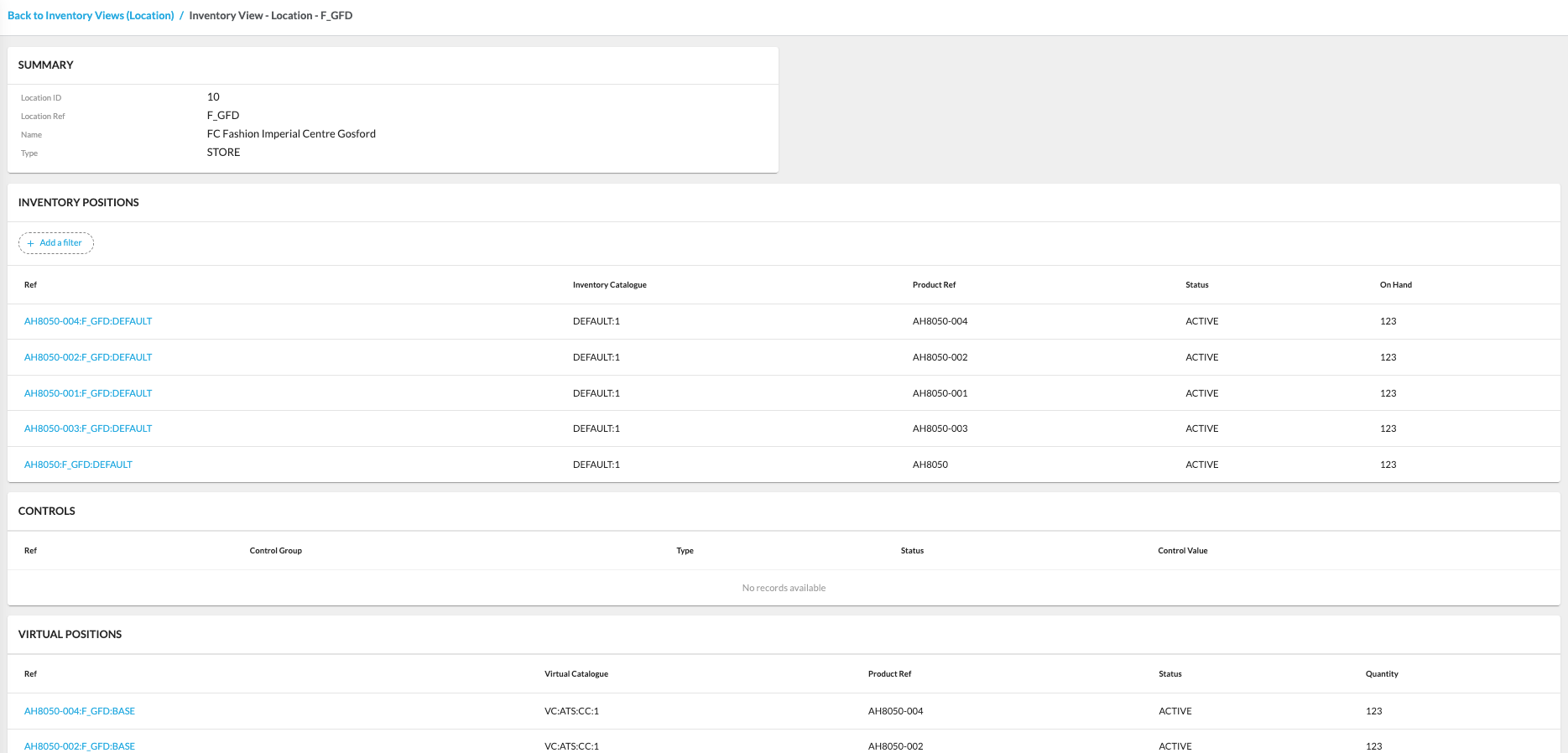
The Inventory View by Location page gives a clear and detailed look at a specific location’s inventory. Users can click on a location name from the Inventory Search page to access this view. The location reference will still show if someone doesn’t have the required permissions, but it won’t be clickable, keeping restricted information protected.This page provides the location’s address, working hours, and a full list of inventory positions. It also includes a filter panel—without the location filter—and a detailed inner list of virtual positions linked to each inventory entry. This ensures that all the key inventory details for that location are easy to find.Filters from the Inventory Search page carry over to this detailed view, making it easier to continue working with the same data. However, filters from the inner list do not apply. A breadcrumb link at the top allows users to return to the Inventory Search page, keeping any previously applied filters in place, even when switching between different details pages.Inventory View by Product
The Inventory by Product page provides a detailed view of inventory information for a specific product. Users can click on the product name from the Inventory Search page to access this page. If the selected product catalog is incorrect or doesn’t include the product, navigation to the product’s details will be restricted, and only the product reference will be displayed without a clickable link.On the UVOI by Product page, users can see key product details, such as its name, status, category, and description, along with an image of the product. The page also features a filter panel—excluding the product filter—and an updated list of inventory positions, complete with their associated virtual positions.Filters applied on the Inventory Search page remain active on this page, helping users maintain their focus on relevant data. Inner list filters, however, do not carry over. A breadcrumb navigation link allows users to return to the Inventory Search page with their original filters preserved, even when moving between multiple details pages.Optimizing Stock, Enhancing Experiences
By combining advanced filtering capabilities, real-time updates, and intuitive navigation, UVOI ensures that users—from retail managers to eCommerce teams—can easily make data-driven decisions.Whether you're monitoring stock by location or tracking inventory across sales channels, UVOI empowers businesses to maintain optimal stock levels, reduce inefficiencies, and enhance the customer experience.Related content
Inventory Interface
Author:
Fluent Commerce
Changed on:
29 Aug 2025
Overview
The Inventory interface of the Fluent Web app provides comprehensive inventory management capabilities:- Inventory visibility
- Inventory allocation
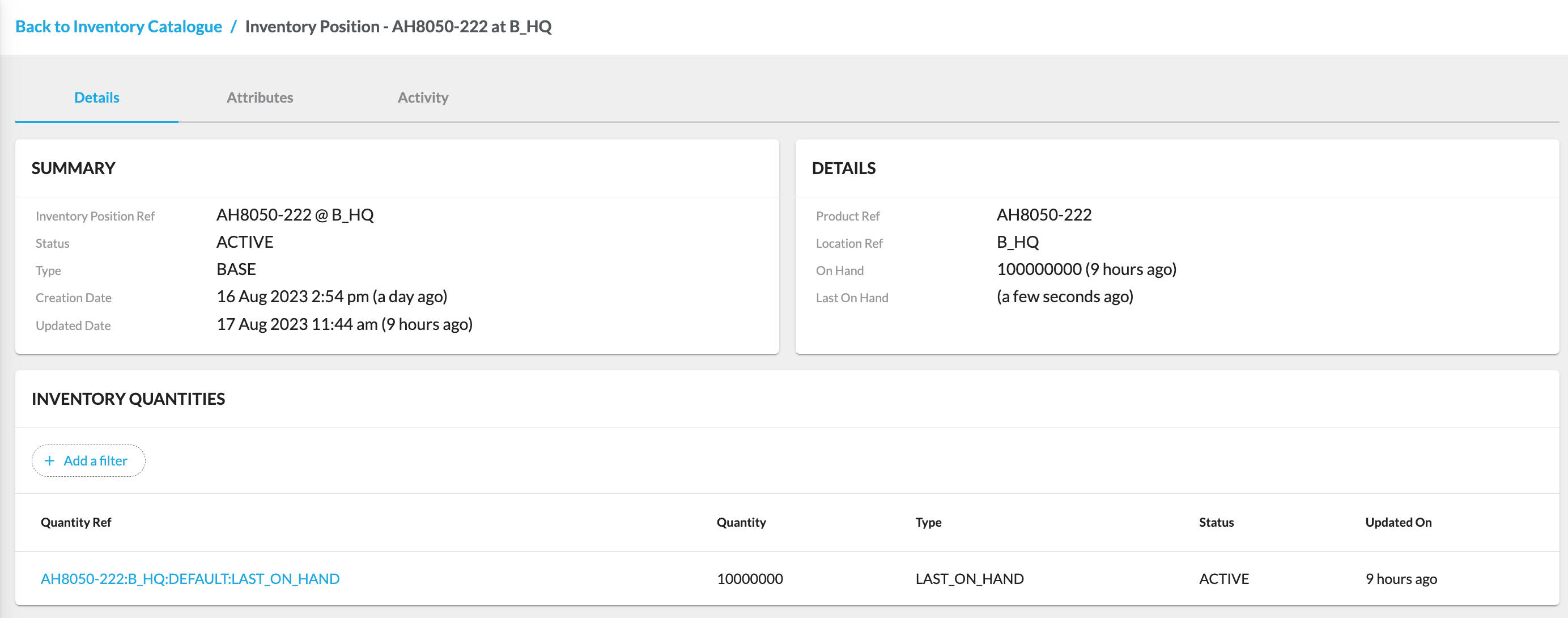
- The total quantity of stock for a specific item (stock on hand(SOH)) and the status of that inventory
- Available to promise inventory levels
- Inventory buffers to reduce overselling of products
Key points
- The Fluent Web app's Inventory interface offers a comprehensive suite of capabilities, including inventory visibility, allocation, total stock quantity (stock on hand), inventory status, available-to-promise levels, and strategically implemented buffers to prevent product overselling.
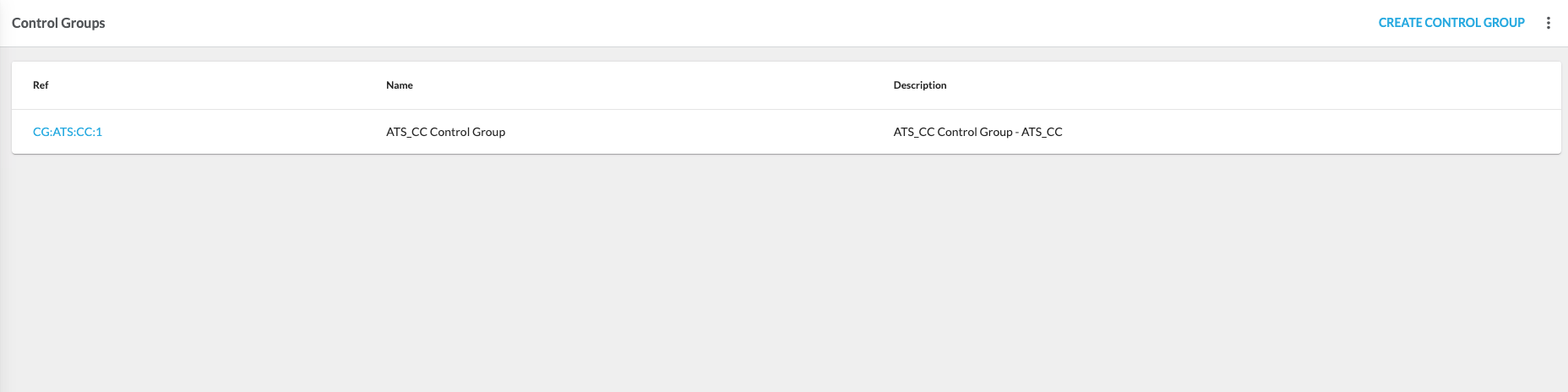
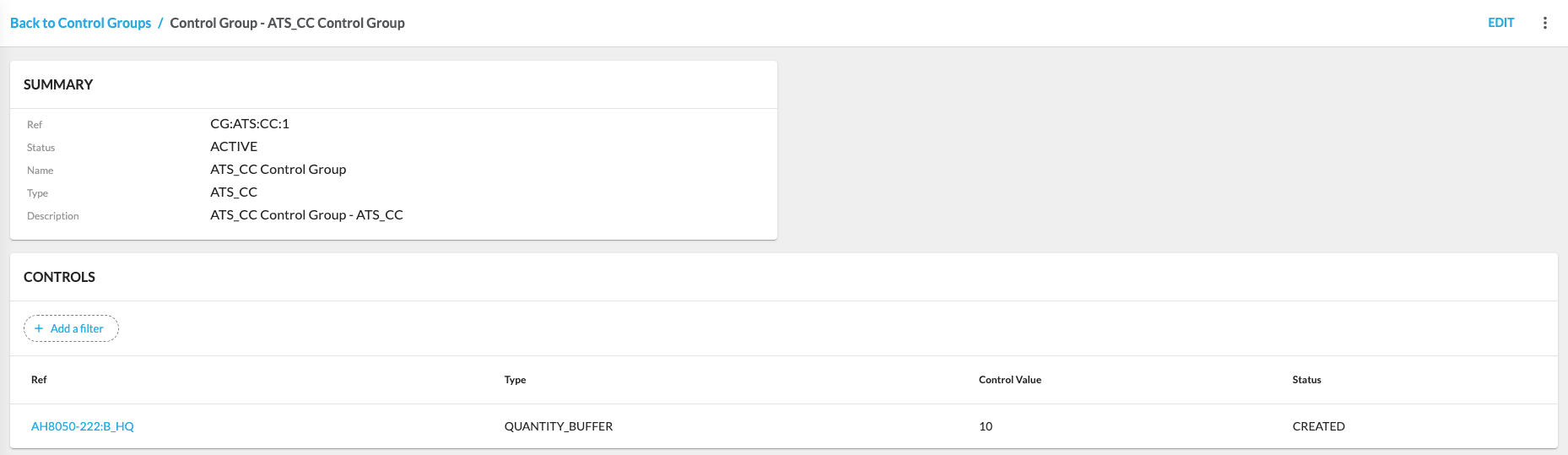
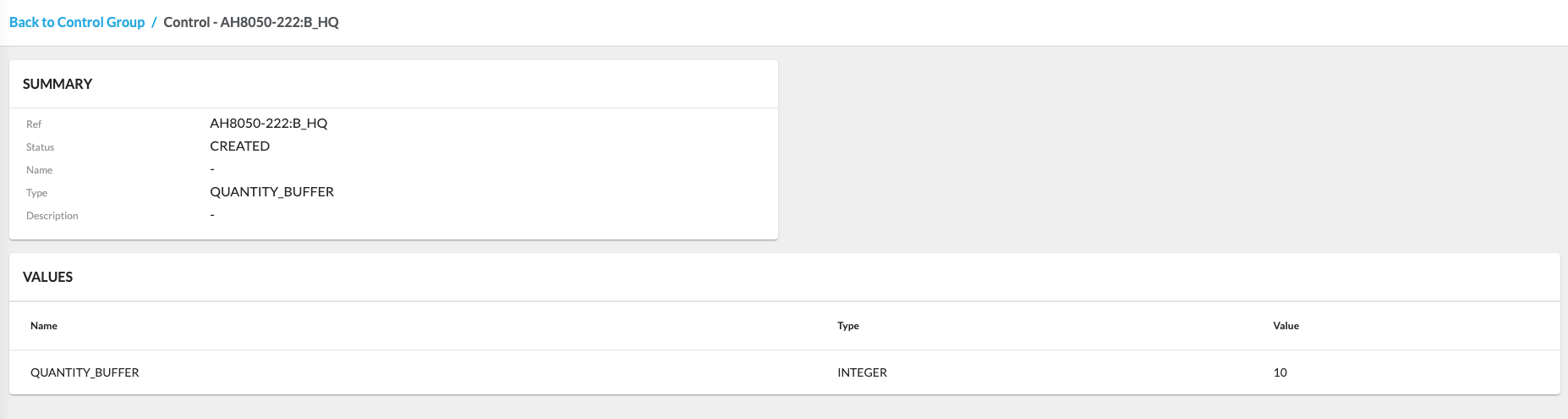
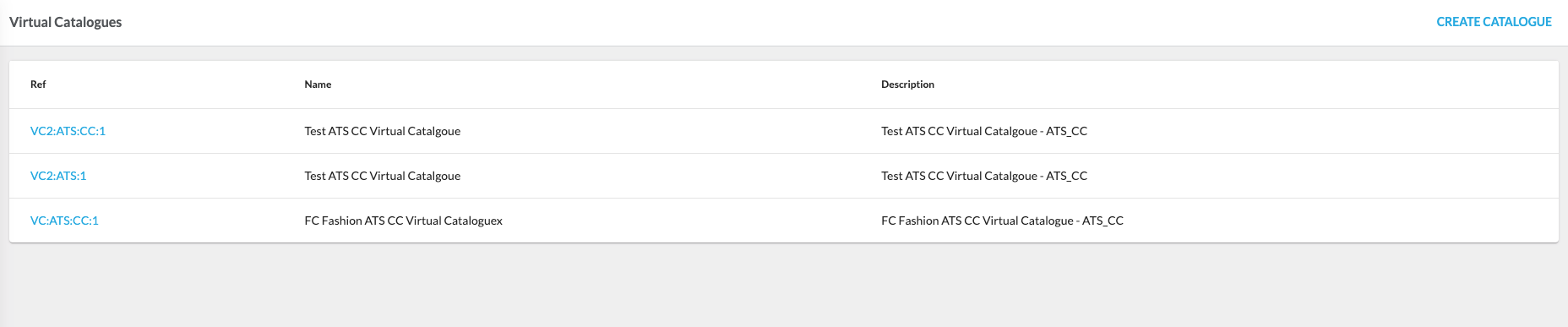
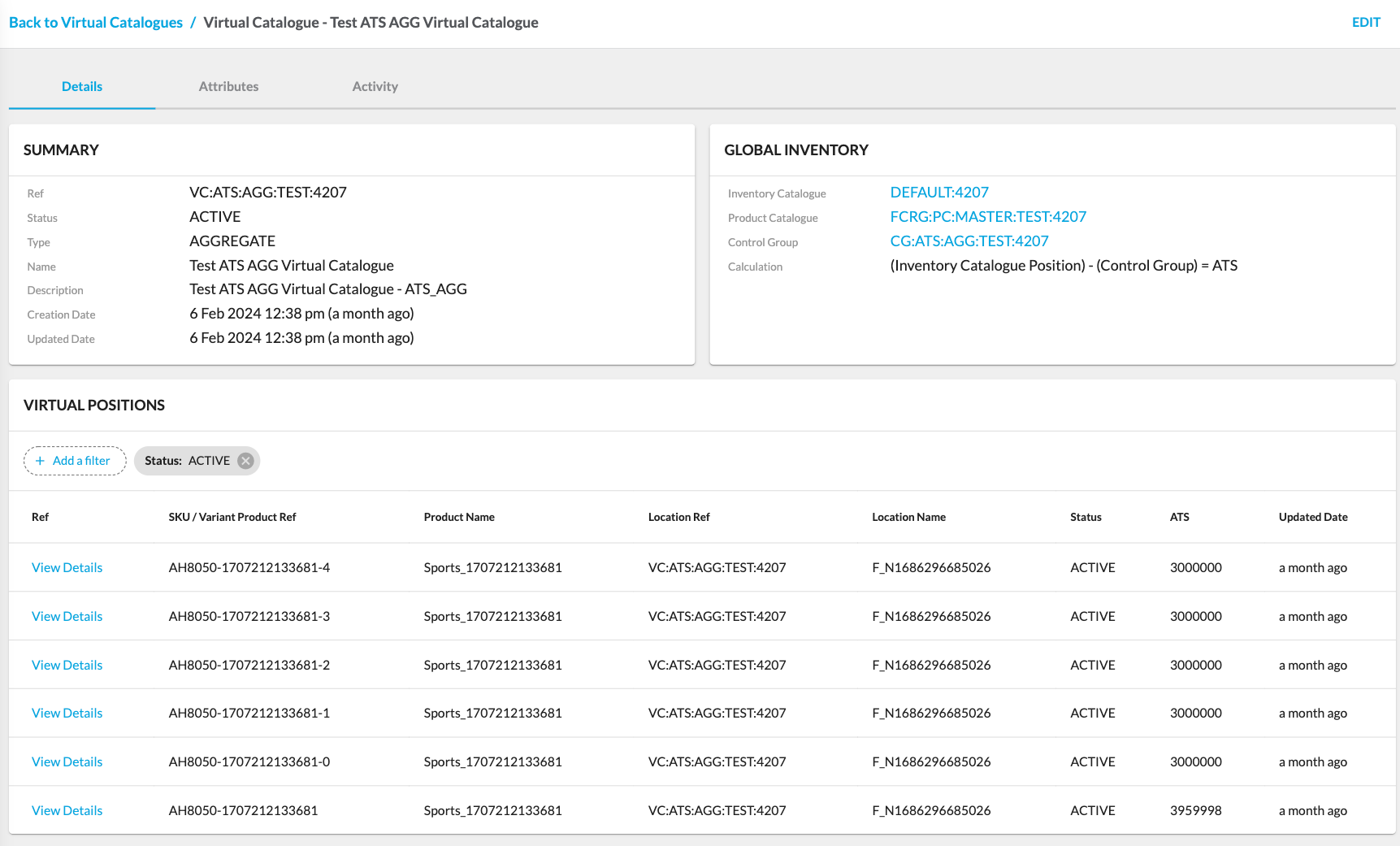
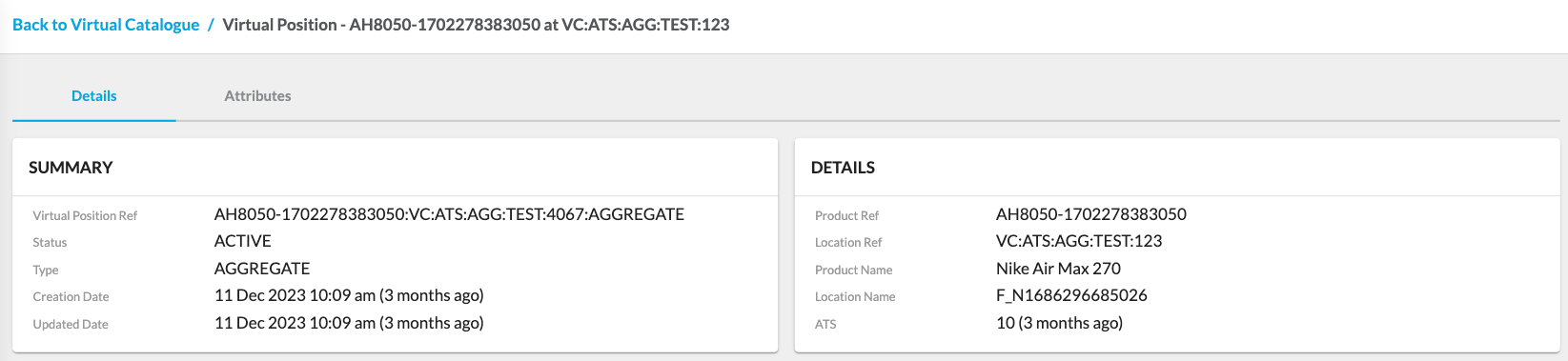
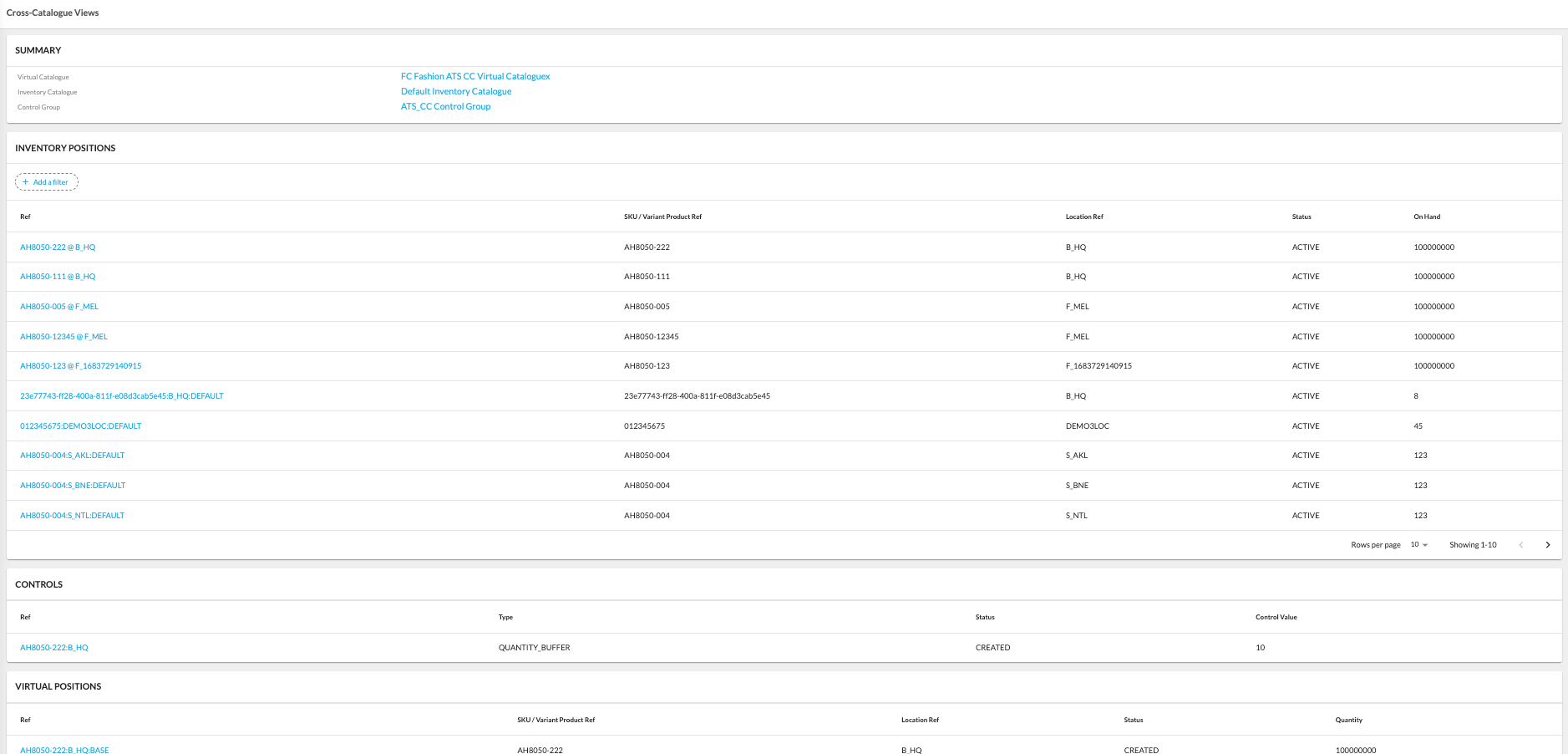
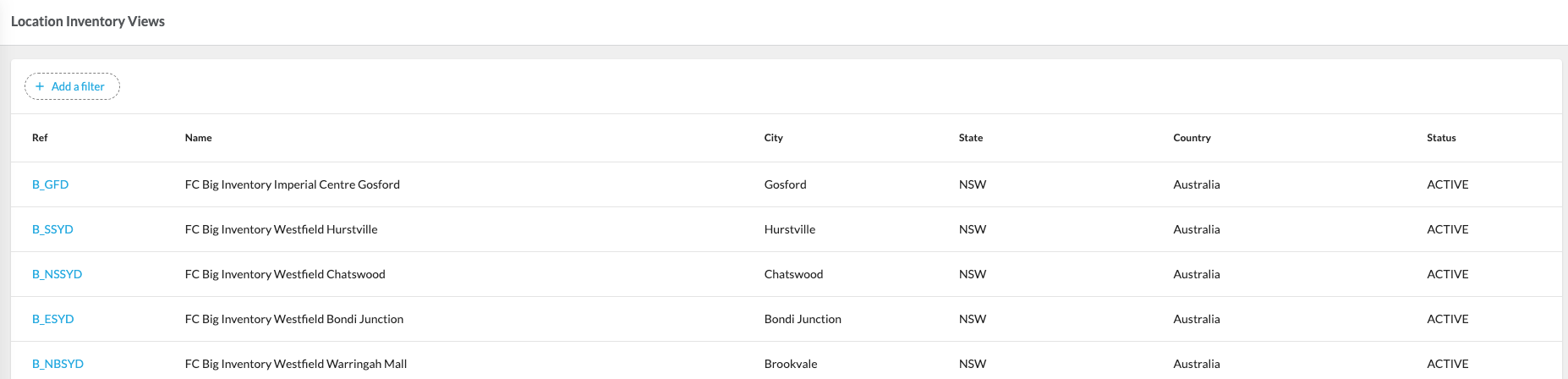
- The interface is equipped with various configurations, such as Inventory Catalogues, Control Groups, Virtual Catalogues, Cross-Catalogue Views, and Location Inventory Views, providing users with versatile tools to tailor their inventory management approach according to specific business needs and scenarios.
The interface contains the following configurations:
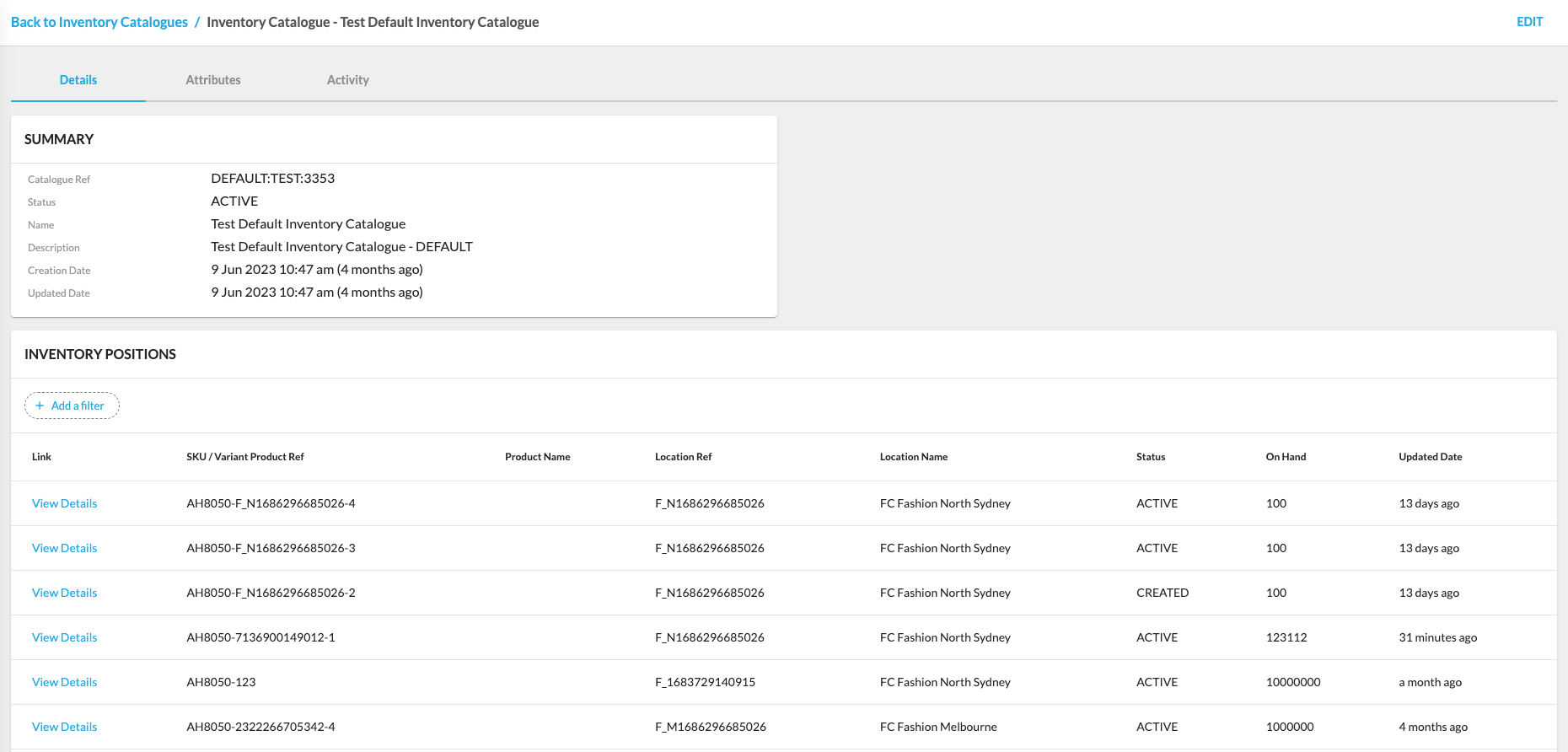
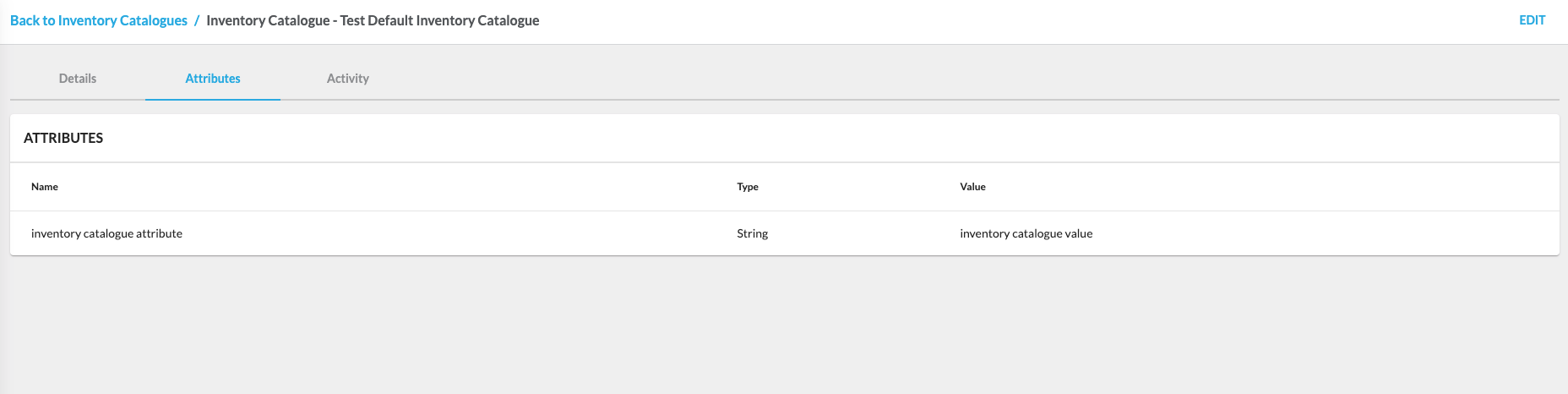
- Inventory Catalogues
- Control Groups
- Virtual Catalogues
- Cross-Catalogue Views
- Location Inventory Views
Related content
Store Interface
Author:
Fluent Commerce
Changed on:
6 Mar 2026
Overview
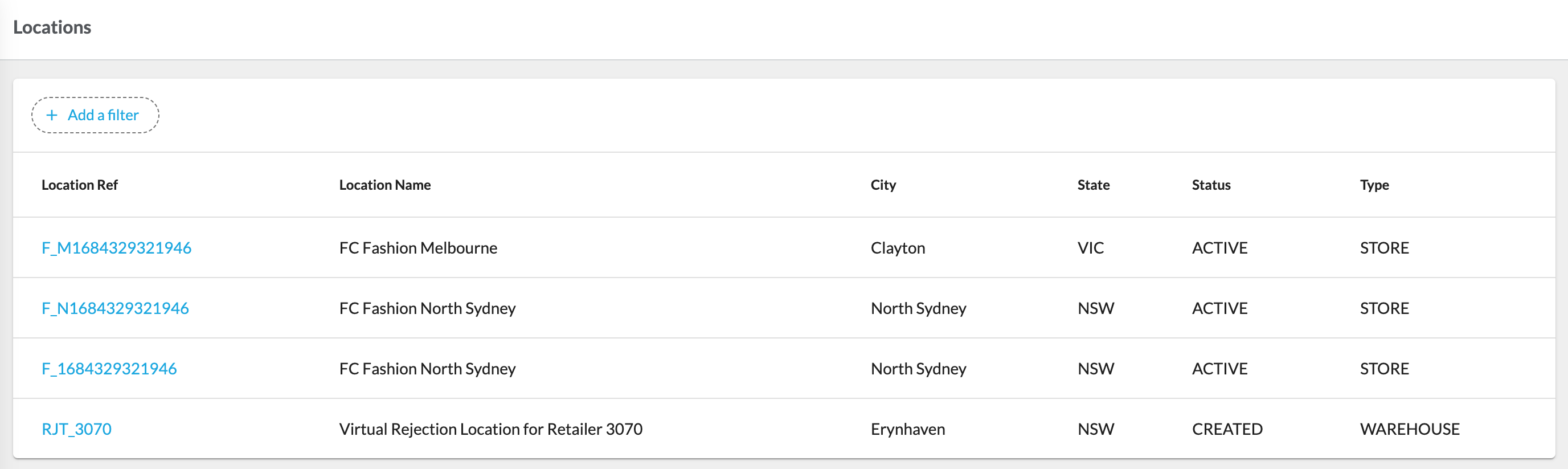
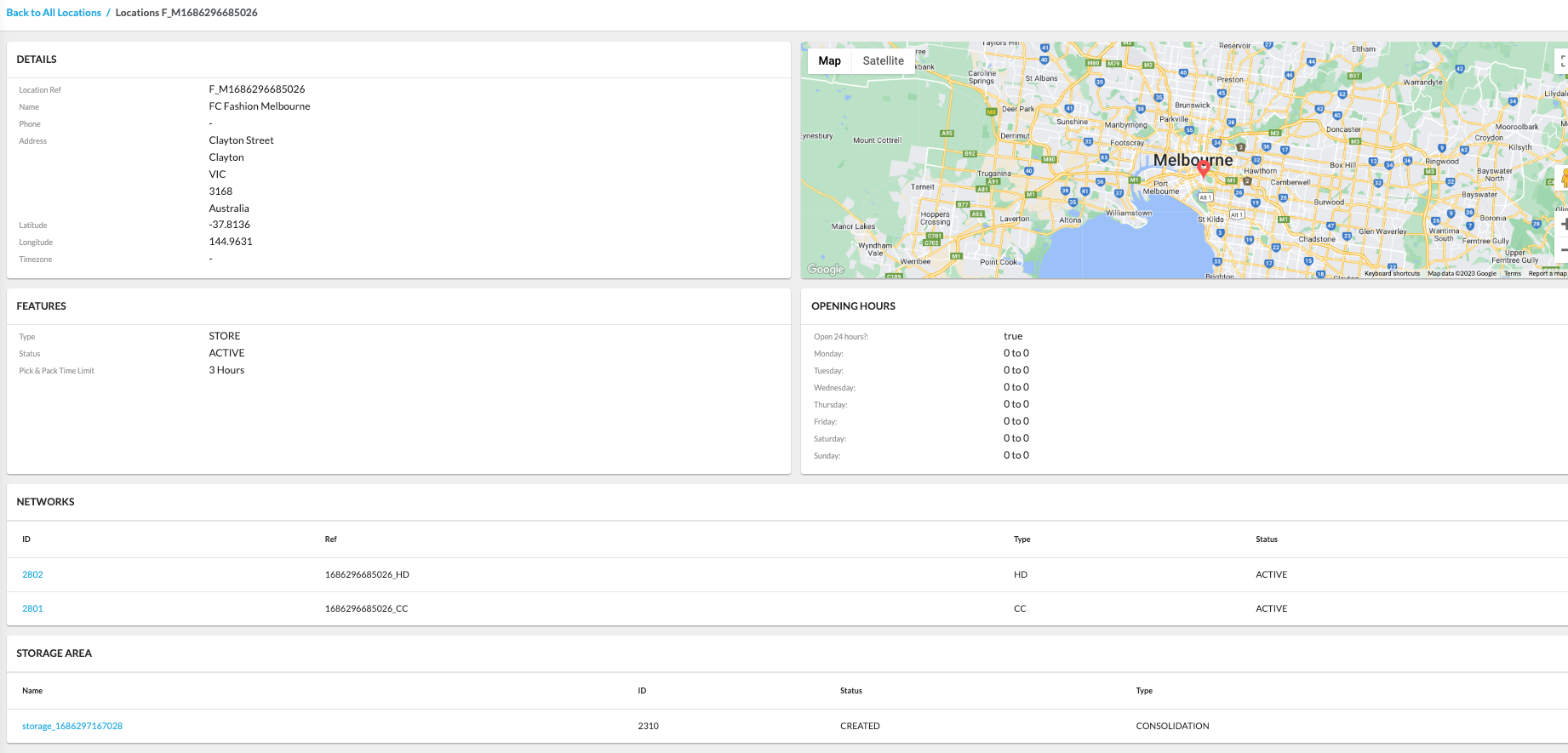
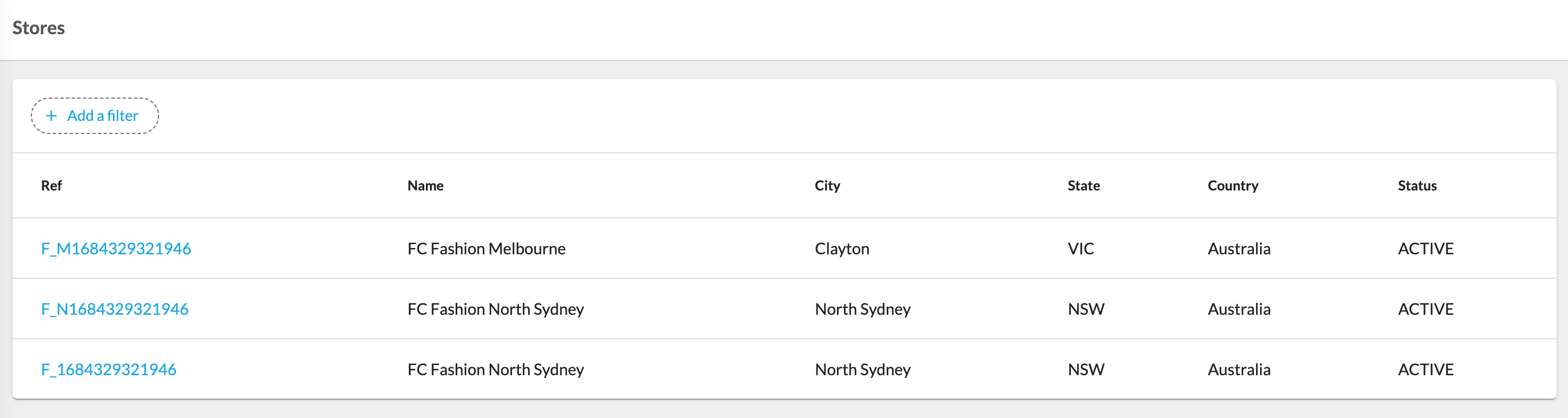
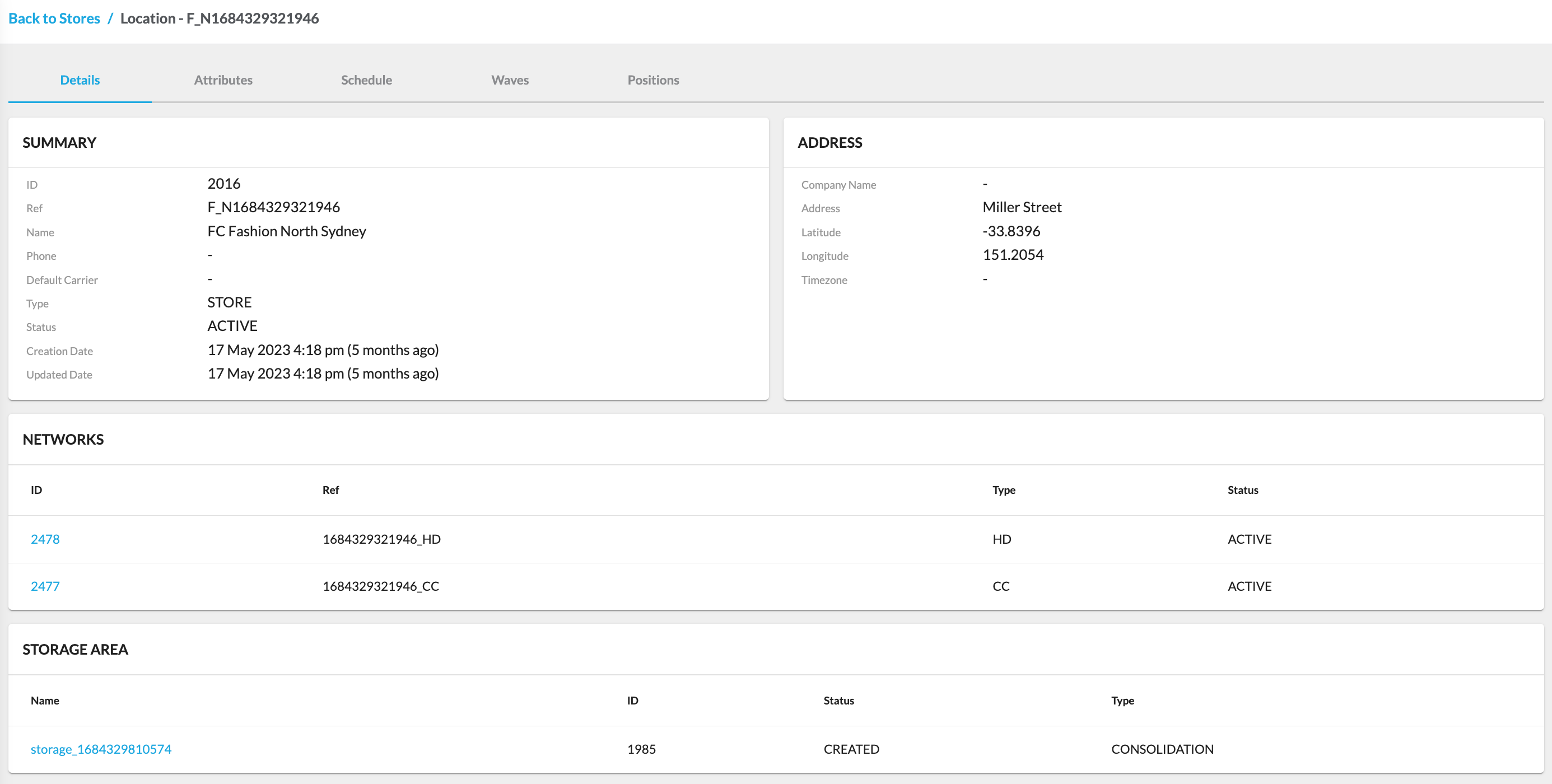
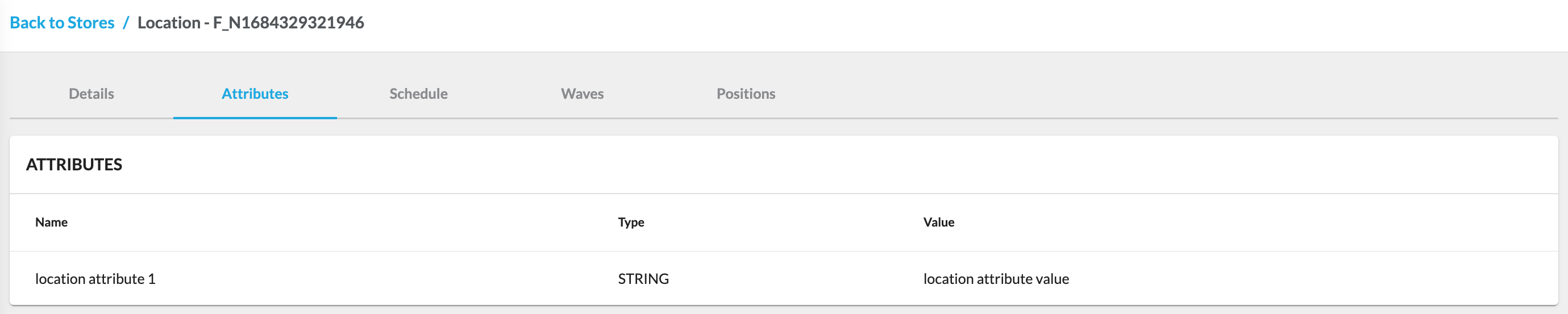
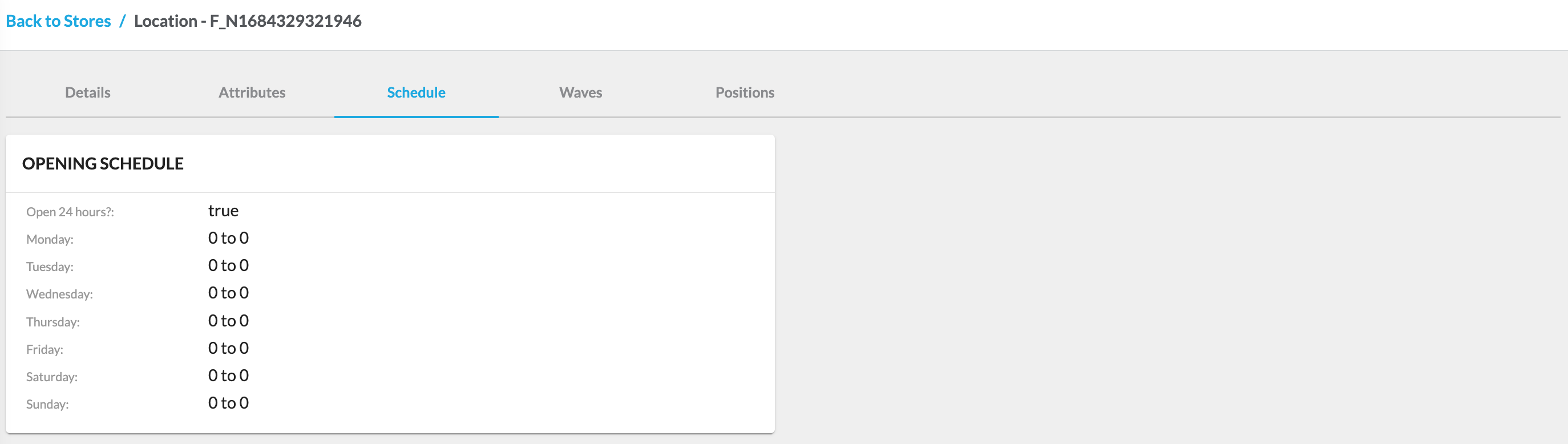
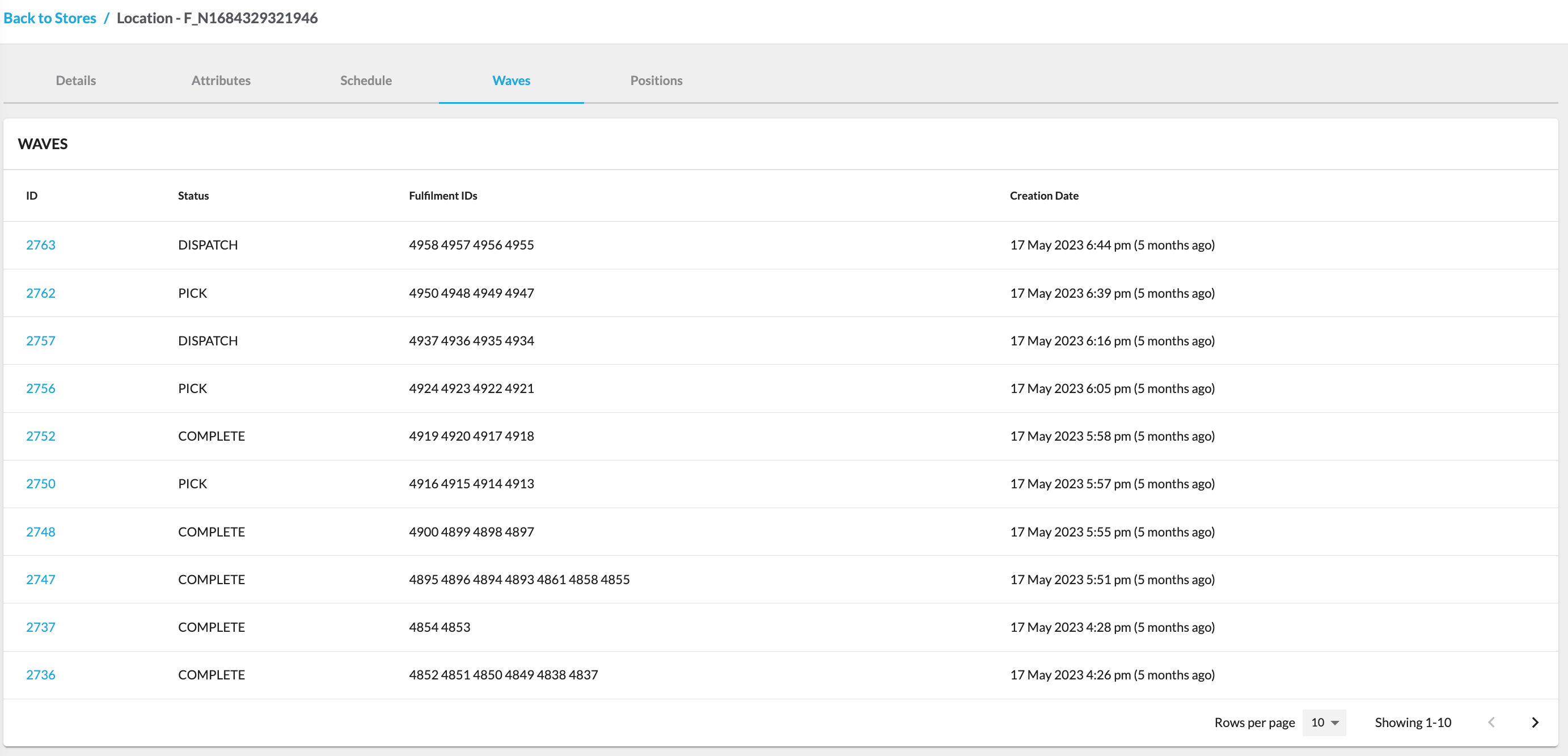
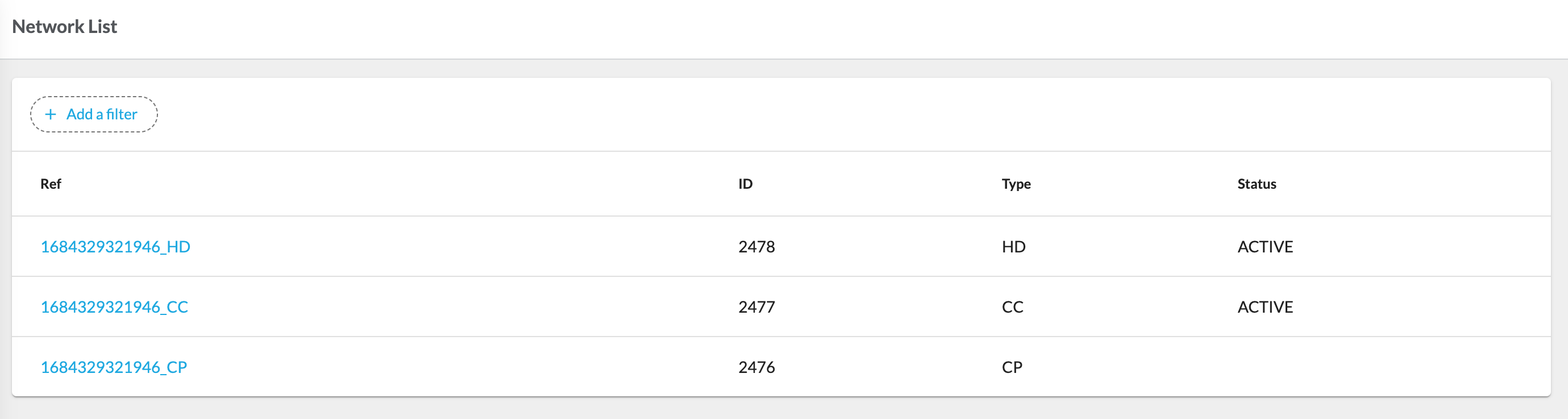
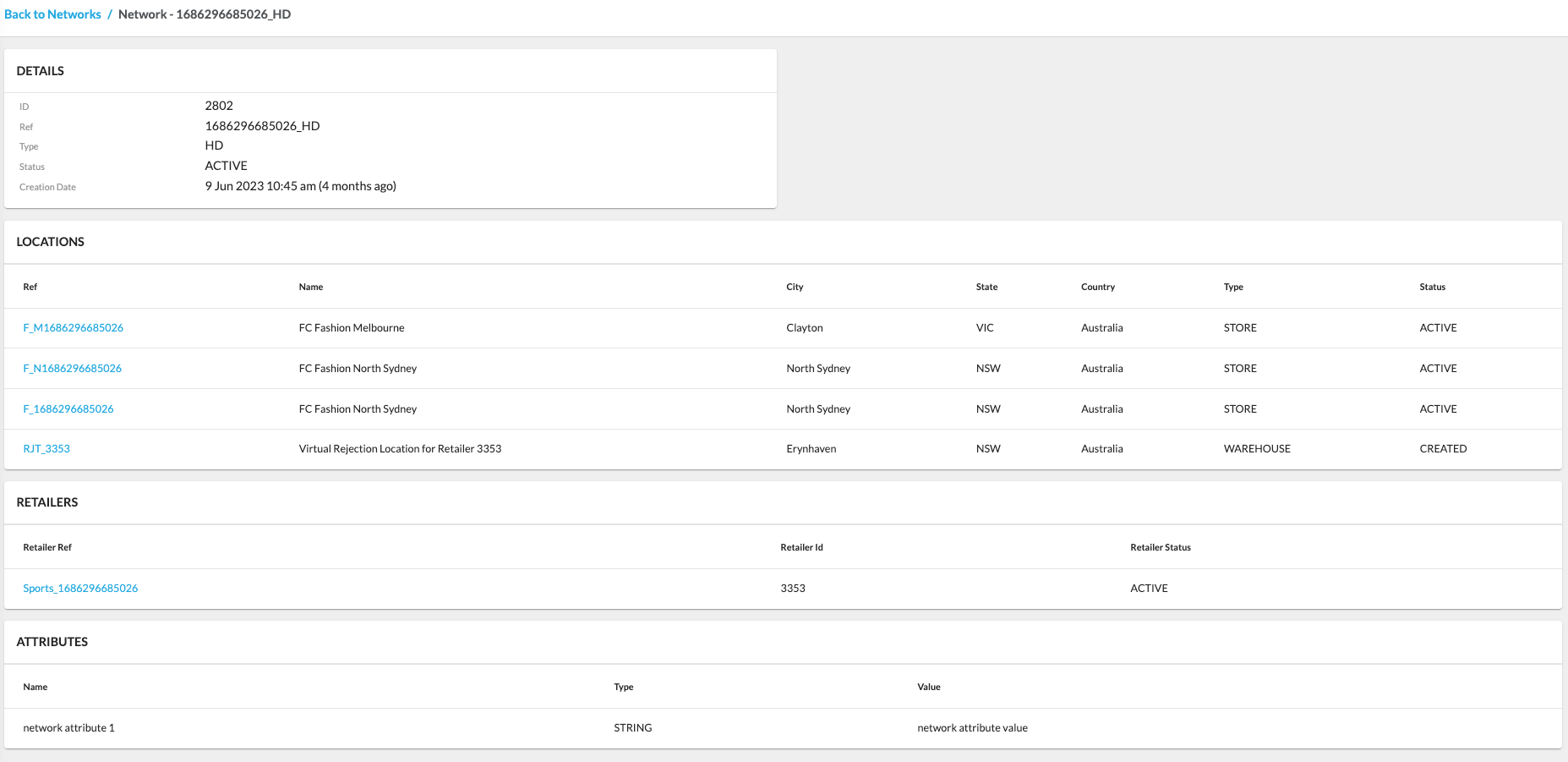
The Store interface empowers retailers to enhance their operational efficiency by transforming stores into fulfillment centers and optimizing inventory management. This ultimately delivers a superior customer experience through streamlined order fulfillment and improved inventory control. The app contains the following configurations:- All Locations
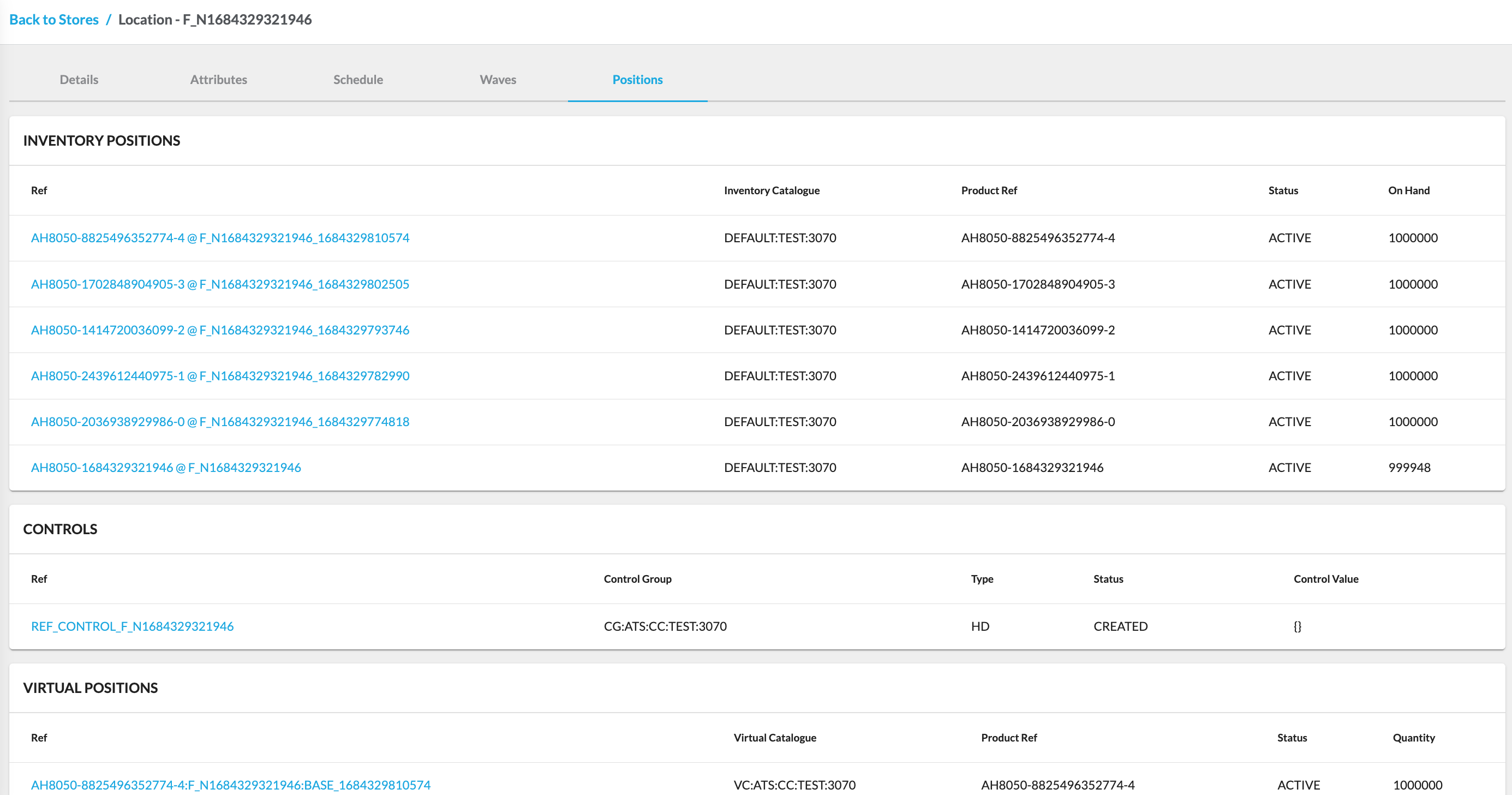
- Stores
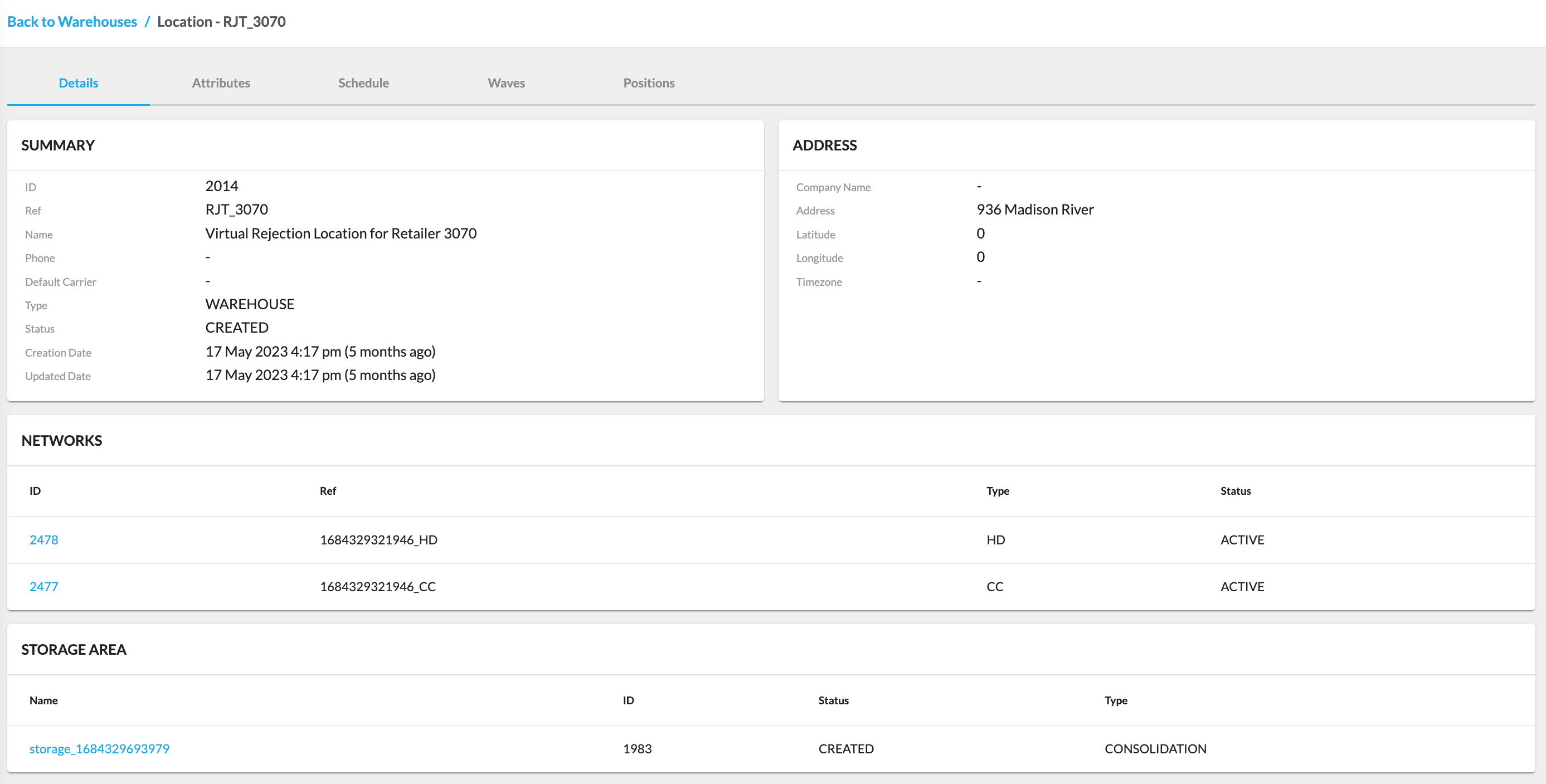
- Warehouses
- Networks
Key points
- Stores are transformed into efficient fulfillment centers, ensuring a seamless customer experience through optimized order fulfillment and superior inventory control.
- With configurations for all Locations, Stores, Warehouses, and Networks, the app provides a comprehensive toolkit, enabling retailers to manage their entire ecosystem.
Related content
Insights
Authors:
Fluent Commerce, Kirill Gaiduk
Changed on:
4 Aug 2025
Overview
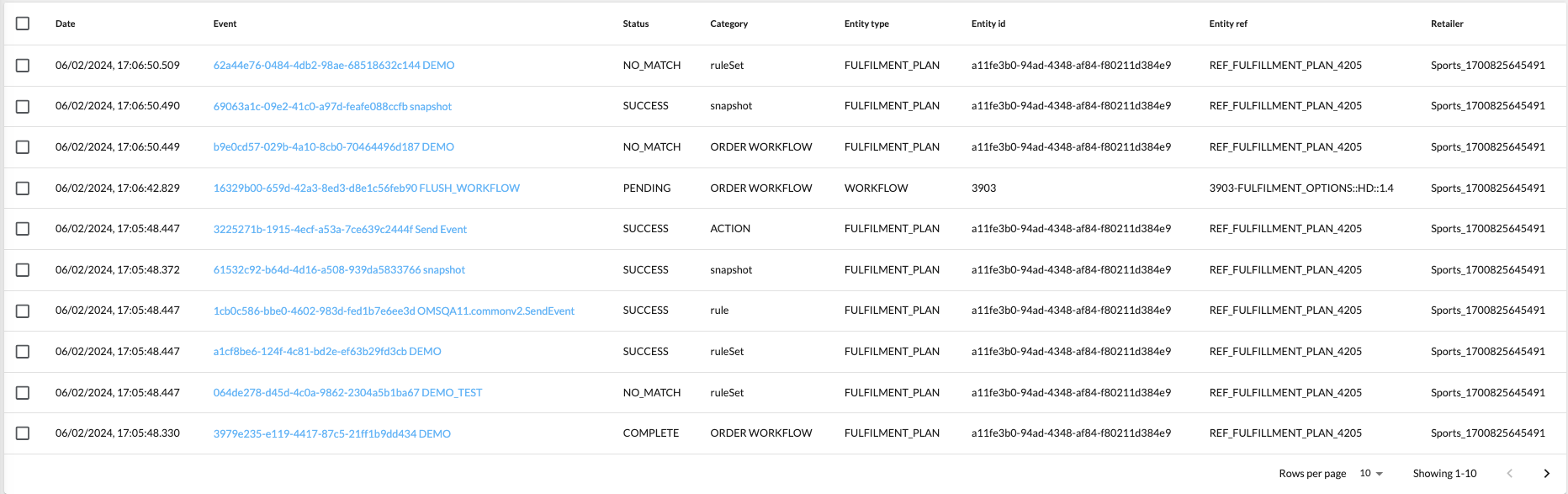
The Insights interface is a comprehensive repository of system Events, representing occurrences or triggers within the Fluent Platform. These Events, like changes in inventory position or entity states, act as notifications, prompting specific workflows and providing a dynamic overview accessible through a user-friendly configuration featuring the Events Search Form, the Events Search Results, and the Event Details Drawer for efficient information retrieval.Key points
- The Insights interface is a comprehensive repository providing full information about system Events, representing occurrences and triggers that prompt actions or log activities within the Fluent Platform.
- With a user-friendly configuration, the module enables efficient interaction through the Events Search Form, providing filtered event searches and responsive Events Search Results. The Event Details Drawer ensures users can seamlessly access detailed event information without losing search results or experiencing delays in page navigation.
Insights Interface
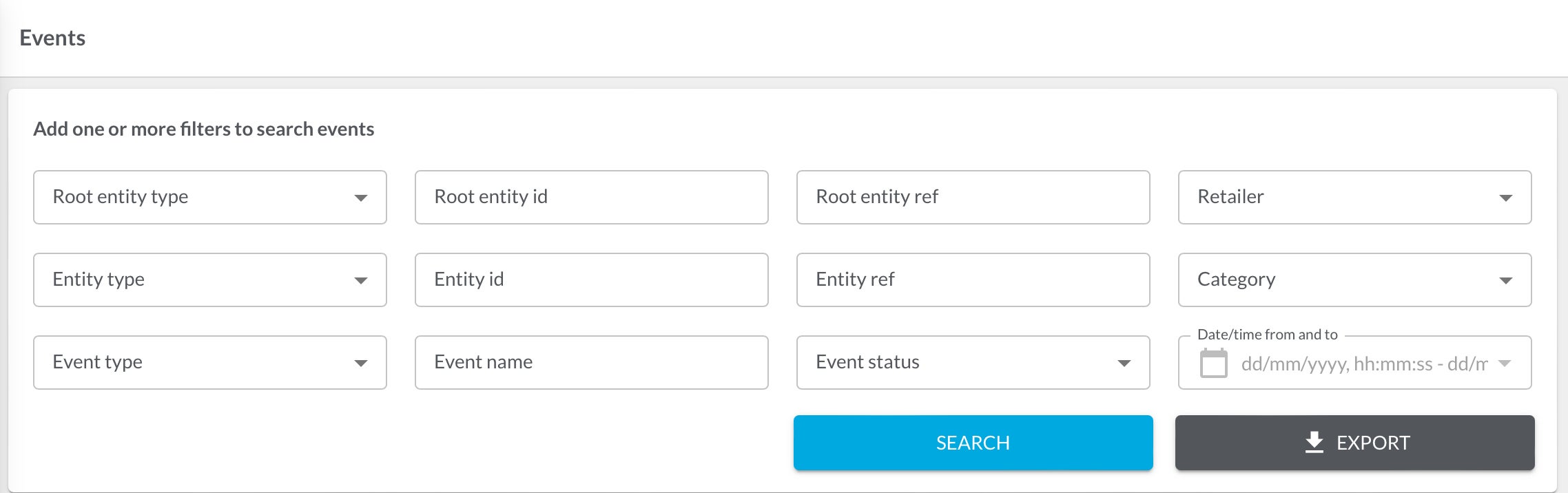
The Insights interface contains the full information about Events. An Event represents something that has, will, or is happening within the system. An Event is typically used to ask or trigger the system to do something or log activity of what has occurred within the system.Essentially, events are notifications within the system that various internal or external systems can consume to take further action.Events Page
The Events page is powered with the Events Search Component.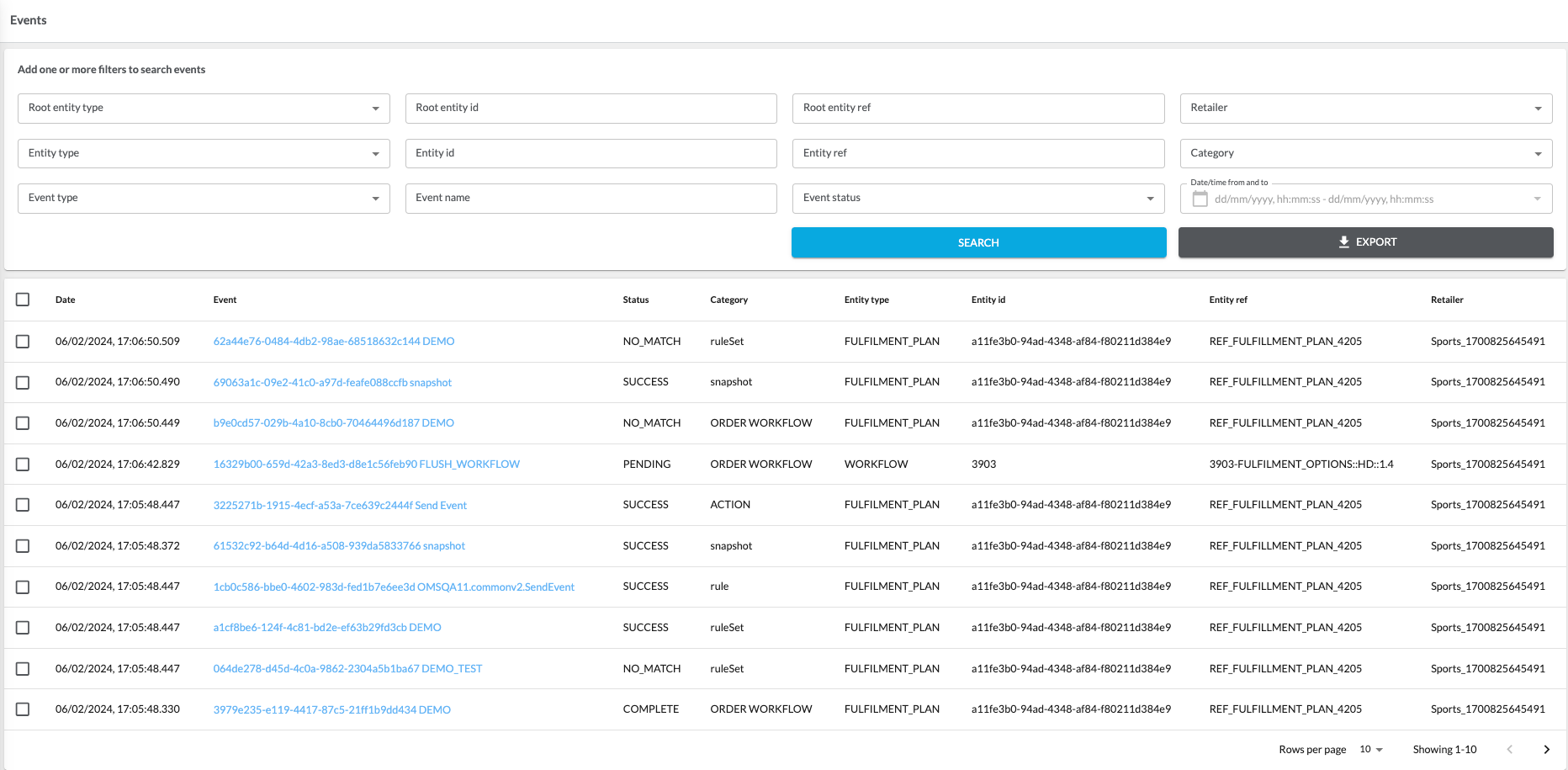
Events Export
Related content
Admin Interface
Author:
Fluent Commerce
Changed on:
25 Sept 2025
Overview
The Admin interface in the Fluent Web Apps provides comprehensive administrative capabilities to manage the entire system efficiently.Key points
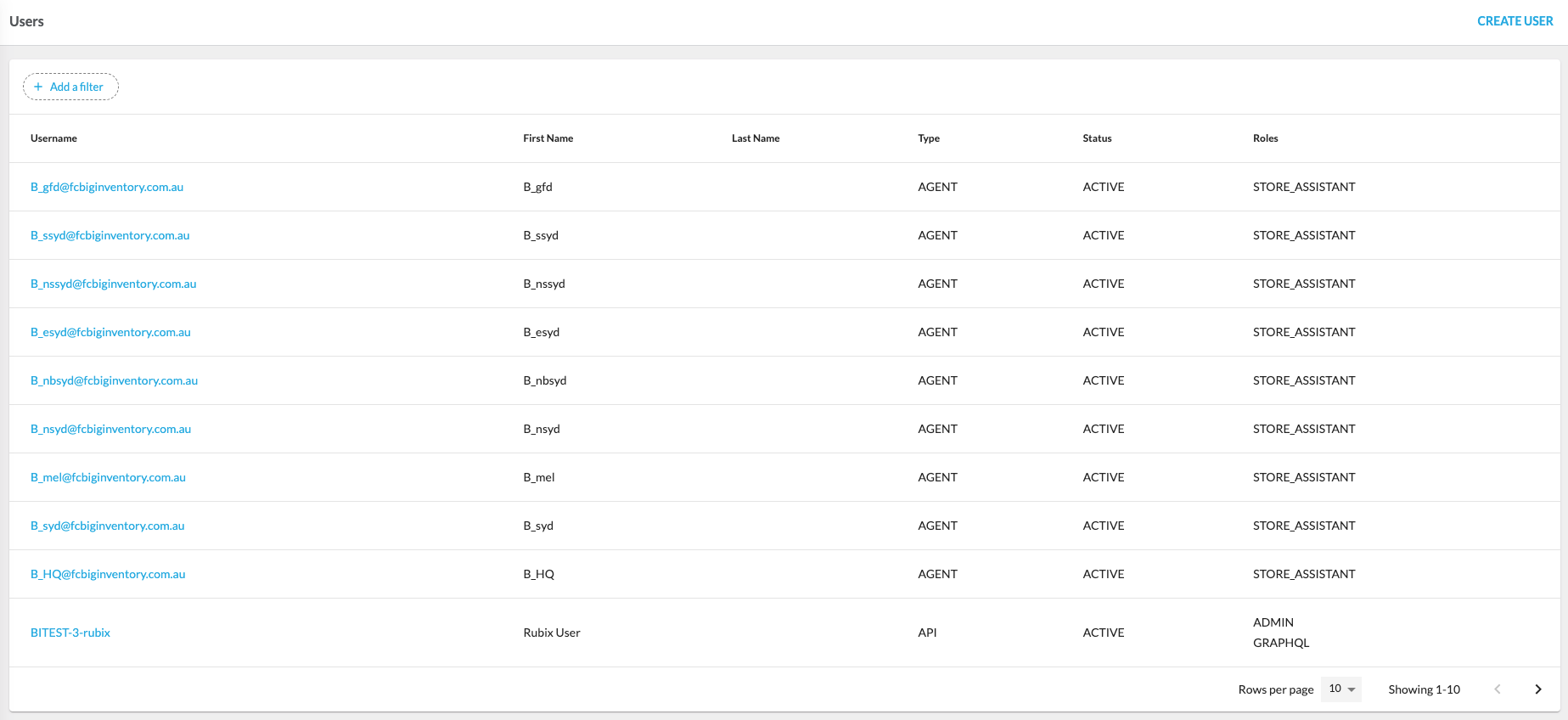
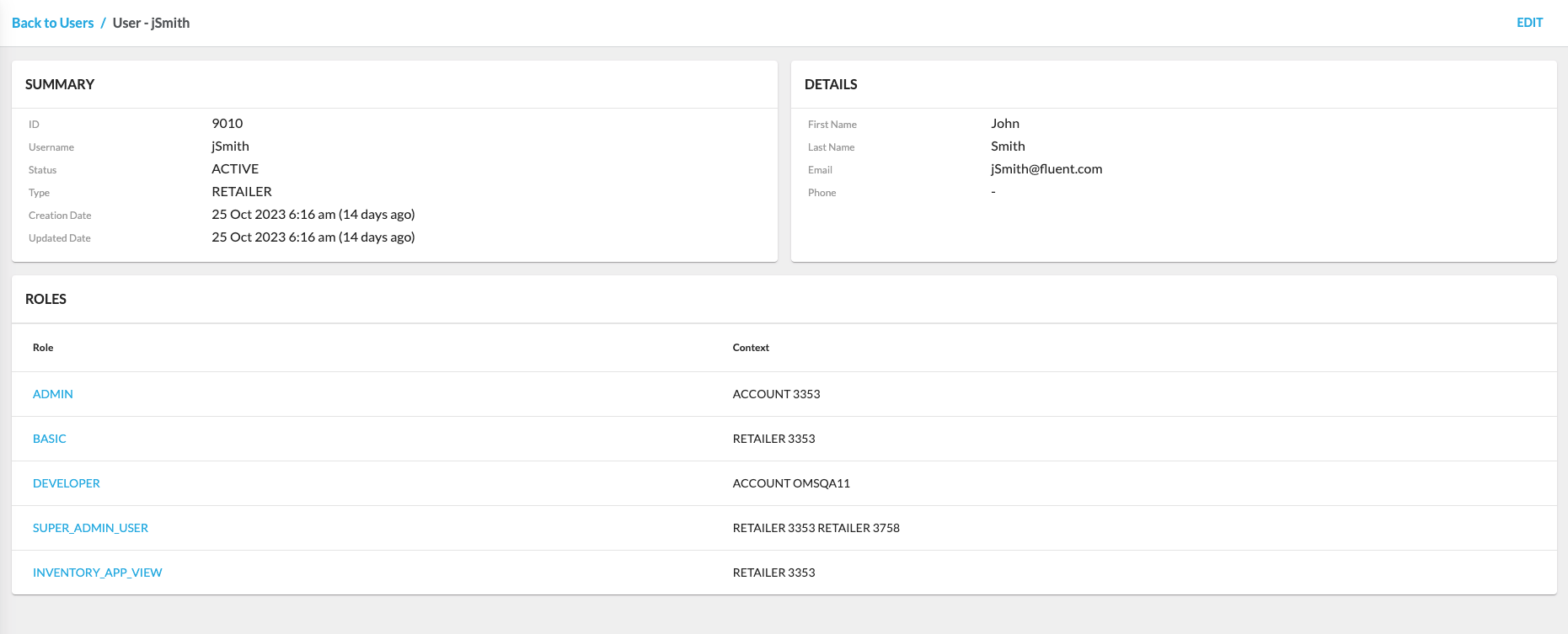
- The Admin interface helps in managing users, retailers, settings, etc.
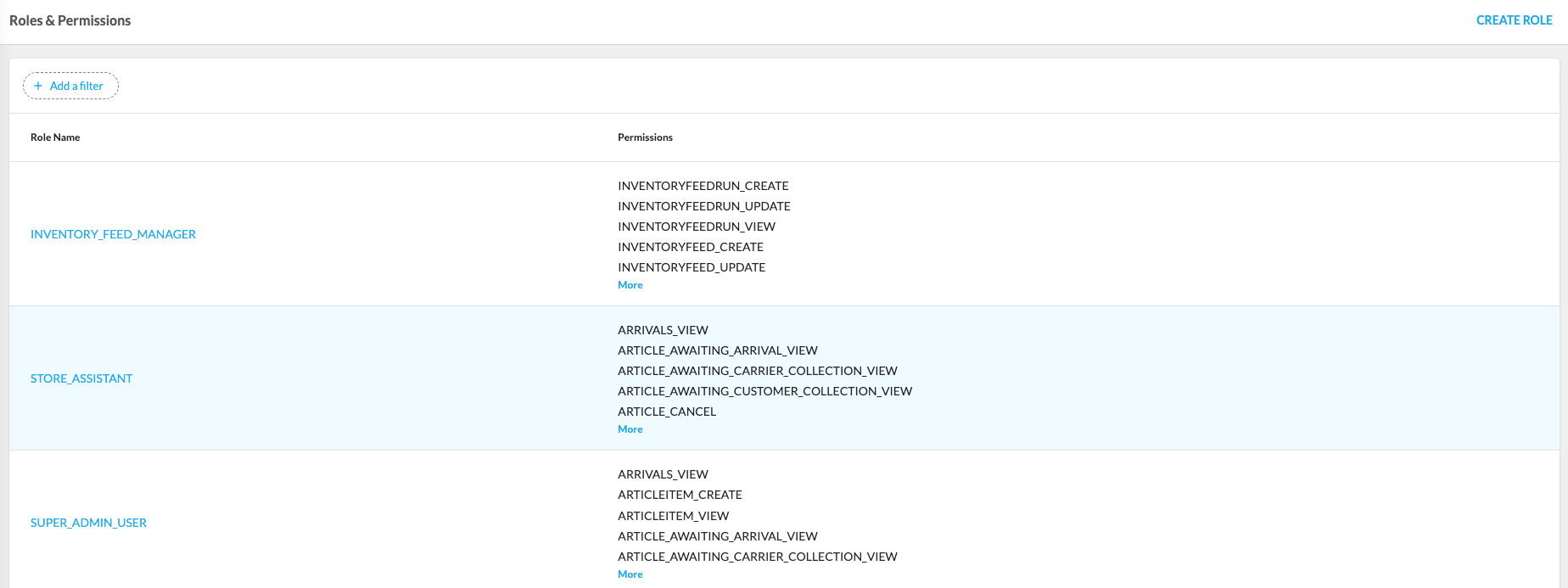
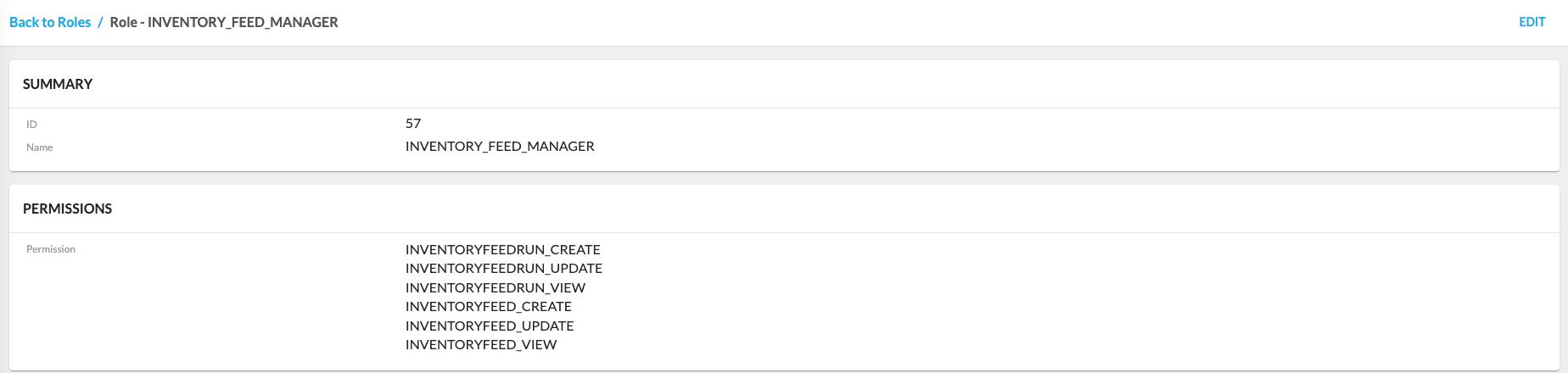
- Depending on the configuration, it can contain any combination of the following: Retailers, Carriers, Users, Roles and Permissions, and Settings.
Admin Management in Fluent Web Apps
Retailers
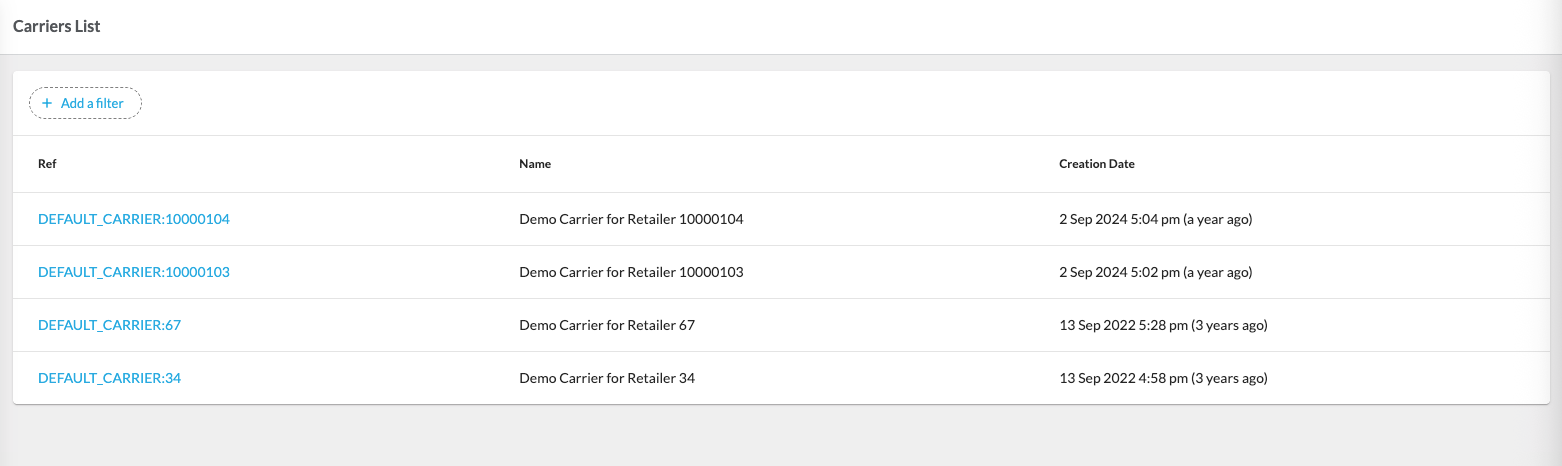
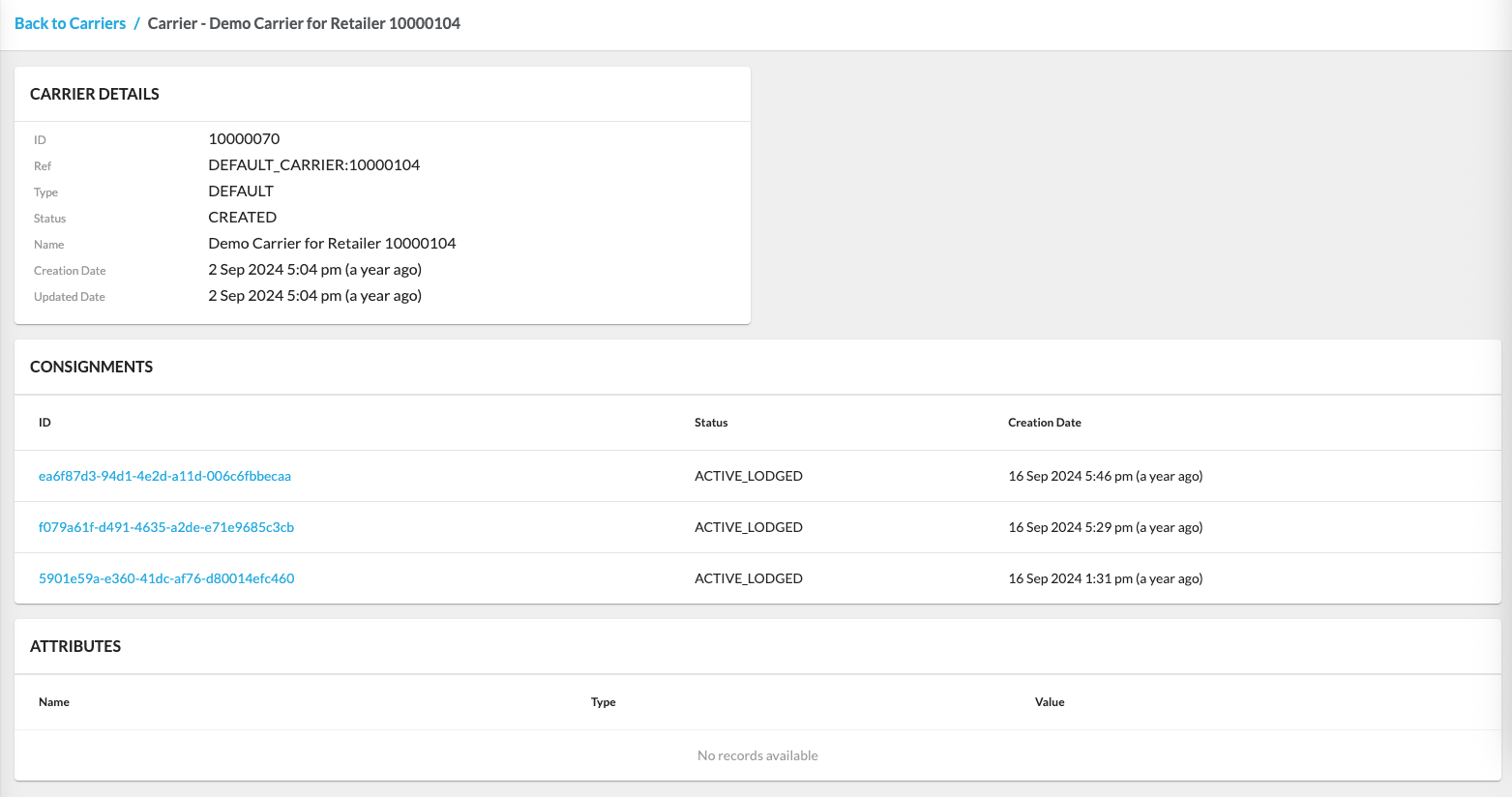
Carriers
The Carriers configuration is available only in the reference Fluent OMS Web App version.Users
Roles & Permissions
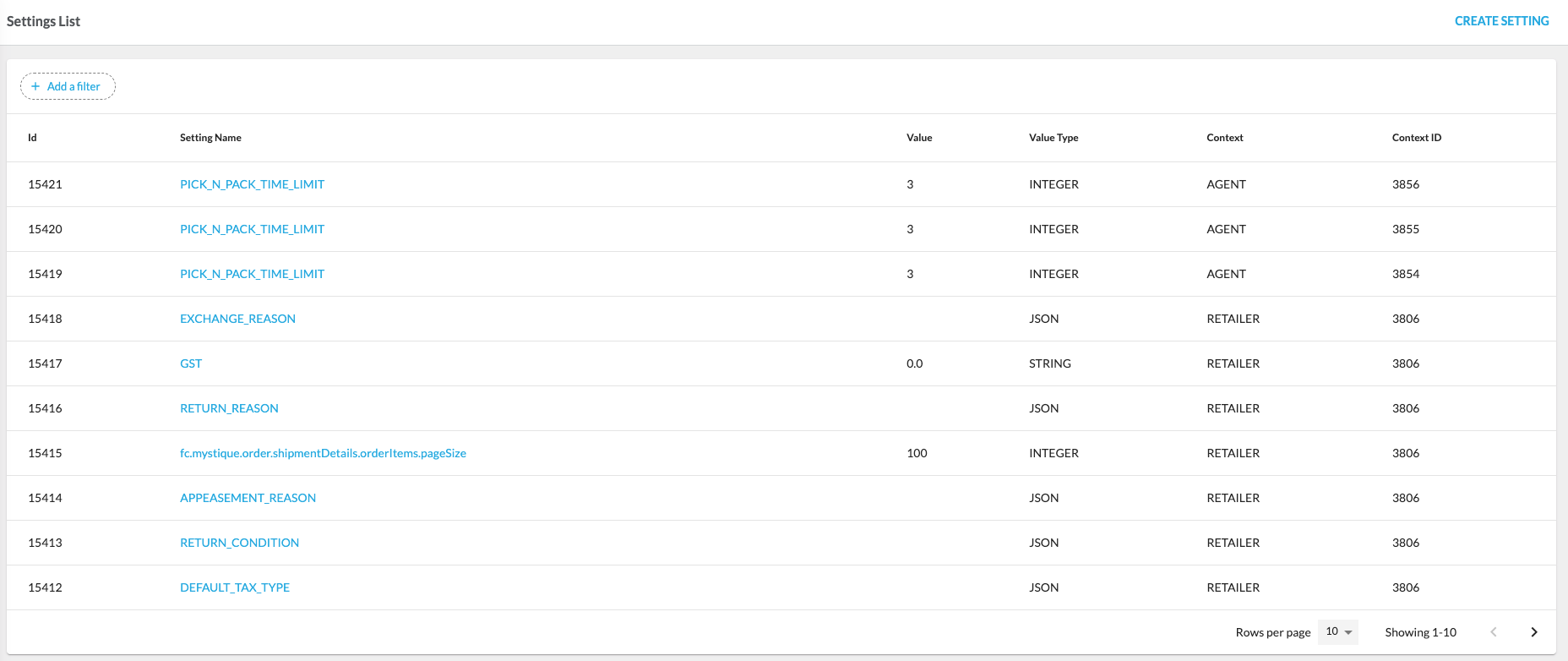
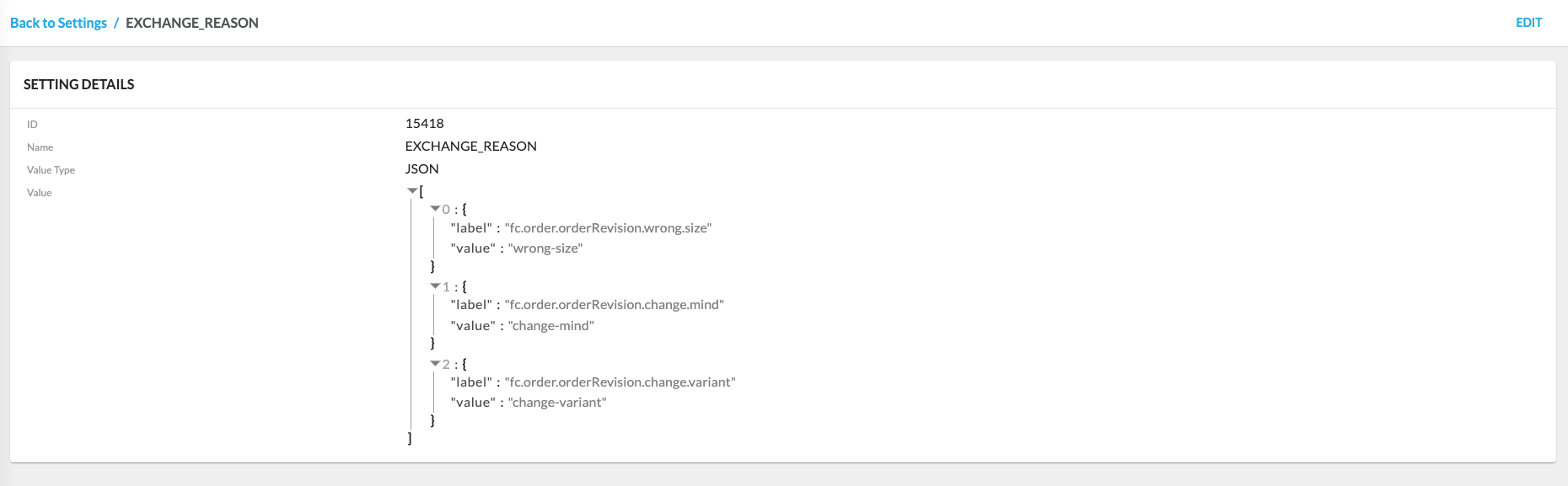
Settings
Sourcing Profiles
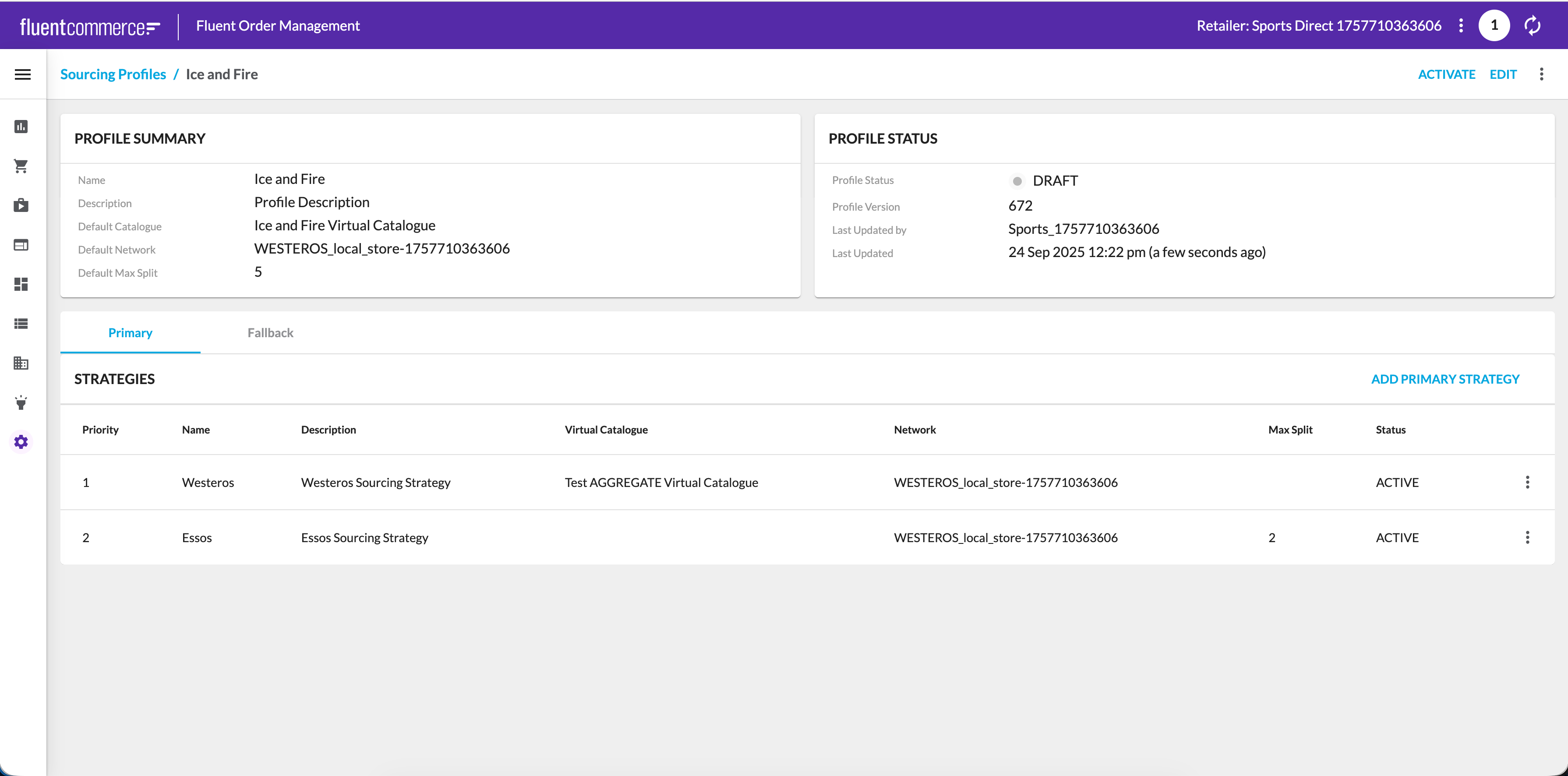
The Sourcing Profiles page in the Admin interface provides a centralized view of all configured profiles. It allows users to quickly see each profile’s current configuration, status, and history. From here, profiles can be opened for editing, version history can be reviewed, or a draft or inactive profile can be activated.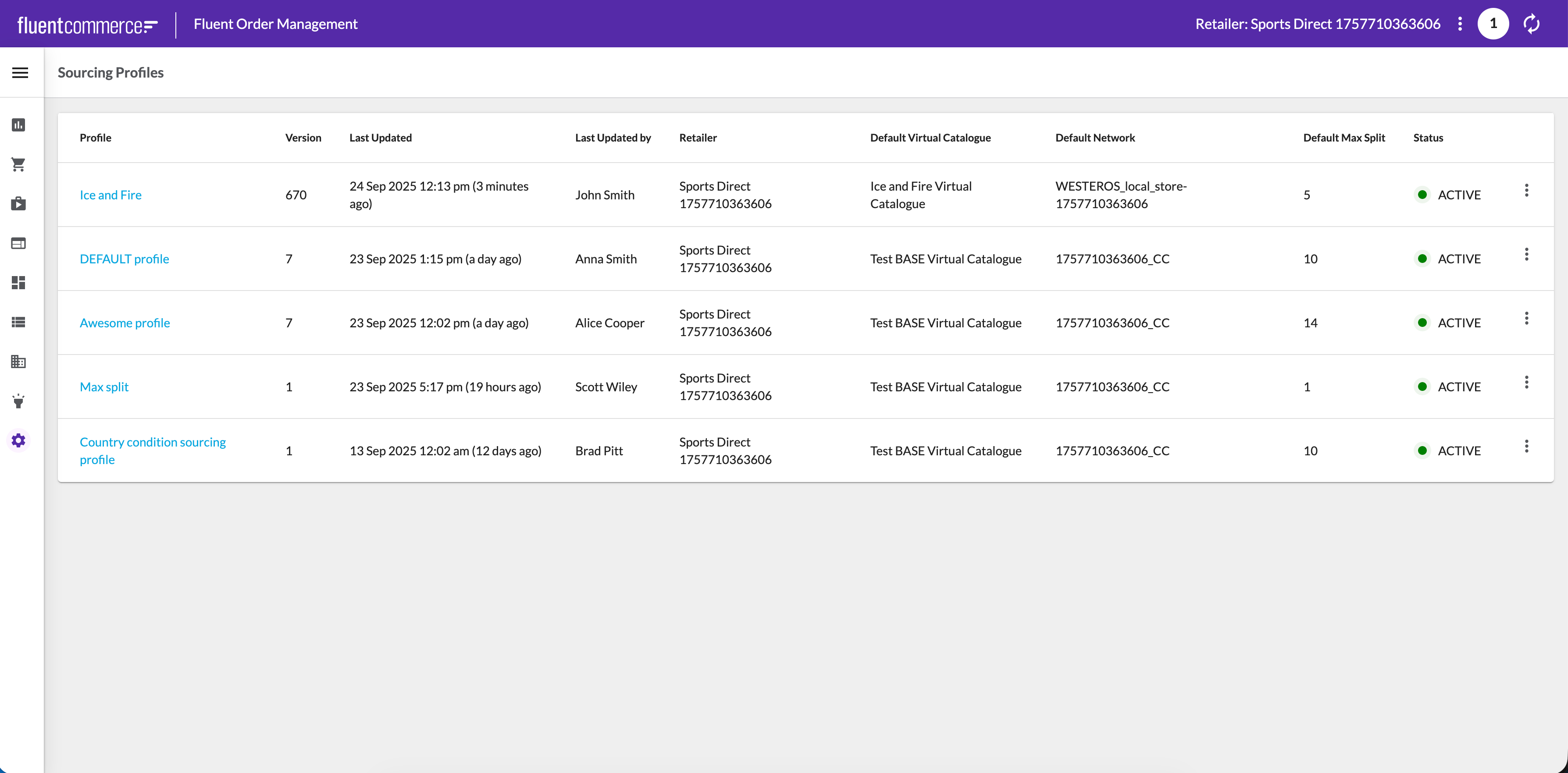 When a profile is opened, the Profile Details view is displayed. This view combines a summary of key attributes (such as default catalog, networks, and max split) with the profile’s current status and version information. Strategies are shown in the order they are executed, with primary and fallback strategies clearly distinguished for clarity.
 For a deeper overview of configuring and managing profiles, please see the full article on Sourcing Profiles.