Enable Store Associates to assign Items to Parcels
How-to Guide
Author:
Yulia Andreyanova
Changed on:
5 Sept 2025
Key Points
- This guide is intended for implementers who are enabling the capability for Store Associates to assign items to parcels.
- The guide outlines the steps to configure the assign items to parcels capability, including updating the necessary modules, workflows, settings, and user permissions to ensure smooth implementation in the Fluent Store.
- Before proceeding with this guide, it is recommended that you are familiar with the following concepts: Adding a Workflow to your Retailer via API, How to Override the default manifest, How to Display Colored Dots, Configure Printable Order Labels, and Create a custom Printable Pack Slips.
Prerequisites
Steps
 Install the Latest Order, Fulfilment, and Core Modules
If your account is using an Order module version earlier than 1.3.0, a Fulfilment module version earlier than 2.1.0, or a Core module version earlier than 1.2.5, you'll need to install the latest module versions.This will grant you access to the latest workflows and the following essential rules for the Order Module:
Update Workflows
There are two ways to update the Location and Orders workflows:Option 1:
Use the reference workflows from the Fulfilment Module's version 2.1.0 or higher and the Order Module's version 1.3.0 or higher. This is recommended if you're working with default workflows, especially for new retailers without customizations.The following how-to guide, 'Adding a Workflow to your Retailer via API,' provides instructions on updating a workflow. The necessary workflow files are included in the Fulfillment Module (v2.1.0 and greater) and Order Module (v1.3.0 and greater) zip files.Option 2:
If your workflows are customized, you’ll need to manually integrate new rules and ruleSets:Step 2. Add the
Use the reference workflows from the Fulfilment Module's version 2.1.0 or higher and the Order Module's version 1.3.0 or higher. This is recommended if you're working with default workflows, especially for new retailers without customizations.The following how-to guide, 'Adding a Workflow to your Retailer via API,' provides instructions on updating a workflow. The necessary workflow files are included in the Fulfillment Module (v2.1.0 and greater) and Order Module (v1.3.0 and greater) zip files.Option 2:
If your workflows are customized, you’ll need to manually integrate new rules and ruleSets:
- Location Workflow: Insert the following ruleSets into your Location workflow in order to break apart the pick and pack processes. This enables Store Associates to prioritize packing by selecting the next fulfillment strategically or based on urgency.
- PickConfirmAndWaveComplete This ruleSet assigns picked items to the corresponding fulfillments in the Wave and updates the Wave status to
`COMPLETE`.
- PickConfirmAndWaveComplete This ruleSet assigns picked items to the corresponding fulfillments in the Wave and updates the Wave status to
1{
2  "name": "PickConfirmAndWaveComplete",
3  "description": "Assign the picked items to fulfilment and set the Wave status to 'COMPLETE'.",
4  "type": "WAVE",
5  "subtype": "STORE",
6  "eventType": "NORMAL",
7  "rules": [
8    {
9      "name": "[[account.id]].fulfilment.AllocateConfirmedItemsByFulfilmentExpiry",
10      "props": {
11        "eventName": "FulfilmentPack",
12        "excludedStatuses": [
13          "EXPIRED"
14        ]
15      }
16    },
17    {
18      "name": "[[account.id]].core.SetState",
19      "props": {
20        "status": "COMPLETE"
21      }
22    }
23  ],
24  "triggers": [
25    {
26      "status": "PICK"
27    }
28  ],
29  "userActions": [
30    {
31      "context": [
32        {
33          "label": "Confirm pick",
34          "type": "PRIMARY",
35          "modules": [
36            "servicepoint",
37            "store"
38          ],
39          "confirm": true
40        }
41      ],
42      "attributes": [
43        {
44          "name": "pickedItems",
45          "label": "Picked Items",
46          "type": "PICKED_ITEMS",
47          "source": "",
48          "defaultValue": "",
49          "mandatory": true
50        }
51      ]
52    }
53  ]
54},- Order Workflow: Insert the following ruleSets into HD (Home Delivery) and CC (Click and Collect) order workflows to trigger the packing process and verify fulfillment items:
- FulfilmentPack Triggered from the wave entity, this event initiates the packing process for items in the fulfillment;
- VerifyFulfilmentItemsForPack This checks the fulfillment items and triggers different events depending on whether all, some, or none of them were picked during the Pick phase;
- AllReadyForPack Sends an event to reset reserved inventory values and updates the fulfillment status to
`READY_FOR_PACK`when all items have been fulfilled from the store or warehouse; - PartiallyReadyForPack Sends an event to reset reserved inventory values and changes the fulfillment status to
`READY_FOR_PACK`when only some items are fulfilled. It also sends an event to the order entity to source unfulfilled items from the next best location; - VerifyParcels Verifies both packed items and rejections, then triggers different events based on whether all, some, or none of the items were packed during the Pack phase;
- ReassignRejections Triggers an event to create parcels for the packed items. It also resets reserved inventory values and sends an event to source unfulfilled items from the next best location;
- RejectFulfilment Changes the fulfillment status to
`REJECTED`when no items can be packed. It then resets inventory values and triggers an event to source the unfulfilled items from another location; - CreateParcels Creates parcels during the packing phase of fulfillment and sends an event indicating that the parcel (article) has been created.
1{
2  "name": "FulfilmentPack",
3  "description": "Event is triggered from the wave entity and starts the pack process for the items in the fulfilment",
4  "type": "FULFILMENT",
5  "eventType": "NORMAL",
6  "rules": [
7    {
8      "name": "[[account.id]].order.ConfirmFulfilmentItems",
9      "props": null
10    },
11    {
12      "name": "[[account.id]].core.SendEvent",
13      "props": {
14        "eventName": "VerifyFulfilmentItemsForPack"
15      }
16    }
17  ],
18  "triggers": [
19    {
20      "status": "ASSIGNED"
21    }
22  ],
23  "userActions": []
24},
25{
26  "name": "VerifyFulfilmentItemsForPack",
27  "description": "Verifies Fulfilment Items and triggers different events based on whether all,some or none of the items were picked during the Pick phase",
28  "type": "FULFILMENT",
29  "eventType": "NORMAL",
30  "rules": [
31    {
32      "name": "[[account.id]].order.VerifyingFulfilmentItems",
33      "props": {
34        "quantity": "ALL",
35        "eventName": "AllReadyForPack"
36      }
37    },
38    {
39      "name": "[[account.id]].order.VerifyingFulfilmentItems",
40      "props": {
41        "quantity": "PARTIAL",
42        "eventName": "PartiallyReadyForPack"
43      }
44    },
45    {
46      "name": "[[account.id]].order.VerifyingFulfilmentItems",
47      "props": {
48        "quantity": "NONE",
49        "eventName": "AllRejected"
50      }
51    }
52  ],
53  "triggers": [
54    {
55      "status": "ASSIGNED"
56    }
57  ],
58  "userActions": []
59},
60{
61  "name": "AllReadyForPack",
62  "description": "Sends an event to inventory to reset the reserved inventory values and changes the status of fulfilment to READY_FOR_PACK when all items in the Fulfilment are fulfilled from Store or Warehouse",
63  "type": "FULFILMENT",
64  "eventType": "NORMAL",
65  "rules": [
66    {
67      "name": "[[account.id]].core.SetState",
68      "props": {
69        "status": "READY_FOR_PACK"
70      }
71    },
72    {
73      "name": "[[account.id]].order.SendEventToUpdateInventoryQuantity",
74      "props": {
75        "eventName": "UpdateInventoryQty",
76        "operation": "RESET_RESERVE",
77        "inventoryCatalogueRef": "[[inventory.catalogue.ref]]",
78        "retailerId": "[[inventory.retailer.id]]"
79      }
80    }
81  ],
82  "triggers": [
83    {
84      "status": "ASSIGNED"
85    }
86  ],
87  "userActions": []
88},
89{
90  "name": "PartiallyReadyForPack",
91  "description": "Sends an event to inventory to reset the reserved inventory values and changes the status of fulfilment to READY_FOR_PACK when only some items in the Fulfilment are fulfilled from Store or Warehouse. Sends an event to the order entity to source for the unfulfilled items from the next best location",
92  "type": "FULFILMENT",
93  "eventType": "NORMAL",
94  "rules": [
95    {
96      "name": "[[account.id]].core.SetState",
97      "props": {
98        "status": "READY_FOR_PACK"
99      }
100    },
101    {
102      "name": "[[account.id]].order.SendEventToUpdateInventoryQuantity",
103      "props": {
104        "eventName": "UpdateInventoryQty",
105        "operation": "RESET_RESERVE",
106        "inventoryCatalogueRef": "[[inventory.catalogue.ref]]",
107        "retailerId": "[[inventory.retailer.id]]"
108      }
109    },
110    {
111      "name": "[[account.id]].order.SendEventForOrder",
112      "props": {
113        "eventName": "FindAndCreateOrderFulfilment"
114      }
115    }
116  ],
117  "triggers": [
118    {
119      "status": "ASSIGNED"
120    }
121  ],
122  "userActions": []
123},
124{
125  "name": "ConfirmParcels",
126  "description": "Event is triggered from the user action and starts the pack process for the items in the fulfilment",
127  "type": "FULFILMENT",
128  "subtype": "HD_PFS",
129  "eventType": "NORMAL",
130  "rules": [
131    {
132      "name": "[[account.id]].order.SetFulfilmentItemRejections",
133      "props": null
134    },
135    {
136      "name": "[[account.id]].core.SendEvent",
137      "props": {
138        "eventName": "VerifyParcels"
139      }
140    }
141  ],
142  "triggers": [
143    {
144      "status": "READY_FOR_PACK"
145    }
146  ],
147  "userActions": [
148    {
149      "context": [
150        {
151          "label": "Confirm Parcels",
152          "type": "PRIMARY",
153          "modules": [
154            "servicepoint",
155            "store"
156          ],
157          "confirm": true
158        }
159      ],
160      "attributes": [
161        {
162          "name": "packedItems",
163          "label": "Fulfilment Articles and Rejections",
164          "type": "FULFILMENT_PACK",
165          "source": "",
166          "defaultValue": "",
167          "mandatory": true
168        }
169      ]
170    }
171  ]
172},
173{
174  "name": "VerifyParcels",
175  "description": "Verifies Fulfilment Items and Rejections and triggers different events based on whether all,some or none of the items were packed during the PACK phase",
176  "type": "FULFILMENT",
177  "eventType": "NORMAL",
178  "rules": [
179    {
180      "name": "[[account.id]].order.SendEventOnVerifyingParcelsComplete",
181      "props": {
182        "eventName": "CreateParcels"
183      }
184    },
185    {
186      "name": "[[account.id]].order.SendEventOnVerifyingParcelsPartiallyComplete",
187      "props": {
188        "eventName": "ReassignRejections"
189      }
190    },
191    {
192      "name": "[[account.id]].order.SendEventOnVerifyingNoParcels",
193      "props": {
194        "eventName": "RejectFulfilment"
195      }
196    }
197  ],
198  "triggers": [
199    {
200      "status": "READY_FOR_PACK"
201    }
202  ],
203  "userActions": [
204  ]
205},
206{
207  "name": "ReassignRejections",
208  "description": "Sends an event to create parcels for packed items. Sends an event to inventory to reset the reserved inventory values. Sends an event to the order entity to source for the unfulfilled items from the next best location",
209  "type": "FULFILMENT",
210  "eventType": "NORMAL",
211  "rules": [
212    {
213      "name": "[[account.id]].order.SendEventForOrder",
214      "props": {
215        "eventName": "FindAndCreateOrderFulfilment"
216      }
217    },
218    {
219      "name": "[[account.id]].order.SendEventToUpdateInventoryQuantity",
220      "props": {
221        "eventName": "UpdateInventoryQty",
222        "operation": "RESET_RESERVE",
223        "inventoryCatalogueRef": "[[inventory.catalogue.ref]]",
224        "retailerId": "[[inventory.retailer.id]]"
225      }
226    },
227    {
228      "name": "[[account.id]].core.SendEvent",
229      "props": {
230        "eventName": "CreateParcels"
231      }
232    }
233  ],
234  "triggers": [
235    {
236      "status": "READY_FOR_PACK"
237    }
238  ],
239  "userActions": []
240},
241{
242  "name": "RejectFulfilment",
243  "description": "Changes the status of fulfilment to REJECTED when no items in the Fulfilment can be packed. Sends an event to inventory to reset the reserved inventory values. Sends an event to the order entity to source for the unfulfilled items from the next best location",
244  "type": "FULFILMENT",
245  "eventType": "NORMAL",
246  "rules": [
247    {
248      "name": "[[account.id]].core.SetState",
249      "props": {
250        "status": "REJECTED"
251      }
252    },
253    {
254      "name": "[[account.id]].order.SendEventToUpdateInventoryQuantity",
255      "props": {
256        "eventName": "UpdateInventoryQty",
257        "operation": "RESET_RESERVE",
258        "inventoryCatalogueRef": "[[inventory.catalogue.ref]]",
259        "retailerId": "[[inventory.retailer.id]]"
260      }
261    },
262    {
263      "name": "[[account.id]].order.SendEventForOrder",
264      "props": {
265        "eventName": "FindAndCreateOrderFulfilment"
266      }
267    }
268  ],
269  "triggers": [
270    {
271      "status": "READY_FOR_PACK"
272    }
273  ],
274  "userActions": []
275},
276{
277  "name": "CreateParcels",
278  "description": "Creates articles / parcels during pack phase of the fulfilment. Sends an event to indicate Article is created",
279  "type": "FULFILMENT",
280  "eventType": "NORMAL",
281  "rules": [
282    {
283      "name": "[[account.id]].order.CreateParcelsForFulfilment",
284      "props": null
285    },
286    {
287      "name": "[[account.id]].core.SendEvent",
288      "props": {
289        "eventName": "ArticleCreated"
290      }
291    }
292  ],
293  "triggers": [
294    {
295      "status": "READY_FOR_PACK"
296    }
297  ],
298  "userActions": []
299},- Change the rule
`SendEventForOrder`to`SendEventForOrderOnVerifyingRejections`in Home Delivery and Click and Collect order workflows to support rejections during the pack step.
1{
2      "name": "AllArticlesAwaitingCourierCollection",
3      "description": "Changes fulfilment status and sends an event to Order if items was not rejected on Pack step",
4      "type": "FULFILMENT",
5      "eventType": "NORMAL",
6      "rules": [
7        {
8          "name": "[[account.id]].core.SetState",
9          "props": {
10            "status": "AWAITING_COURIER_COLLECTION"
11          }
12        },
13        {
14          "name": "[[account.id]].order.SendEventForOrderOnVerifyingRejections",
15          "props": {
16            "eventName": "FulfilmentAwaitingCourierCollection"
17          }
18        }
19      ],
20      "triggers": [
21        {
22          "status": "FULFILLED"
23        },
24        {
25          "status": "PARTIALLY_FULFILLED"
26        },
27        {
28          "status": "READY_FOR_PACK"
29        }
30      ],
31      "userActions": []
32}1{
2 "name": "AllArticlesAwaitingCustomerCollection",
3 "description": "Changes fulfilment status and sends an event to Order if items was not rejected on Pack step",
4 "type": "FULFILMENT",
5 "eventType": "NORMAL",
6 "rules": [
7 {
8 "name": "[[account.id]].core.SetState",
9 "props": {
10 "status": "AWAITING_CUSTOMER_COLLECTION"
11 }
12 },
13 {
14 "name": "[[account.id]].order.SendEventForOrderOnVerifyingRejections",
15 "props": {
16 "eventName": "FulfilmentAwaitingCollection"
17 }
18 }
19 ],
20 "triggers": [
21 {
22 "status": "FULFILLED"
23 },
24 {
25 "status": "PARTIALLY_FULFILLED"
26 },
27 {
28 "status": "READY_FOR_PACK"
29 }
30 ],
31 "userActions": []
32 }- Additionally, for Click and Collect (CC) orders, add the
`ModifyFulfilmentTypeToHDPFS`ruleSet to modify fulfillment types for delivery.
1{
2  "name": "ModifyFulfilmentTypeToHDPFS",
3  "description": "Modifies the fulfilment type to indicate it is for delivery",
4  "type": "FULFILMENT",
5  "eventType": "NORMAL",
6  "rules": [
7    {
8      "name": "[[account.id]].order.UpdateFulfilmentType",
9      "props": {
10        "fulfilmentType": "HD_PFS"
11      }
12    },
13    {
14      "name": "[[account.id]].core.SetState",
15      "props": {
16        "status": "FULFILLED"
17      }
18    }
19  ],
20  "triggers": [
21    {
22      "status": "READY_FOR_PACK"
23    }
24  ],
25  "userActions": []
26}- For Mixed Basket order workflow, include rules for handling mixed basket order type.
1{
2      "name": "FulfilmentPack",
3      "description": "Event is triggered from the wave entity and starts the pack process for the items in the fulfilment",
4      "type": "FULFILMENT",
5      "eventType": "NORMAL",
6      "rules": [
7        {
8          "name": "[[account.id]].order.ConfirmFulfilmentItems",
9          "props": null
10        },
11        {
12          "name": "[[account.id]].core.SendEvent",
13          "props": {
14            "eventName": "VerifyFulfilmentItemsForPack"
15          }
16        }
17      ],
18      "triggers": [
19        {
20          "status": "ASSIGNED"
21        }
22      ],
23      "userActions": []
24    },
25    {
26      "name": "VerifyFulfilmentItemsForPack",
27      "description": "Verifies Fulfilment Items and triggers different events based on whether all,some or none of the items were picked during the Pick phase",
28      "type": "FULFILMENT",
29      "eventType": "NORMAL",
30      "rules": [
31        {
32          "name": "[[account.id]].order.VerifyingFulfilmentItems",
33          "props": {
34            "quantity": "ALL",
35            "eventName": "AllReadyForPack"
36          }
37        },
38        {
39          "name": "[[account.id]].order.VerifyingFulfilmentItems",
40          "props": {
41            "quantity": "PARTIAL",
42            "eventName": "PartiallyReadyForPack"
43          }
44        },
45        {
46          "name": "[[account.id]].order.VerifyingFulfilmentItems",
47          "props": {
48            "quantity": "NONE",
49            "eventName": "AllRejected"
50          }
51        }
52      ],
53      "triggers": [
54        {
55          "status": "ASSIGNED"
56        }
57      ],
58      "userActions": []
59    },
60    {
61      "name": "AllReadyForPack",
62      "description": "Sends an event to inventory to reset the reserved inventory values and changes the status of fulfilment to READY_FOR_PACK when all items in the Fulfilment are fulfilled from Store or Warehouse",
63      "type": "FULFILMENT",
64      "eventType": "NORMAL",
65      "rules": [
66        {
67          "name": "[[account.id]].core.SetState",
68          "props": {
69            "status": "READY_FOR_PACK"
70          }
71        },
72        {
73          "name": "[[account.id]].order.SendEventToUpdateInventoryQuantity",
74          "props": {
75            "eventName": "UpdateInventoryQty",
76            "operation": "RESET_RESERVE",
77            "inventoryCatalogueRef": "[[inventory.catalogue.ref]]",
78            "retailerId": "[[inventory.retailer.id]]"
79          }
80        }
81      ],
82      "triggers": [
83        {
84          "status": "ASSIGNED"
85        }
86      ],
87      "userActions": []
88    },
89    {
90      "name": "PartiallyReadyForPack",
91      "description": "Sends an event to inventory to reset the reserved inventory values and changes the status of fulfilment to READY_FOR_PACK when only some items in the Fulfilment are fulfilled from Store or Warehouse. Sends an event to the order entity to source for the unfulfilled items from the next best location",
92      "type": "FULFILMENT",
93      "eventType": "NORMAL",
94      "rules": [
95        {
96          "name": "[[account.id]].core.SetState",
97          "props": {
98            "status": "READY_FOR_PACK"
99          }
100        },
101        {
102          "name": "[[account.id]].order.SendEventToUpdateInventoryQuantity",
103          "props": {
104            "eventName": "UpdateInventoryQty",
105            "operation": "RESET_RESERVE",
106            "inventoryCatalogueRef": "[[inventory.catalogue.ref]]",
107            "retailerId": "[[inventory.retailer.id]]"
108          }
109        },
110        {
111          "name": "[[account.id]].order.SendEventForFulfilmentChoice",
112          "props": {
113            "eventName": "FindAndCreateFulfilment"
114          }
115        }
116      ],
117      "triggers": [
118        {
119          "status": "ASSIGNED"
120        }
121      ],
122      "userActions": []
123    },
124    {
125      "name": "ConfirmParcels",
126      "description": "Event is triggered from the user action and starts the pack process for the items in the fulfilment",
127      "type": "FULFILMENT",
128      "subtype": "HD_PFS",
129      "eventType": "NORMAL",
130      "rules": [
131        {
132          "name": "[[account.id]].order.SetFulfilmentItemRejections",
133          "props": null
134        },
135        {
136          "name": "[[account.id]].core.SendEvent",
137          "props": {
138            "eventName": "VerifyParcels"
139          }
140        }
141      ],
142      "triggers": [
143        {
144          "status": "READY_FOR_PACK"
145        }
146      ],
147      "userActions": [
148        {
149          "context": [
150            {
151              "label": "Confirm Parcels",
152              "type": "PRIMARY",
153              "modules": [
154                "servicepoint",
155                "store"
156              ],
157              "confirm": true
158            }
159          ],
160          "attributes": [
161            {
162              "name": "packedItems",
163              "label": "Fulfilment Articles and Rejections",
164              "type": "FULFILMENT_PACK",
165              "source": "",
166              "defaultValue": "",
167              "mandatory": true
168            }
169          ]
170        }
171      ]
172    },
173    {
174      "name": "ConfirmParcels",
175      "description": "Event is triggered from the user action and starts the pack process for the items in the fulfilment",
176      "type": "FULFILMENT",
177      "subtype": "CC_PFS",
178      "eventType": "NORMAL",
179      "rules": [
180        {
181          "name": "[[account.id]].order.SetFulfilmentItemRejections",
182          "props": null
183        },
184        {
185          "name": "[[account.id]].core.SendEvent",
186          "props": {
187            "eventName": "VerifyParcels"
188          }
189        }
190      ],
191      "triggers": [
192        {
193          "status": "READY_FOR_PACK"
194        }
195      ],
196      "userActions": [
197        {
198          "context": [
199            {
200              "label": "Confirm Parcels",
201              "type": "PRIMARY",
202              "modules": [
203                "servicepoint",
204                "store"
205              ],
206              "confirm": true
207            }
208          ],
209          "attributes": [
210            {
211              "name": "packedItems",
212              "label": "Fulfilment Articles and Rejections",
213              "type": "FULFILMENT_PACK",
214              "source": "",
215              "defaultValue": "",
216              "mandatory": true
217            }
218          ]
219        }
220      ]
221    },
222    {
223      "name": "ConfirmParcels",
224      "description": "Event is triggered from the user action and starts the pack process for the items in the fulfilment",
225      "type": "FULFILMENT",
226      "subtype": "CC_PFCP",
227      "eventType": "NORMAL",
228      "rules": [
229        {
230          "name": "[[account.id]].order.SetFulfilmentItemRejections",
231          "props": null
232        },
233        {
234          "name": "[[account.id]].core.SendEvent",
235          "props": {
236            "eventName": "VerifyParcels"
237          }
238        }
239      ],
240      "triggers": [
241        {
242          "status": "READY_FOR_PACK"
243        }
244      ],
245      "userActions": [
246        {
247          "context": [
248            {
249              "label": "Confirm Parcels",
250              "type": "PRIMARY",
251              "modules": [
252                "servicepoint",
253                "store"
254              ],
255              "confirm": true
256            }
257          ],
258          "attributes": [
259            {
260              "name": "packedItems",
261              "label": "Fulfilment Articles and Rejections",
262              "type": "FULFILMENT_PACK",
263              "source": "",
264              "defaultValue": "",
265              "mandatory": true
266            }
267          ]
268        }
269      ]
270    },
271    {
272      "name": "VerifyParcels",
273      "description": "Verifies Fulfilment Items and Rejections and triggers different events based on whether all,some or none of the items were packed during the PACK phase",
274      "type": "FULFILMENT",
275      "eventType": "NORMAL",
276      "rules": [
277        {
278          "name": "[[account.id]].order.SendEventOnVerifyingParcelsComplete",
279          "props": {
280            "eventName": "CreateParcels"
281          }
282        },
283        {
284          "name": "[[account.id]].order.SendEventOnVerifyingParcelsPartiallyComplete",
285          "props": {
286            "eventName": "ReassignRejections"
287          }
288        },
289        {
290          "name": "[[account.id]].order.SendEventOnVerifyingNoParcels",
291          "props": {
292            "eventName": "RejectFulfilment"
293          }
294        }
295      ],
296      "triggers": [
297        {
298          "status": "READY_FOR_PACK"
299        }
300      ],
301      "userActions": [
302      ]
303    },
304    {
305      "name": "ReassignRejections",
306      "description": "Sends an event to create parcels for packed items. Sends an event to inventory to reset the reserved inventory values. Sends an event to the order entity to source for the unfulfilled items from the next best location",
307      "type": "FULFILMENT",
308      "eventType": "NORMAL",
309      "rules": [
310        {
311          "name": "[[account.id]].order.SendEventForFulfilmentChoice",
312          "props": {
313            "eventName": "FindAndCreateFulfilment"
314          }
315        },
316        {
317          "name": "[[account.id]].order.SendEventToUpdateInventoryQuantity",
318          "props": {
319            "eventName": "UpdateInventoryQty",
320            "operation": "RESET_RESERVE",
321            "inventoryCatalogueRef": "[[inventory.catalogue.ref]]",
322            "retailerId": "[[inventory.retailer.id]]"
323          }
324        },
325        {
326          "name": "[[account.id]].core.SendEvent",
327          "props": {
328            "eventName": "CreateParcels"
329          }
330        }
331      ],
332      "triggers": [
333        {
334          "status": "READY_FOR_PACK"
335        }
336      ],
337      "userActions": []
338    },
339    {
340      "name": "RejectFulfilment",
341      "description": "Changes the status of fulfilment to REJECTED when no items in the Fulfilment can be packed. Sends an event to inventory to reset the reserved inventory values. Sends an event to the order entity to source for the unfulfilled items from the next best location",
342      "type": "FULFILMENT",
343      "eventType": "NORMAL",
344      "rules": [
345        {
346          "name": "[[account.id]].core.SetState",
347          "props": {
348            "status": "REJECTED"
349          }
350        },
351        {
352          "name": "[[account.id]].order.SendEventToUpdateInventoryQuantity",
353          "props": {
354            "eventName": "UpdateInventoryQty",
355            "operation": "RESET_RESERVE",
356            "inventoryCatalogueRef": "[[inventory.catalogue.ref]]",
357            "retailerId": "[[inventory.retailer.id]]"
358          }
359        },
360        {
361          "name": "[[account.id]].order.SendEventForFulfilmentChoice",
362          "props": {
363            "eventName": "FindAndCreateFulfilment"
364          }
365        }
366      ],
367      "triggers": [
368        {
369          "status": "READY_FOR_PACK"
370        }
371      ],
372      "userActions": []
373    },
374    {
375      "name": "CreateParcels",
376      "description": "Creates articles / parcels during pack phase of the fulfilment. Sends an event to indicate Article is created",
377      "type": "FULFILMENT",
378      "eventType": "NORMAL",
379      "rules": [
380        {
381          "name": "[[account.id]].order.CreateParcelsForFulfilment",
382          "props": null
383        },
384        {
385          "name": "[[account.id]].core.SendEvent",
386          "props": {
387            "eventName": "ArticleCreated"
388          }
389        }
390      ],
391      "triggers": [
392        {
393          "status": "READY_FOR_PACK"
394        }
395      ],
396      "userActions": []
397    },
398{
399      "name": "ModifyFulfilmentTypeToHDPFS",
400      "description": "Modifies the fulfilment type to indicate it is for delivery",
401      "type": "FULFILMENT",
402      "eventType": "NORMAL",
403      "rules": [
404        {
405          "name": "[[account.id]].order.UpdateFulfilmentType",
406          "props": {
407            "fulfilmentType": "HD_PFS"
408          }
409        },
410        {
411          "name": "[[account.id]].core.SetState",
412          "props": {
413            "status": "FULFILLED"
414          }
415        }
416      ],
417      "triggers": [
418        {
419          "status": "READY_FOR_PACK"
420        }
421      ],
422      "userActions": []
423 },- Change the rule
`SendEventForFulfilmentChoice`to`SendEventForFulfilmentChoiceOnVerifyingRejections`in the Mixed Basket order workflow to support rejections during the pack step.
1{
2      "name": "AllArticlesAwaitingCourierCollection",
3      "description": "Fulfilment State Change to AWAITING_COURIER_COLLECTION",
4      "type": "FULFILMENT",
5      "eventType": "NORMAL",
6      "rules": [
7        {
8          "name": "[[account.id]].core.SetState",
9          "props": {
10            "status": "AWAITING_COURIER_COLLECTION"
11          }
12        },
13        {
14          "name": "[[account.id]].order.SendEventForFulfilmentChoiceOnVerifyingRejections",
15          "props": {
16            "eventName": "FulfilmentAwaitingCourierCollection"
17          }
18        }
19      ],
20      "triggers": [
21        {
22          "status": "FULFILLED"
23        },
24        {
25          "status": "PARTIALLY_FULFILLED"
26        },
27        {
28          "status": "READY_FOR_PACK"
29        }
30      ],
31      "userActions": []
32    },
33{
34      "name": "AllArticlesAwaitingCustomerCollection",
35      "description": "Sends an event to Order and changes fulfilment status",
36      "type": "FULFILMENT",
37      "eventType": "NORMAL",
38      "rules": [
39        {
40          "name": "[[account.id]].core.SetState",
41          "props": {
42            "status": "AWAITING_CUSTOMER_COLLECTION"
43          }
44        },
45        {
46          "name": "[[account.id]].order.SendEventForFulfilmentChoiceOnVerifyingRejections",
47          "props": {
48            "eventName": "FulfilmentAwaitingCollection"
49          }
50        }
51      ],
52      "triggers": [
53        {
54          "status": "FULFILLED"
55        },
56        {
57          "status": "PARTIALLY_FULFILLED"
58        },
59        {
60          "status": "READY_FOR_PACK"
61        }
62      ],
63      "userActions": []
64 }- Final Adjustments:
`ConfirmParcels` ruleSet with the specific subtypes for your workflow. This ensures that the correct statuses are triggered based on the entity type.- Replace the subtype in the ConfirmParcels ruleSet with the specific types for your workflow. This ensures that the event does not result in a
`NO_MATCH`status.
- Include the
`READY_FOR_PACK`status in the appropriate trigger statuses for the following ruleSets:`ArticleCreated`,`ScheduleDemoConsignment`,`CreateConsignment`,`ArticleAwaitingCourierCollection`,`AllArticlesAwaitingCourierCollection`,`ModifyFulfilmentTypeToCCPFS`,`ArticleAwaitingCustomerCollection`, and`AllArticlesAwaitingCustomerCollection`. - Add the new
`READY_FOR_PACK`status to your HD, CC, and Mixed Basket workflows.
1{
2            "name": "READY_FOR_PACK",
3            "entityType": "FULFILMENT",
4            "category": "FULFILMENT"
5} - Important to Remember
Let's say you need to convert RESERVED to SALE and CORRECTION after the packing step. To achieve this: Step 1. Remove the
`SendEventToUpdateInventoryQuantity` rule from several key rulesets:`AllReadyForPack``PartiallyReadyForPack``ReassignRejections``RejectFulfilment`
1{
2  "name": "AllReadyForPack",
3  "description": "Sends an event to inventory to reset the reserved inventory values and changes the status of fulfilment to READY_FOR_PACK when all items in the Fulfilment are fulfilled from Store or Warehouse",
4  "type": "FULFILMENT",
5  "eventType": "NORMAL",
6  "rules": [
7    {
8      "name": "[[account.id]].core.SetState",
9      "props": {
10        "status": "READY_FOR_PACK"
11      }
12    }
13  ],
14  "triggers": [
15    {
16      "status": "ASSIGNED"
17    }
18  ],
19  "userActions": []
20}
211{
2 "name": "PartiallyReadyForPack",
3 "description": "Sends an event to inventory to reset the reserved inventory values and changes the status of fulfilment to READY_FOR_PACK when only some items in the Fulfilment are fulfilled from Store or Warehouse. Sends an event to the order entity to source for the unfulfilled items from the next best location",
4 "type": "FULFILMENT",
5 "eventType": "NORMAL",
6 "rules": [
7 {
8 "name": "[[account.id]].core.SetState",
9 "props": {
10 "status": "READY_FOR_PACK"
11 }
12 },
13 {
14 "name": "[[account.id]].order.SendEventForOrder",
15 "props": {
16 "eventName": "FindAndCreateOrderFulfilment"
17 }
18 }
19 ],
20 "triggers": [
21 {
22 "status": "ASSIGNED"
23 }
24 ],
25 "userActions": []
26}
271{
2 "name": "ReassignRejections",
3 "description": "Sends an event to create parcels for packed items. Sends an event to inventory to reset the reserved inventory values. Sends an event to the order entity to source for the unfulfilled items from the next best location",
4 "type": "FULFILMENT",
5 "eventType": "NORMAL",
6 "rules": [
7 {
8 "name": "[[account.id]].order.SendEventForOrder",
9 "props": {
10 "eventName": "FindAndCreateOrderFulfilment"
11 }
12 },
13 {
14 "name": "[[account.id]].core.SendEvent",
15 "props": {
16 "eventName": "CreateParcels"
17 }
18 }
19 ],
20 "triggers": [
21 {
22 "status": "READY_FOR_PACK"
23 }
24 ],
25 "userActions": []
26}
271{
2 "name": "RejectFulfilment",
3 "description": "Changes the status of fulfilment to REJECTED when no items in the Fulfilment can be packed. Sends an event to inventory to reset the reserved inventory values. Sends an event to the order entity to source for the unfulfilled items from the next best location",
4 "type": "FULFILMENT",
5 "eventType": "NORMAL",
6 "rules": [
7 {
8 "name": "[[account.id]].core.SetState",
9 "props": {
10 "status": "REJECTED"
11 }
12 },
13 {
14 "name": "[[account.id]].order.SendEventForOrder",
15 "props": {
16 "eventName": "FindAndCreateOrderFulfilment"
17 }
18 }
19 ],
20 "triggers": [
21 {
22 "status": "READY_FOR_PACK"
23 }
24 ],
25 "userActions": []
26}
27`SendEventToUpdateInventoryQuantity` rule to the `VerifyParcels` ruleset.1{
2 "name": "VerifyParcels",
3 "description": "Verifies Fulfilment Items and Rejections and triggers different events based on whether all,some or none of the items were packed during the PACK phase",
4 "type": "FULFILMENT",
5 "eventType": "NORMAL",
6 "rules": [
7 {
8 "name": "[[account.id]].order.SendEventOnVerifyingParcelsComplete",
9 "props": {
10 "eventName": "CreateParcels"
11 }
12 },
13 {
14 "name": "[[account.id]].order.SendEventOnVerifyingParcelsPartiallyComplete",
15 "props": {
16 "eventName": "ReassignRejections"
17 }
18 },
19 {
20 "name": "[[account.id]].order.SendEventOnVerifyingNoParcels",
21 "props": {
22 "eventName": "RejectFulfilment"
23 }
24 },
25 {
26 "name": "[[account.id]].order.SendEventToUpdateInventoryQuantity",
27 "props": {
28 "eventName": "UpdateInventoryQty",
29 "operation": "RESET_RESERVE",
30 "inventoryCatalogueRef": "[[inventory.catalogue.ref]]",
31 "retailerId": "[[inventory.retailer.id]]"
32 }
33 }
34 ],
35 "triggers": [
36 {
37 "status": "READY_FOR_PACK"
38 }
39 ],
40 "userActions": []
41}Update the Main Store Manifest
To access the new Pack page and activate the updated Create Wave logic, modify the
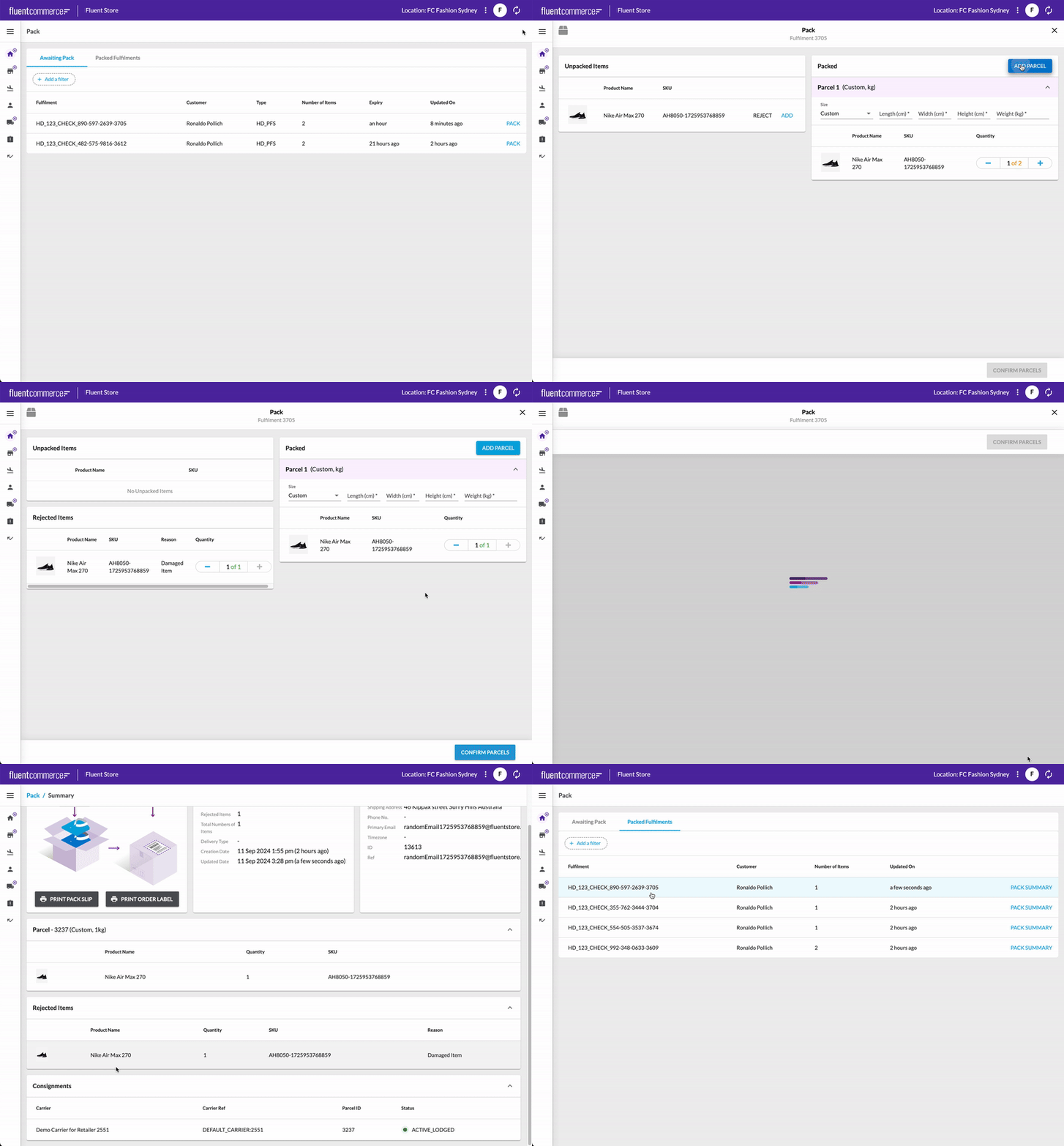
For step-by-step instructions, refer to the guide 'How to Override the Default Manifest.'The fragment fc.mystique.manifest.store.fragment.pack adds a new root page called Pack to the Fluent Store web app. This page provides the reference configuration for the Assigning Items to Parcels capability, enabling Store Associates to efficiently handle the packing process for multi-parcel shipments. They can assign items to specific parcels, create new parcels, set dimensions and weight, remove parcels, and reject items that don't meet the necessary criteria. Additionally, Store Associates can review all articles in the fulfillment to ensure accuracy after packing is completed.The fragment fc.mystique.manifest.store.fragment.waves.assigningitems contains updates that enable completing the wave at the Pick stage, streamlining the order fulfillment process by finishing the wave after items are picked.
`fc.mystique.manifest.store` manifest by adding the fc.mystique.manifest.store.fragment.pack fragment. Additionally, replace fc.mystique.manifest.store.fragment.waves with fc.mystique.manifest.store.fragment.waves.assigningitems. For step-by-step instructions, refer to the guide 'How to Override the Default Manifest.'The fragment fc.mystique.manifest.store.fragment.pack adds a new root page called Pack to the Fluent Store web app. This page provides the reference configuration for the Assigning Items to Parcels capability, enabling Store Associates to efficiently handle the packing process for multi-parcel shipments. They can assign items to specific parcels, create new parcels, set dimensions and weight, remove parcels, and reject items that don't meet the necessary criteria. Additionally, Store Associates can review all articles in the fulfillment to ensure accuracy after packing is completed.The fragment fc.mystique.manifest.store.fragment.waves.assigningitems contains updates that enable completing the wave at the Pick stage, streamlining the order fulfillment process by finishing the wave after items are picked.
1
2
3{
4    "manifestVersion": "2.0",
5    "name": "store",
6    "title": "Fluent Store",
7    "orchestrationAlias": "servicepoint",
8    "homePath": "waves",
9    "plugins": [
10        {
11            "type": "url",
12            "src": "/_plugins/store"
13        },
14        {
15            "type": "url",
16            "src": "/_plugins/returns"
17        }
18    ],
19    "context": {
20        "level": "location",
21        "role": [
22            "STORE_ASSISTANT",
23            "STORE"
24        ],
25        "switcher": true
26    },
27    "routes": [
28        {
29            "type": "reference",
30            "settingName": "fc.mystique.manifest.store.fragment.pack"
31        },
32        {
33            "type": "reference",
34            "settingName": "fc.mystique.manifest.store.fragment.waves.assigningitems"
35        },
36        {
37            "type": "reference",
38            "settingName": "fc.mystique.manifest.store.fragment.orders.awaitingpick"
39        },
40        {
41            "type": "reference",
42            "settingName": "fc.mystique.manifest.store.fragment.waves.inprogress"
43        },
44        {
45            "type": "reference",
46            "settingName": "fc.mystique.manifest.store.fragment.waves.complete"
47        },
48        {
49            "type": "reference",
50            "settingName": "fc.mystique.manifest.store.fragment.arrivals"
51        },
52        {
53            "type": "reference",
54            "settingName": "fc.mystique.manifest.store.fragment.customer.collections"
55        },
56        {
57            "type": "reference",
58            "settingName": "fc.mystique.manifest.store.fragment.carrier.collections"
59        },
60        {
61            "type": "reference",
62            "settingName": "fc.mystique.manifest.store.fragment.uncollected"
63        },
64        {
65            "type": "reference",
66            "settingName": "fc.mystique.manifest.store.fragment.returns"
67        }
68    ]
69} Update Store User Permissions
Verify the user's Store permissions. They must have the
`ARTICLEITEM_VIEW` permission to see packed items in parcels. If this permission is missing, you'll need to update their role accordingly. You can do this manually through the Fluent OMS app (Admin section) or via the GraphQL Roles API.Configure PDF for the Pack Slip
To enable the option to print generated pack slips when the packing process is completed, configure printable pack slips through
`fc.store.summary.print.pack.slip` setting. For more information, refer to the Configure Printable Pack Slips guide. Configure PDF for the Order Labels
To enable the option to generate and print PDF order labels upon pack completion, configure printable order labels through the
`fc.store.summary.print.pack.label` setting. Consult the Configure Printable Order Labels guide for detailed configuration steps.Optional enhancements
The following enhancements can be enabled through ACCOUNT or RETAILER level settings:
- Customize the Pack Wizard by configuring the fc.mystique.fields.fulfilmentpack configuration to suit your store's or fulfillment operation's needs. For more details, check the Pack Field Component Configuration guide.
- Create the fc.mystique.pack.rejection.reasons setting to manage rejected reasons. You can modify the existing rejection reasons or add new ones tailored to your business.
- Configure color-coded dots for consignment statuses on the Summary page to highlight key information. Adjust the Status Dots by updating the hex codes in the
`fc.store.summary.consignment.list.status.column`setting. For full instructions, check out: