Colourful Dots Statuses Configuration Guide
How-to Guide
Author:
Fluent Commerce
Changed on:
20 May 2025
Key Points
- Setting Example
- Defining the Dot for Each Value in the Cell
- Setting Naming Convention - fc.order.list.status.column
Steps
 Setting Example
This is an example for
`fc.order.list.status.column`.Step 1: Go Admin → Settings and search for fc.mystique.manifest.oms.fragment.ordermanagement setting.
Open the fragment and click edit.
Step 2: Add the following text below "manifestVersion":"2.0", as it is displayed in the example below:
This configuration allows preloading settings in the cache to prevent making more and more queries as more of these settings are added.
Step 3: While in edit mode, search the page to find the billing path and column Status: (See below)
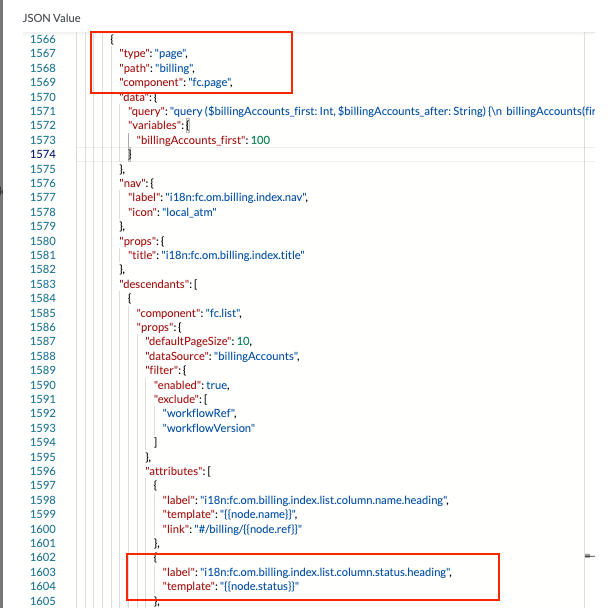
Step 4. Replace code in lines 1603-1604 in the example above with:
Note The text
`"fc.billingaccount.list.status.column"` below denotes the new setting which contains the colour settings.Step 5: Create a new setting fc.billingaccount.list.status.column on the Account level and define colors for statuses like on the example below:
Step 6 (Optional). While in edit mode of fc.mystique.manifest.oms.fragment.ordermanagement setting, search the page to find the orders path and column Status: (See below)
Note The text
`"fc.order.list.status.column"` below denotes the new setting which contains the color settings.