- Get Started
- Functionality
- Learning
- Extension
- Dev Tooling
- APIs
- Releases

Docs
Author:
Fluent Commerce
Changed on:
3 Oct 2025
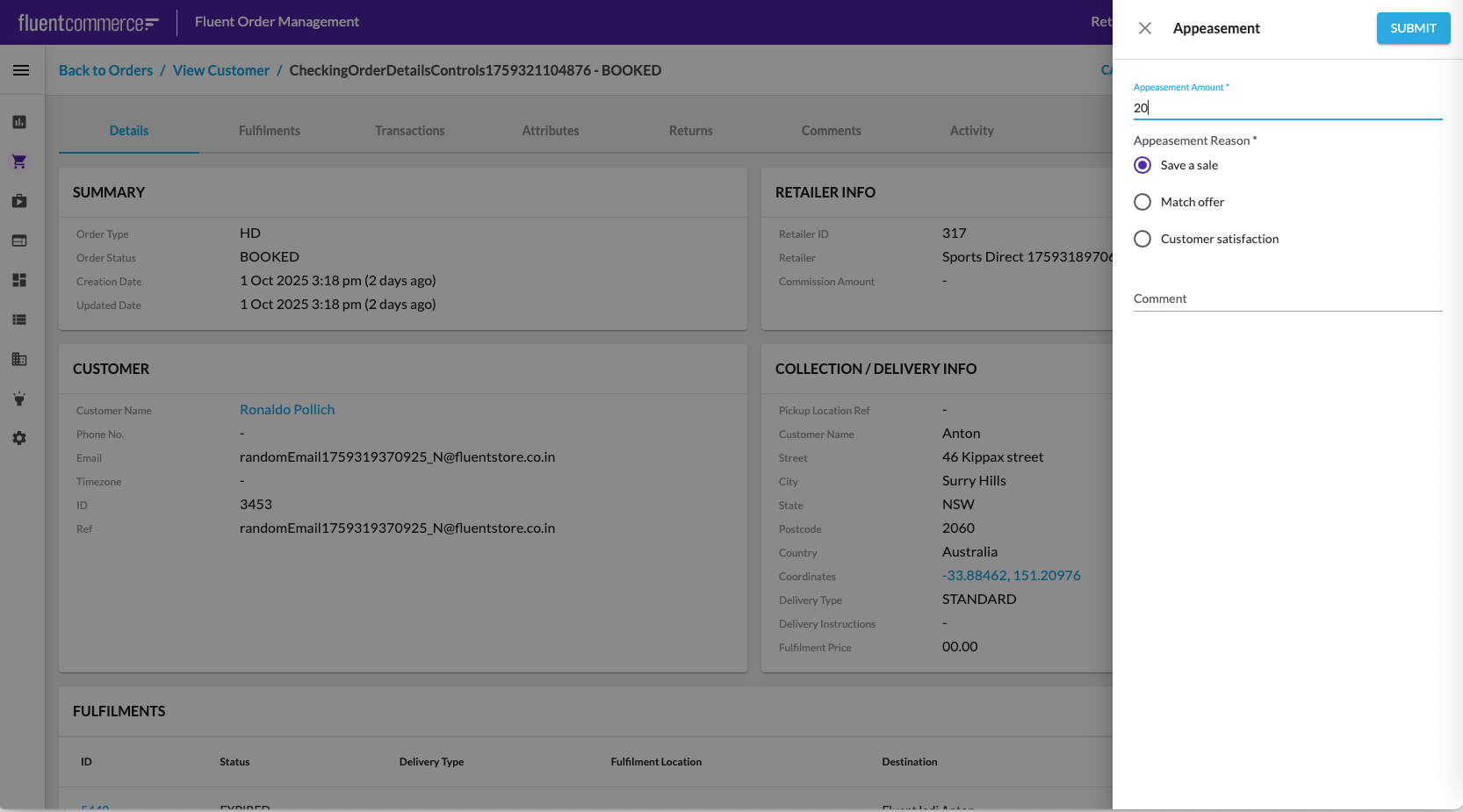
 Billing Account Flow availability in Orchestration
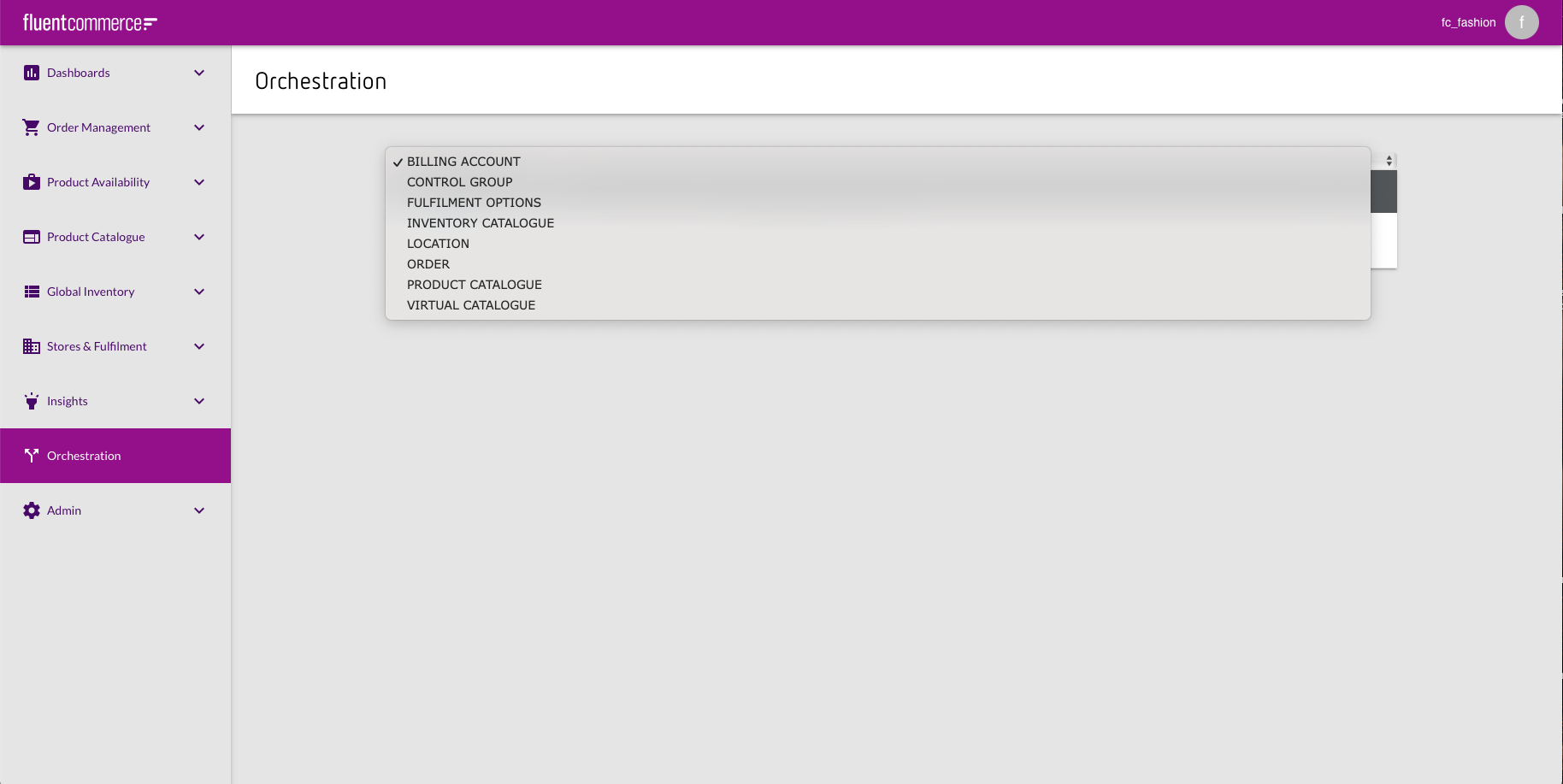 In case there is no Billing Account Flow in the Orchestration, it is necessary to add the workflow via PUT request in Postman. JSON containing the workflow should be put to the body of the request.PUT request:
`https://<ACCOUNT_ID>.<environment>.api.fluentretail.com/api/v4.1/workflow`| Variable | Description |
| ACCOUNT_ID | The name of the Fluent account |
| environment | The Fluent deployment Environment type for the particular Fluent Account (SANDBOX, PRODUCTION, TEST, STAGING). |
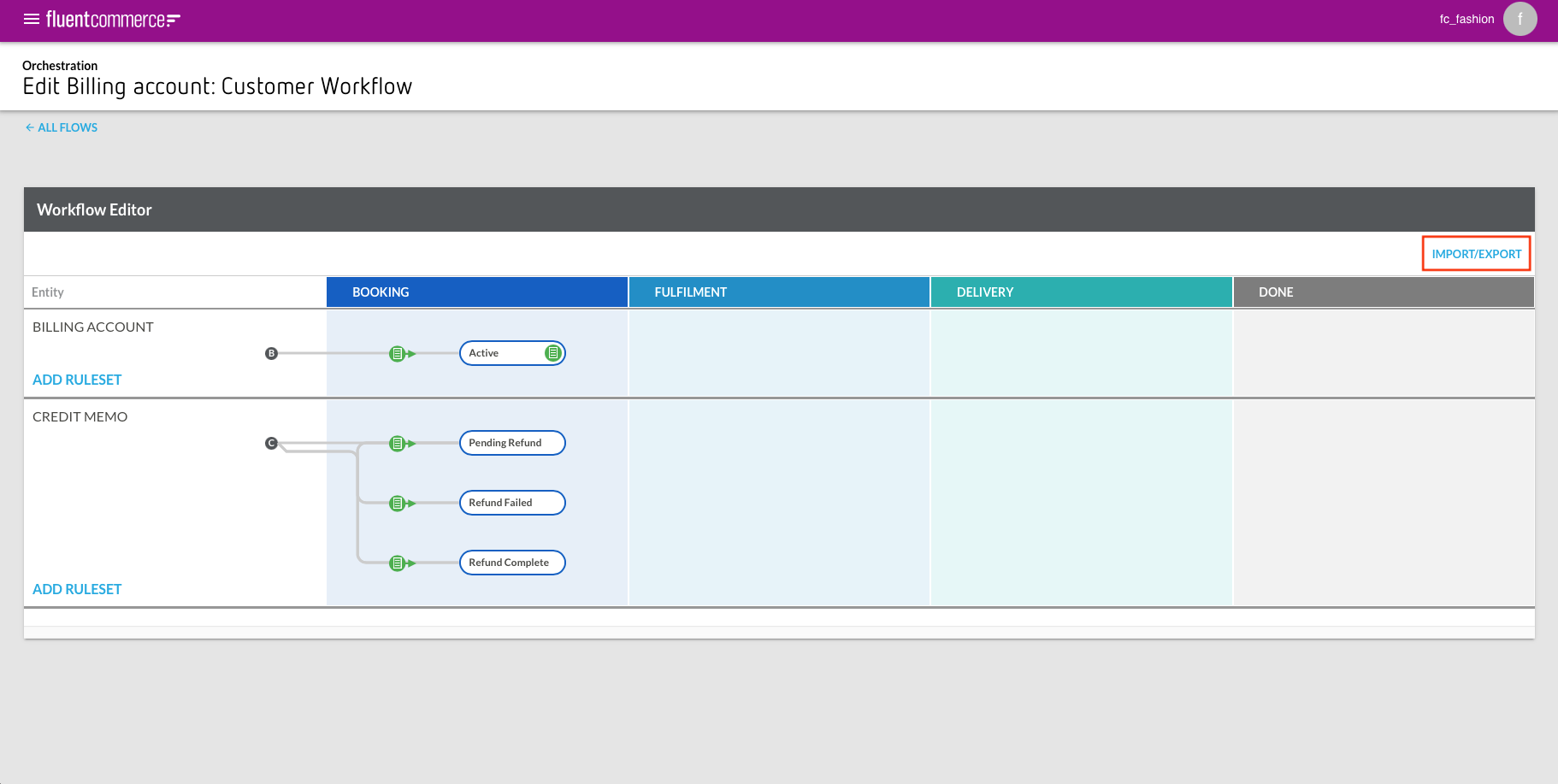 Clicking on the button opens Import / Export JSON pop-up.
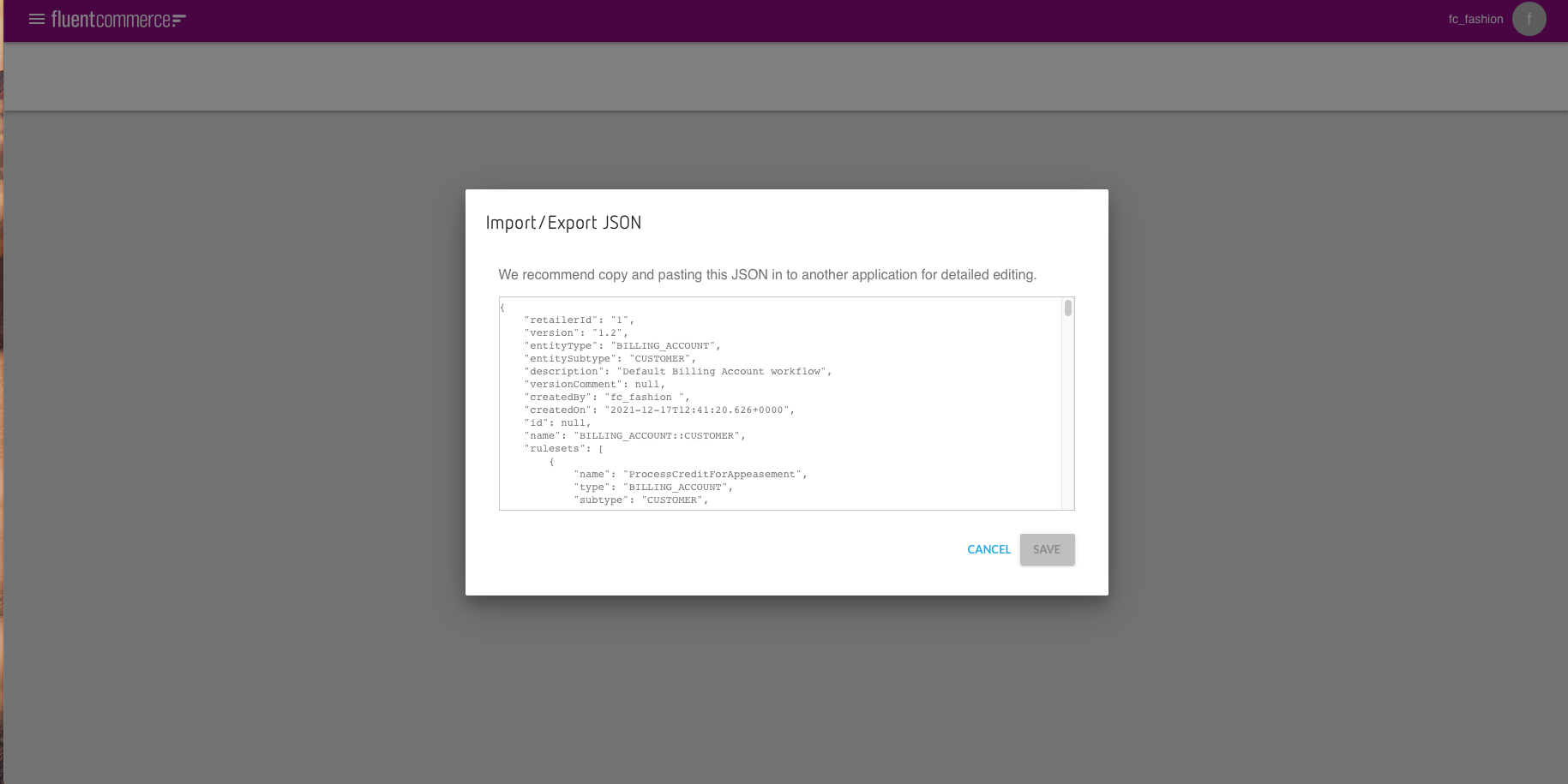 Add ruleset
 `"ProcessCreditForAppeasement"` to the ruleset block. "ProcessCreditForAppeasement" rulesetOrder workflowsRequired settings
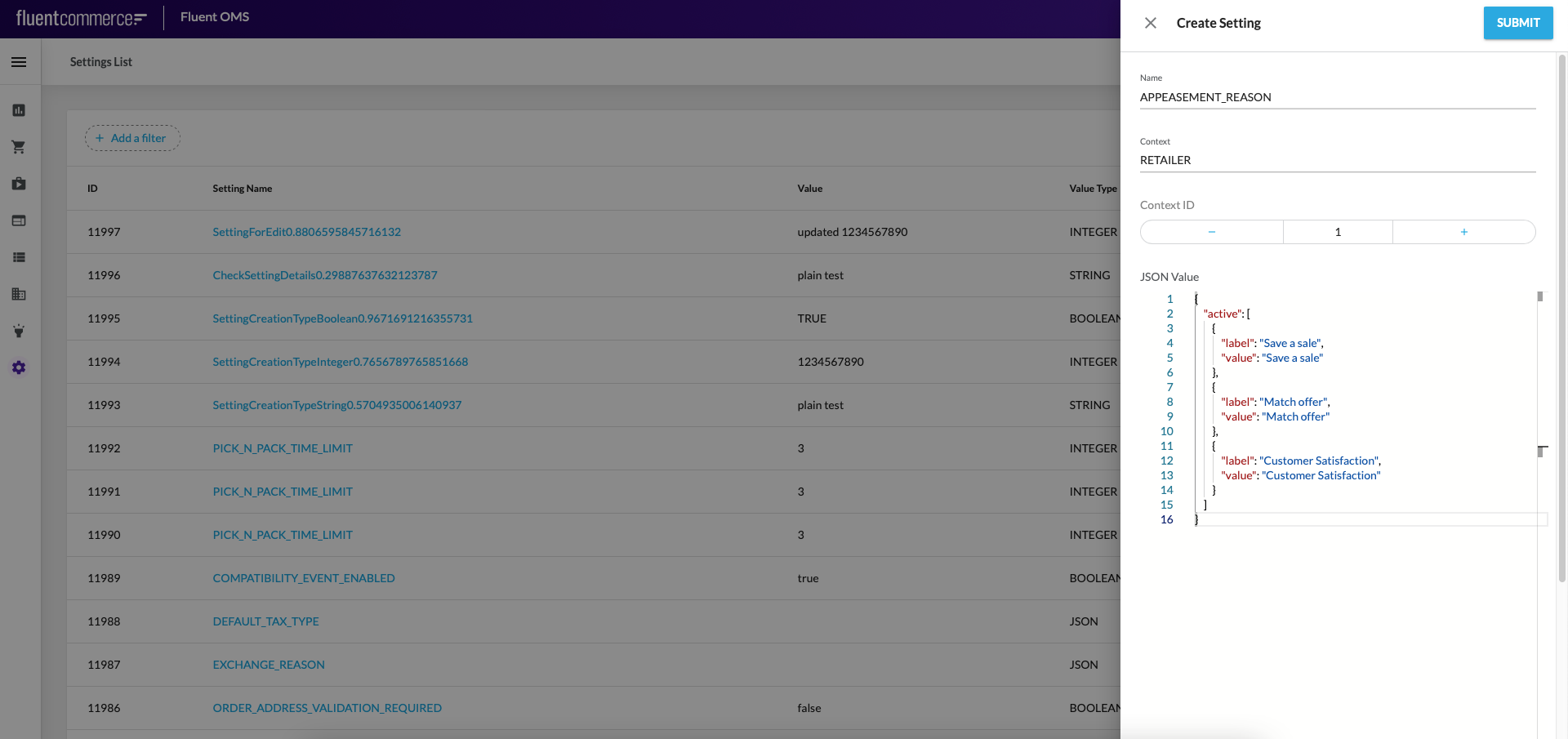
`DEFAULT_TAX_TYPE``APPEASEMENT_REASON``GST`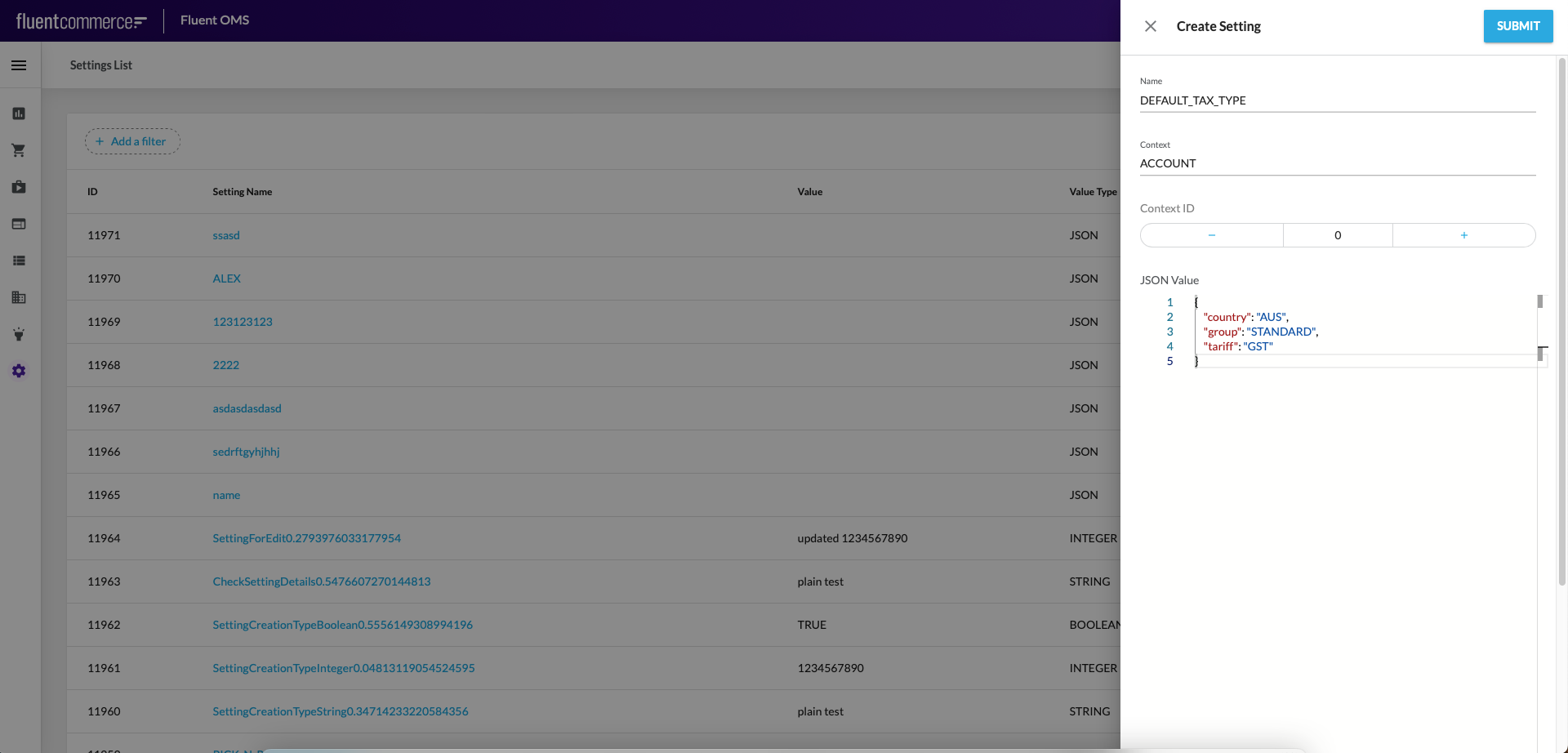
 Setup Appeasement configuration via PostmanGo to Postman and Authenticate using POST request Fluent AuthGet the settingGet workflow by Retailer Id and Workflow Name using GET request of the same name.Create settings
Copyright © 2024-2026 Fluent Retail Pty Ltd (trading as Fluent Commerce). Unless otherwise expressly stated in a current written agreement with Fluent Commerce or any of its affiliates or on any single page of the docs.fluentcommerce.com site, use of the materials on this site is strictly limited to viewing by individuals over 18 years old for legitimate commercially appropriate reasons; and any downloading, copying or other actions or uses of any kind or by any means of the materials on this site, including by artificial intelligence tools, is strictly prohibited. All other rights reserved.

1``` js
2{
3    "retailerId": "1",
4    "version": "1",
5    "entityType": "BILLING_ACCOUNT",
6    "entitySubtype": "CUSTOMER",
7    "description": "Default Billing Account workflow",
8    "versionComment": null,
9    "createdBy": "fc_fashion",
10    "createdOn": "2021-12-07T12:03:56.400+0000",
11    "id": null,
12    "name": "BILLING_ACCOUNT::CUSTOMER",
13    "rulesets": [
14        {
15            "name": "ProcessCreditForAppeasement",
16            "type": "BILLING_ACCOUNT",
17            "subtype": "CUSTOMER",
18            "eventType": "NORMAL",
19            "rules": [
20                {
21                    "name": "FLUENTRETAIL.base.CreateCreditMemoFromAppeasement",
22                    "props": {
23                        "creditMemoType": "CREDIT",
24                        "creditMemoItemType": "CREDIT_ADJUSMENT"
25                    }
26                }
27            ],
28            "triggers": [
29                {
30                    "status": "ACTIVE"
31                }
32            ],
33            "userActions": []
34        },
35        {
36            "name": "CREATE",
37            "description": "CREATE BILLING_ACCOUNT",
38            "type": "BILLING_ACCOUNT",
39            "subtype": "CUSTOMER",
40            "eventType": "NORMAL",
41            "rules": [
42                {
43                    "name": "FLUENTRETAIL.base.ChangeStateGQL",
44                    "props": {
45                        "status": "ACTIVE"
46                    }
47                }
48            ],
49            "triggers": [
50                {
51                    "status": "CREATED"
52                }
53            ],
54            "userActions": []
55        },
56        {
57            "name": "ProcessCredit",
58            "description": "ProcessCredit",
59            "type": "BILLING_ACCOUNT",
60            "subtype": "CUSTOMER",
61            "eventType": "NORMAL",
62            "rules": [
63                {
64                    "name": "FLUENTRETAIL.base.CreateCreditMemoFromReturnOrder",
65                    "props": {
66                        "creditMemoType": "TYPE_MEMO",
67                        "creditMemoItemType": "TYPE_MEMO_ITEM"
68                    }
69                }
70            ],
71            "triggers": [
72                {
73                    "status": "ACTIVE"
74                }
75            ],
76            "userActions": []
77        },
78        {
79            "name": "CREATE",
80            "description": "CREATE CREDIT MEMO",
81            "type": "CREDIT_MEMO",
82            "eventType": "NORMAL",
83            "rules": [
84                {
85                    "name": "FLUENTRETAIL.base.ChangeStateGQL",
86                    "props": {
87                        "status": "PENDING_REFUND"
88                    }
89                }
90            ],
91            "triggers": [
92                {
93                    "status": "CREATED"
94                }
95            ],
96            "userActions": []
97        },
98        {
99            "name": "PaymentFailed",
100            "description": "PaymentFailed",
101            "type": "CREDIT_MEMO",
102            "eventType": "NORMAL",
103            "rules": [
104                {
105                    "name": "FLUENTRETAIL.base.ChangeStateGQL",
106                    "props": {
107                        "status": "REFUND_FAILED"
108                    }
109                },
110                {
111                    "name": "FLUENTRETAIL.base.SendEventForCreditMemoToReturn",
112                    "props": {
113                        "eventName": "RefundRejected"
114                    }
115                }
116            ],
117            "triggers": [
118                {
119                    "status": "PENDING_REFUND"
120                },
121                {
122                    "status": "CREATED"
123                }
124            ],
125            "userActions": []
126        },
127        {
128            "name": "PaymentComplete",
129            "description": "PaymentComplete",
130            "type": "CREDIT_MEMO",
131            "eventType": "NORMAL",
132            "rules": [
133                {
134                    "name": "FLUENTRETAIL.base.ChangeStateGQL",
135                    "props": {
136                        "status": "REFUND_COMPLETE"
137                    }
138                },
139                {
140                    "name": "FLUENTRETAIL.base.SendEventForCreditMemoToReturn",
141                    "props": {
142                        "eventName": "RefundComplete"
143                    }
144                }
145            ],
146            "triggers": [
147                {
148                    "status": "PENDING_REFUND"
149                },
150                {
151                    "status": "CREATED"
152                }
153            ],
154            "userActions": []
155        }
156
157    ],
158    "statuses": [
159        {
160            "name": "CREATED",
161            "entityType": "BILLING_ACCOUNT",
162            "category": "BOOKING"
163        },
164        {
165            "name": "ACTIVE",
166            "entityType": "BILLING_ACCOUNT",
167            "category": "BOOKING"
168        },
169        {
170            "name": "REFUND_COMPLETE",
171            "entityType": "CREDIT_MEMO",
172            "category": "BOOKING"
173        },
174        {
175            "name": "REFUND_FAILED",
176            "entityType": "CREDIT_MEMO",
177            "category": "BOOKING"
178        },
179        {
180            "name": "CREATED",
181            "entityType": "CREDIT_MEMO",
182            "category": ""
183        },
184        {
185            "name": "PENDING_REFUND",
186            "entityType": "CREDIT_MEMO",
187            "category": "BOOKING"
188        }
189    ]
190}
191```1``` json
2{
3 "name": "ProcessCreditForAppeasement",
4 "type": "BILLING_ACCOUNT",
5 "subtype": "CUSTOMER",
6 "eventType": "NORMAL",
7 "rules": [
8 {
9 "name": "FLUENTRETAIL.base.CreateCreditMemoFromAppeasement",
10 "props": {
11 "creditMemoType": "CREDIT",
12 "creditMemoItemType": "CREDIT_ADJUSMENT"
13 }
14 }
15 ],
16 "triggers": [
17 {
18 "status": "ACTIVE"
19 }
20 ],
21 "userActions": []
22},
23```1``` json
2{
3 "name":"NewBillingAccountAppeasement",
4 "description":"Creates new BillingAccount for Order",
5 "type":"ORDER",
6 "subtype":"HD",
7 "eventType":"NORMAL",
8 "rules":[
9 {
10 "name":"FLUENTRETAIL.base.CreateBillingAccount",
11 "props":{
12 "eventName":"ProcessBillingAccountAppeasement",
13 "billingAccountType":"CUSTOMER"
14 }
15 }
16 ],
17 "triggers":[
18
19 ],
20 "userActions":[
21
22 ]
23},
24{
25 "name":"ProcessBillingAccountAppeasement",
26 "description":"Triggers event to create Billing Account",
27 "type":"ORDER",
28 "eventType":"NORMAL",
29 "rules":[
30 {
31 "name":"FLUENTRETAIL.base.SendEventForAppeasementToBillingAccount",
32 "props":{
33 "eventName":"ProcessCreditForAppeasement"
34 }
35 }
36 ],
37 "triggers":[
38 {
39 "status":"PENDING_PAYMENT"
40 },
41 {
42 "status":"BOOKED"
43 },
44 {
45 "status":"CREATED"
46 }
47 ],
48 "userActions":[
49
50 ]
51},
52{
53 "name":"OrderAppeasement",
54 "description":"Create an appeasement from admin console",
55 "type":"ORDER",
56 "subtype":"HD",
57 "eventType":"NORMAL",
58 "rules":[
59 {
60 "name":"FLUENTRETAIL.base.ValidateAppeasementAmount",
61 "props":null
62 },
63 {
64 "name":"FLUENTRETAIL.base.VerifyBillingAccount",
65 "props":{
66 "BillingAccountExistsEventName":"ProcessBillingAccountAppeasement",
67 "NoBillingAccountExistsEventName":"NewBillingAccountAppeasement"
68 }
69 }
70 ],
71 "triggers":[
72
73 ],
74 "userActions":[
75 {
76 "context":[
77 {
78 "label":"APPEASEMENT",
79 "type":"PRIMARY",
80 "modules":[
81 "adminconsole"
82 ],
83 "confirm":false
84 }
85 ],
86 "attributes":[
87 {
88 "name":"appeasementAmount",
89 "label":"Appeasement Amount",
90 "type":"STRING",
91 "source":"",
92 "defaultValue":"",
93 "mandatory":true
94 },
95 {
96 "name":"appeasementReason",
97 "label":"Appeasement Reason",
98 "type":"STRING",
99 "source":"settings.APPEASEMENT_REASON",
100 "defaultValue":"",
101 "mandatory":true
102 },
103 {
104 "name":"comment",
105 "label":"Comment",
106 "type":"STRING",
107 "source":"",
108 "defaultValue":"",
109 "mandatory":false
110 }
111 ]
112 }
113 ]
114},
115```1``` json
2{
3 "name":"NewBillingAccountAppeasement",
4 "description":"Creates new BillingAccount for Order",
5 "type":"ORDER",
6 "subtype":"CC",
7 "eventType":"NORMAL",
8 "rules":[
9 {
10 "name":"FLUENTRETAIL.base.CreateBillingAccount",
11 "props":{
12 "eventName":"ProcessBillingAccountAppeasement",
13 "billingAccountType":"CUSTOMER"
14 }
15 }
16 ],
17 "triggers":[
18
19 ],
20 "userActions":[
21
22 ]
23},
24{
25 "name":"ProcessBillingAccountAppeasement",
26 "description":"Triggers event to create Billing Account",
27 "type":"ORDER",
28 "eventType":"NORMAL",
29 "rules":[
30 {
31 "name":"FLUENTRETAIL.base.SendEventForAppeasementToBillingAccount",
32 "props":{
33 "eventName":"ProcessCreditForAppeasement"
34 }
35 }
36 ],
37 "triggers":[
38 {
39 "status":"PENDING_PAYMENT"
40 },
41 {
42 "status":"BOOKED"
43 },
44 {
45 "status":"CREATED"
46 }
47 ],
48 "userActions":[
49
50 ]
51},
52{
53 "name":"OrderAppeasement",
54 "description":"Create an appeasement from admin console",
55 "type":"ORDER",
56 "subtype":"CC",
57 "eventType":"NORMAL",
58 "rules":[
59 {
60 "name":"FLUENTRETAIL.base.ValidateAppeasementAmount",
61 "props":null
62 },
63 {
64 "name":"FLUENTRETAIL.base.VerifyBillingAccount",
65 "props":{
66 "BillingAccountExistsEventName":"ProcessBillingAccountAppeasement",
67 "NoBillingAccountExistsEventName":"NewBillingAccountAppeasement"
68 }
69 }
70 ],
71 "triggers":[
72
73 ],
74 "userActions":[
75 {
76 "context":[
77 {
78 "label":"APPEASEMENT",
79 "type":"PRIMARY",
80 "modules":[
81 "adminconsole"
82 ],
83 "confirm":false
84 }
85 ],
86 "attributes":[
87 {
88 "name":"appeasementAmount",
89 "label":"Appeasement Amount",
90 "type":"STRING",
91 "source":"",
92 "defaultValue":"",
93 "mandatory":true
94 },
95 {
96 "name":"appeasementReason",
97 "label":"Appeasement Reason",
98 "type":"STRING",
99 "source":"settings.APPEASEMENT_REASON",
100 "defaultValue":"",
101 "mandatory":true
102 },
103 {
104 "name":"comment",
105 "label":"Comment",
106 "type":"STRING",
107 "source":"",
108 "defaultValue":"",
109 "mandatory":false
110 }
111 ]
112 }
113 ]
114},
115```1{
2 "country": "AUS",
3 "group": "STANDARD",
4 "tariff": "GST"
5}1{
2 "active": [
3 {
4 "label": "Save a sale",
5 "value": "Save a sale"
6 },
7 {
8 "label": "Match offer",
9 "value": "Match offer"
10 },
11 {
12 "label": "Customer Satisfaction",
13 "value": "Customer Satisfaction"
14 }
15 ]
16}1{
2 "info": {
3 "_postman_id": "7d0bfb3c-b131-4cec-b7b2-f9167c267049",
4 "name": "Appeasement",
5 "schema": "https://schema.getpostman.com/json/collection/v2.1.0/collection.json"
6 },
7 "item": [
8 {
9 "name": "Authenticate FC_FASHION Retailer",
10 "item": [
11 {
12 "name": "Fluent Auth - Retailer FC_FASHION",
13 "event": [
14 {
15 "listen": "test",
16 "script": {
17 "exec": [
18 "const jsonData = pm.response.json();",
19 "var currentRetailerRef = pm.environment.get(\"fluent.retailer.current.ref\");",
20 "",
21 "pm.environment.set(\"fluent.retailer.current.token\", jsonData.access_token);",
22 "pm.environment.set(\"fluent.retailer.\" + currentRetailerRef + \".token\", jsonData.access_token);",
23 "",
24 "var expiryTime = new Date(Date.now() + (jsonData.expires_in * 1000));",
25 "console.log(\"Token will expire at: \" + expiryTime);",
26 "pm.environment.set(\"fluent.retailer.current.token.expiry_time\", expiryTime);",
27 "pm.environment.set(\"fluent.retailer.\" + currentRetailerRef + \".token.expiry_time\", expiryTime);",
28 "pm.environment.set(\"fluent.retailer.current.customer.id\", pm.environment.get(\"fluent.retailer.\" + currentRetailerRef + \".customer.id\"));",
29 "",
30 "console.log(\"Setting current retailer token: \" + pm.environment.get(\"fluent.retailer.current.token\") + \", RetailerRef: \" + pm.environment.get(\"fluent.retailer.current.ref\") + \", RetailerId: \" + pm.environment.get(\"fluent.retailer.current.id\"));",
31 ""
32 ],
33 "type": "text/javascript"
34 }
35 },
36 {
37 "listen": "prerequest",
38 "script": {
39 "exec": [
40 "",
41 "let use_unique_suffix = (pm.environment.has(\"fluent.data.use_unique_suffix\") && pm.environment.get(\"fluent.data.use_unique_suffix\") == true) ? true : false;",
42 "",
43 "let currentRetailerRef = \"fc_fashion\";",
44 "if (use_unique_suffix) {",
45 " currentRetailerRef = currentRetailerRef + \"_\" + pm.environment.get(\"fluent.data.unique_suffix\");",
46 "}",
47 "",
48 "pm.variables.set(\"fc_fashion_username\", pm.environment.get(\"fluent.retailer.\" + currentRetailerRef + \".user.username\"));",
49 "pm.variables.set(\"fc_fashion_password\", pm.environment.get(\"fluent.retailer.\" + currentRetailerRef + \".user.password\"));",
50 "",
51 "pm.environment.set(\"fluent.retailer.current.id\", pm.environment.get(\"fluent.retailer.\" + currentRetailerRef + \".id\"));",
52 "pm.environment.set(\"fluent.retailer.current.ref\", pm.environment.get(\"fluent.retailer.\" + currentRetailerRef + \".ref\"));",
53 "pm.environment.set(\"fluent.retailer.current.user.username\", pm.environment.get(\"fluent.retailer.\" + currentRetailerRef + \".user.username\"));",
54 "pm.environment.set(\"fluent.retailer.current.user.password\", pm.environment.get(\"fluent.retailer.\" + currentRetailerRef + \".user.password\"));",
55 "",
56 "",
57 "",
58 "console.log(\"Setting Current Retailer: \" + pm.environment.get(\"fluent.retailer.current.ref\") + \", Id: \" + pm.environment.get(\"fluent.retailer.current.id\"));",
59 ""
60 ],
61 "type": "text/javascript"
62 }
63 }
64 ],
65 "request": {
66 "auth": {
67 "type": "noauth"
68 },
69 "method": "POST",
70 "header": [],
71 "url": {
72 "raw": "{{fluent.account.host}}/oauth/token?username={{fc_fashion_username}}&password={{fc_fashion_password}}&client_id={{fluent.account.client_id}}&client_secret={{fluent.account.client_secret}}&scope=api&grant_type=password",
73 "host": [
74 "{{fluent.account.host}}"
75 ],
76 "path": [
77 "oauth",
78 "token"
79 ],
80 "query": [
81 {
82 "key": "username",
83 "value": "{{fc_fashion_username}}",
84 "description": "FC Fashion Admin User Username"
85 },
86 {
87 "key": "password",
88 "value": "{{fc_fashion_password}}",
89 "description": "FC Fashion Admin User Password"
90 },
91 {
92 "key": "client_id",
93 "value": "{{fluent.account.client_id}}",
94 "description": "Fluent Account Id / Client Id"
95 },
96 {
97 "key": "client_secret",
98 "value": "{{fluent.account.client_secret}}",
99 "description": "Fluent Account Client Secret"
100 },
101 {
102 "key": "scope",
103 "value": "api"
104 },
105 {
106 "key": "grant_type",
107 "value": "password"
108 }
109 ]
110 },
111 "description": "## Authenticate the FC FASHION Retailer Admin User\n\nUse this request to Authenticate your FC FASHION Retailer Admin User.\n\nThe response `access_token` will be saved into the `fluent.retailer.current.token` and the `fluent.retailer.<retailer_ref>.token` environment variable for use in future requests.\n\nFor more information: [Fluent API Authentication](https://lingo.fluentcommerce.com/DEVELOPERS/authentication/)"
112 },
113 "response": [
114 {
115 "name": "Fluent Auth - Account: SUCCESS",
116 "originalRequest": {
117 "method": "POST",
118 "header": [],
119 "url": {
120 "raw": "{{fluent.account.host}}/oauth/token?username={{fluent.account.username}}&password={{fluent.account.password}}&client_id={{fluent.account.client_id}}&client_secret={{fluent.account.client_secret}}&scope=api&grant_type=password",
121 "host": [
122 "{{fluent.account.host}}"
123 ],
124 "path": [
125 "oauth",
126 "token"
127 ],
128 "query": [
129 {
130 "key": "username",
131 "value": "{{fluent.account.username}}",
132 "description": "Fluent Account Admin User Username"
133 },
134 {
135 "key": "password",
136 "value": "{{fluent.account.password}}",
137 "description": "Fluent Account Admin User Password"
138 },
139 {
140 "key": "client_id",
141 "value": "{{fluent.account.client_id}}",
142 "description": "Fluent Account Id / Client Id"
143 },
144 {
145 "key": "client_secret",
146 "value": "{{fluent.account.client_secret}}",
147 "description": "Fluent Account Client Secret"
148 },
149 {
150 "key": "scope",
151 "value": "api"
152 },
153 {
154 "key": "grant_type",
155 "value": "password"
156 }
157 ]
158 }
159 },
160 "status": "OK",
161 "code": 200,
162 "_postman_previewlanguage": "json",
163 "header": [
164 {
165 "key": "Date",
166 "value": "Tue, 29 Oct 2019 00:45:57 GMT"
167 },
168 {
169 "key": "Content-Type",
170 "value": "application/json;charset=UTF-8"
171 },
172 {
173 "key": "Transfer-Encoding",
174 "value": "chunked"
175 },
176 {
177 "key": "Connection",
178 "value": "keep-alive"
179 },
180 {
181 "key": "Server",
182 "value": "nginx/1.10.3 (Ubuntu)"
183 },
184 {
185 "key": "Access-Control-Allow-Origin",
186 "value": "*"
187 },
188 {
189 "key": "Access-Control-Allow-Methods",
190 "value": "POST, PUT, GET, OPTIONS, DELETE"
191 },
192 {
193 "key": "Access-Control-Max-Age",
194 "value": "3600"
195 },
196 {
197 "key": "Access-Control-Allow-Headers",
198 "value": "Authorization, Content-Type, fluent.account"
199 },
200 {
201 "key": "Access-Control-Expose-Headers",
202 "value": "flex.type, flex.version"
203 },
204 {
205 "key": "Access-Control-Allow-Credentials",
206 "value": "true"
207 },
208 {
209 "key": "X-Content-Type-Options",
210 "value": "nosniff"
211 },
212 {
213 "key": "X-XSS-Protection",
214 "value": "1; mode=block"
215 },
216 {
217 "key": "Cache-Control",
218 "value": "no-cache, no-store, max-age=0, must-revalidate"
219 },
220 {
221 "key": "Cache-Control",
222 "value": "no-store"
223 },
224 {
225 "key": "Pragma",
226 "value": "no-cache"
227 },
228 {
229 "key": "Pragma",
230 "value": "no-cache"
231 },
232 {
233 "key": "Expires",
234 "value": "0"
235 },
236 {
237 "key": "X-Frame-Options",
238 "value": "DENY"
239 }
240 ],
241 "cookie": [],
242 "body": "{\n \"access_token\": \"4b5eb7aa-5714-4c73-8813-4e4aae0a3e0f\",\n \"token_type\": \"bearer\",\n \"expires_in\": 2579,\n \"scope\": \"api\",\n \"Roles\": [],\n \"FirstName\": \"Bob\",\n \"LastName\": \"Smith\"\n}"
243 }
244 ]
245 }
246 ],
247 "description": "This Authentication Request is set to authenticate the FC FASHION Retailer Admin User.\n\nThis request will set the `fluent.retailer.current.token` which is used by the following requests.\n\nThis effectively activates the current Retailer for the given Lab steps to be executed."
248 },
249 {
250 "name": "Get Setting/Workflow",
251 "item": [
252 {
253 "name": "Get the Retailer settings",
254 "event": [
255 {
256 "listen": "test",
257 "script": {
258 "exec": [
259 "tests[\"HTTP response code is 200\"] = responseCode.code === 200;"
260 ],
261 "type": "text/javascript"
262 }
263 }
264 ],
265 "request": {
266 "auth": {
267 "type": "bearer",
268 "bearer": [
269 {
270 "key": "token",
271 "value": "{{fluent.retailer.current.token}}",
272 "type": "string"
273 }
274 ]
275 },
276 "method": "GET",
277 "header": [
278 {
279 "key": "Content-Type",
280 "value": "application/json"
281 }
282 ],
283 "url": {
284 "raw": "{{fluentApiHost}}/api/v4.1/settings/retailer/1/DEFAULT_TAX_TYPE",
285 "host": [
286 "{{fluentApiHost}}"
287 ],
288 "path": [
289 "api",
290 "v4.1",
291 "settings",
292 "retailer",
293 "1",
294 "DEFAULT_TAX_TYPE"
295 ]
296 }
297 },
298 "response": []
299 },
300 {
301 "name": "Get workflow by Retailer Id and Workflow Name",
302 "event": [
303 {
304 "listen": "test",
305 "script": {
306 "exec": [
307 "tests[\"HTTP response code is 200\"] = responseCode.code === 200;"
308 ],
309 "type": "text/javascript"
310 }
311 }
312 ],
313 "request": {
314 "auth": {
315 "type": "bearer",
316 "bearer": [
317 {
318 "key": "token",
319 "value": "{{fluent.retailer.current.token}}",
320 "type": "string"
321 }
322 ]
323 },
324 "method": "GET",
325 "header": [
326 {
327 "key": "Content-Type",
328 "value": "application/json"
329 },
330 {
331 "key": "Authorization",
332 "value": "Bearer {{access_token}}"
333 },
334 {
335 "key": "fluent.account",
336 "value": "{{account.id}}",
337 "type": "text",
338 "disabled": true
339 }
340 ],
341 "url": {
342 "raw": "{{fluentApiHost}}/api/v4.1/workflow/1/BILLING_ACCOUNT::CUSTOMER",
343 "host": [
344 "{{fluentApiHost}}"
345 ],
346 "path": [
347 "api",
348 "v4.1",
349 "workflow",
350 "1",
351 "BILLING_ACCOUNT::CUSTOMER"
352 ]
353 }
354 },
355 "response": []
356 }
357 ],
358 "description": "This Authentication Request is set to authenticate the FC FASHION Retailer Admin User.\n\nThis request will set the `fluent.retailer.current.token` which is used by the following requests.\n\nThis effectively activates the current Retailer for the given Lab steps to be executed."
359 },
360 {
361 "name": "Create Settings",
362 "item": [
363 {
364 "name": "Create DEFAULT_TAX_TYPE setting",
365 "event": [
366 {
367 "listen": "test",
368 "script": {
369 "exec": [
370 ""
371 ],
372 "type": "text/javascript"
373 }
374 }
375 ],
376 "request": {
377 "auth": {
378 "type": "bearer",
379 "bearer": [
380 {
381 "key": "token",
382 "value": "{{fluent.retailer.current.token}}",
383 "type": "string"
384 }
385 ]
386 },
387 "method": "POST",
388 "header": [],
389 "body": {
390 "mode": "graphql",
391 "graphql": {
392 "query": "mutation taxType ($taxTypeValue: Json) {\n createSetting(input: {\n name: \"DEFAULT_TAX_TYPE\",\n valueType: \"JSON\",\n context: \"RETAILER\",\n contextId: 1,\n lobValue: $taxTypeValue\n }) {\n id\n }\n}\n",
393 "variables": "{\n \"taxTypeValue\": {\n \"country\": \"UK\",\n \"group\": \"STANDARD\",\n \"tariff\": \"GST\"\n }\n}\n"
394 }
395 },
396 "url": {
397 "raw": "{{fluent.account.host}}/graphql",
398 "host": [
399 "{{fluent.account.host}}"
400 ],
401 "path": [
402 "graphql"
403 ]
404 }
405 },
406 "response": []
407 },
408 {
409 "name": "Create APPEASEMENT_REASON setting",
410 "event": [
411 {
412 "listen": "test",
413 "script": {
414 "exec": [
415 ""
416 ],
417 "type": "text/javascript"
418 }
419 }
420 ],
421 "request": {
422 "auth": {
423 "type": "bearer",
424 "bearer": [
425 {
426 "key": "token",
427 "value": "{{fluent.retailer.current.token}}",
428 "type": "string"
429 }
430 ]
431 },
432 "method": "POST",
433 "header": [],
434 "body": {
435 "mode": "graphql",
436 "graphql": {
437 "query": "mutation {\n createSetting(input: {\n name: \"APPEASEMENT_REASON\",\n valueType: \"JSON\",\n context: \"RETAILER\",\n contextId: 1,\n lobValue: [\n {\n label: \"Save a sale\",\n value: \"Save a sale\"\n },\n {\n label: \"Match offer\",\n value: \"Match offer\"\n },\n {\n label: \"Customer Satisfaction\",\n value: \"Customer Satisfaction\"\n }\n ]\n }) {\n id\n }\n}\n",
438 "variables": ""
439 }
440 },
441 "url": {
442 "raw": "{{fluent.account.host}}/graphql",
443 "host": [
444 "{{fluent.account.host}}"
445 ],
446 "path": [
447 "graphql"
448 ]
449 }
450 },
451 "response": []
452 },
453 {
454 "name": "Create GST setting",
455 "event": [
456 {
457 "listen": "test",
458 "script": {
459 "exec": [
460 ""
461 ],
462 "type": "text/javascript"
463 }
464 }
465 ],
466 "request": {
467 "auth": {
468 "type": "bearer",
469 "bearer": [
470 {
471 "key": "token",
472 "value": "{{fluent.retailer.current.token}}",
473 "type": "string"
474 }
475 ]
476 },
477 "method": "POST",
478 "header": [],
479 "body": {
480 "mode": "graphql",
481 "graphql": {
482 "query": "mutation GST ($GSTValue: String) {\n createSetting(input: {\n name: \"GST\",\n valueType: \"STRING\",\n context: \"RETAILER\",\n contextId: 1,\n value: $GSTValue\n }) {\n id\n }\n}\n",
483 "variables": "{\n\t\"GSTValue\": \"0.0\"\n}"
484 }
485 },
486 "url": {
487 "raw": "{{fluent.account.host}}/graphql",
488 "host": [
489 "{{fluent.account.host}}"
490 ],
491 "path": [
492 "graphql"
493 ]
494 }
495 },
496 "response": []
497 }
498 ]
499 },
500 {
501 "name": "Post a basic Billing Account workflow",
502 "item": [
503 {
504 "name": "Post a a basic Billing Account workflow",
505 "request": {
506 "auth": {
507 "type": "bearer",
508 "bearer": [
509 {
510 "key": "token",
511 "value": "{{fluent.retailer.current.token}}",
512 "type": "string"
513 }
514 ]
515 },
516 "method": "PUT",
517 "header": [],
518 "body": {
519 "mode": "raw",
520 "raw": "{\n \"retailerId\": \"1\",\n \"version\": \"1.0\",\n \"entityType\": \"BILLING_ACCOUNT\",\n \"entitySubtype\": \"CUSTOMER\",\n \"description\": \"Basic Billing Account workflow template\",\n \"name\": \"BILLING_ACCOUNT::CUSTOMER\",\n \"rulesets\": [\n {\n \"name\": \"CREATE\",\n \"description\": \"CREATE BILLING_ACCOUNT\",\n \"type\": \"BILLING_ACCOUNT\",\n \"subtype\": \"CUSTOMER\",\n \"eventType\": \"NORMAL\",\n \"rules\": [\n {\n \"name\": \"FLUENTRETAIL.base.ChangeStateGQL\",\n \"props\": {\n \"status\": \"ACTIVE\"\n }\n }\n ],\n \"triggers\": [\n {\n \"status\": \"CREATED\"\n }\n ],\n \"userActions\": []\n },\n {\n \"name\": \"ProcessCredit\",\n \"description\": \"ProcessCredit\",\n \"type\": \"BILLING_ACCOUNT\",\n \"subtype\": \"CUSTOMER\",\n \"eventType\": \"NORMAL\",\n \"rules\": [\n {\n \"name\": \"FLUENTRETAIL.base.CreateCreditMemoFromReturnOrder\",\n \"props\": {\n \"creditMemoType\": \"TYPE_MEMO\",\n \"creditMemoItemType\": \"TYPE_MEMO_ITEM\"\n }\n }\n ],\n \"triggers\": [\n {\n \"status\": \"ACTIVE\"\n }\n ],\n \"userActions\": []\n },\n {\n \"name\": \"CREATE\",\n \"description\": \"CREATE CREDIT MEMO\",\n \"type\": \"CREDIT_MEMO\",\n \"eventType\": \"NORMAL\",\n \"rules\": [\n {\n \"name\": \"FLUENTRETAIL.base.ChangeStateGQL\",\n \"props\": {\n \"status\": \"PENDING_REFUND\"\n }\n }\n ],\n \"triggers\": [\n {\n \"status\": \"CREATED\"\n }\n ],\n \"userActions\": []\n },\n {\n \"name\": \"PaymentFailed\",\n \"description\": \"PaymentFailed\",\n \"type\": \"CREDIT_MEMO\",\n \"subtype\": \"DEFAULT\",\n \"eventType\": \"NORMAL\",\n \"rules\": [\n {\n \"name\": \"FLUENTRETAIL.base.ChangeStateGQL\",\n \"props\": {\n \"status\": \"REFUND_FAILED\"\n }\n },\n {\n \"name\": \"FLUENTRETAIL.base.SendEventForCreditMemoToReturn\",\n \"props\": {\n \"eventName\": \"RefundRejected\"\n }\n }\n ],\n \"triggers\": [\n {\n \"status\": \"PENDING_REFUND\"\n },\n {\n \"status\": \"CREATED\"\n }\n ],\n \"userActions\": []\n },\n {\n \"name\": \"PaymentComplete\",\n \"description\": \"PaymentComplete\",\n \"type\": \"CREDIT_MEMO\",\n \"subtype\": \"DEFAULT\",\n \"eventType\": \"NORMAL\",\n \"rules\": [\n {\n \"name\": \"FLUENTRETAIL.base.ChangeStateGQL\",\n \"props\": {\n \"status\": \"REFUND_COMPLETE\"\n }\n },\n {\n \"name\": \"FLUENTRETAIL.base.SendEventForCreditMemoToReturn\",\n \"props\": {\n \"eventName\": \"RefundComplete\"\n }\n }\n ],\n \"triggers\": [\n {\n \"status\": \"PENDING_REFUND\"\n },\n {\n \"status\": \"CREATED\"\n }\n ],\n \"userActions\": []\n },\n {\n \"name\": \"ProcessCreditForRevisedOrder\",\n \"description\": \"Start the processing of the creditMemo\",\n \"type\": \"BILLING_ACCOUNT\",\n \"subtype\": \"CUSTOMER\",\n \"eventType\": \"NORMAL\",\n \"rules\": [\n {\n \"name\": \"FLUENTRETAIL.base.CreateCreditMemoForRevisedOrder\",\n \"props\": {\n \"creditMemoType\": \"EXCHANGE\",\n \"creditMemoItemType\": \"EXCHANGE_ITEM\"\n }\n }\n ],\n \"triggers\": [\n {\n \"status\": \"ACTIVE\"\n }\n ],\n \"userActions\": []\n }\n ],\n \"statuses\": [\n {\n \"name\": \"CREATED\",\n \"entityType\": \"BILLING_ACCOUNT\",\n \"category\": \"BOOKING\"\n },\n {\n \"name\": \"ACTIVE\",\n \"entityType\": \"BILLING_ACCOUNT\",\n \"category\": \"BOOKING\"\n },\n {\n \"name\": \"REFUND_COMPLETE\",\n \"entityType\": \"CREDIT_MEMO\",\n \"category\": \"DONE\"\n },\n {\n \"name\": \"REFUND_FAILED\",\n \"entityType\": \"CREDIT_MEMO\",\n \"category\": \"DONE\"\n },\n {\n \"name\": \"CREATED\",\n \"entityType\": \"CREDIT_MEMO\",\n \"category\": \"BOOKING\"\n },\n {\n \"name\": \"PENDING_REFUND\",\n \"entityType\": \"CREDIT_MEMO\",\n \"category\": \"BOOKING\"\n }\n ]\n}",
521 "options": {
522 "raw": {
523 "language": "json"
524 }
525 }
526 },
527 "url": {
528 "raw": "{{fluent.account.host}}/api/v4.1/workflow",
529 "host": [
530 "{{fluent.account.host}}"
531 ],
532 "path": [
533 "api",
534 "v4.1",
535 "workflow"
536 ]
537 }
538 },
539 "response": []
540 }
541 ]
542 }
543 ]
544}