The labs in this article will walk you through the following scenarios: GraphQL Introspection and Sending a Webhook
Key points
Postman Configuration for auto-complete
Access to mockable.io
Download Postman Collection
Request a Training Account
You will need a Fluent Commerce Training Account to complete the Knowledge Tracks labs. Follow the steps in the guide to receive one.
Download Postman Collection
To proceed with the Lab, you need to download the required Postman Collection associated with this course. Right click this link to save the file to your computer
Lab: GraphQL Introspection
In this lab, you will run an Introspection query against the Fluent GraphQL API to retrieve the Schema. This is useful for a number of reasons, and especially for API Clients used in integration. We'll run this manually in Postman, and provide some additional links to help you enable Auto-Completion and GraphQL client-side validation inside of Postman, which makes working with GraphQL in Postman a breeze!
Postman Application v. Browser
We do not recommend using the web-only version of Postman, it can result in CORS (Cross-Origin Resource Sharing) errors during the course labs!
In Postman, authenticate the B2C Retailer User
Open the Fluent Learning - Integrate and Connect GraphQL Introspection Lab > GraphQL Introspection Query request, and view the Body. Note: This is a standard GraphQL Introspection query which can be used against any GraphQL API to retrieve the Schema
Execute the request to retrieve the JSON GraphQL Schema
Note: The Introspection query returns the JSON format of the GraphQL Schema. Typically when authoring a GraphQL API, the Schema Definition Language (SDL) is used. Postman supports both formats, however we have noticed that Auto-Complete in Postman will only work when using the SDL version of the Schema. To this end, the guide ahead will show you how to convert the JSON schema into SDL, and perform all required steps to enable Auto-Complete and Validation in Postman
We've provided a pre-generated SDL Schema here, however to ensure you always have the latest Schema, we recommend converting the introspection result as per the instructions in the guide above
Now that you have enabled Fluent GraphQL auto-completion, use the GraphQL Queries Lab > GraphQL Query Playground Lab empty request to play around and practice different queries against the Fluent GraphQL API. Some suggested challenges include:
Get all Orders in a COMPLETED status
Find all Fulfillments for the F_SYD Location
Find a Setting by Name
There are lots of useful tips and tricks to know about working with GraphQL. If you are not familiar with GraphQL, we recommend spending some time learning more. The GraphQL.org website provides a number of resources and links to learn more: https://graphql.org/community/users/#training-courses
Lab: Sending Webhook
In this Lab, we'll set up a temporary mock API endpoint to use as our webhook target. We'll modify the Order HD Workflow, an add a standard SendWebhook Rule in the DCFulfilment Ruleset, and then send in an Order, and watch for the webhook payload to come through to the mock endpoint. We'll also look at the Audit events produced for the webhook.
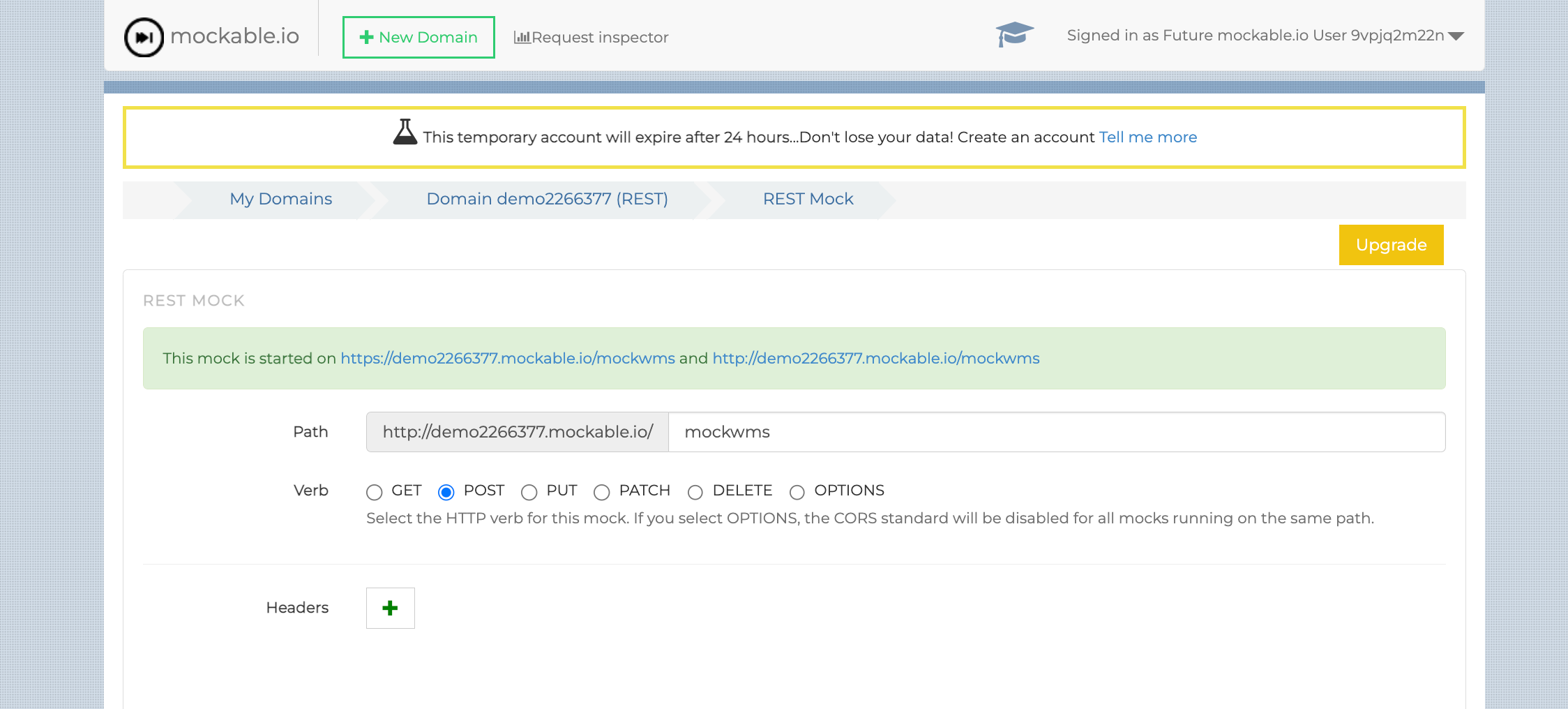
Validate you are not a robot, and then select Define a New REST Mock
Configure the following settings:
Path: mockwms
Verb: POST
Response Body JSON msg: Warehouse Fulfilment Request Successfully Received `{` ` "msg": "Warehouse Fulfilment Request Successfully Received"` `}`
Enable Request Logger: ON
Leave all other settings as is, and click Save
Once saved, scroll to the bottom and click on the Stopped button to start the mock server
You should now be able to copy the http mock url:
Once you've copied the mock URL to clipboard, click on the Request Inspector button at the top and click the play button to monitor for incoming requests in real time
Head over to the Fluent Admin Console, and open the Order HD Workflow in the Orchestration Modeller
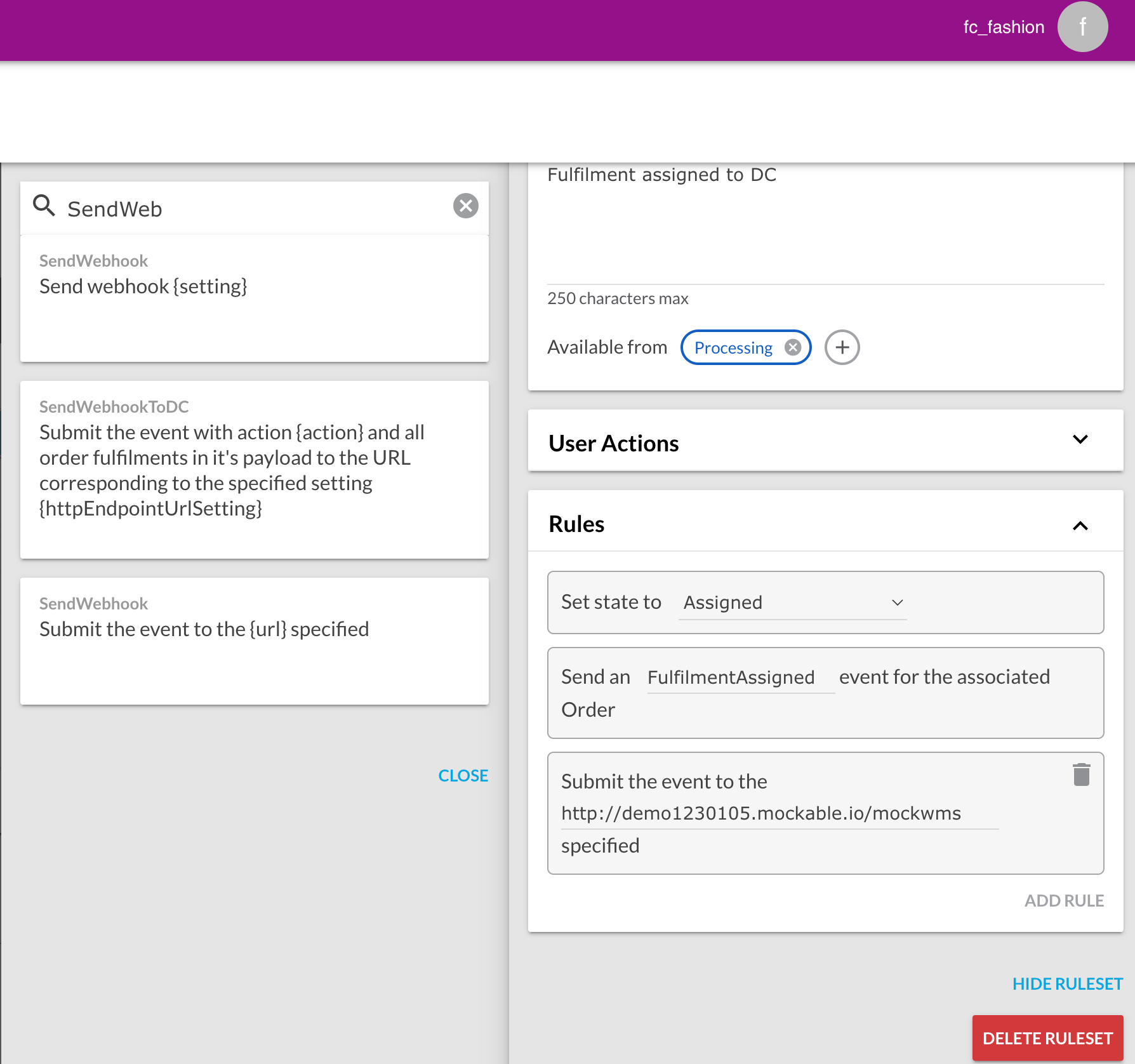
Click the green Rulesets indicator pointing at the Assigned status in the Fulfilment swimlane and select the DCFulfilment Ruleset
Add the SendWebhook Rule to the Ruleset, paste in the copied URL, and commit changes
Now go to Postman, and execute the ISend Webhook Lab > Create an Inventory Batch Job request, and then the Create an Inventory Batch request. This will send in the required Inventory to load the VC:ATS:HD Catalogue required for the next step.
Go back to Fluent OMS, and confirm that you see Inventory Positions in the DEFAULT:1 Inventory Catalogue, and Virtual Positions in the VC:ATS:HD Virtual Catalogue.
Go back to Postman, and execute the Integrate and Connect Send Webhook Lab > Create Customer request, and then the Create HD Order for Warehouse Location request
In Fluent OMS, locate the Order and confirm the Fulfilment is created and set to fulfill from the warehouse location
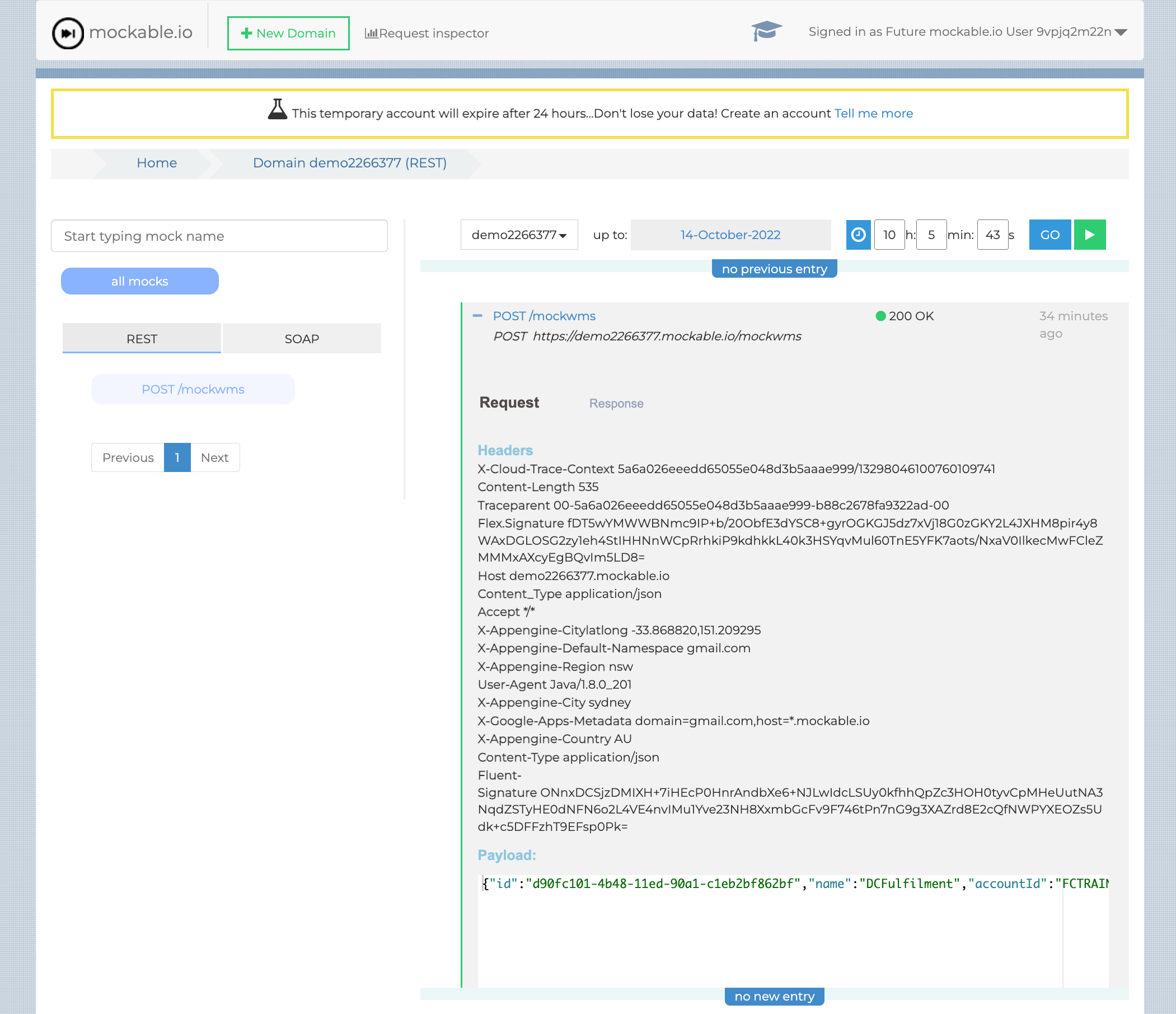
After 30 seconds, and the PENDING_PAYMENT status has moved to ASSIGNED, view the request in the mockable inspector
Notice the Flex.Signature and the Fluent-Signature in the Headers, which validate the request came from the Fluent Order Management platform
This payload is the Event received by the DCFfulfilment Ruleset, and forwarded to the Webhook Endpoint. This is enough information for the WMS to query back to Fluent for the details of the Fulfilment Request
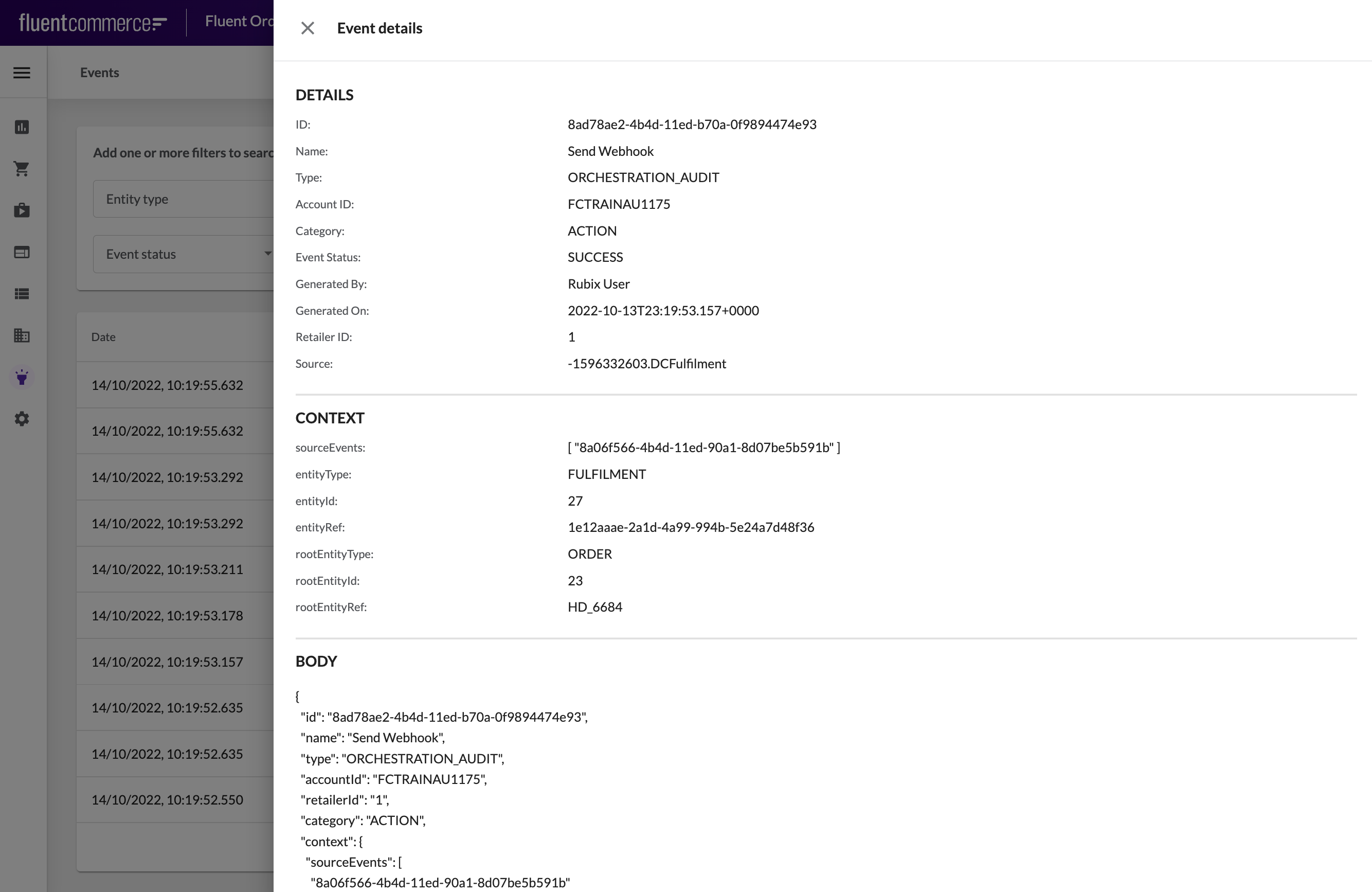
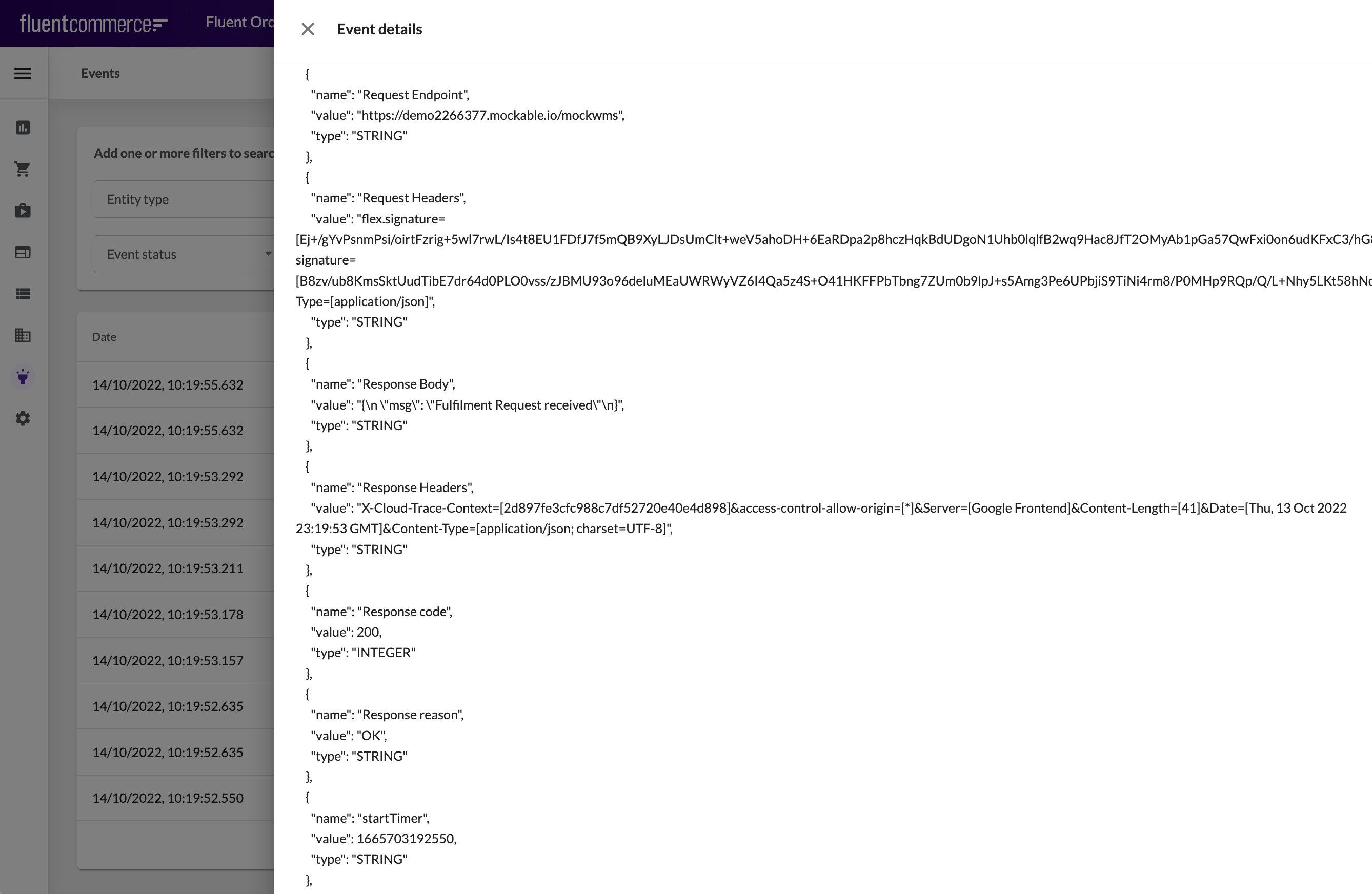
Finally, in Fluent OMS, go to Insights > Events, and locate the SendWebhook Event
Look further down the body of the Audit Event to locate the response from the mock server