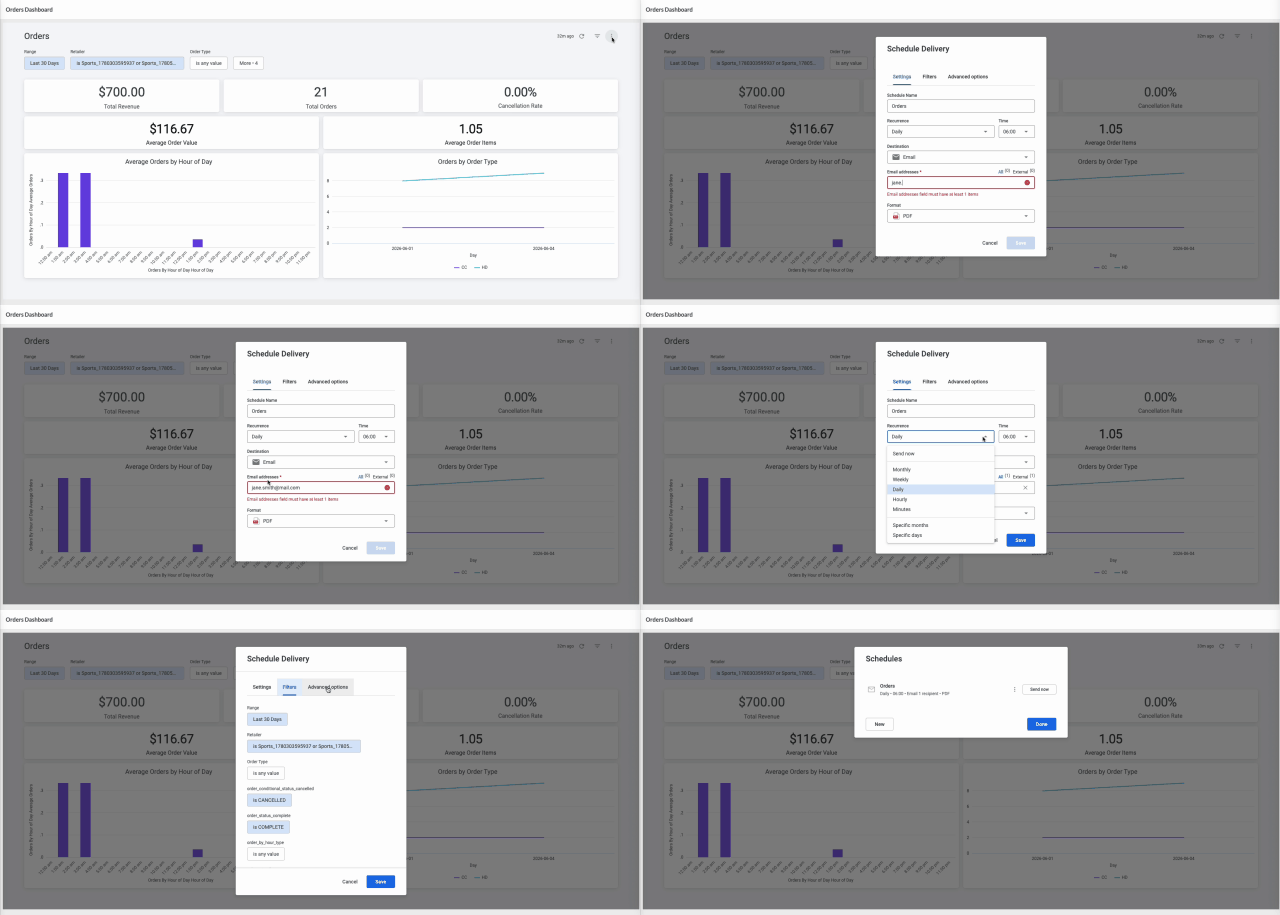
Scheduled reports automatically deliver dashboard data to stakeholders by email
Reports can be delivered on a recurring schedule based on business requirements
Scheduled reports use the dashboard filters configured when the schedule is created
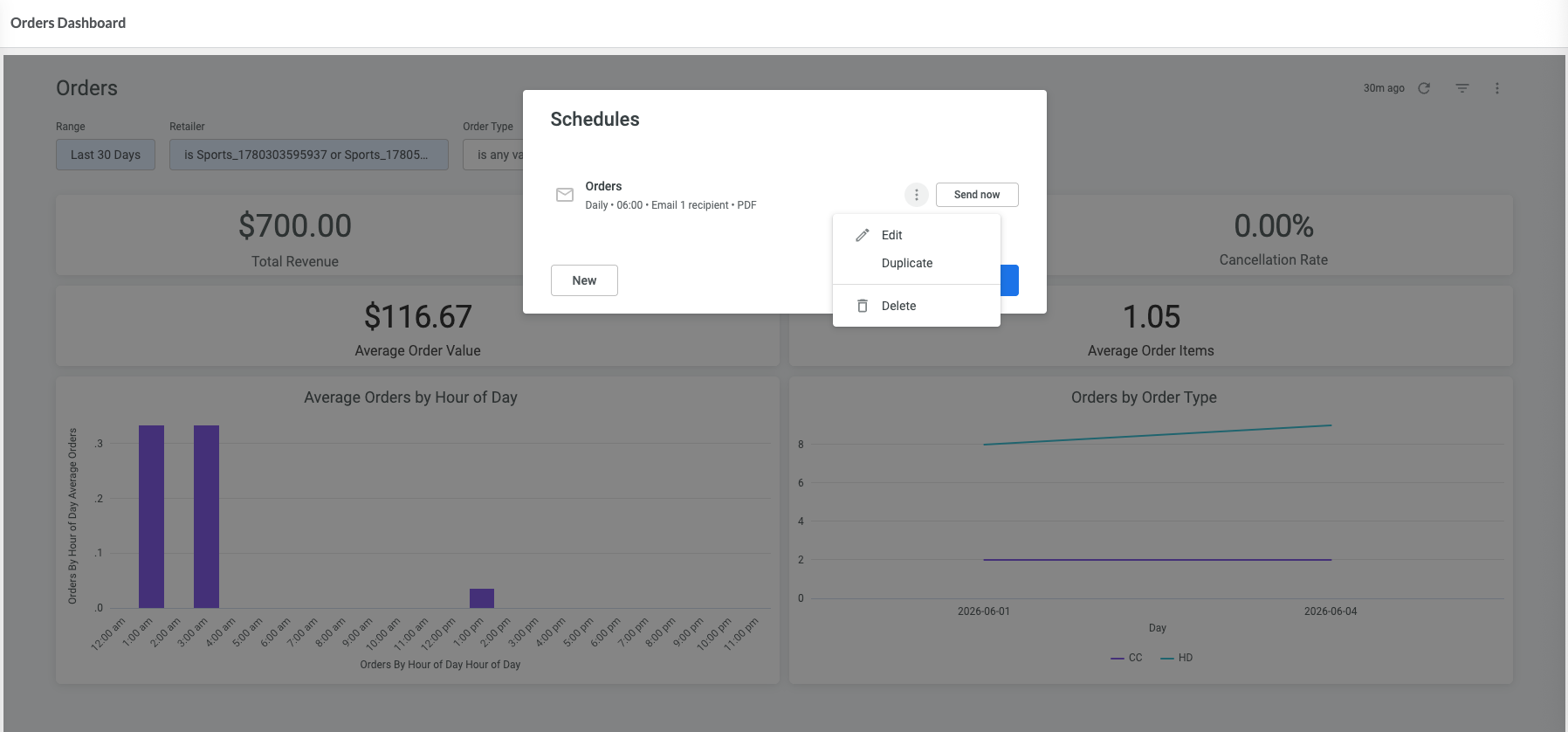
Existing schedules can be edited, duplicated, deleted, or sent immediately
Steps
Scenario
You want to keep stakeholders informed about dashboard performance without requiring them to manually open Analytics Studio.For example, you may want to send an Orders Dashboard summary to your operations team every morning so they can review revenue, order volume, and order trends.
Open the Schedule Delivery dialog
Open Analytics Studio either by navigating directly to the URL or via the context switcher in Fluent OMS or Store, then navigate to the dashboard you want to distribute.
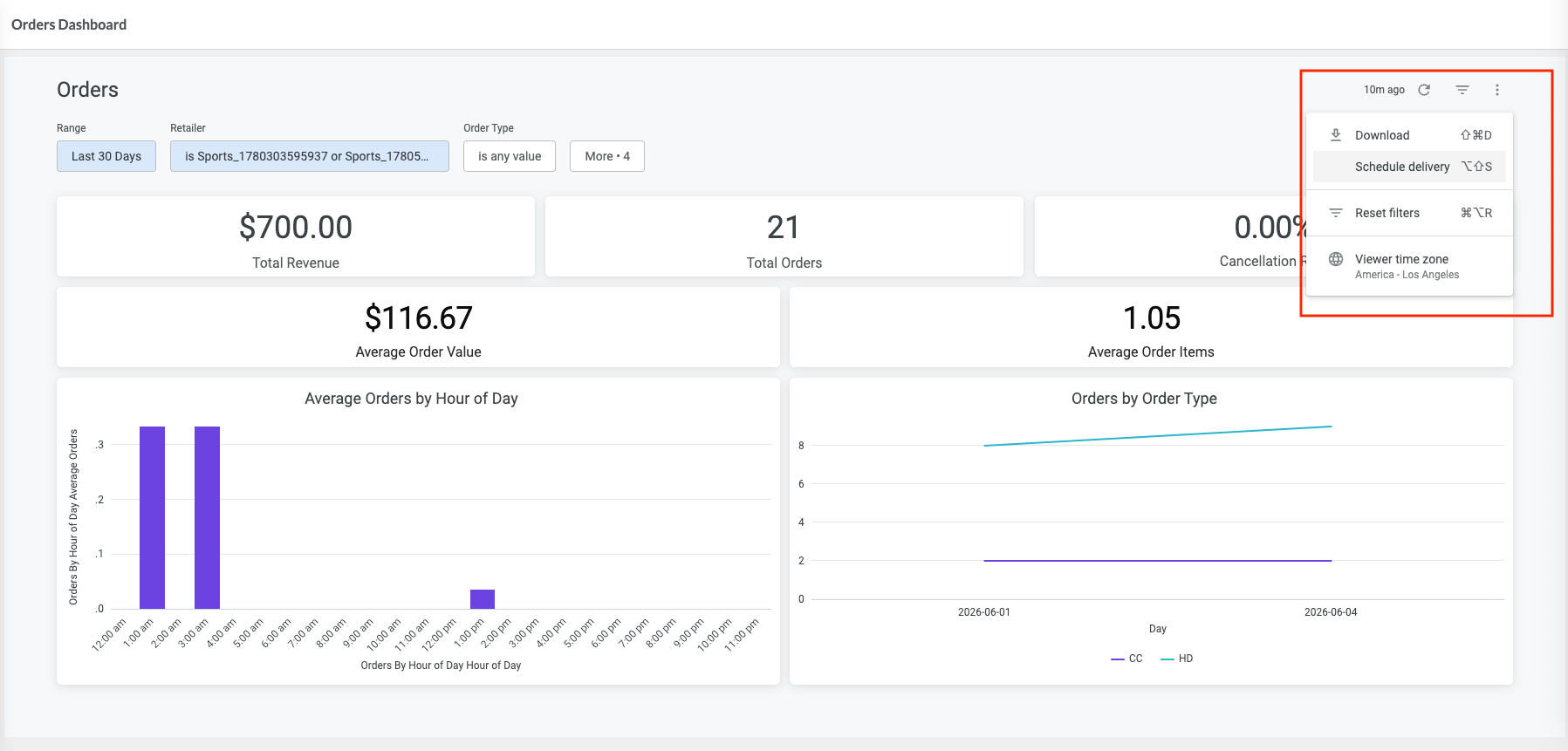
Click the dashboard actions menu (⋮) and select Schedule delivery.
Configure the schedule
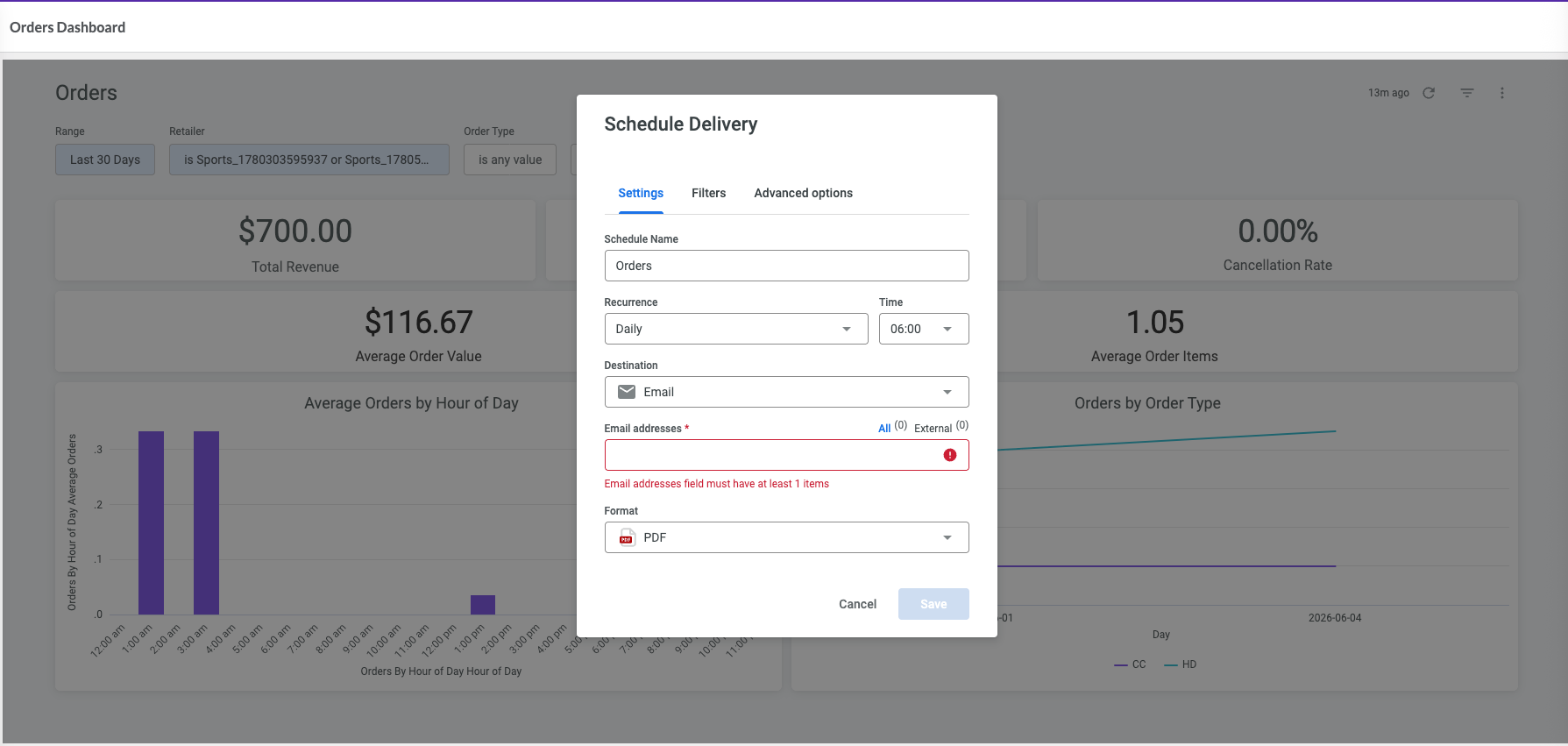
Enter the schedule details:
Schedule Name
Recurrence - see recurrence options below
Delivery Time
Recipients - To add multiple recipients, enter an email address and press Enter, then continue adding additional recipients.
Output Format- Available output formats include:
PDF – a formatted dashboard report (default option)
CSV zip file – raw dashboard data in CSV format
PNG visualization – an image of the dashboard
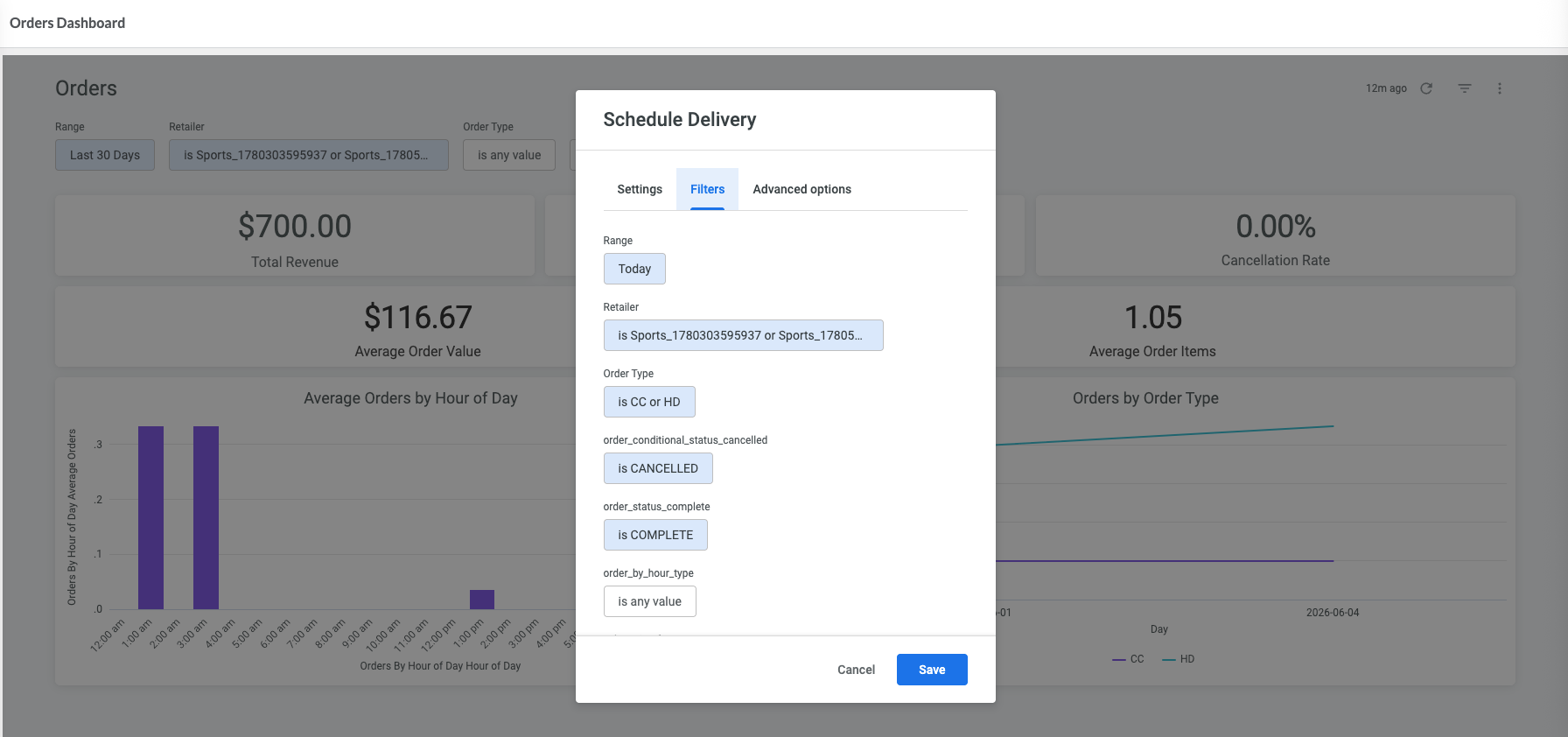
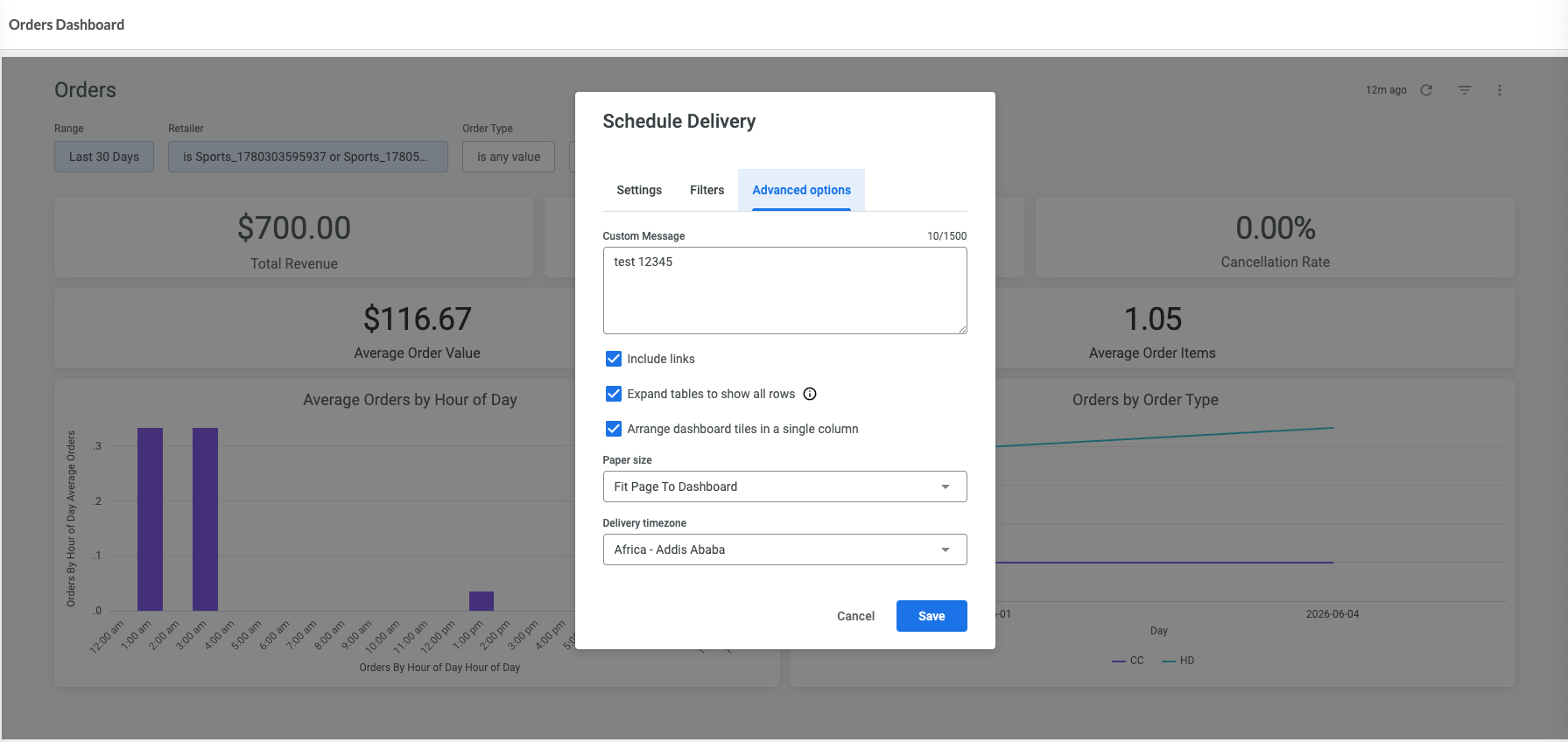
You can also review the Filters and Advanced options tabs to customize the report before saving it.
Save the schedule
Click Save to activate the schedule. Analytics Studio will automatically deliver the report according to the configured schedule.
Manage existing schedules
To view existing schedules, open the dashboard actions menu (⋮) and select Schedule delivery.From the schedule list, you can:
send a report immediately using Send now
edit a schedule
duplicate a schedule
delete a schedule
Result
Stakeholders automatically receive dashboard reports according to the configured schedule, helping them:
monitor performance over time
stay informed about important business metrics
review dashboard data without manually opening Analytics Studio
Select a recurrence pattern based on how often recipients need updated information:
Minutes – deliver the report at a specified minute interval.
Hourly – deliver the report on an hourly schedule.
Daily – deliver the report every day at the selected time.
Weekly – deliver the report on selected days of the week.
Monthly – deliver the report on a selected day each month.
Specific days – deliver the report on selected calendar days.
Specific months – deliver the report only during selected months of the year.
Use more frequent schedules only when recipients need near real-time visibility into dashboard metrics.
Scheduled Reports Use the Current Dashboard Filters
Scheduled reports use the dashboard filter values configured at the time the schedule is created. If you want recipients to receive a different view of the data, update the dashboard filters before creating the schedule.
Customize Report Delivery Options
Use the Advanced options tab to customize report delivery settings, such as: