Exporting Data from Analytics Studio
How-to Guide
Author:
Yulia Andreyanova
Changed on:
22 June 2026
Key Points
- Data can be exported from both dashboards and detailed views
- Available export formats depend on the selected export location
- Dashboard exports support PDF and CSV formats
- Detailed record exports support the following formats: Excel, CSV, TXT, JSON, HTML, Markdown, and PNG
- Large exports may take longer to generate, especially when exporting all available results
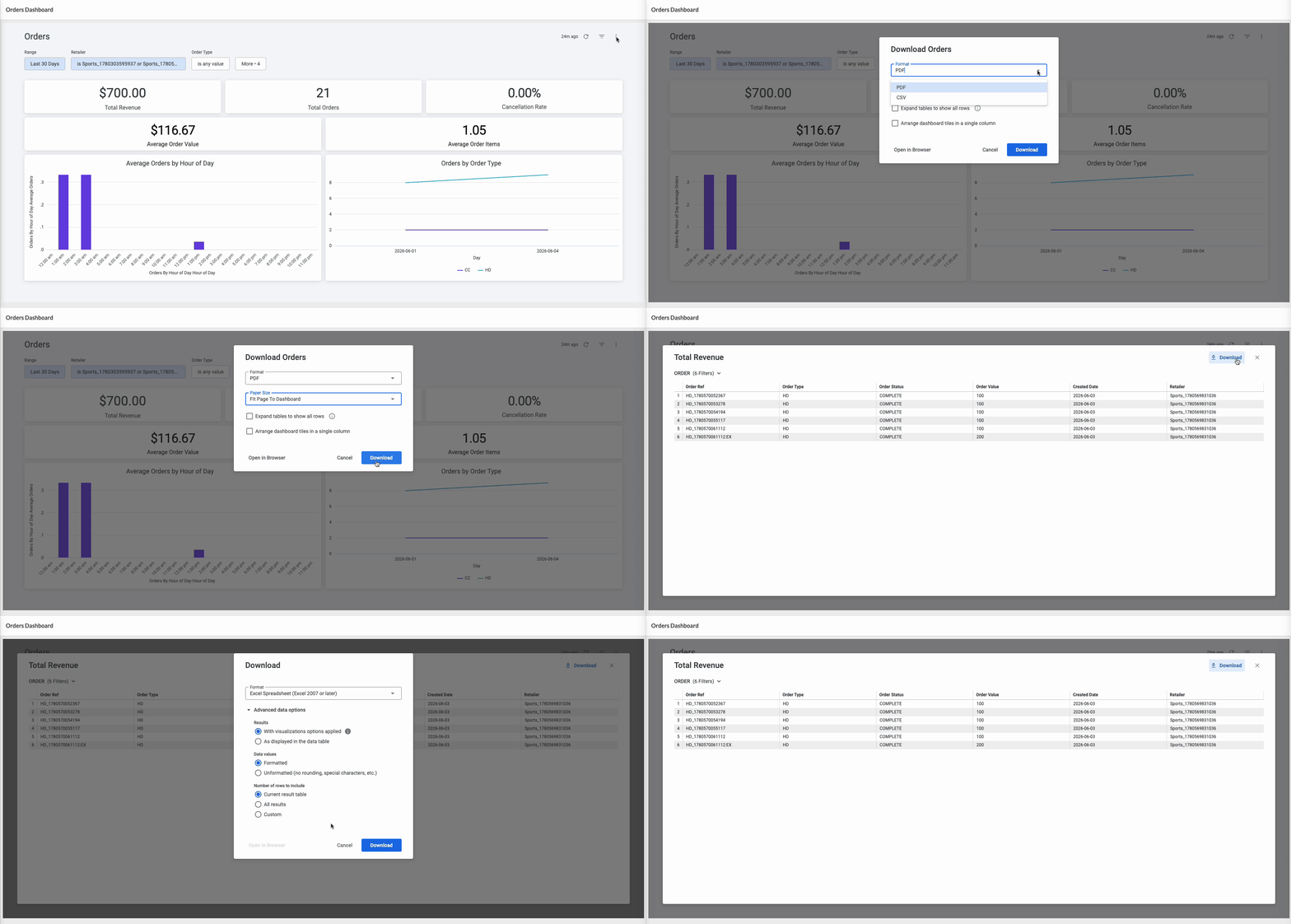
Steps
 Export a Dashboard
Use this option when you want to export the entire dashboard, including the currently applied filters and visualizations.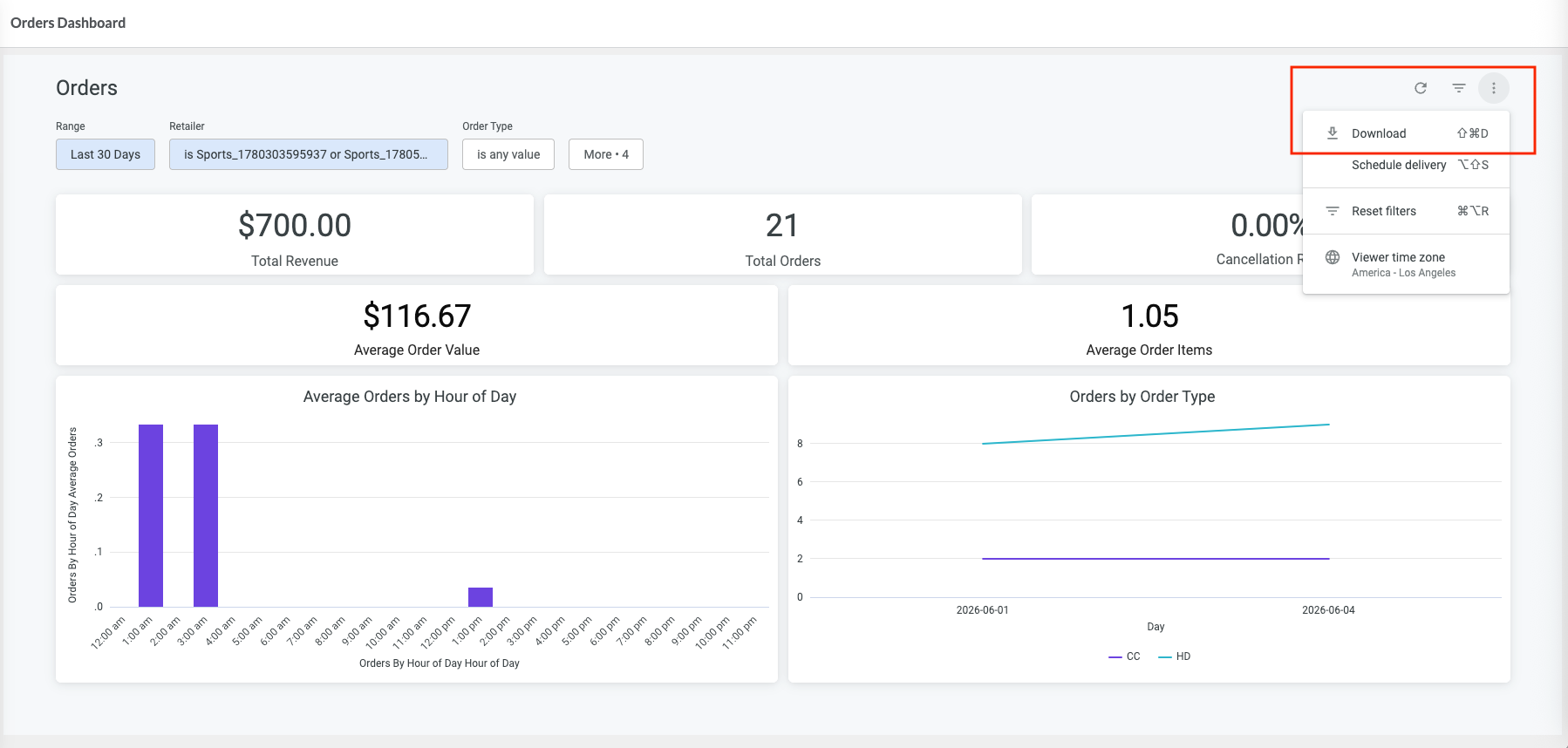
Open the export menu
- Open a dashboard.
- Click Dashboard Actions (⋮).
- Select Download.
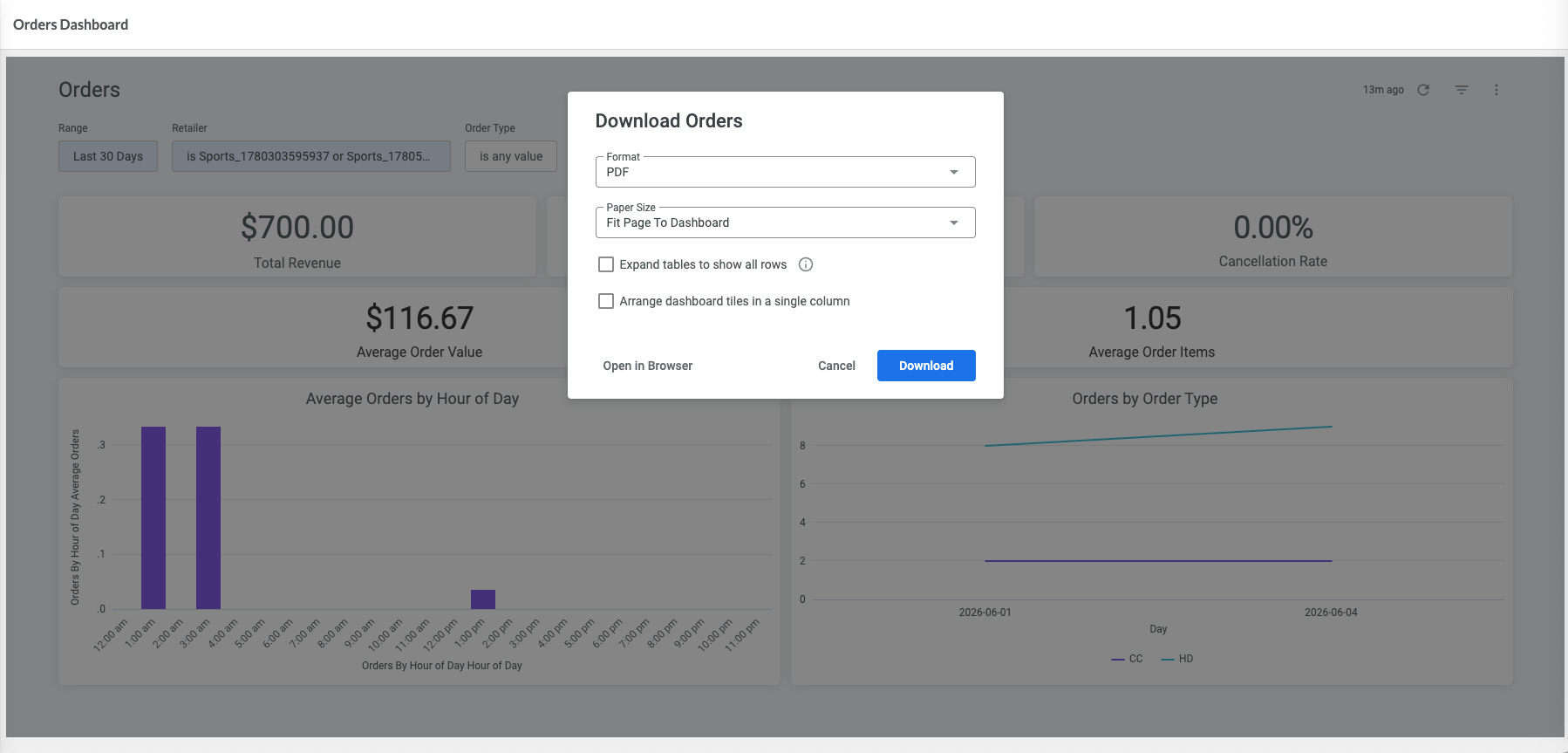
Configure the export
- Select the required export format. Dashboards can be exported as either PDF or CSV files.
- (Optional) Configure additional export options.
- Click Download.
Result
The dashboard is exported using the currently applied dashboard filters and settings.Export Detailed Records
Use this option to export records that contribute to a specific metric.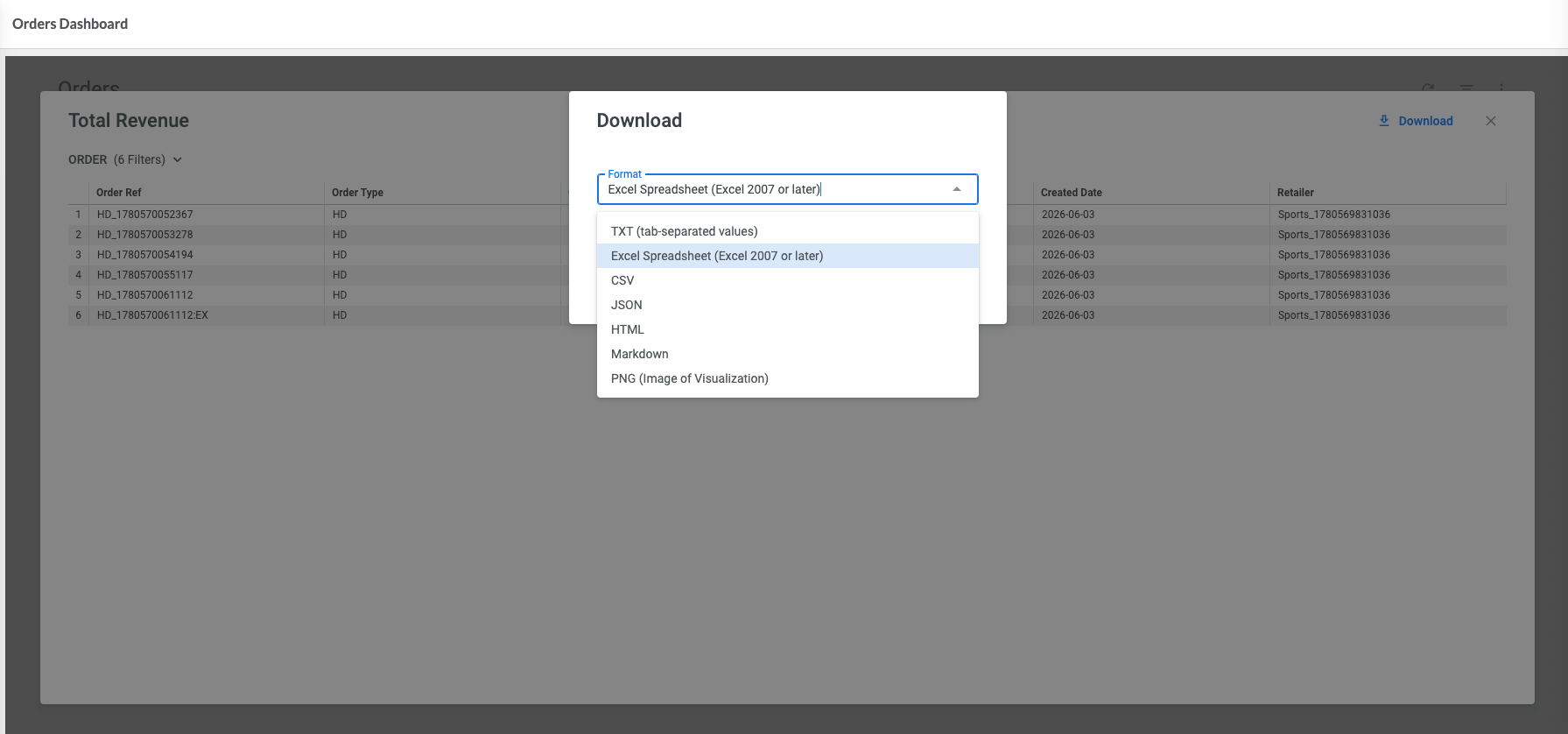
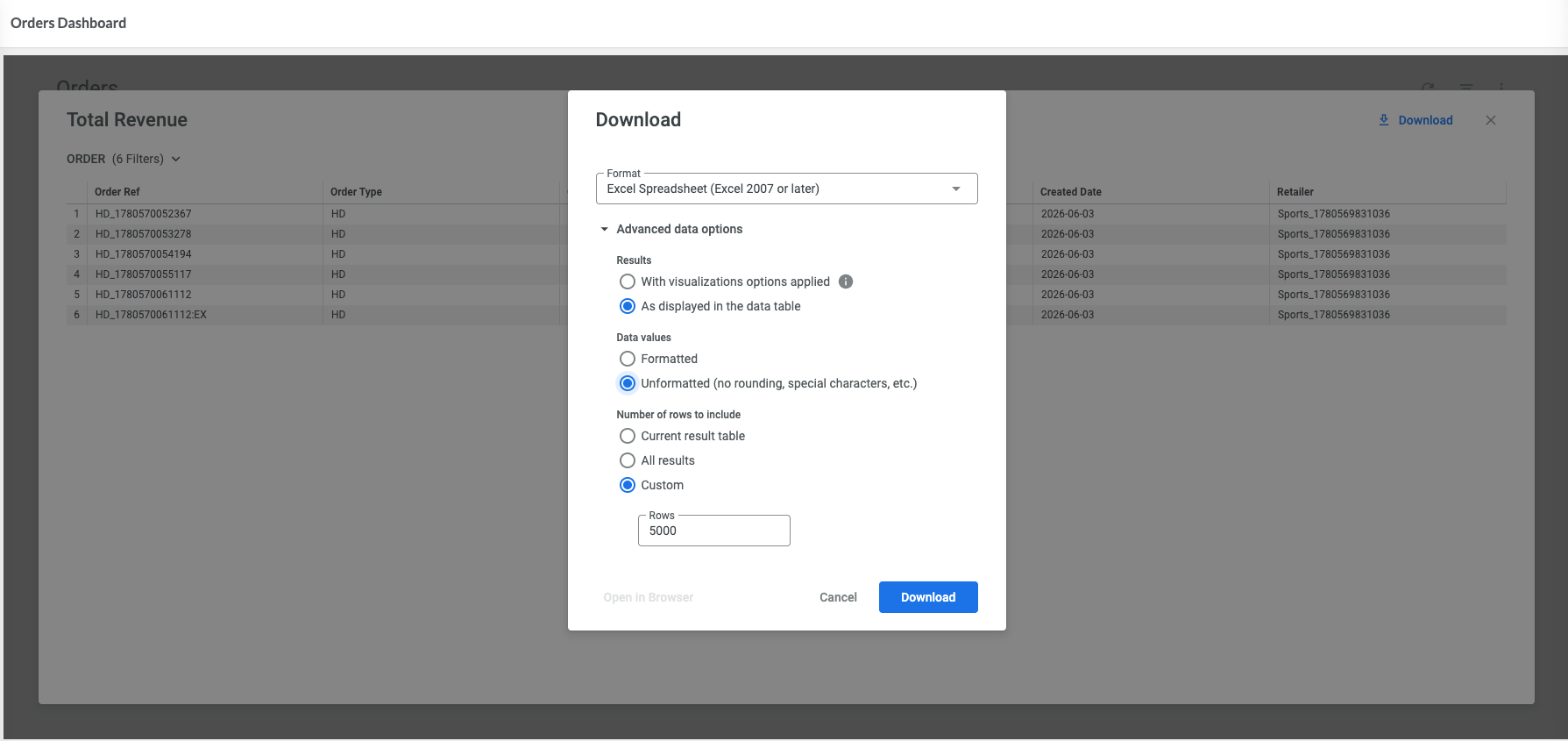
Open the detailed view
- Click a metric value on the dashboard.
- Review the records displayed in the detailed view.
Export the records
- Click Download in the detailed view.
- Select the required export format. Detailed records can be exported in a variety of formats, including Excel, CSV, TXT, JSON, HTML, Markdown, and PNG image files.
- (Optional) Configure advanced export options.
- Click Download.
Advanced export options
Depending on the selected format, additional options may be available, such as:- formatting of exported values;
- number of rows to include;
- inclusion of visualization settings.
Result
The records contributing to the selected metric are exported in the chosen format.
Next Steps
After exporting data, you can review it in a spreadsheet, reporting, or other business analysis tools. To automatically monitor important metrics, see Setting Up Alerts in Analytics Studio.