Fluent Commerce Logo
Docs

Exporting Data from Analytics Studio

How-to Guide

Author:

Yulia Andreyanova

Changed on:

22 June 2026
Key Points

  • Data can be exported from both dashboards and detailed views
  • Available export formats depend on the selected export location
  • Dashboard exports support PDF and CSV formats
  • Detailed record exports support the following formats: Excel, CSV, TXT, JSON, HTML, Markdown, and PNG
  • Large exports may take longer to generate, especially when exporting all available results
No alt text provided

Steps

Step arrow right iconExport a Dashboard

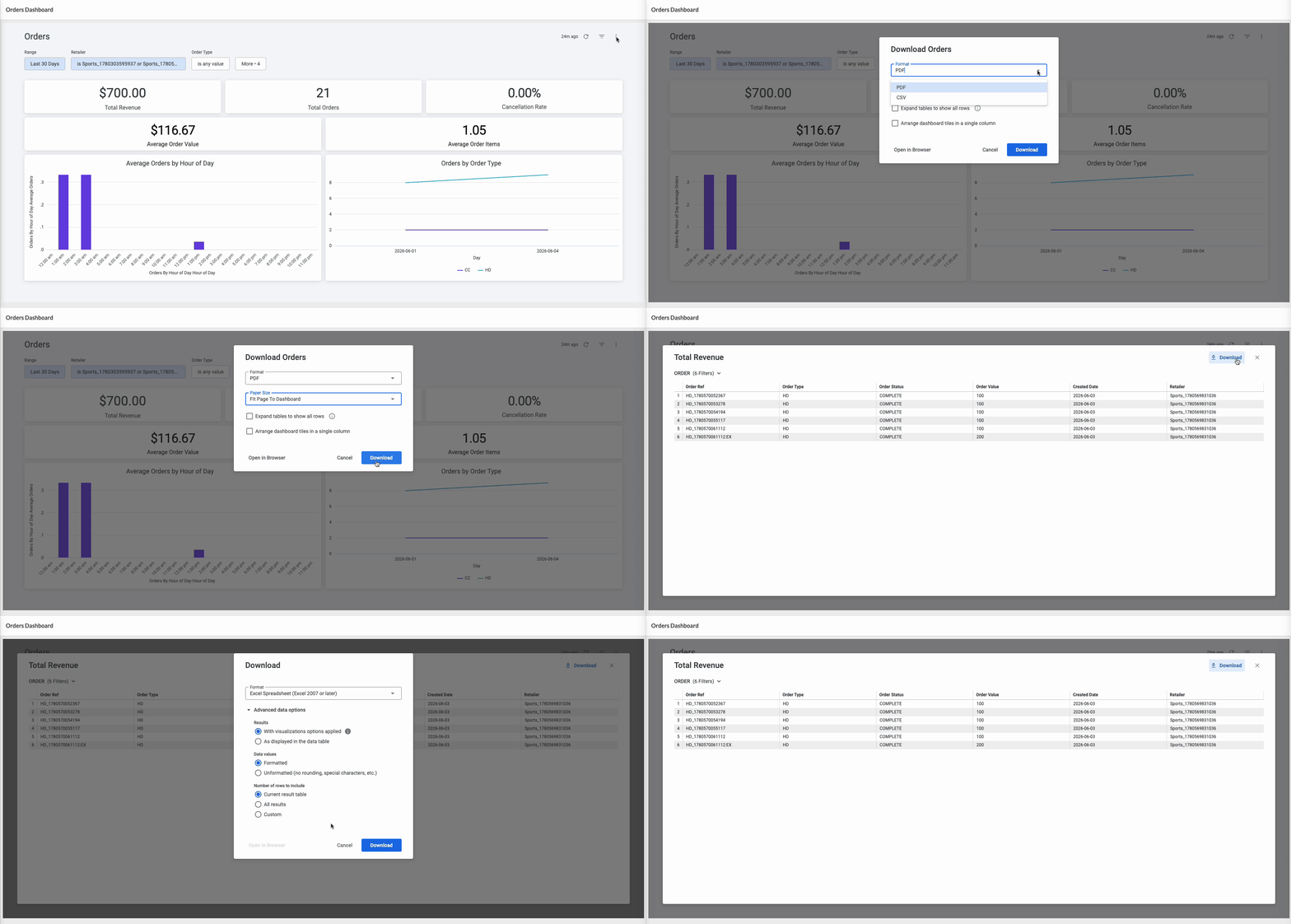
Use this option when you want to export the entire dashboard, including the currently applied filters and visualizations.
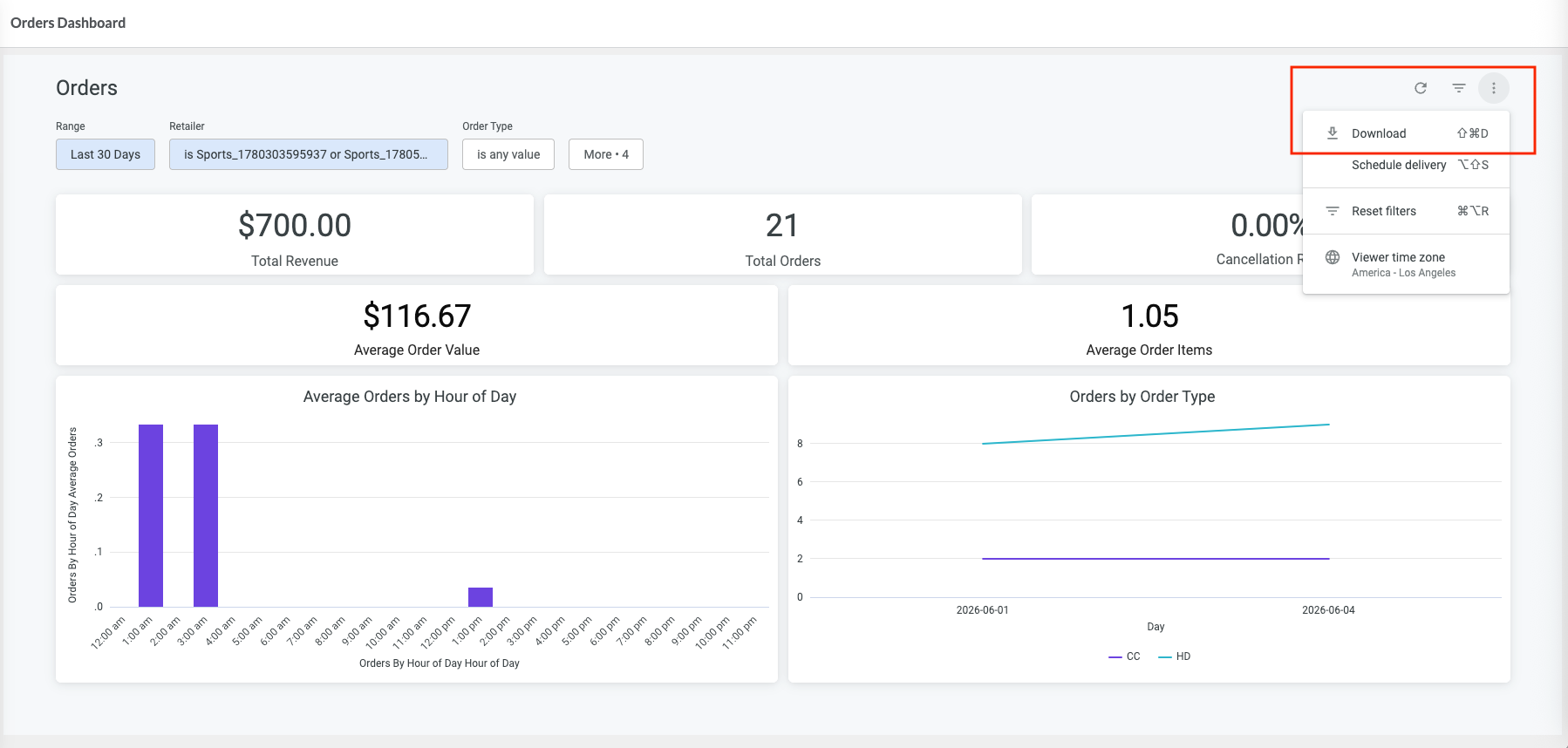
Open the export menu
  • Open a dashboard.
  • Click Dashboard Actions (⋮).
  • Select Download.
No alt provided
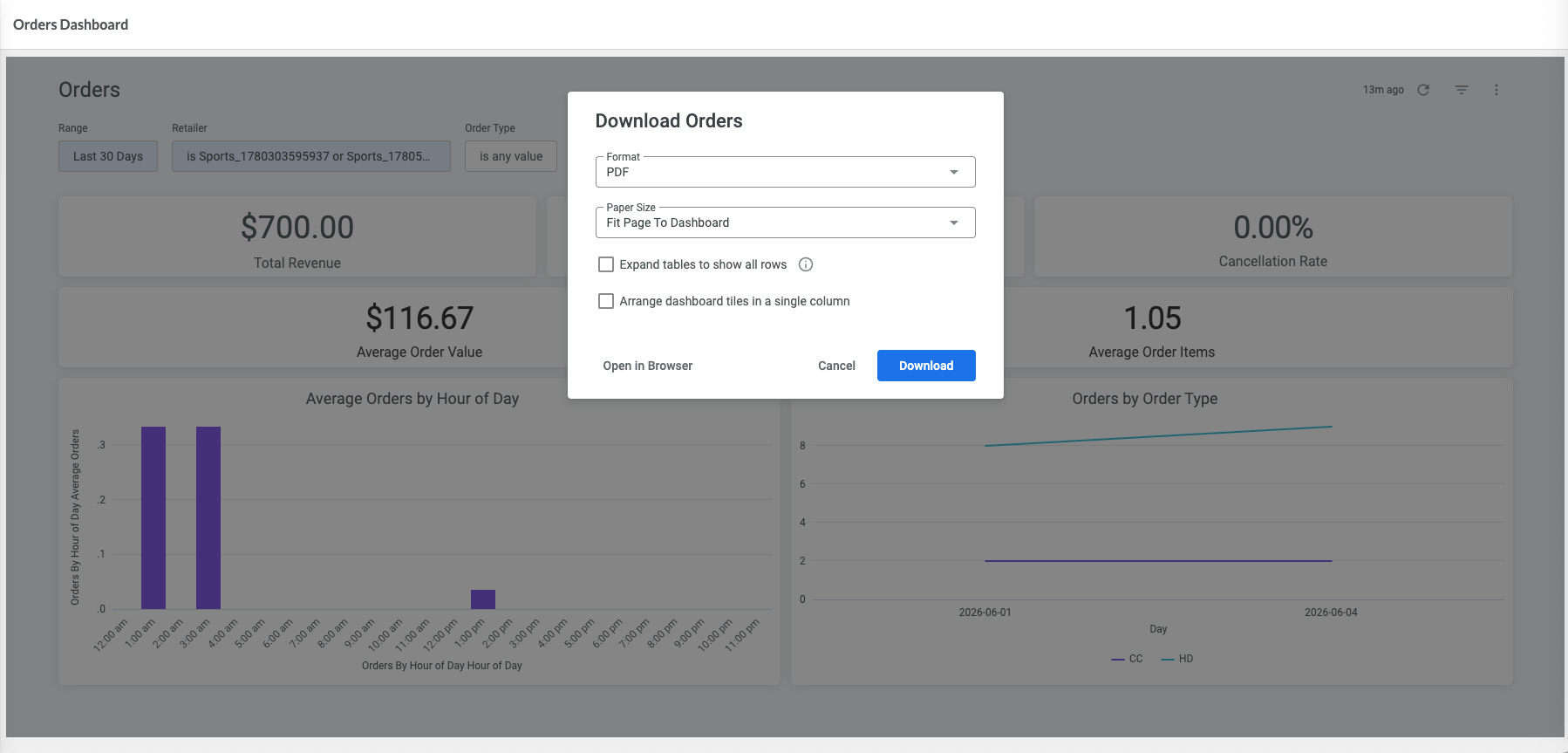
Configure the export
  • Select the required export format. Dashboards can be exported as either PDF or CSV files.
  • (Optional) Configure additional export options.
  • Click Download.
No alt provided

Result
The dashboard is exported using the currently applied dashboard filters and settings.

Step arrow right iconExport Detailed Records

Use this option to export records that contribute to a specific metric.
Open the detailed view
  • Click a metric value on the dashboard.
  • Review the records displayed in the detailed view.
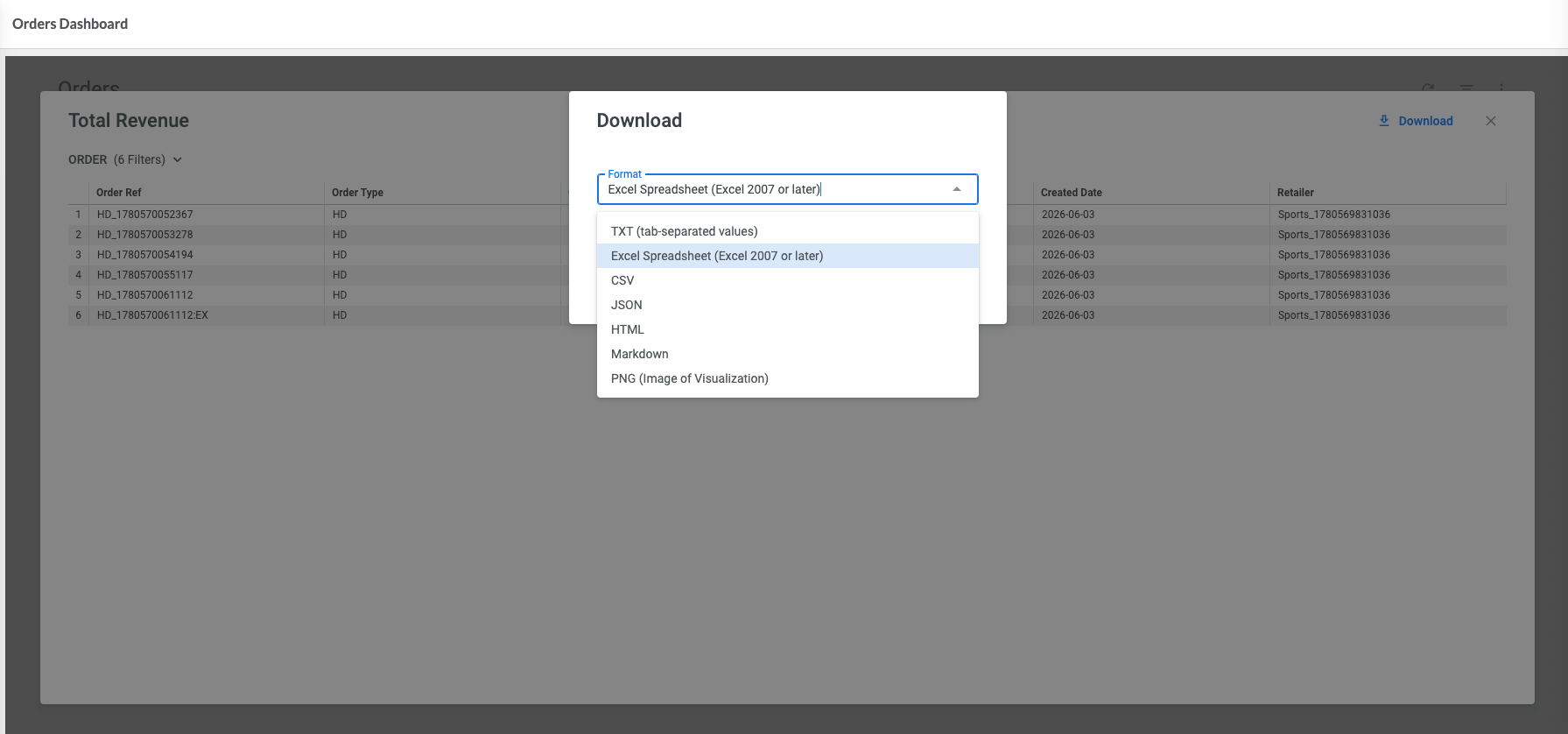
Export the records
  • Click Download in the detailed view.
  • Select the required export format. Detailed records can be exported in a variety of formats, including Excel, CSV, TXT, JSON, HTML, Markdown, and PNG image files.
  • (Optional) Configure advanced export options.
  • Click Download.
No alt provided
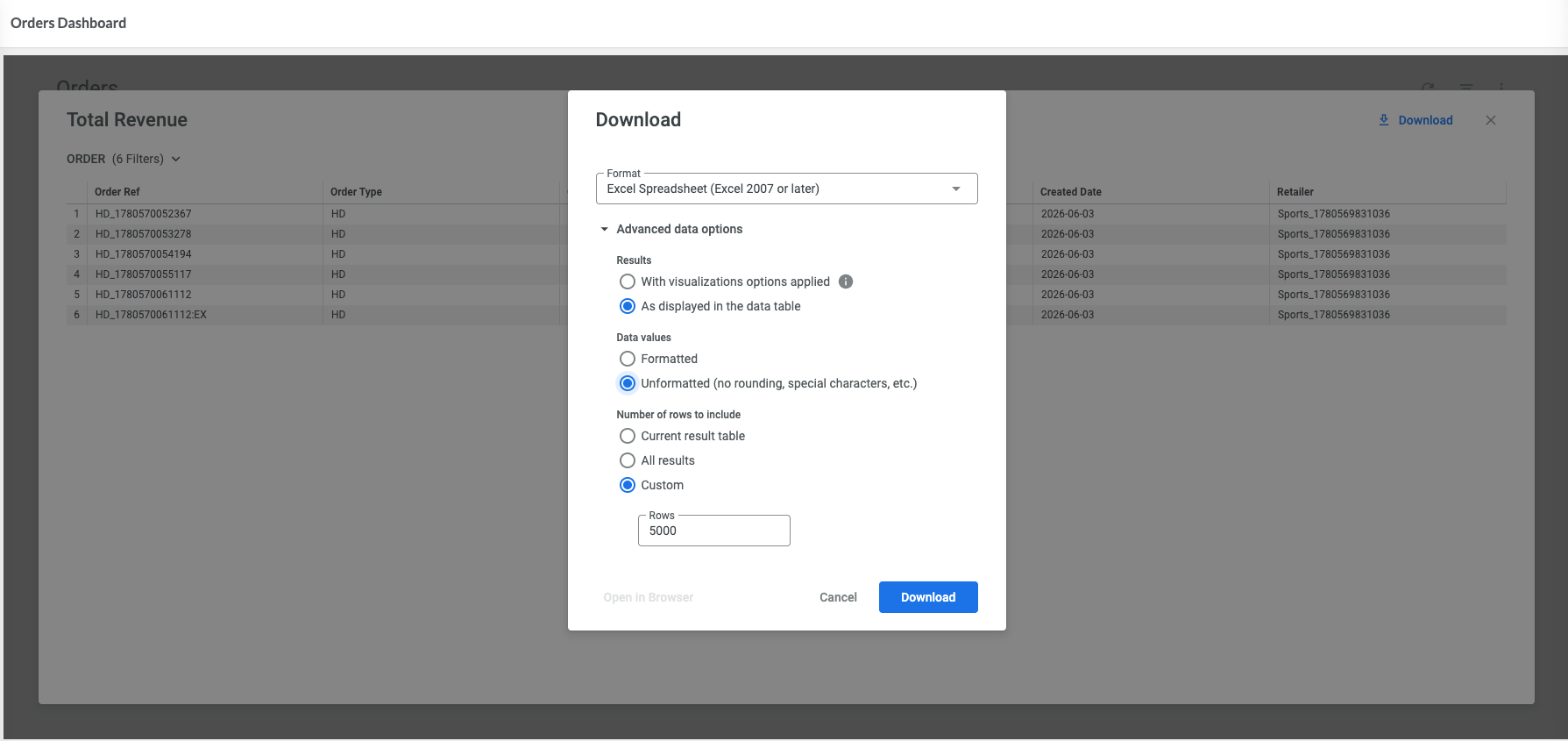
Advanced export options
Depending on the selected format, additional options may be available, such as:
  • formatting of exported values;
  • number of rows to include;
  • inclusion of visualization settings.
No alt provided

Step arrow right iconResult

The records contributing to the selected metric are exported in the chosen format.

Step arrow right iconNext Steps

After exporting data, you can review it in a spreadsheet, reporting, or other business analysis tools. To automatically monitor important metrics, see Setting Up Alerts in Analytics Studio.