Rename Order Tag Filters to Business-Friendly Labels
How-to Guide
Author:
Yulia Andreyanova
Changed on:
2 Dec 2025
Key Points
- Order tags (tag1, tag2, tag3) use technical names that do not reflect their real business meaning.
- This causes user confusion and inconsistent filtering, as teams must remember internal mappings (e.g., “tag1 = Brand”).
- Misaligned labels slow down workflows and increase the risk of errors.
- The
`filter.overrides`option in`fc.list`allows renaming tags per screen. - Translation keys allow consistent system-wide renaming when the same label is needed everywhere.
- These options help align the UI with business terminology and improve filtering usability.
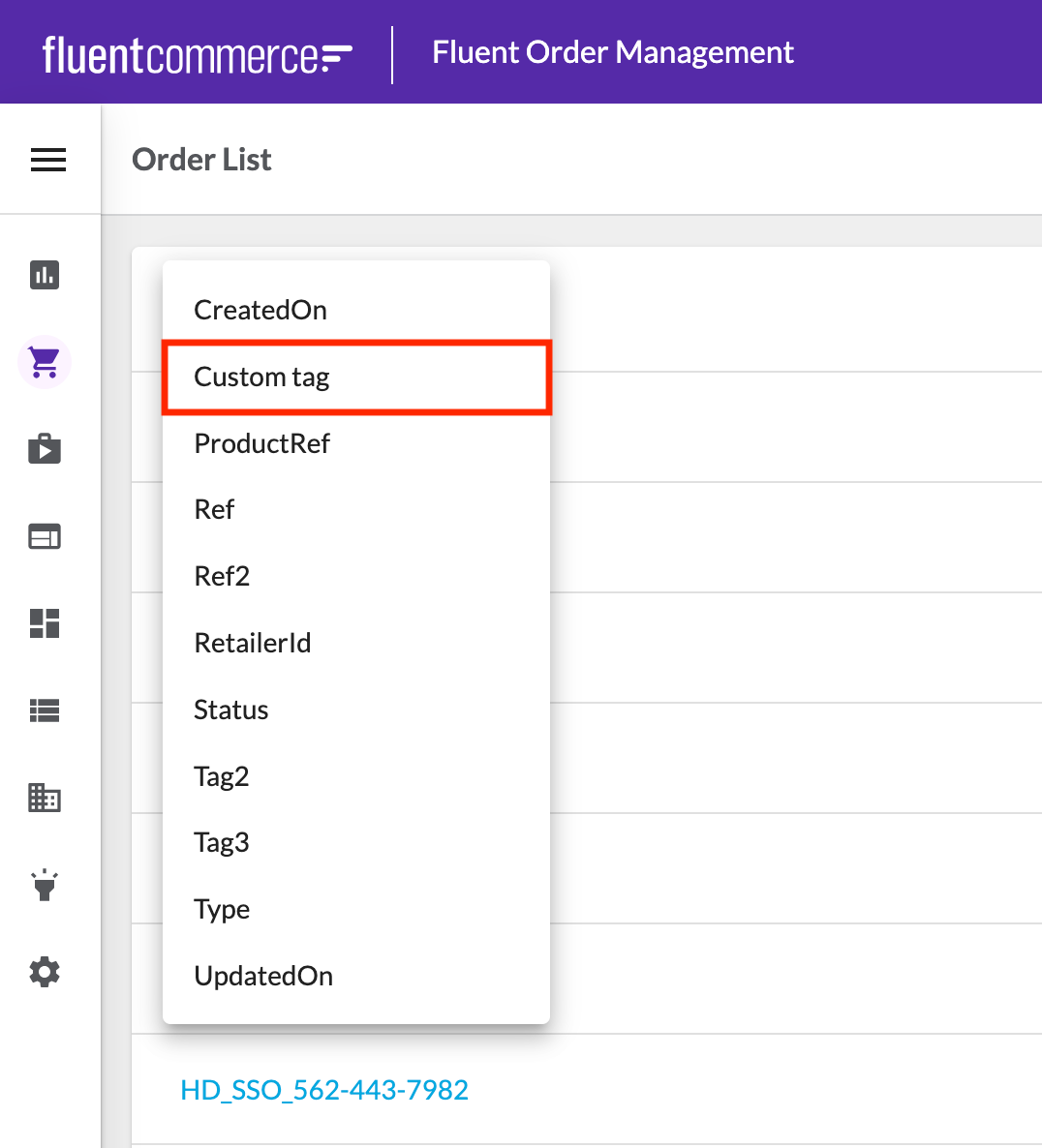
Steps
 Determine Which Tag Maps to Your Business Meaning
Before renaming, identify which tag (
`tag1`, `tag2`, or `tag3`) corresponds to the concept you need.Examples:`tag1`→ Brand`tag2`→ Region`tag3`→ Sales Channel
Rename Tag Labels System-Wide (Using Translations)
Use this method when the tag’s meaning is the same across the entire system.Updating the translation key changes the label everywhere the tag is used—filters, details drawers, cards, and other UI surfaces.
Where:
Applies everywhere — all screens, all nodes, all components.Why is it not recommended:
How Translation Keys Are Constructed
There are two types of translation keys:Node-Specific Translation Key (Recommended)
This applies only to one GraphQL node — e.g., Orders, Customers.Why this is recommended:- Prevents accidental renaming of tags everywhere in the system.
- Gives you precise control per business domain.
`"fc.gql.{graphQLNodeNameWithoutS}.tag1.label": "<Your Label>"`Where:
`{graphQLNodeNameWithoutS}`→ singular GraphQL node name (e.g.,`order`,`customer`)`tag1/tag2/tag3`→ tag you want to rename
`
`
Global Translation Key (Use with Caution)
Applies everywhere — all screens, all nodes, all components.Why is it not recommended:`
- May unintentionally rename tag labels in screens or components where you did not intend to modify them.
Rename a Tag Filter on a Specific Screen (Using filter.overrides)
Use this approach when the label should be customised only within a single List component (e.g., Orders list, Customer list).This method allows overriding the label displayed to users.
Combine Screen-Level Overrides With System-Wide Defaults (Optional)
In some situations, you may want a tag to have a default label across the entire system, while using a different label only on certain screens. This approach is helpful when most teams use the same terminology, but a specific workflow or team requires a more contextual label.You can achieve this by defining a system-wide translation and then applying a screen-specific override in the manifest.
System-Wide Default Label (Translation-Based)
Screen-Level Override in fc.list
Result
With this setup:- The default label used across the system is Brand
- On the specific screen where the override is defined, users will instead see Preferred Brand
- All other screens remain unaffected and continue using the system-wide label