- Get Started
- Functionality
- Learning
- Extension
- Dev Tooling
- APIs
- Releases

Docs
Authors:
Anita Gu, Girish Padmanabha
Changed on:
10 Dec 2025

Copyright © 2024-2026 Fluent Retail Pty Ltd (trading as Fluent Commerce). Unless otherwise expressly stated in a current written agreement with Fluent Commerce or any of its affiliates or on any single page of the docs.fluentcommerce.com site, use of the materials on this site is strictly limited to viewing by individuals over 18 years old for legitimate commercially appropriate reasons; and any downloading, copying or other actions or uses of any kind or by any means of the materials on this site, including by artificial intelligence tools, is strictly prohibited. All other rights reserved.

 IntroductionStarting the Collection Runner
 The Runner window is now also integrated within the main Postman window, and looks like this:
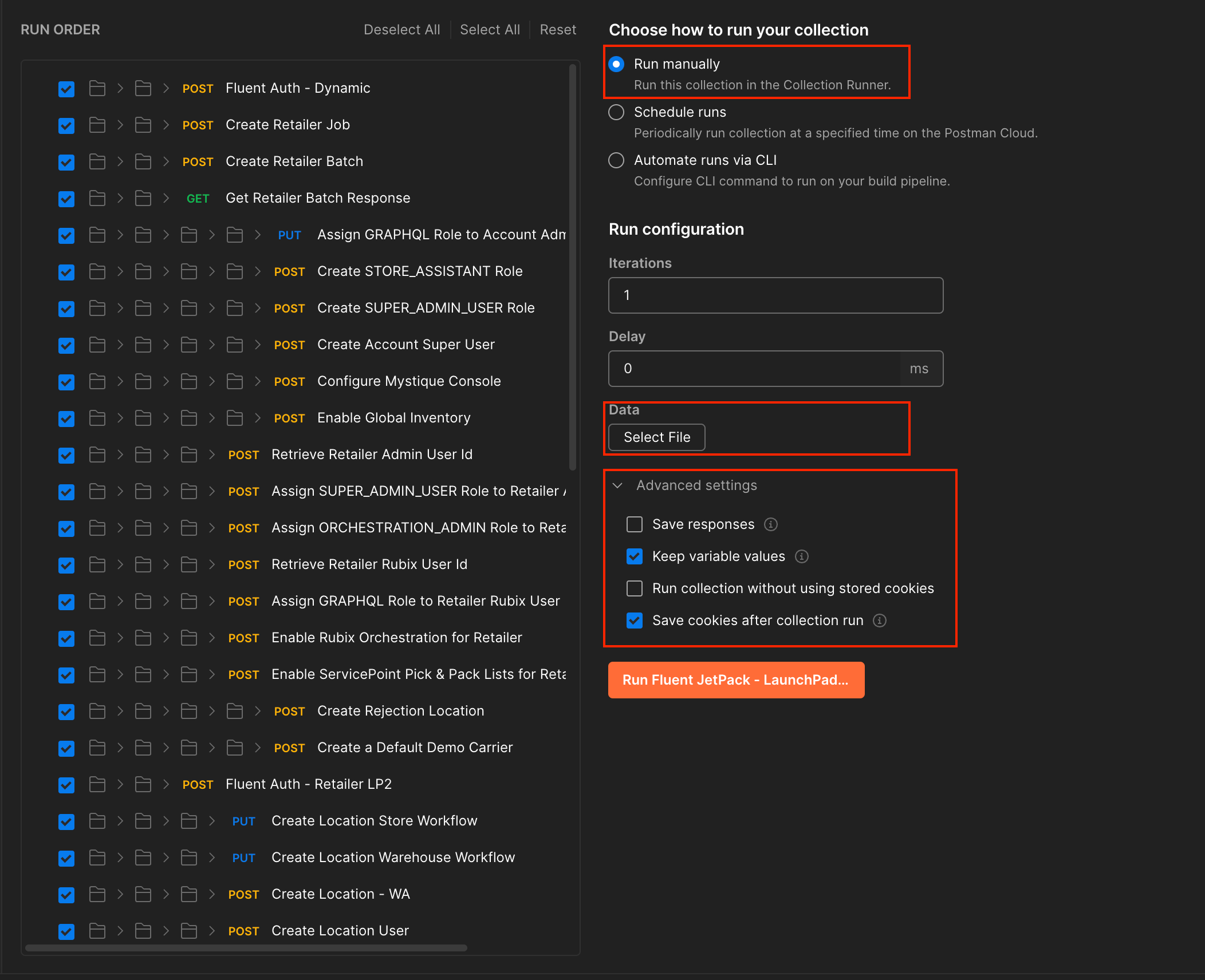 Setting up the Runner
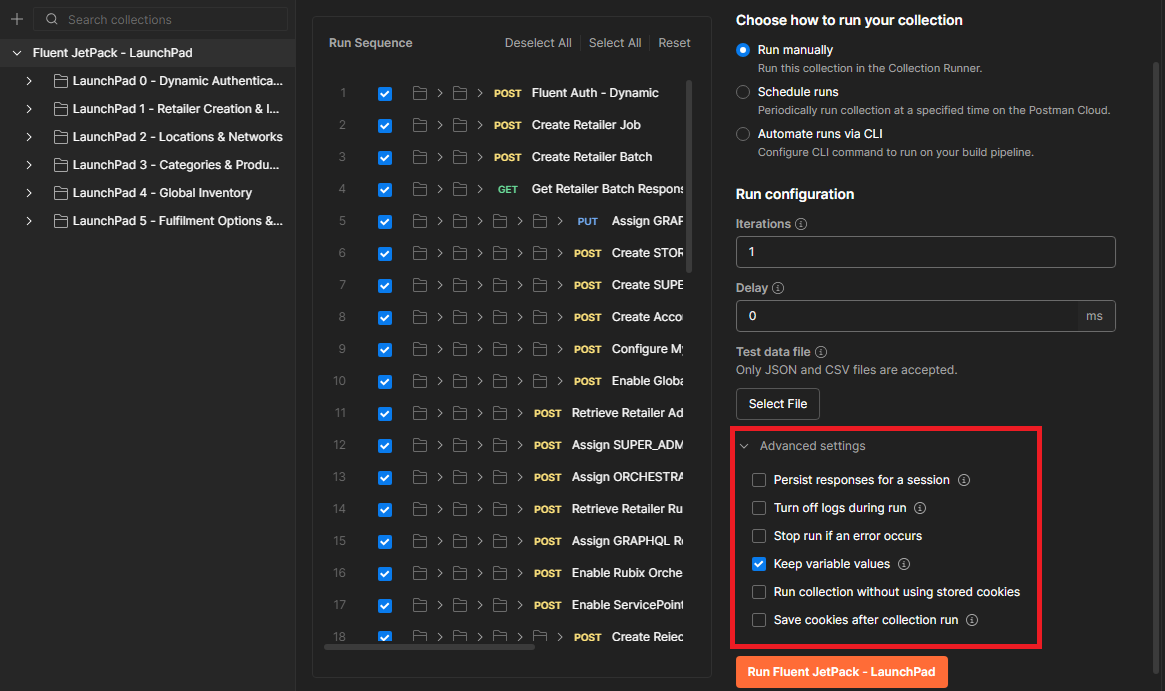 Selecting a data fileRunning the retailer dataLogging into the web app
 You should see new variables in the list, such as
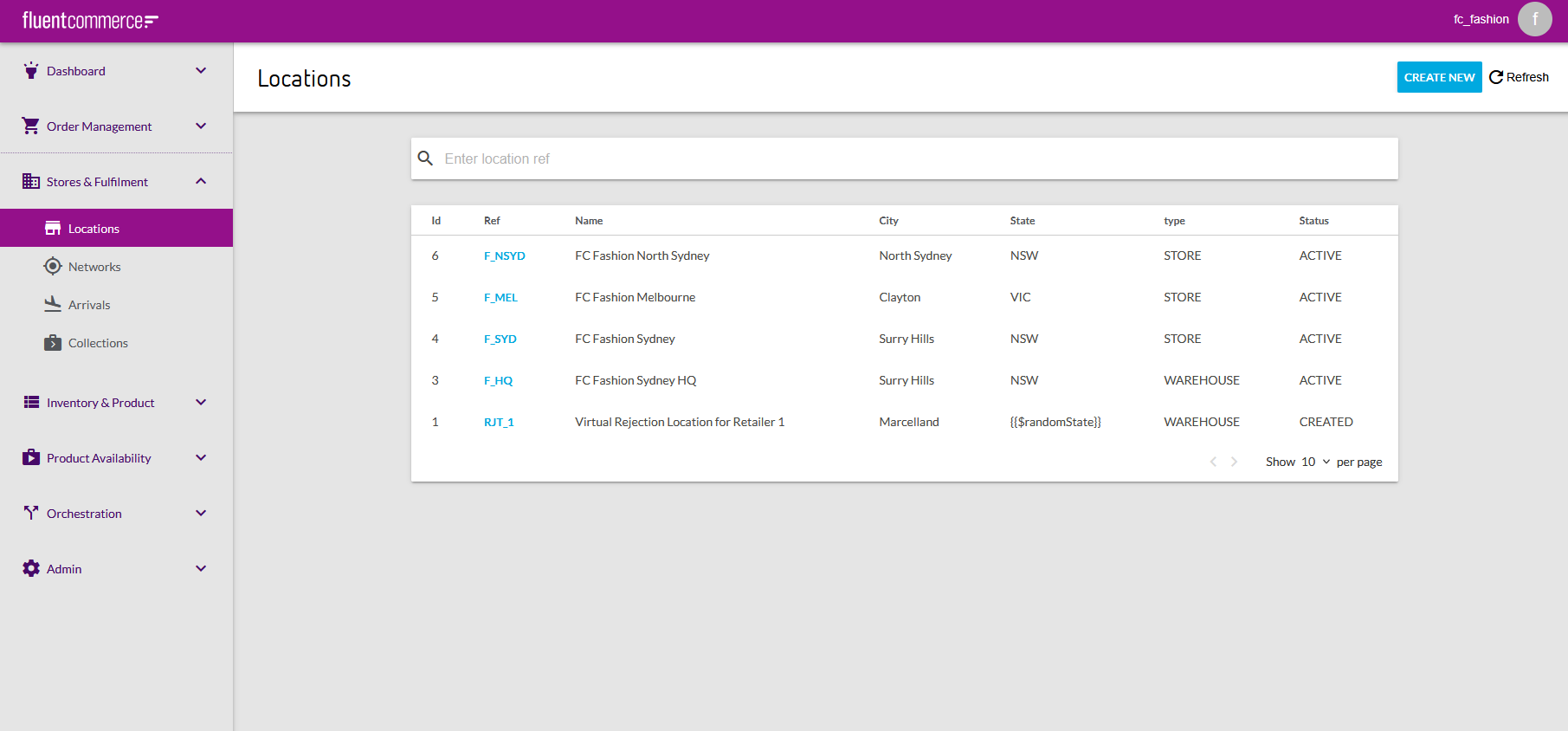
 `fluent.retailer`. Look for a variable that says `fluent.retailer.fc_fashion.user.username` and `fluent.retailer.fc_fashion.user.password`. These will be your credentials to log into the web app. Access the web app at https://< ACCOUNTID>.sandbox.console.fluentretail.com/#/orders and use your fashion retailer credentials to access the fashion retailer account. You can log into the sports retailer account by accessing the same link in an incognito window or a separate browser.VideoRunning the location dataChecking location data has been loaded
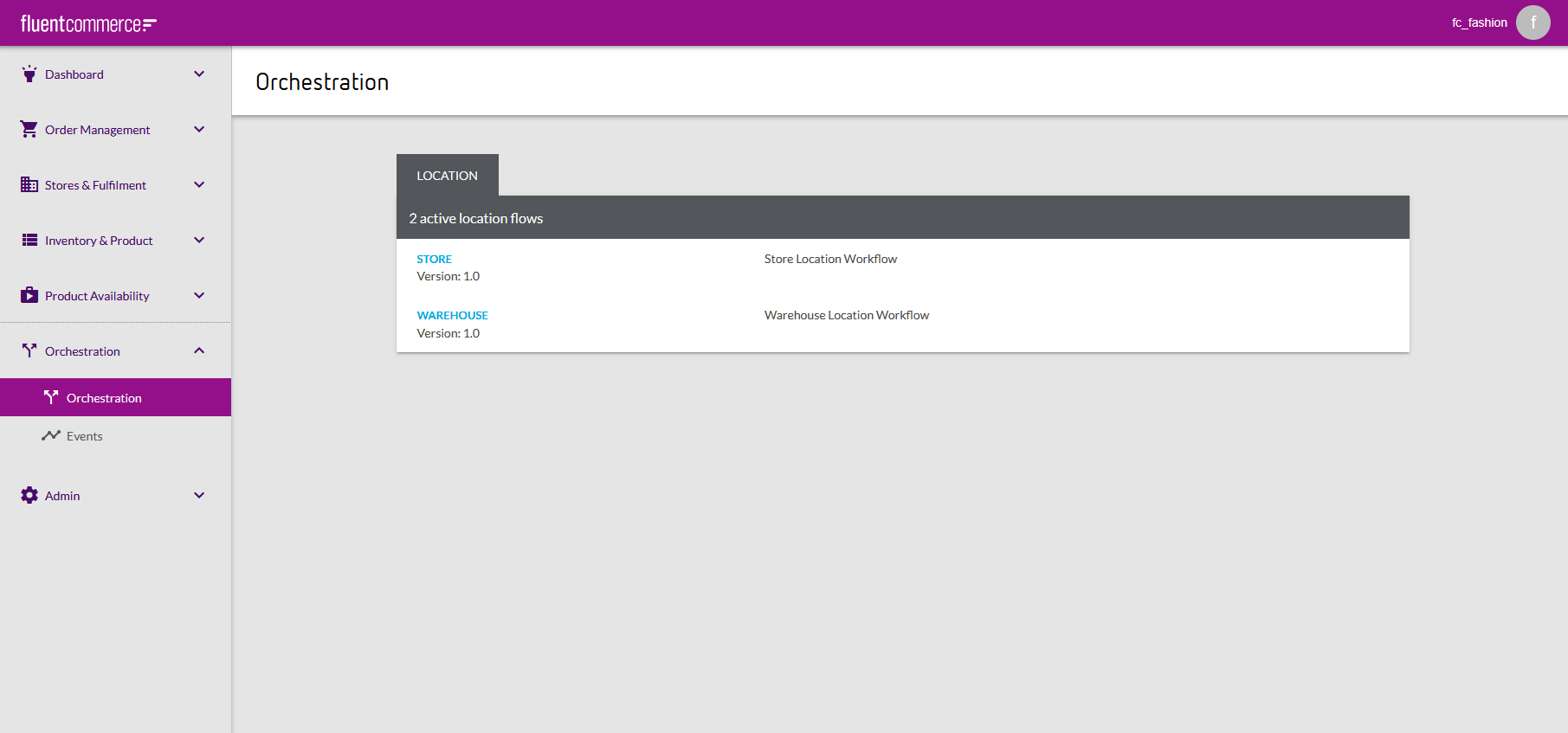
 Checking Orchestration
 VideoRunning the network dataChecking network data has been loaded
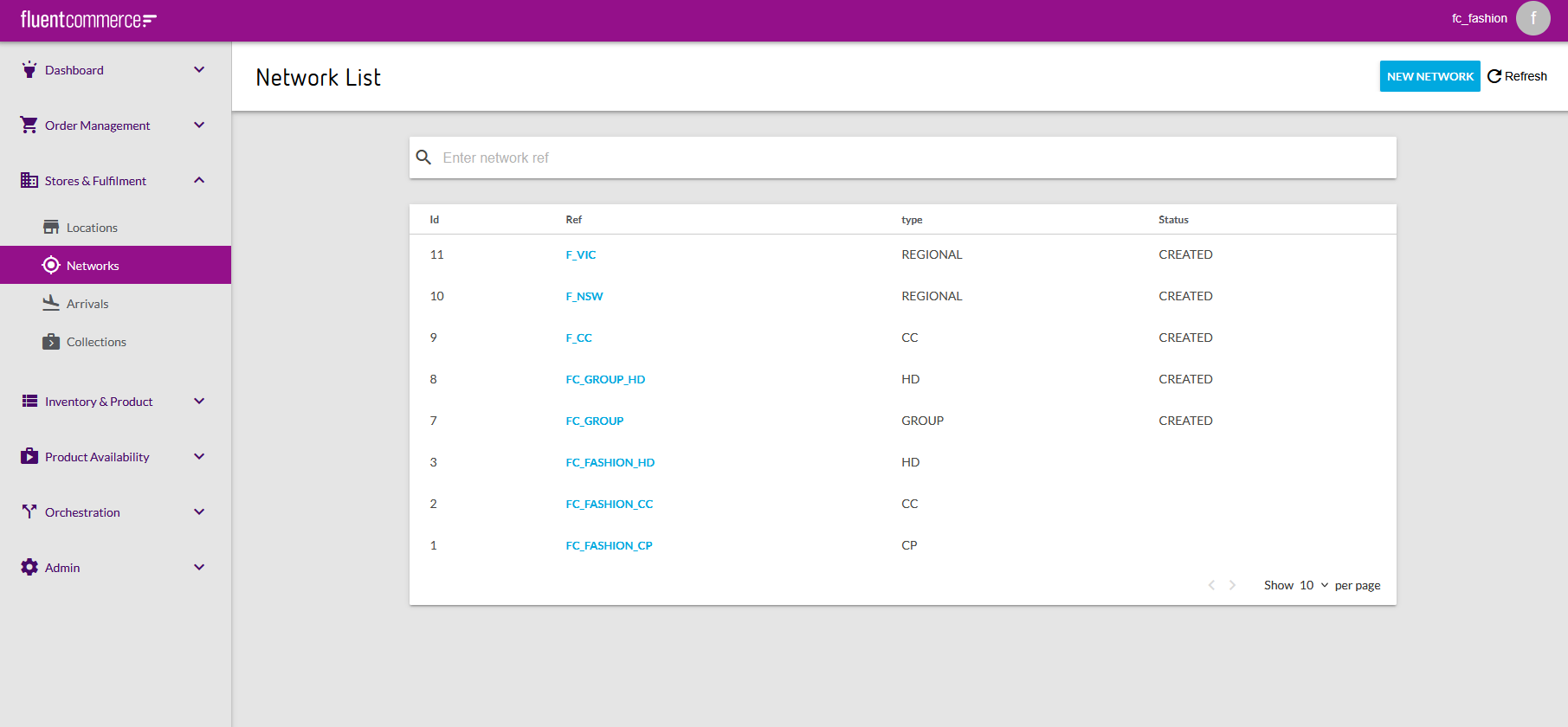 Creating additional dataVideoVideoVideoVideoVideoVideoVideoVideoLabs Complete