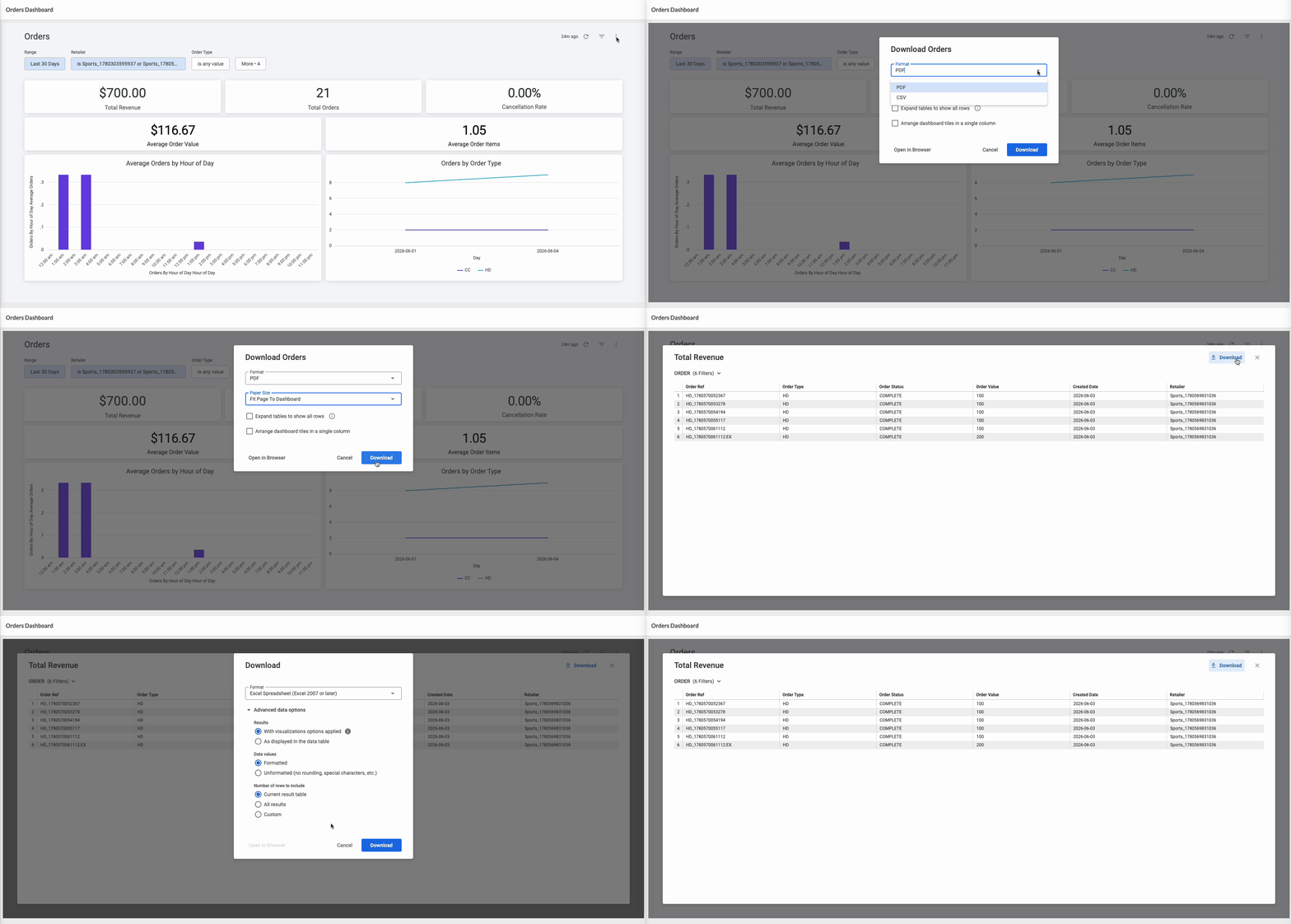
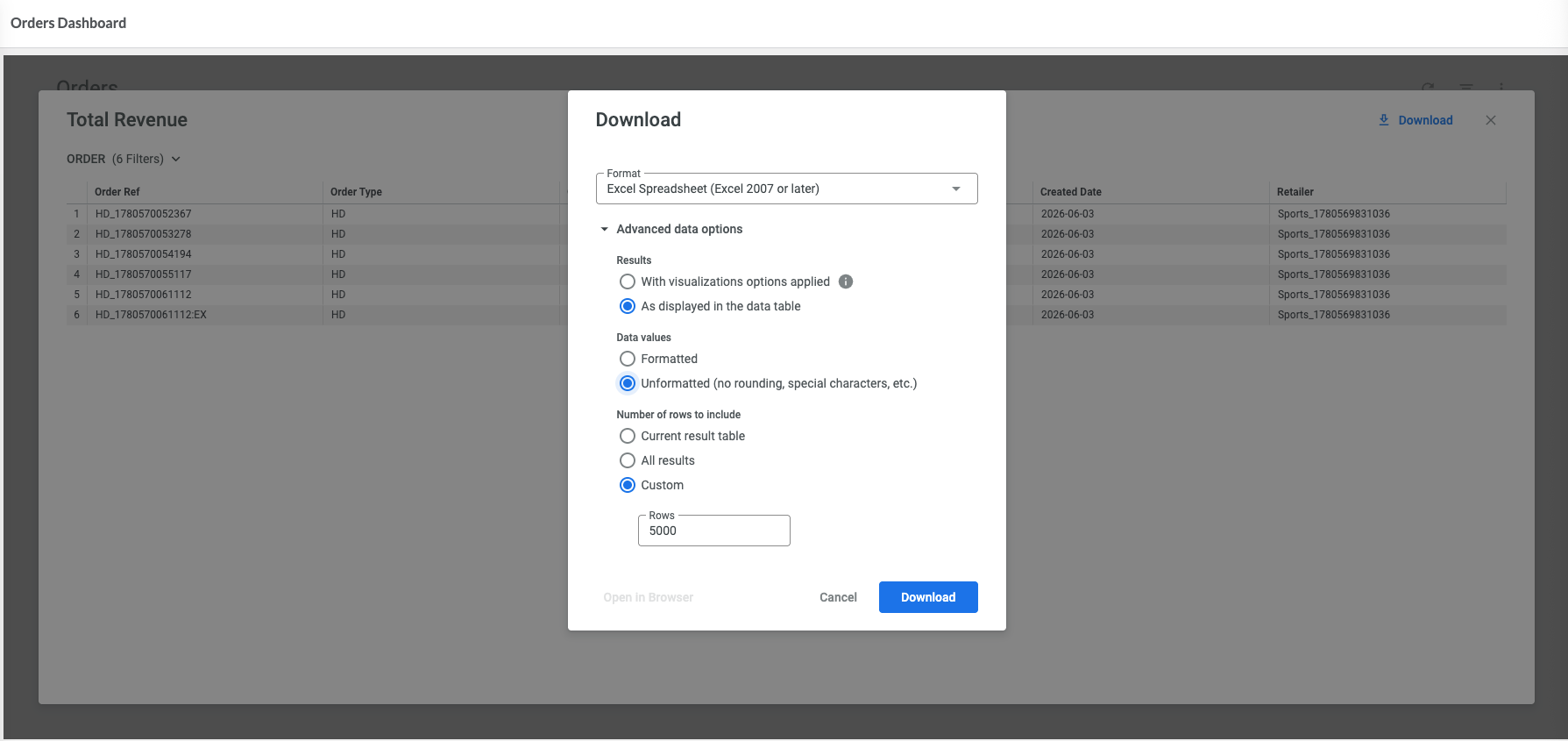
You have identified orders contributing to a drop in Total Revenue and want to export them for analysis or to share with your team.
Export a Dashboard
Use this option when you want to export the entire dashboard, including the currently applied filters and visualizations.
Open the export menu
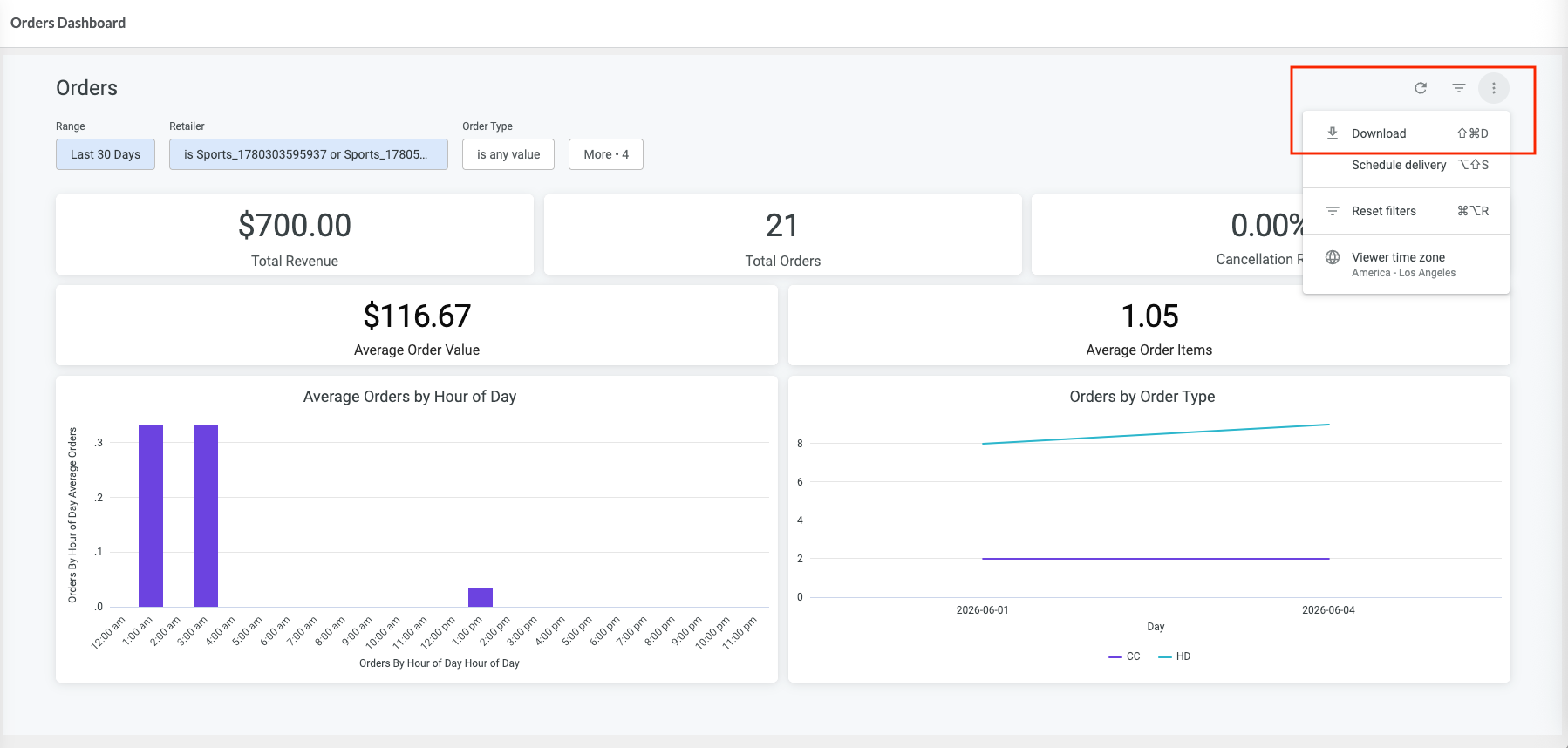
Open a dashboard.
Click Dashboard Actions (⋮).
Select Download.
Configure the export
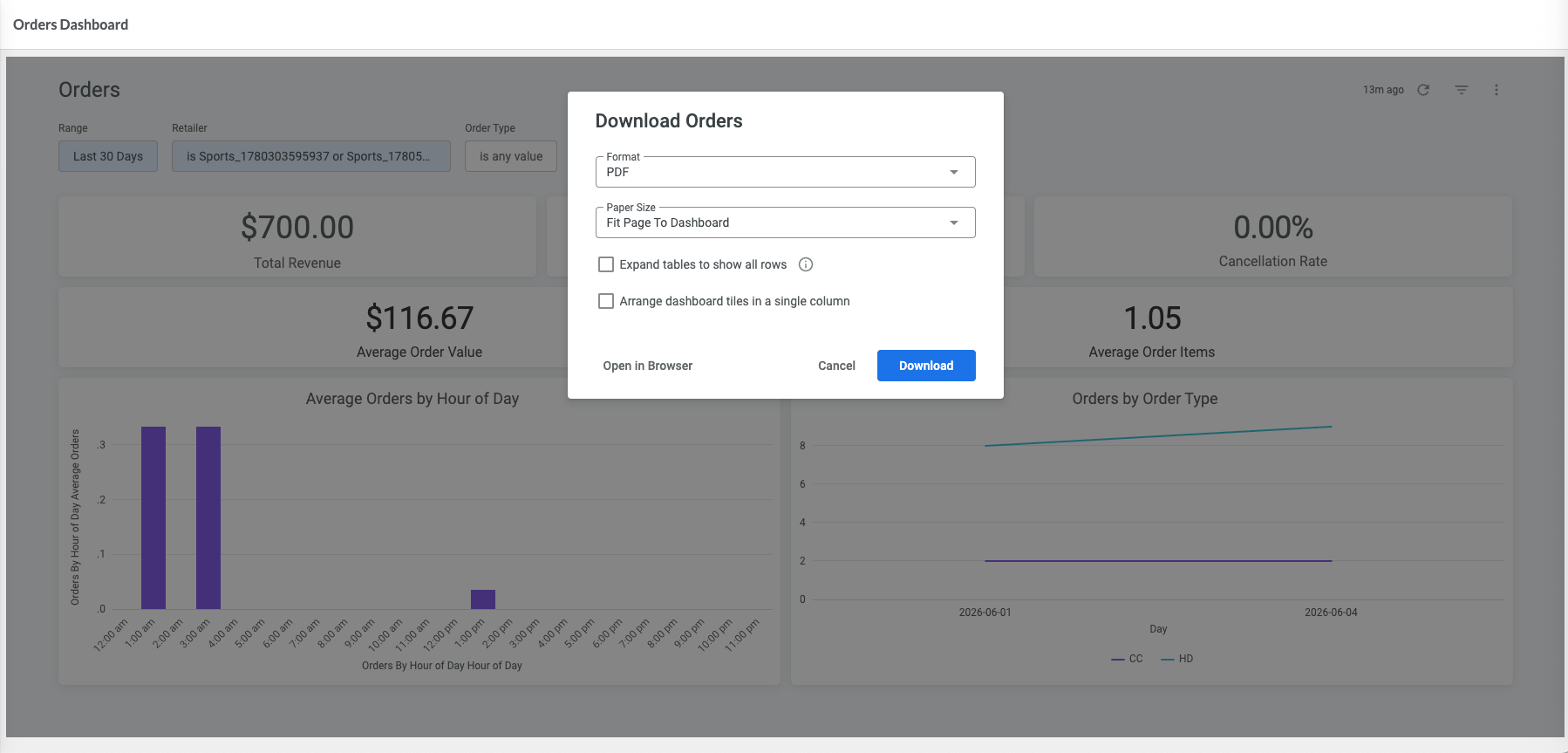
Select the required export format. Dashboards can be exported as either PDF or CSV files.
(Optional) Configure additional export options.
Click Download.
Preview Before Downloading
Alternatively, click Open in Browser to preview the exported dashboard in a separate browser tab before downloading or printing it.
Result
The dashboard is exported using the currently applied dashboard filters and settings.
Export Detailed Records
Use this option to export records that contribute to a specific metric.
Open the detailed view
Click a metric value on the dashboard.
Review the records displayed in the detailed view.
Export the records
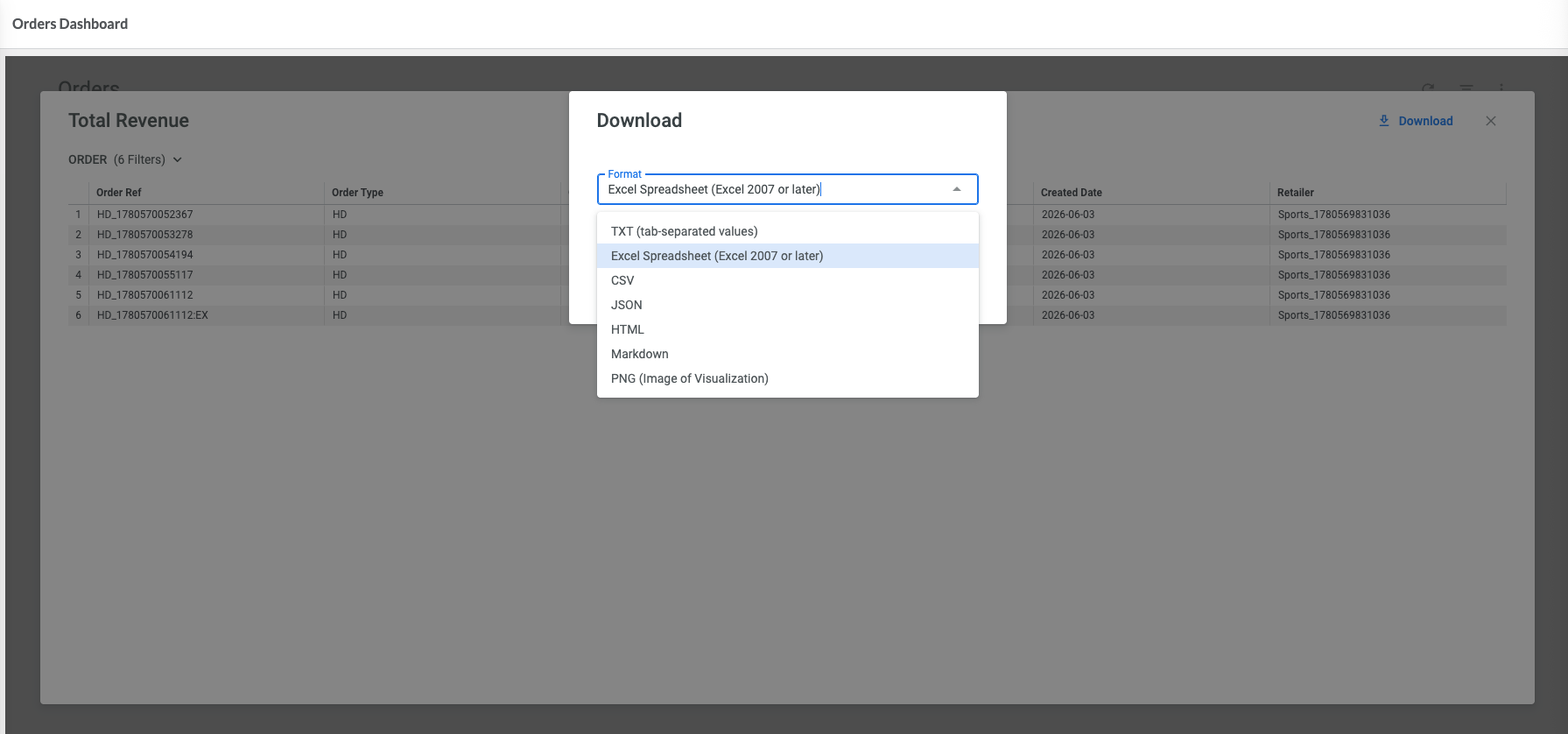
Click Download in the detailed view.
Select the required export format. Detailed records can be exported in a variety of formats, including Excel, CSV, TXT, JSON, HTML, Markdown, and PNG image files.
(Optional) Configure advanced export options.
Click Download.
Advanced export options
Depending on the selected format, additional options may be available, such as:
formatting of exported values;
number of rows to include;
inclusion of visualization settings.
Alternative Export Method
To export the data behind a metric without opening the detailed view, open the tile actions menu (⋮) and select Download data.
Result
The records contributing to the selected metric are exported in the chosen format.
Next Steps
After exporting data, you can review it in a spreadsheet, reporting, or other business analysis tools. To automatically monitor important metrics, see Setting Up Alerts in Analytics Studio.