Configuring Fluent Analytics Studio
How-to Guide
Authors:
Yulia Andreyanova, Alexey Kaminskiy
Changed on:
24 June 2026
Key Points
- Fluent Analytics must be enabled for the account before Analytics Studio can be configured.
- User access is controlled through Fluent Platform permissions.
- Analytics Studio dashboards are displayed using the Analytics Dashboard Component.
- Dashboard behavior is configured through the settings.
- Hidden filters can be used to apply business-specific reporting logic without exposing filters to end users.
Prerequisites
Steps
 Configure User Permissions
Analytics Studio access is controlled through a combination of Analytics permissions and navigation roles. Both must be configured: Analytics permissions determine which dashboards and retailer data a user can access, while navigation roles determine which pages are visible in the UI.Assign the following permissions at either Account level (all retailers) or Retailer level (specific retailer IDs):
`ANALYTICS_VIEW`for all users who need access to Analytics Studio`ORDER_REPORT`for users who need access to Orders, Fulfilments, and Returns dashboards`INVENTORY_REPORT`for users who need access to Inventory dashboards
Configure Dashboard Settings
Analytics Studio dashboards are displayed using the Analytics Dashboard Component. Each dashboard is controlled by a setting created at the Account level.Create the following settings at the Account level:
Each setting defines the dashboard identifier to load and any filter configuration applied when the dashboard is initialized for a user.Dashboard filter configuration can be used to:
| Dashboard | Setting |
| Orders | `fc.analytics.dashboard.orders` |
| Fulfilments | `fc.analytics.dashboard.fulfilments` |
| Inventory | `fc.analytics.dashboard.inventory` |
| Returns | `fc.analytics.dashboard.returns` |
- override default dashboard filter values;
- define visible filters that users can modify;
- apply hidden filters used for business-specific reporting logic.
Configure Security Headers
Analytics Studio dashboards are rendered inside embedded sessions. The application depends on a correctly configured Content Security Policy (CSP) to load dashboards. If the required Analytics domains are not included, dashboards will fail to load without a clear error.Add the required Analytics domains to your application's CSP configuration via the
`fc.mystique.security.headers` setting. See the `fc.mystique.security.headers` setting for the exact domains and the required configuration format.Validate the Configuration
After completing the configuration, verify each area in sequence:
Application Access
- Users have the
`ANALYTICS_VIEWER`role. - Users have the
`ANALYTICS_VIEW`permission. - Analytics Studio appears in the application menu (if configured).
Dashboard Page Access
- Orders page is visible to users with the
`ORDER_MANAGER`role. - Fulfilments page is visible to users with the
`FULFILMENT_MANAGER`role. - Returns page is visible to users with the
`RETURNS_MANAGER`role. - Inventory page is visible to users with the
`INVENTORY_MANAGER`role.
Data Access
- The Orders, Fulfilments, and Returns dashboards return data to users with the
`ORDER_REPORT`permission. - Inventory dashboards return data for users with the
`INVENTORY_REPORT`permission. - Users cannot access retailer data outside their assigned permission scope.
- Dashboard results match the expected retailer assignments.
Dashboard Configuration
- The correct dashboard loads for each Analytics Studio page.
- Hidden filters are applied and not visible in the UI.
- Dashboard metrics return expected results for the configured filter logic.
Troubleshooting
User Cannot Access Analytics Studio
Verify that:- Fluent Analytics has been enabled for the account.
- The user has been assigned the
`ANALYTICS_VIEWER`role. - The user has logged out and back in after any role or permission changes.
Dashboard Page Is Not Visible
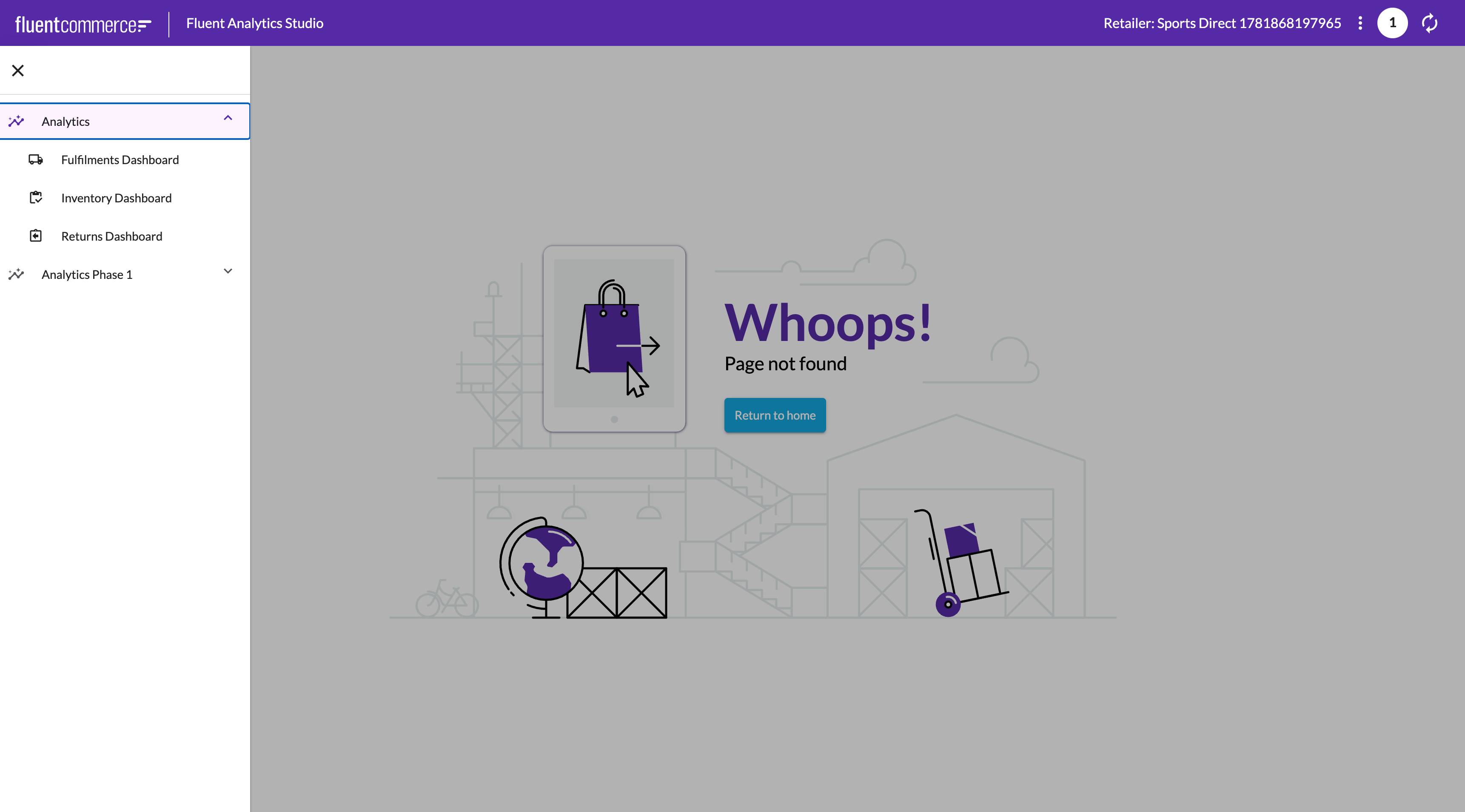 Verify that:
- The user has been assigned the required dashboard page role:
`ORDER_MANAGER`for Orders;`FULFILMENT_MANAGER`for Fulfilments;`RETURNS_MANAGER`for Returns;`INVENTORY_MANAGER`for Inventory.
- The user has been assigned the
`ANALYTICS_VIEWER`role.
Dashboard Fails to Load
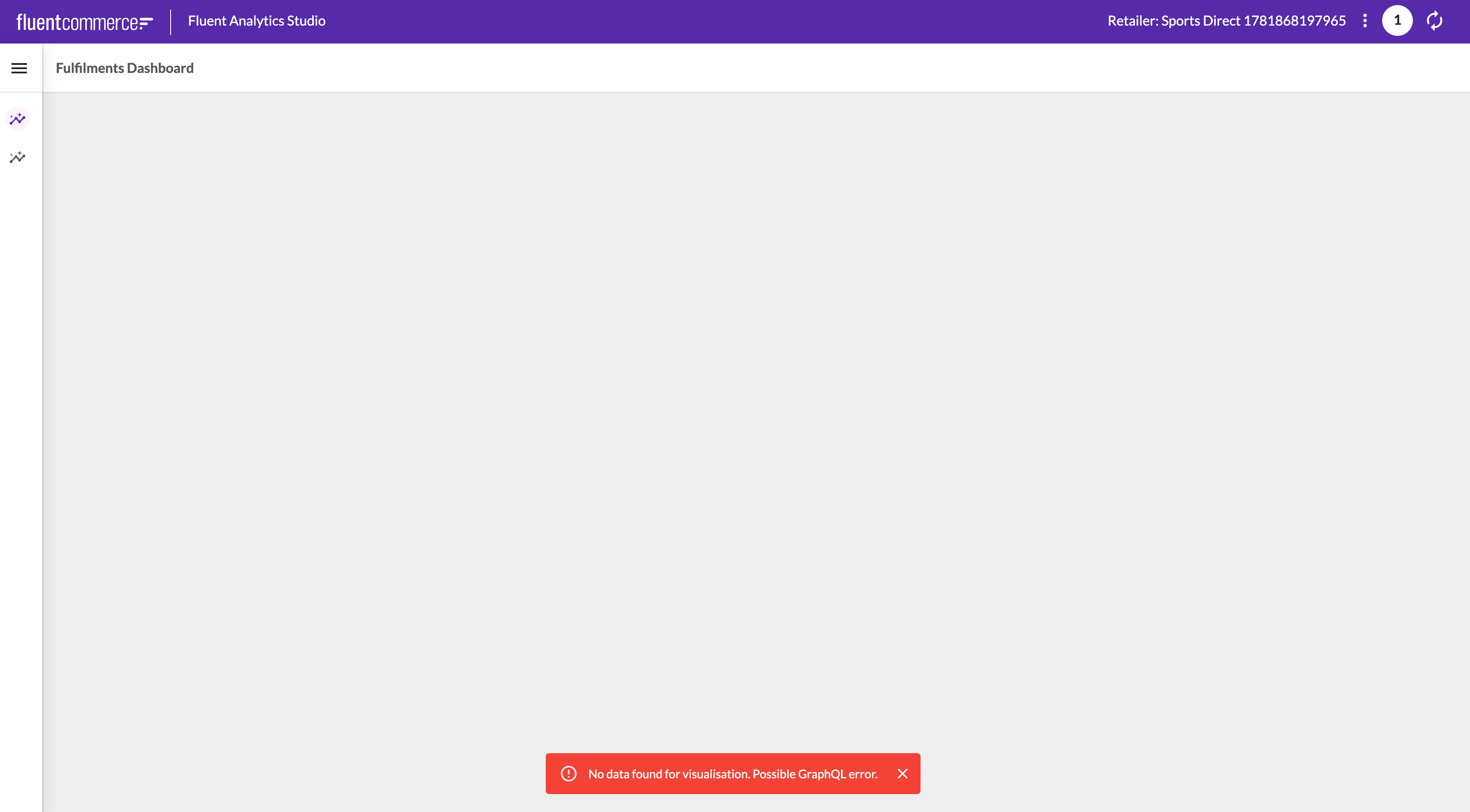 Verify that:
- The user has been assigned the
`ANALYTICS_VIEW`permission. - The corresponding dashboard setting exists.
- The dashboard configuration references a valid dashboard identifier.
- The dashboard setting contains a valid filter configuration.
- The dashboard loads successfully without configuration errors.
Dashboard Displays No Data
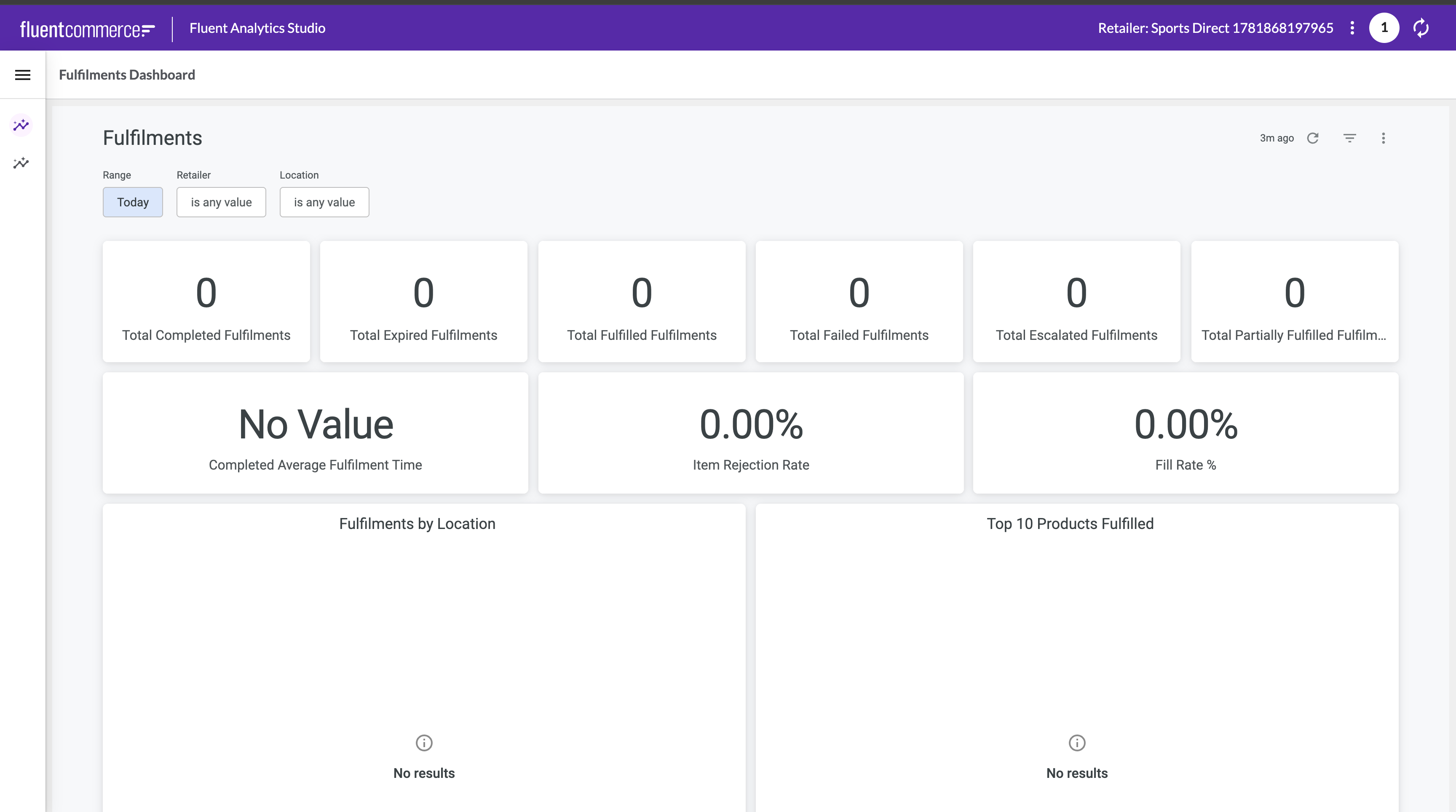 Verify that:
- The user has been assigned the required analytics permission:
`ORDER_REPORT`for Orders, Fulfilments, and Returns dashboards;`INVENTORY_REPORT`for Inventory dashboards.
- Retailer assignments are configured correctly.
- Permission scopes are configured as expected.
- Data exists for the selected time period and filters.