The labs in this article will walk you through the following scenarios: Fulfill CC, HD Order with Store-to-Store Transfer and Short Pick, Reassignment, and Multi-shipment.
Key points
This lab cover store to store transfers and ship from store case scenario.
You would need a Store's dedicated user to log into Fluent Store and run the different operations in that store.
All necessary master data can be set up via API or via Fluent OMS, as usual.
Request a Training Account
You will need a Fluent Commerce Training Account to complete the Knowledge Tracks labs. Follow the steps in the guide to receive one.
Download Postman Collection
To proceed with the Lab, you need to download the required Postman Collection associated with this course. Right click this link to save the file to your computer
Lab - Fulfil CC Order with Store-to-Store transfer
Learn how an item can be fulfilled by a store that is not the pick up location, manage the arrival, and customer collection at the pick up location.Follow the steps below carefully.Lab steps:
Postman Application v. Browser
We do not recommend using the web-only version of Postman, it can result in CORS (Cross-Origin Resource Sharing) errors during the course labs!
In Postman, authenticate the FC_FASHION Retailer Admin: Fluent Auth - Retailer FC_FASHION
Note: If you completed the Order Orchestration Split Fulfilment Lab successfully, the Inventory levels should still be correct for this lab. If not, run the Fluent Learning - FN-OO1 Labs > FN-OO1-L02: Split Fulfilment CC Order > Load Inventory for Split Fulfilment request before continuing with this lab.
Execute the Fluent Learning - FN-ST1 Labs > FN-ST-L01: Create and Fulfil a CC Order from another Store > Create CC Order for Store to Store Fulfilment request to create an Order for an item NOT in stock at the pickup location
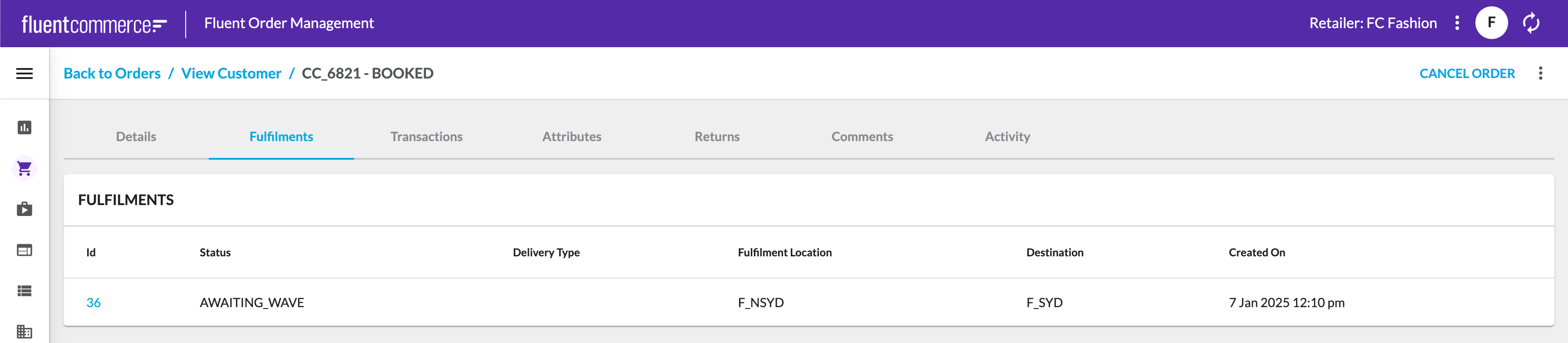
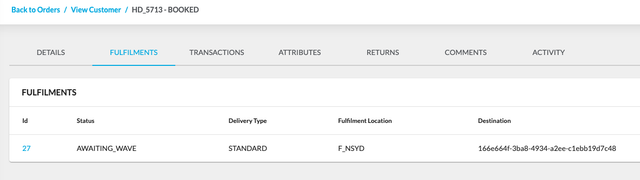
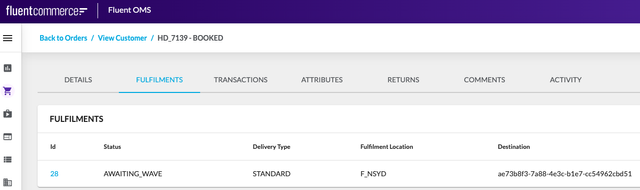
Confirm that the Fulfilment for the Order reflects a different Fulfilment Location and Destination:
Log in to Fluent Store FC Fashion North Sydney: Username: F_nsyd@fcfashion.com.au Password: 1234
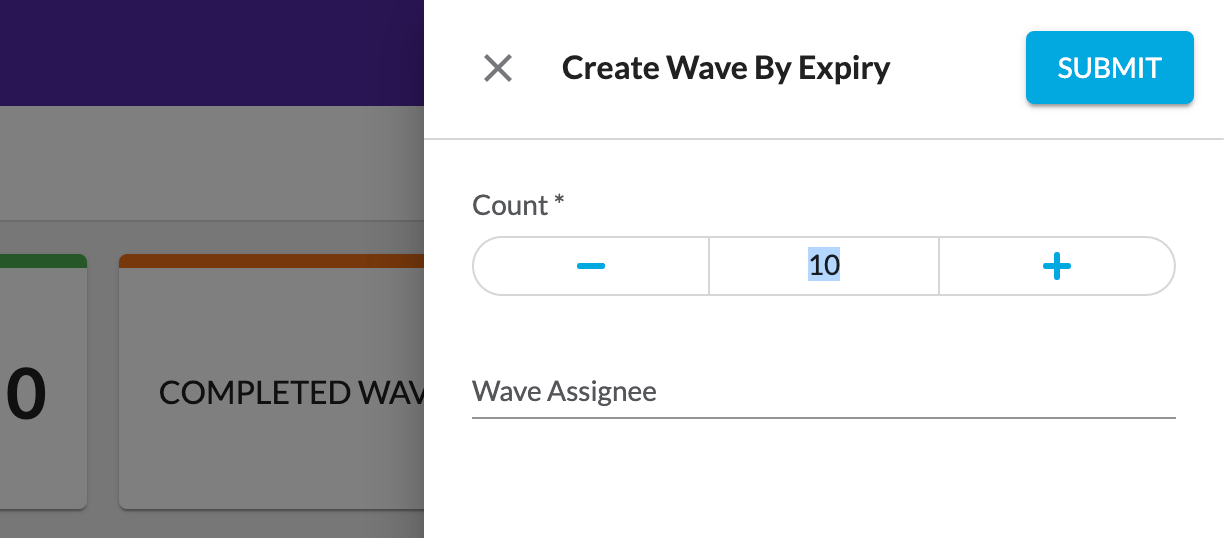
Create a Wave By Expiry to fulfil the order at North Sydney
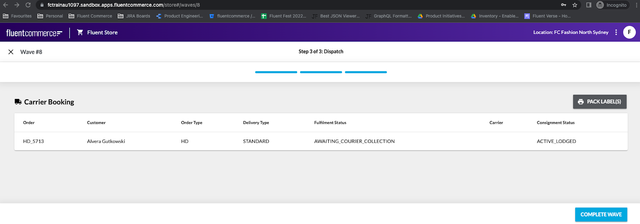
On the Dispatch Step, note the ACTIVE_LODGED status for Courier Collection
Since we don't have proper Carrier integration on the Training Accounts, click Complete Wave to simulate the Courier has collected the item from this store
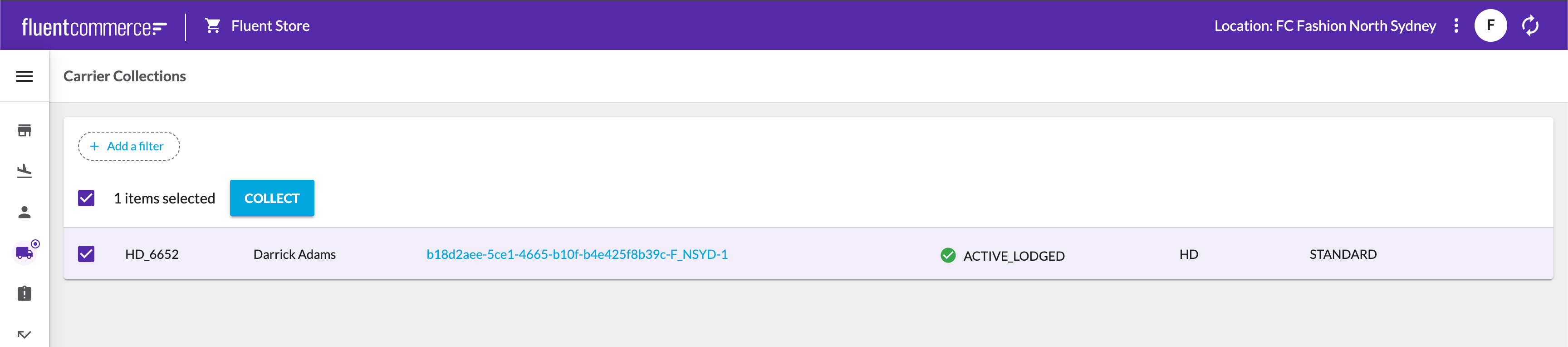
After Wave is complete, go to Carrier Collections screen. Select the entry and click on COLLECT button
Log out of Fluent Store, and log in to the Sydney Store: Username: F_syd@fcfashion.com.au Password: 1234
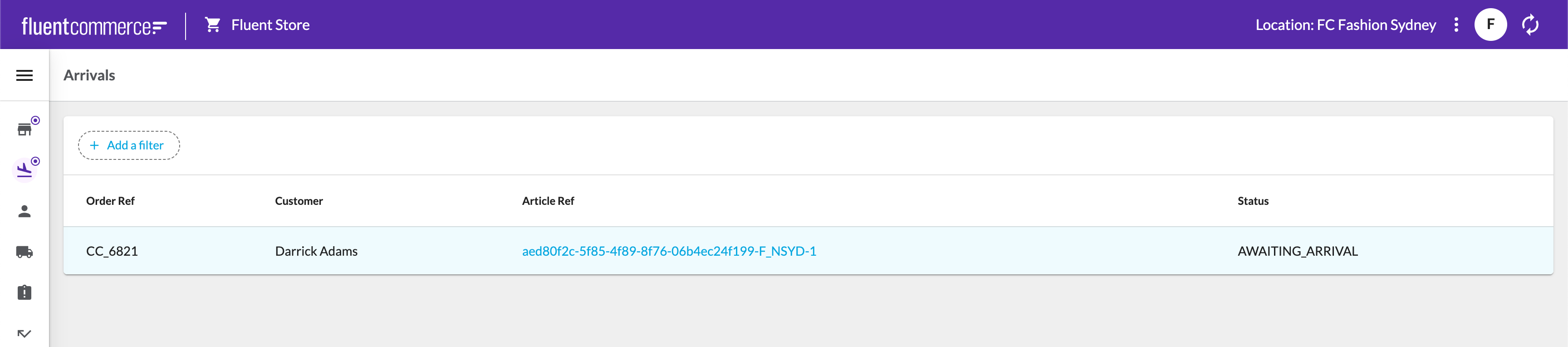
On the Arrivals screen, notice the parcel is awaiting arrival from the Carrier:
Click into the Order, and Mark as Arrived to simulate the Carrier has delivered the parcel to the Sydney store
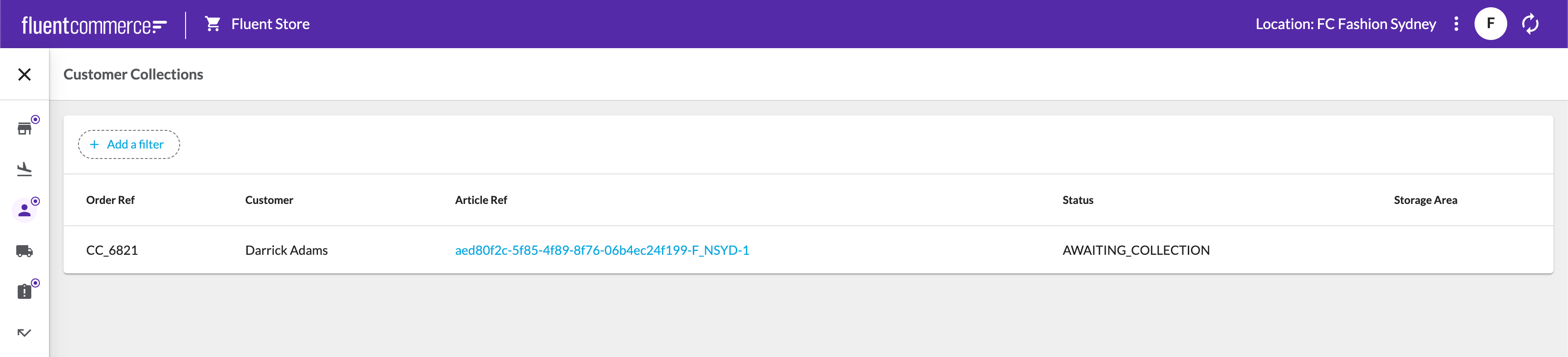
Now go to the Customer Collections screen to see the Order is ready and waiting for the Customer
Once the Customer arrives to pick up their order, click on the Collect button to complete the Order
Lab - Fulfil HD Order From Store
Learn how to expand the HD Network, by adding a new Store location to augment your ATS for HD orders. Then create and fulfil a HD order from Store and manage the Courier Collection process.Follow the steps below carefully.Lab steps:
Go to Fluent OMS > Stores and select Stores
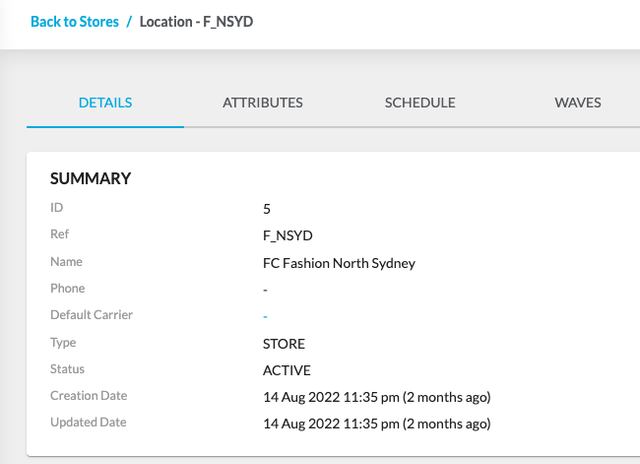
Click on F_NSYD Store. Copy the Store ID as below:
Go to Fluent OMS > Stores and select Networks. Click on FC_GROUP_HD network then EDIT
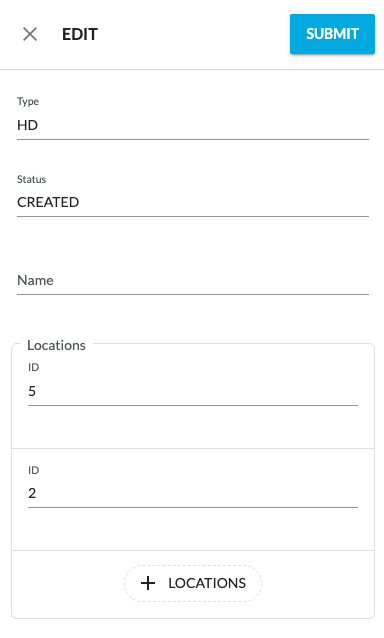
Click on “+” icon to add a Location. Add the Location ID you copied from the previous steps, e.g: “5” (Note: Your Location ID may be different to the example) and click on “Submit” button to save the changes.
F_NSYD Location should be added to the network.
Now that the location is added to the network next time an inventory update takes place involving positions in that location the Virtual Catalog attached to the FC_GROUP_HD network will see new virtual position created for all the SKUs in F_NSYD. Lets simulate an inventory load.
Go to Postman. In left menu select: Fluent Learning: FN-ST1 Labs > Authenticate FC_FASHION Retailer > Fluent Auth - Retailer FC_FASHION, and click SEND to authenticate.
In left menu select: Fluent Learning: FN-ST1 Labs > FN-ST-L02: Create and Fulfil an HD Order from a Store
Select Create an Inventory Batch Job and click SEND
Select Load Inventory for New HD Store Location and click SEND
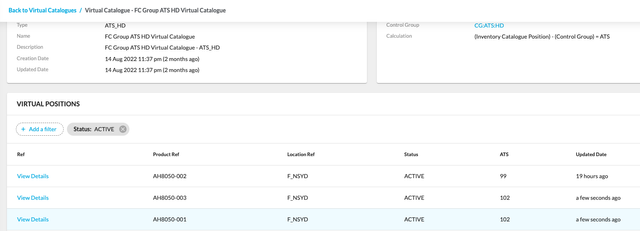
Check in Fluent OMS that all F_NSYD virtual positions are created and active in the Virtual Catalogue VC:ATS:HD
In Postman, select Create HD Order for Store Fulfilment and click SEND
Check that you get an Order ID and Ref in response
Go to Fluent OMS > Orders and check your Order.
Check that the associated fulfilment is allocated to F_NSYD
Now logon to Fluent Store with the user credential for F_NSYD user: Username: F_nsyd@fcfashion.com.au Password: 1234 and pick pack the Order
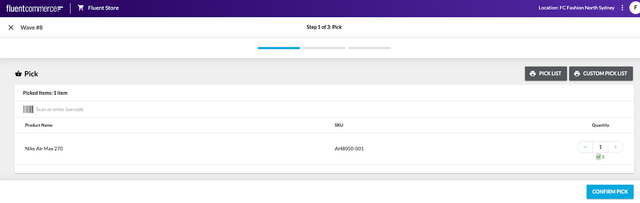
Click on CREATE WAVE BY EXPIRY to start wave creation. Click on SUBMIT to start picking the order item.
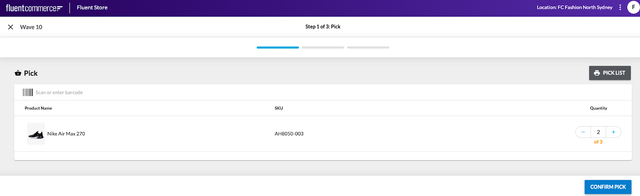
Click on “+” icon to pick the items. Click on the CONFIRM PICK button to submit the picked item.
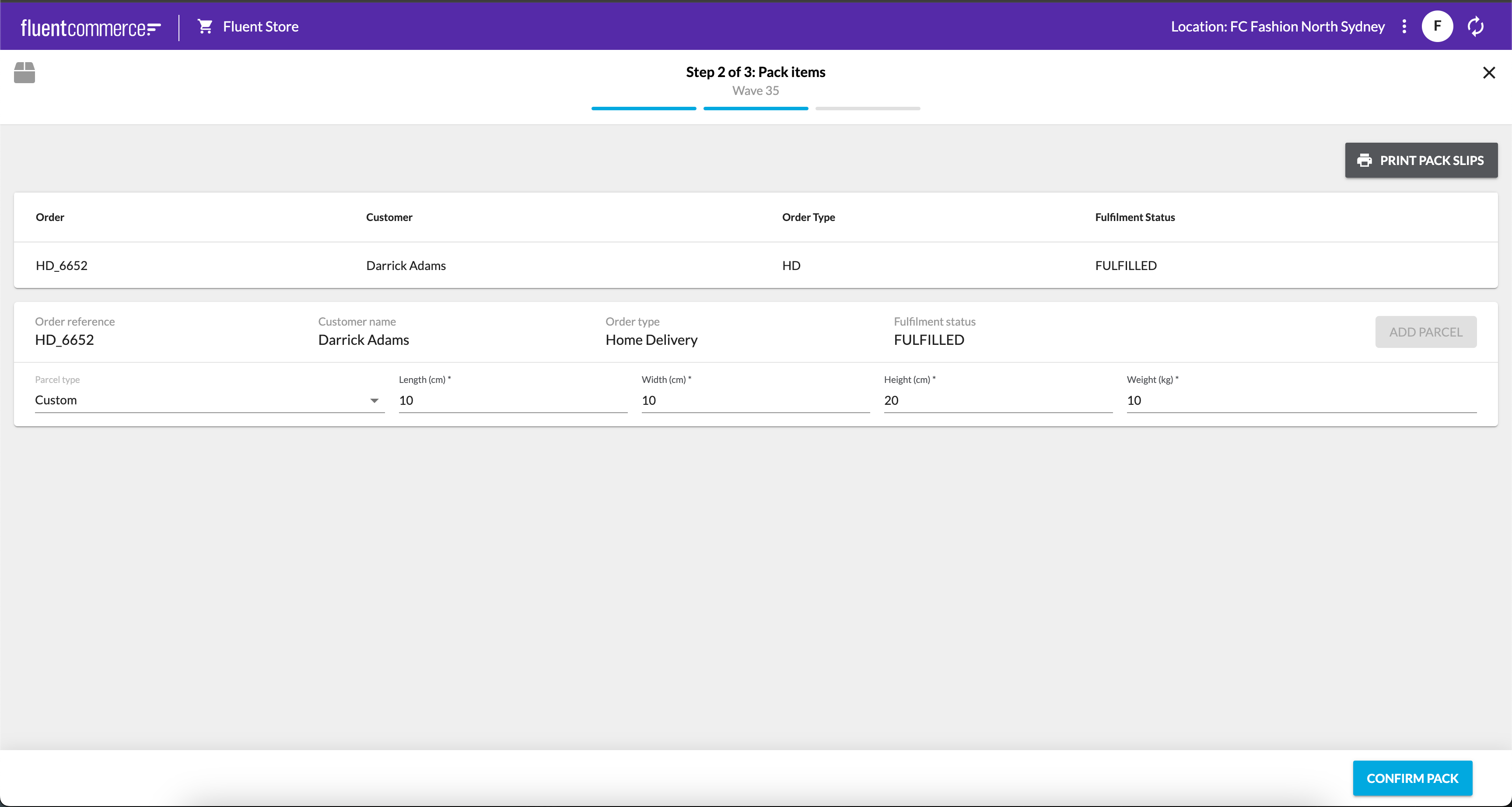
Click on PRINT PACK SLIPS to download the packing slips. Enter the dimensions and weight. Click on CONFIRM PACK to pack the items.
Click on COMPLETE WAVE to complete the wave creation process. Verify that the Consignment Status should be ACTIVE_LODGED and the Fulfilment Status should be AWAITING_COURIER_COLLECTION
Click on the PACK LABEL(s) to download the packed labels
Go to the Carrier Collection screen, select the article to be collected and click on COLLECT button
Lab - Short-pick, Reassignment, Multi-shipment
1. InstructionsLearn how the short pick process works in Fluent Store and how the Order Orchestration, Store Fulfilment and Global Inventory modules work together to reassign the remaining items , to correct the store stock quantities and fulfil a multi-shipment orderFollow the steps below carefully.Lab steps:
In Postman in left menu select: Fluent Learning: FN-ST1 Labs > Authenticate FC_FASHION Retailer > Fluent Auth - Retailer FC_FASHION, and click SEND to authenticate.
Select Fluent Learning: FN-ST1-Labs > FN-ST-L03: Create Order for Short Pick and click SEND
Check that you get an Order ID and Ref in response
Go to Fluent OMS > Orders and check your Order. Check that the associated fulfilment is allocated to F_NSYD
Now logon to Fluent Store with the user credential for F_NSYD user: Username: F_nsyd@fcfashion.com.au Password: 1234 and pick pack the Order
Click on CREATE WAVE BY EXPIRY to start wave creation. Click on SUBMIT to start picking the order item
Click on “+” icon to pick the items. At the Pick step, only pick 2 items, reject 1 item and confirm
Click on the CONFIRM PICK button to submit the picked item. Confirm on the pop up screen
Check that the fulfilment in Pack screen shows a status PARTIALLY_FULFILLED
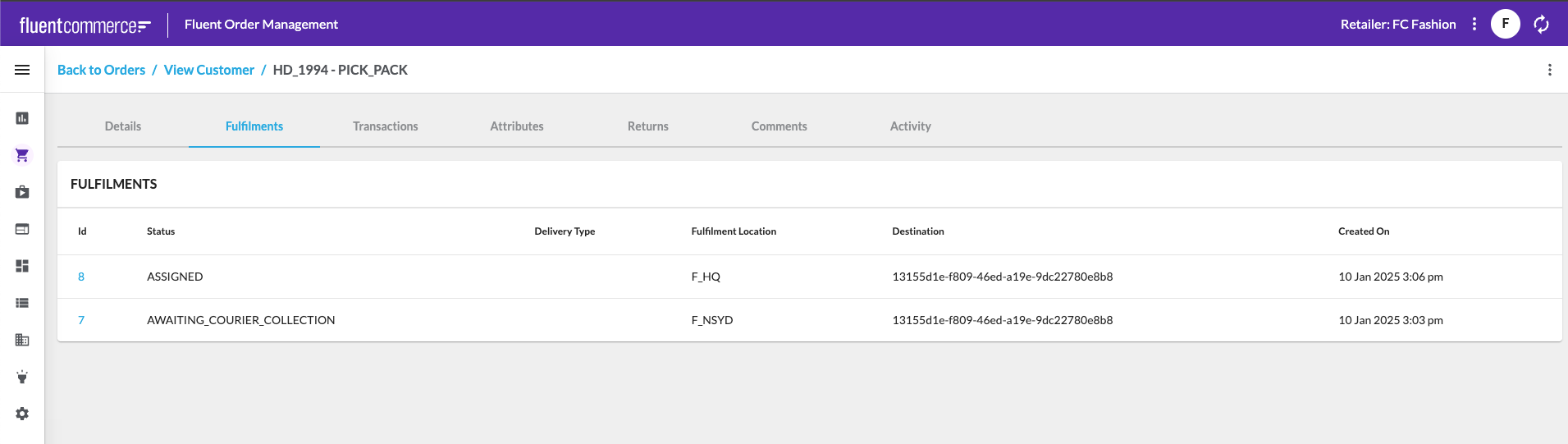
Check your order and fulfilment in Fluent OMS . Observe that a new fulfilment is created and allocated to the next closest store