Sourcing Audits in Fluent OMS Web App
Essential knowledge
Intended Audience:
Business User
Authors:
Kirill Gaiduk, Uladzislau Baranau
Changed on:
3 Sept 2026
Overview
The Sourcing tab on the Order Detail screen shows how and why an order was sourced. It reads the order's Sourcing Audit records and presents each Sourcing Request that the Responsive Sourcing Framework ran, together with the Strategies that were evaluated or skipped, the Locations that were considered and how they scored, and the Location(s) that were selected.The tab is read-only and appears only for users who hold the required permissions.Use it to investigate an unexpected sourcing outcome, confirm how a change to a Profile or Strategy behaved, or explain a fulfillment decision.Key points
- Prerequisites: Understand what Sourcing Auditability captures and how audit records are stored. See the Sourcing Auditability Overview
- The tab appears only for users who hold
`SOURCINGAUDIT_VIEW`. The resolved Sourcing Profile is shown only to users who also hold`SOURCINGPROFILE_VIEW` - Sourcing Audit records are immutable and cannot be changed from the interface
- Each row in the Sourcing Requests list is one Sourcing Request. A single order can produce more than one Sourcing Request
- The tab retrieves audit data through the
`sourcingAudits`query for the current Order and its Fulfillment Choices
Where to Find the Sourcing Tab
Open Order Management, select an order from the Orders list, then open the Sourcing tab on the Order Detail screen. The tab sits in the tab bar alongside Details, Fulfillments, Transactions, Attributes, Returns, Comments, and Activity.
Permissions
Access to the Sourcing tab and its data is controlled by two permissions:`SOURCINGAUDIT_VIEW`- required to see the Sourcing tab and read Sourcing Audit records`SOURCINGPROFILE_VIEW`- required to see the resolved Sourcing Profile and version on each request
`SOURCINGAUDIT_VIEW` do not see the Sourcing tab.Sourcing Requests
The Sourcing Requests list shows one row for each Sourcing Request. Each row summarizes the request:| Column | Description |
| Entity Type | The type of entity the request sourced - `ORDER` or `FULFILMENT_CHOICE` |
| Entity Ref | The reference of that entity |
| Requested At | When the Sourcing Request ran |
| Strategy Type | `PRIMARY` or `FALLBACK` |
| Sourcing Profile | The resolved Sourcing Profile and version, shown only with `SOURCINGPROFILE_VIEW` |
| Active Strategy | The Strategy that produced the Fulfillments |
| Items | The number of items the request sourced |
| Fulfillments Allocated | The number of Fulfillments the request produced |
| Status | `FULLY_SOURCED`, `PARTIALLY_SOURCED`, or `NOT_SOURCED` |

Request Summary
When you expand a Sourcing Request, a set of summary tiles reports its headline figures:- Fulfillments Allocated - the number of Fulfillments produced
- Locations Considered - the number of distinct Locations evaluated across all Strategies
- Strategies Skipped - the number of Strategies skipped because a Condition failed
- Strategies Evaluated - the number of Strategies whose Conditions passed and that were evaluated

Items for Sourcing
The Items for Sourcing table lists the items the request tried to source:| Column | Description |
| Order Item Ref | The order item reference |
| Product Ref | The product reference |
| Product Name | The product name |
| Quantity | The quantity requested |

Strategy Evaluation
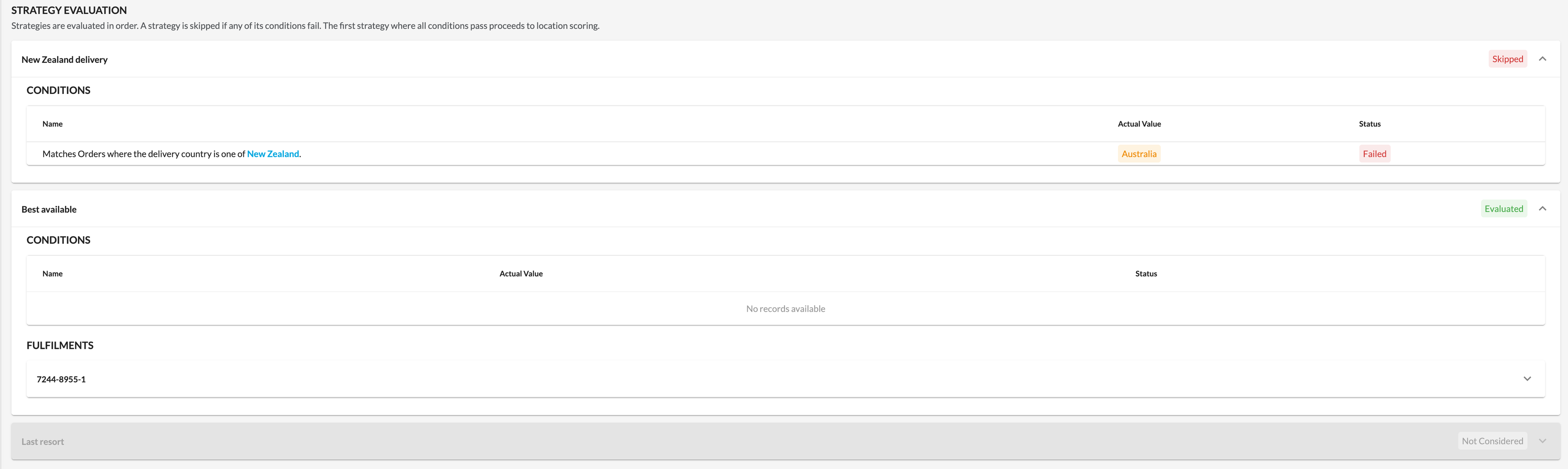
The Strategy Evaluation section lists the Strategies in the order they were evaluated. Strategies run in priority order, a Strategy is skipped if any of its Conditions fail, and the first Strategy whose Conditions all pass proceeds to Location scoring.Each Strategy shows its outcome:- Evaluated - the Strategy's Conditions passed and the Strategy was evaluated
- Skipped - at least one Condition failed, so the Strategy did not run
- Not Considered - an earlier Strategy already passed its Conditions, was evaluated, and created Fulfillment(s), so this Strategy was not reached
Fulfillments and Location Comparison
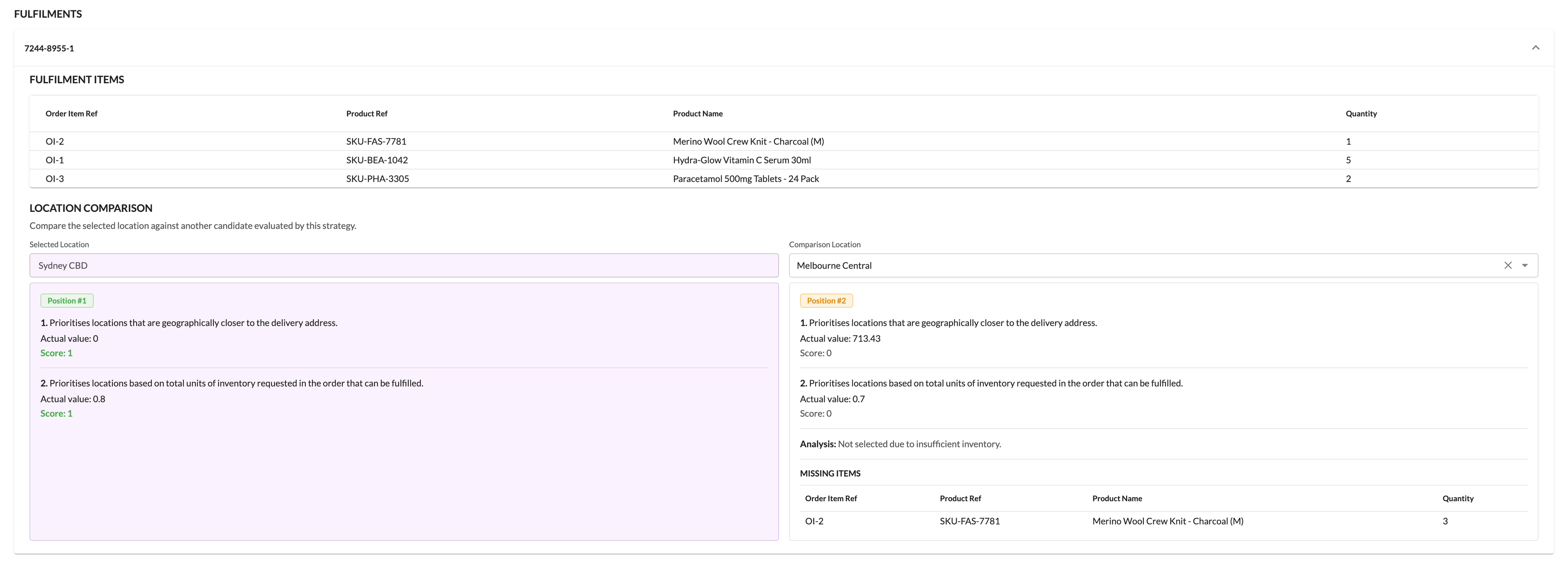
For the Strategy that produced the Fulfillments, the tab lists each Fulfillment by reference. Expand a Fulfillment to see the items it covers and to compare the Locations the Strategy evaluated.Location Comparison lets you compare the selected Location against another candidate that the same Strategy evaluated.For each Location, the comparison shows:- Its ranking position within the Strategy's candidate list
- Each Criterion, its Score (the normalized value), and, where available, the Actual value before normalization
- Any missing items the Location could not fulfill