Enable sorting for the Print Button
How-to Guide
Authors:
Yulia Andreyanova, Kirill Gaiduk
Changed on:
27 July 2026
Key Points
- Configure sorting for any Print Button using the sort property and a matching setting
- Use
`arrayPath`to define which array should be sorted - Use one or more sorting rules to define sorting priority
- If sorting is not configured, the Print Button behavior remains unchanged
- Sort on fields from transformed attribute data using dot-separated field paths (for example,
`sku.attributes.byName.Size`)
Prerequisites
Steps
 Prerequisites
Before configuring sorting:
- Ensure the Print Button component is configured in the manifest
- Ensure the printable document template is already configured using the
`setting`property - Create a setting that contains the sorting configuration
Configure the Print Button
Add the
`sort` property to the Print Button configuration.The value of the `sort` property must match the name of the setting that contains the sorting configuration.Configure the sorting setting
Create a setting with the same name as the value specified in the Print Button
`sort` property.Configuration properties
| Property | Type | Required | Default | Description |
`arrayPath` | `string` | no | none | Dot-separated path to the array within the printable data that should be sorted, for example `items` |
`sort` | `array` | yes | none |
|
`field` | `string` | yes | none |
|
`order` | `string` | no | `ASC` |
|
`type` | `string` | no | `string` |
|
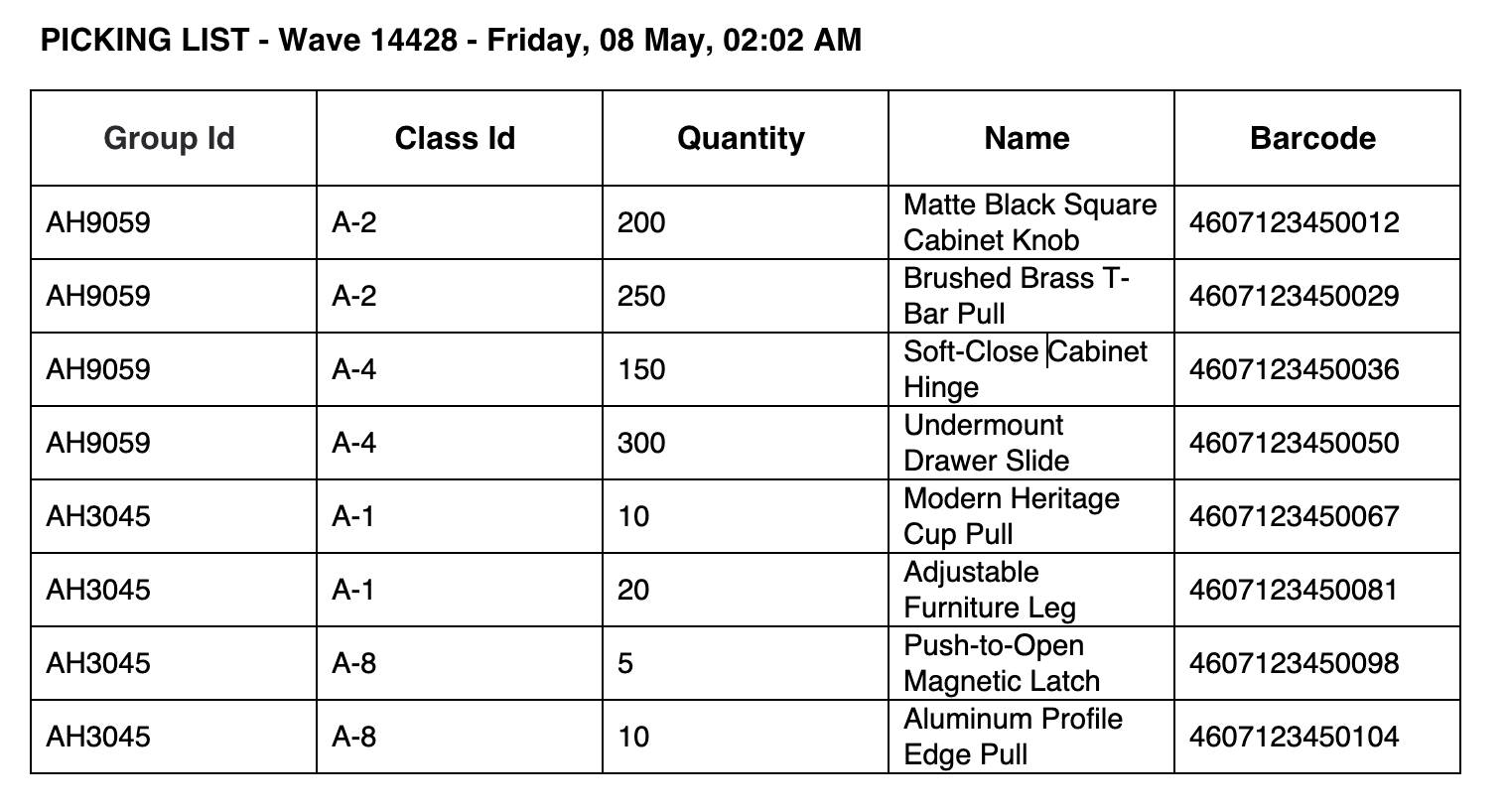
Multi-field sorting
The following example applies sorting by
`node.groupId` in descending order first, then by `node.classId`, and finally by `node.qty` as a number.Sorting rules are applied in the order they appear in the `sort` array.