Switch Store Locations in Fluent Store
How-to Guide
Author:
Yulia Andreyanova
Changed on:
26 Feb 2026
Key Points
- Switch between locations directly from the top navigation bar.
- Only locations assigned to your user role are available.
- Your active location determines which data and actions are visible.
- If your device is configured with a predefined location, it may be applied automatically when you log in.
Steps
 Prerequisites
- Fluent Store is enabled.
- The context switcher is enabled for Fluent Store.
- Your user has access to multiple locations.
Verify Available Locations
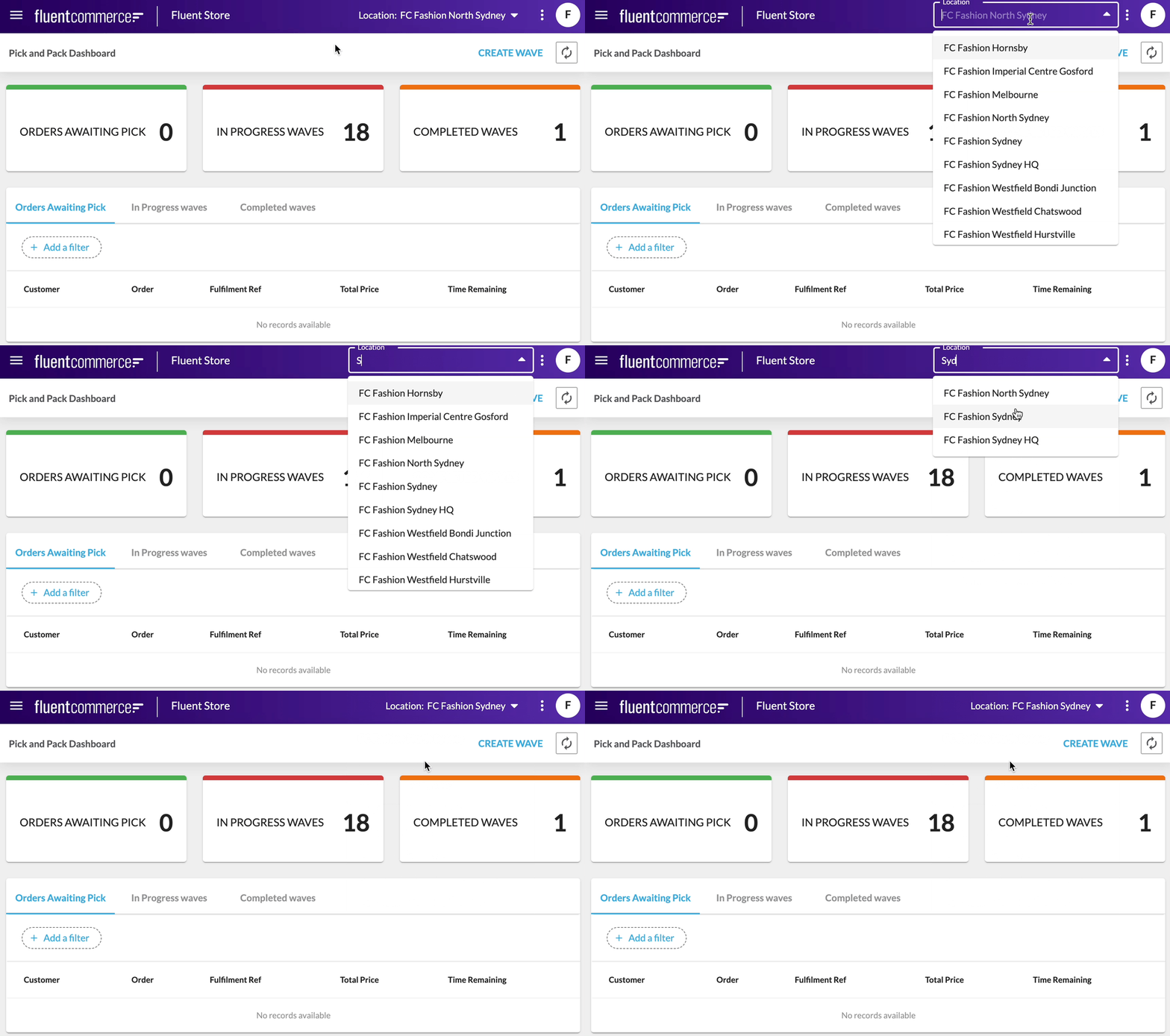
Log in to Fluent Store. If you have access to multiple locations, the active location is displayed in the top navigation bar. Select the location name to open the dropdown list of available locations.
Change Active Location
Choose a location from the list.The application refreshes and loads data for the selected location.