Configuring and Extending Fluent UI Using AI Accelerated Tooling
How-to Guide
Extend
Author:
Dave Miller
Changed on:
5 Mar 2026
Key Points
- Component implementation can be difficult, as it requires coding knowledge
- Learn how to customize, add and create a new UI component using AI accelerated tooling
Prerequisites
Steps
 Also ensure you have
- A sandbox environment
- Any IDE
Connect Claude to the Builder MCP server
Follow the guide included above to set up your connection to the Fluent MCP server.
Test the connection
Ask Claude to describe what is in the Order section of the OMS app. It should return with information about the page, such as settings, navigation links, etc.
Customizing and Changing Existing Components in the Manifest
Add a 'Retailer name' column to the Order List using prompts
Example prompt:
`Can you add a column to the order list showing the retailer name`Claude will:- Identify the correct manifest fragment
- Check whether the required data field is already being fetched
- Update the manifest to add the new column without modifying the GraphQL query if the data is already available
Check the updated Orders page
Refresh the Orders page, and a Retailer (Name) column should now be present, with a list of retailer names populated in it.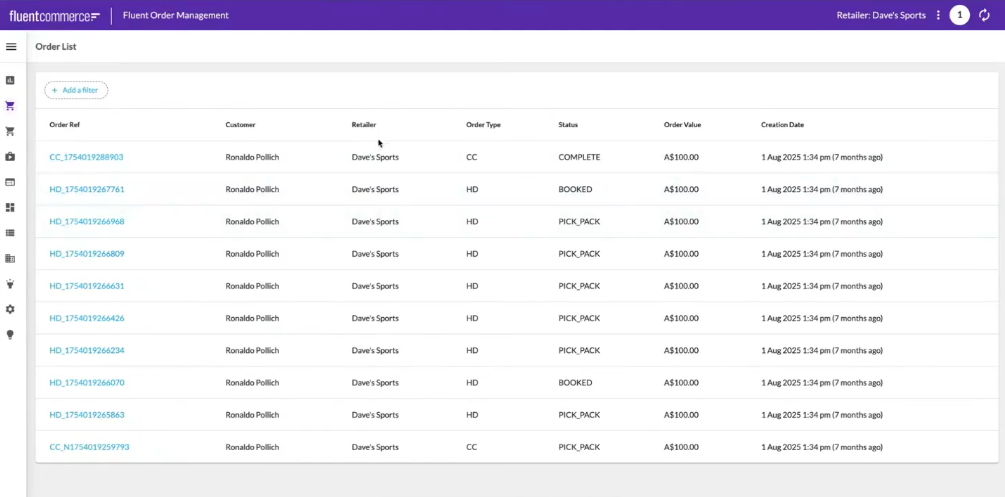
Create a dashboard tile above the table to display the order count
Example prompt:
Claude will:
`Add a dashboard tile above the table showing the order count`Claude will:
- Reference the component library to identify the most suitable component (e.g. a tile metric component)
- Use already-fetched data where possible (e.g.
`orders.edges.length`) - Insert the component into the correct position in the manifest
Refresh the Orders page again
You should see a dashboard tile above the order list showing the total number of orders.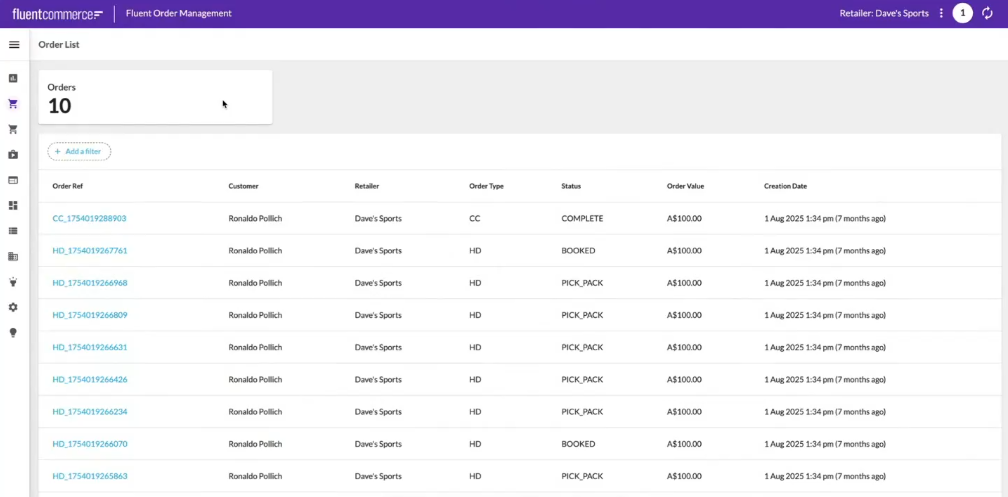
Creating New UI Components
Create a component that shows a Google Map on a card
Example prompt:
`Write me a mystique component that shows a Google Map on a card. Assume the data input is a connection of orders. Show an icon for the fulfillment collection address of each order and zoom accordingly.`Claude will:- Consult the component skill to understand best practices and available building blocks
- Decide on the implementation approach (e.g. wrapping a Google Maps library inside your native card component)
- Generate the full component code
- Write unit tests for the component
- Execute those tests automatically
Implement the component to the Order page
Example prompt:
`Add the component to the top of the Order fragment`Claude will update the manifest and confirm the new structure.Host the local component
As the new component hasn't yet been packaged into a module, host the local component, then refresh your browser to see the newly created component rendering live with real data.
Refresh the Orders page
The map component should now be visible at the top of the page.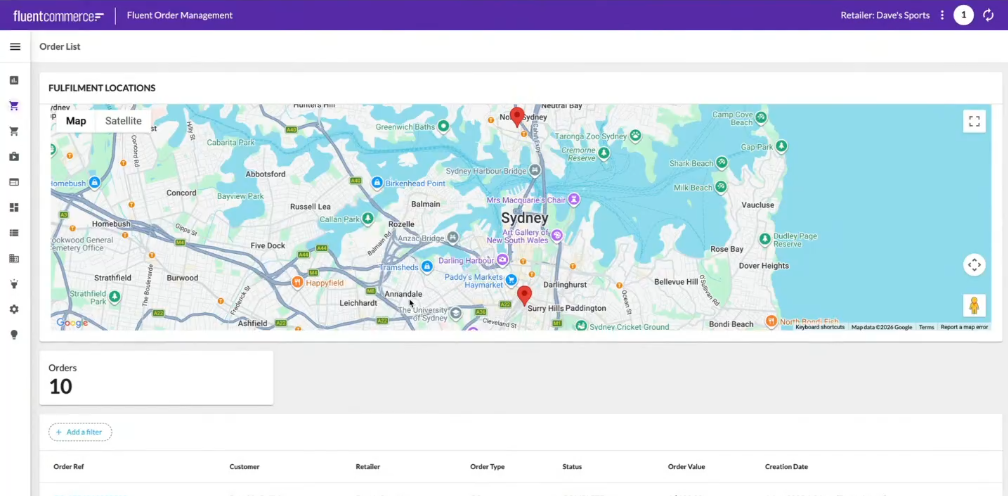
Related content
Except as otherwise stated in the Extend Knowledge Content site policy, the content on this page is licensed under the Creative Commons Attribution 4.0 Licence, and any code samples that appear on this page are licensed under the Apache 2.0 Licence, unless any code sample forms part of the Fluent Order Management Platform code. Neither of these licences apply to any content on any other page that can be reached via a link on this page unless otherwise specified on that other page. If you wish to use any of the Extend Knowledge Content, you must do so in compliance with the licenses referred to above and the Extend Knowledge Content site policy, including attribution in the manner set out on this page.